For arlanix/notification 1.2.0
A WhatsApp subscription sends a topic's messages to one WhatsApp number. Each delivery is one approved template message, including when several notifications arrive together as a digest.
What you need from Meta
Before you subscribe a number, you need:
- A Meta business portfolio that Meta has verified, with a WhatsApp Business Account. Until Meta verifies the business, its numbers cannot send messages, not even Meta's test number.
- A Meta app with the use case Connect with customers through WhatsApp, and the business phone number's Phone number ID.
- A message template in the Utility category, approved by Meta, whose body has exactly two variables,
{{1}}and{{2}}. - A permanent access token of a system user with the
whatsapp_business_messagingpermission. Keep it secret, like a password.
See Meta's WhatsApp Cloud API setup (opens in a new tab) for the app and the number. To verify the business, open your business portfolio's Settings > Security center and click Start verification: Meta asks for the legal name, address and phone number as your registration documents show them, and a document to prove them.
WhatsApp only lets a business start a conversation with an approved template. That is why every notification is a template message.
1. Find the Phone number ID
In your Meta app, open Use cases, then Connect with customers through WhatsApp, and Step 1. Try it out. The Phone Number ID is under the number, beside the Messaging account ID. Copy the Phone Number ID, not the phone number.
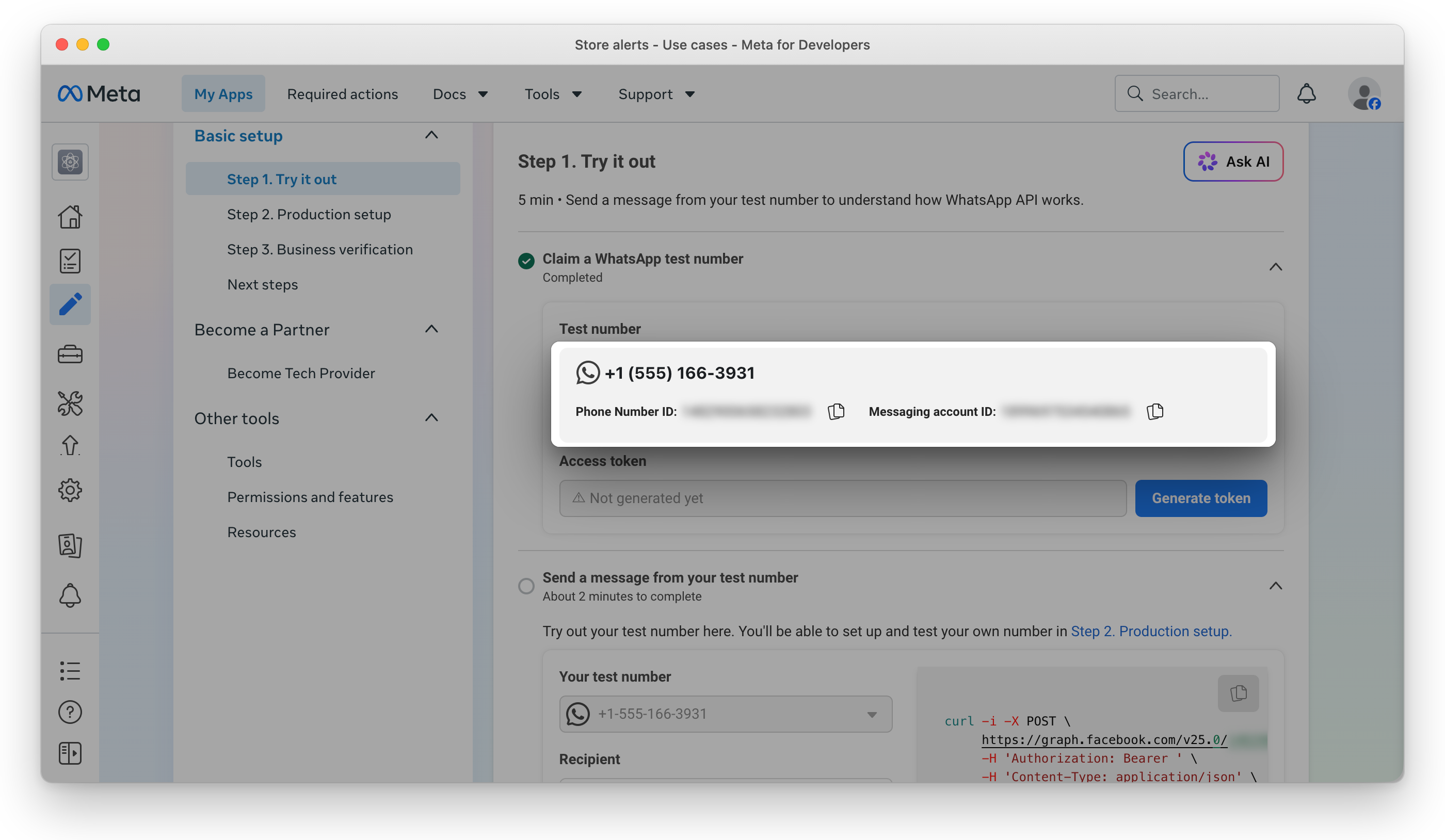
Meta's test number sends only to the numbers you add under Recipient on the same page, five at most. A number of your own, added under Step 2. Production setup, sends to anyone who can receive WhatsApp messages.
2. Make the template
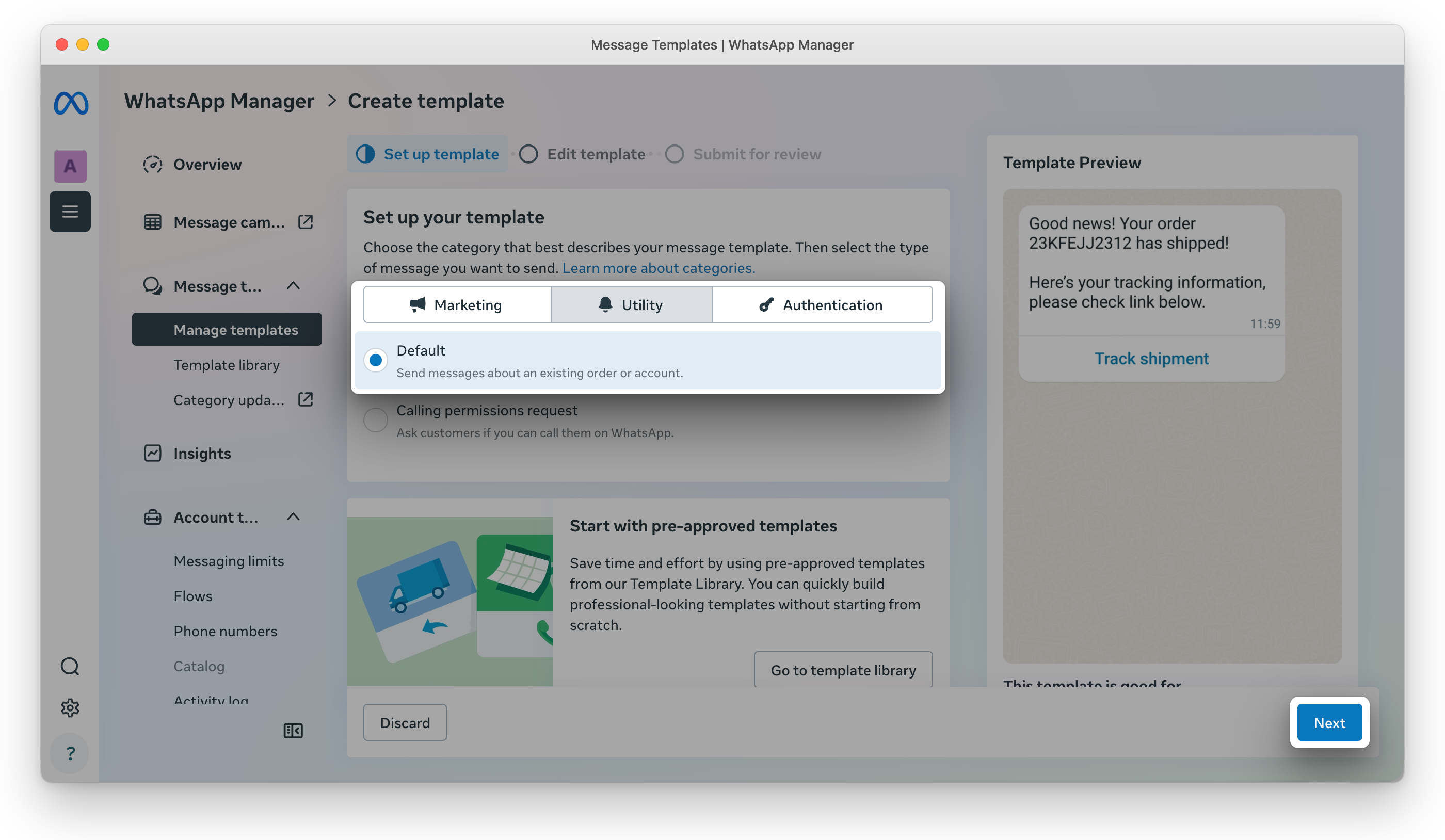
In WhatsApp Manager, open Manage templates and click Create template.
Choose the category Utility and the type Default, then click Next.
Name the template, for example
store_alert, and choose its language, for example English (US). Keep Type of variable set to Number.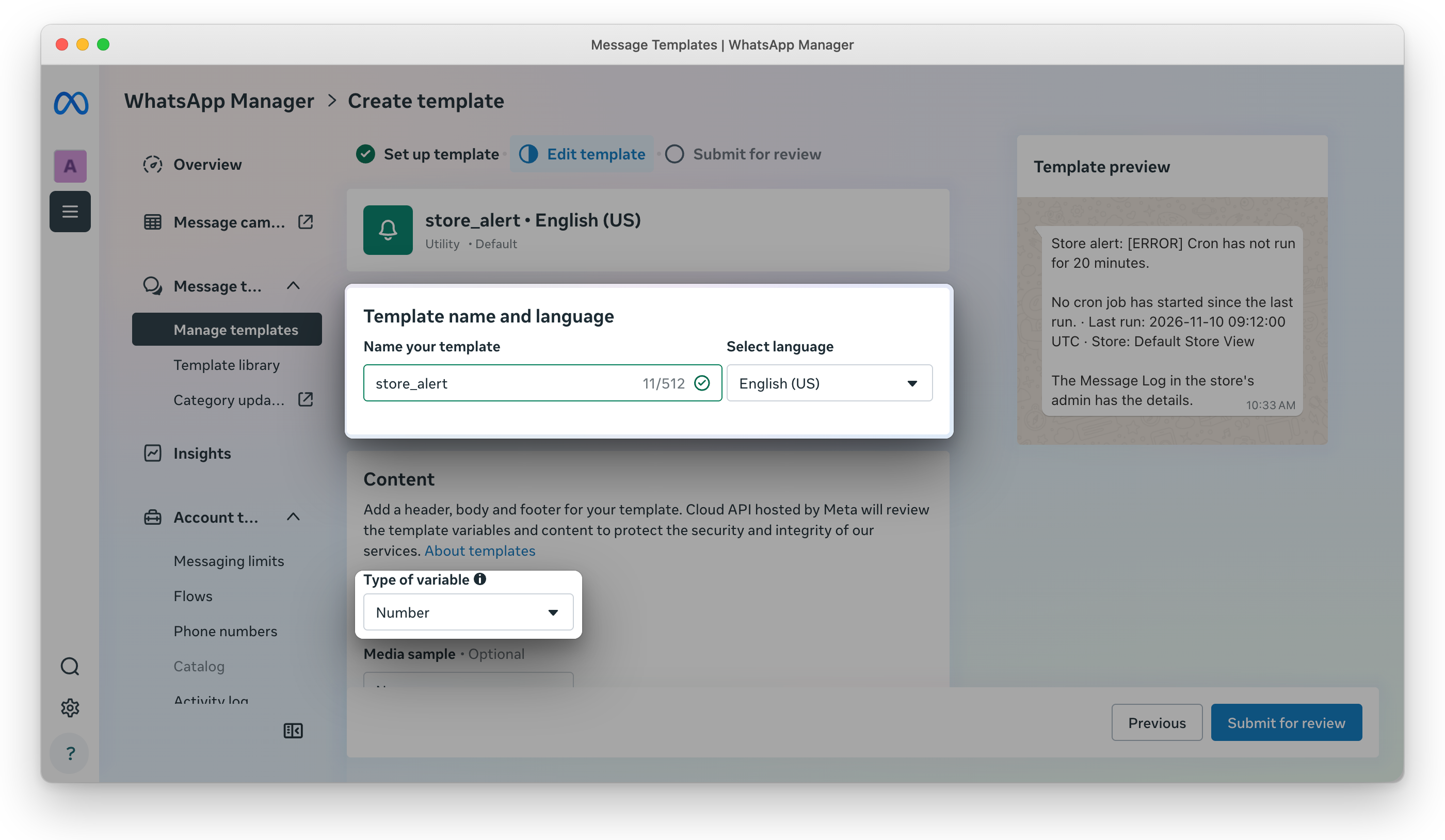
Write the body with exactly two variables:
{{1}}for the subject and{{2}}for the message. Meta refuses a body that starts or ends with a variable, so put text before the first and after the last. For example:Store alert: {{1}} {{2}} The Message Log in the store's admin has the details.To add a variable, click Add variable, or type
{{. Under Variable samples, enter an example subject and message for Meta's review.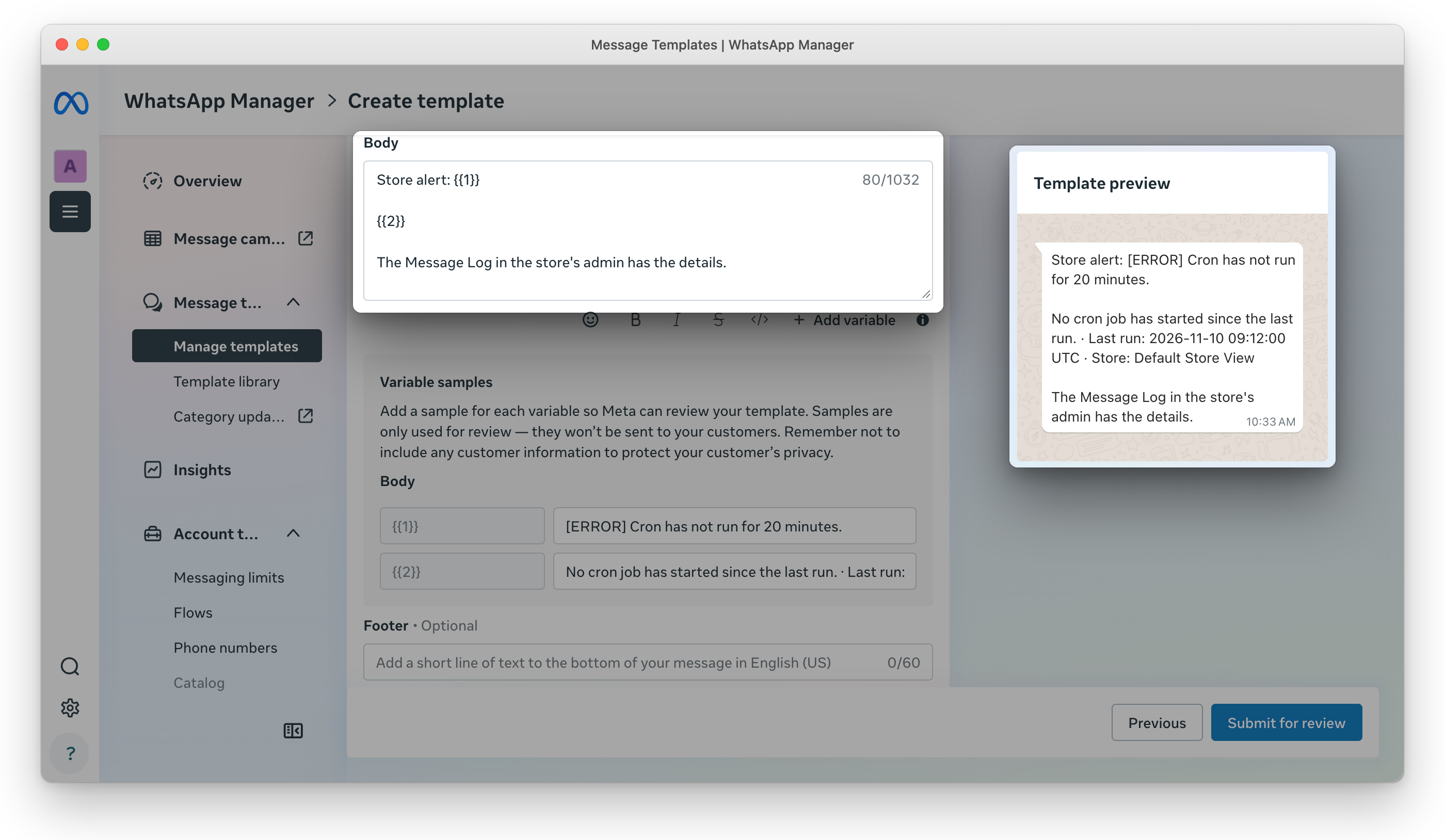
Click Submit for review, and wait until the template's status is Active.
Keep the template's name and its language code, such as
en_USfor English (US). You enter both in the subscription.
3. Make a permanent access token
In your business portfolio's Settings, open Users > System users and click Add.
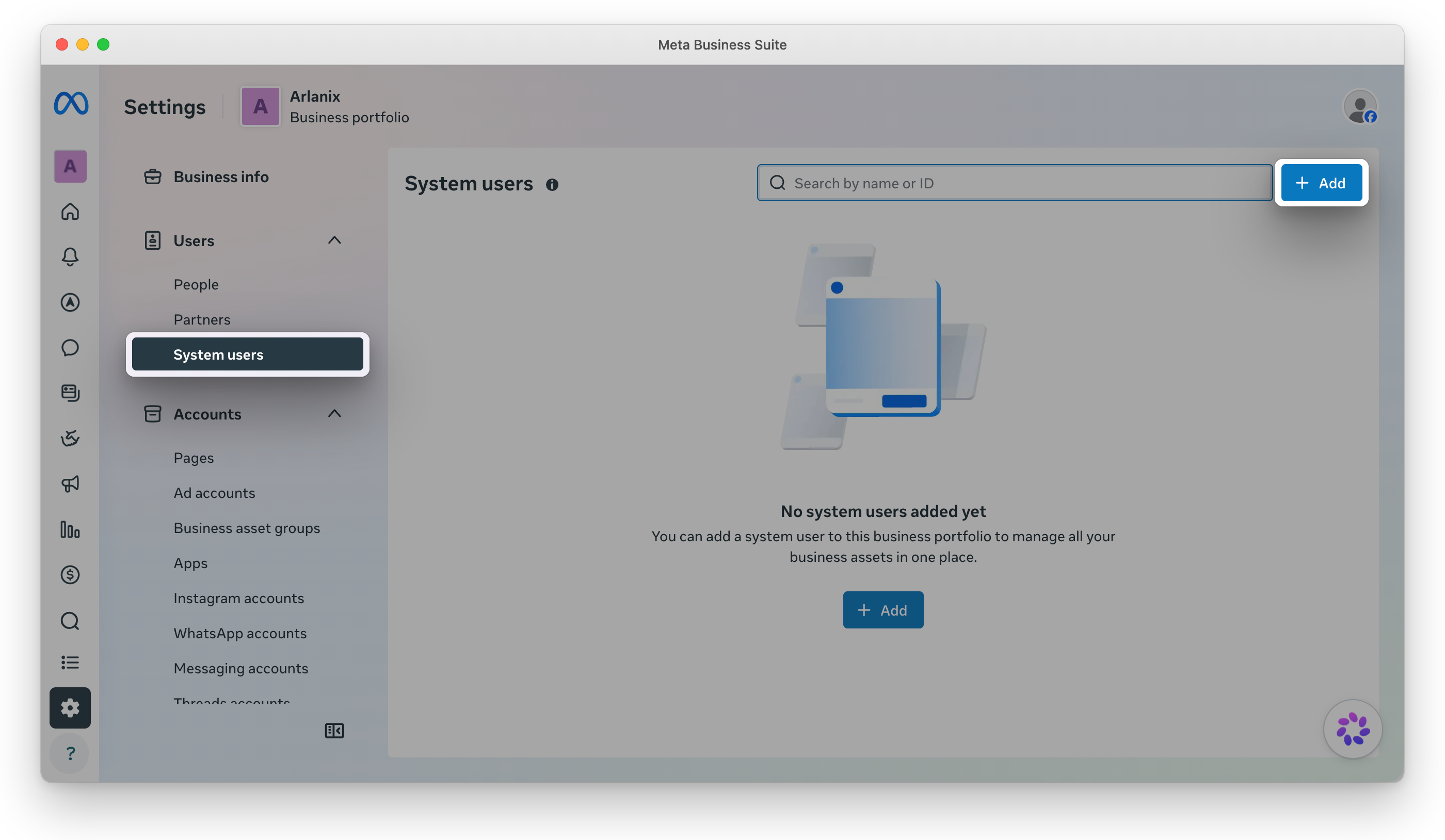
Name the system user, for example StoreAlerts, keep the role Employee, and click Create system user. Meta refuses a name with spaces.
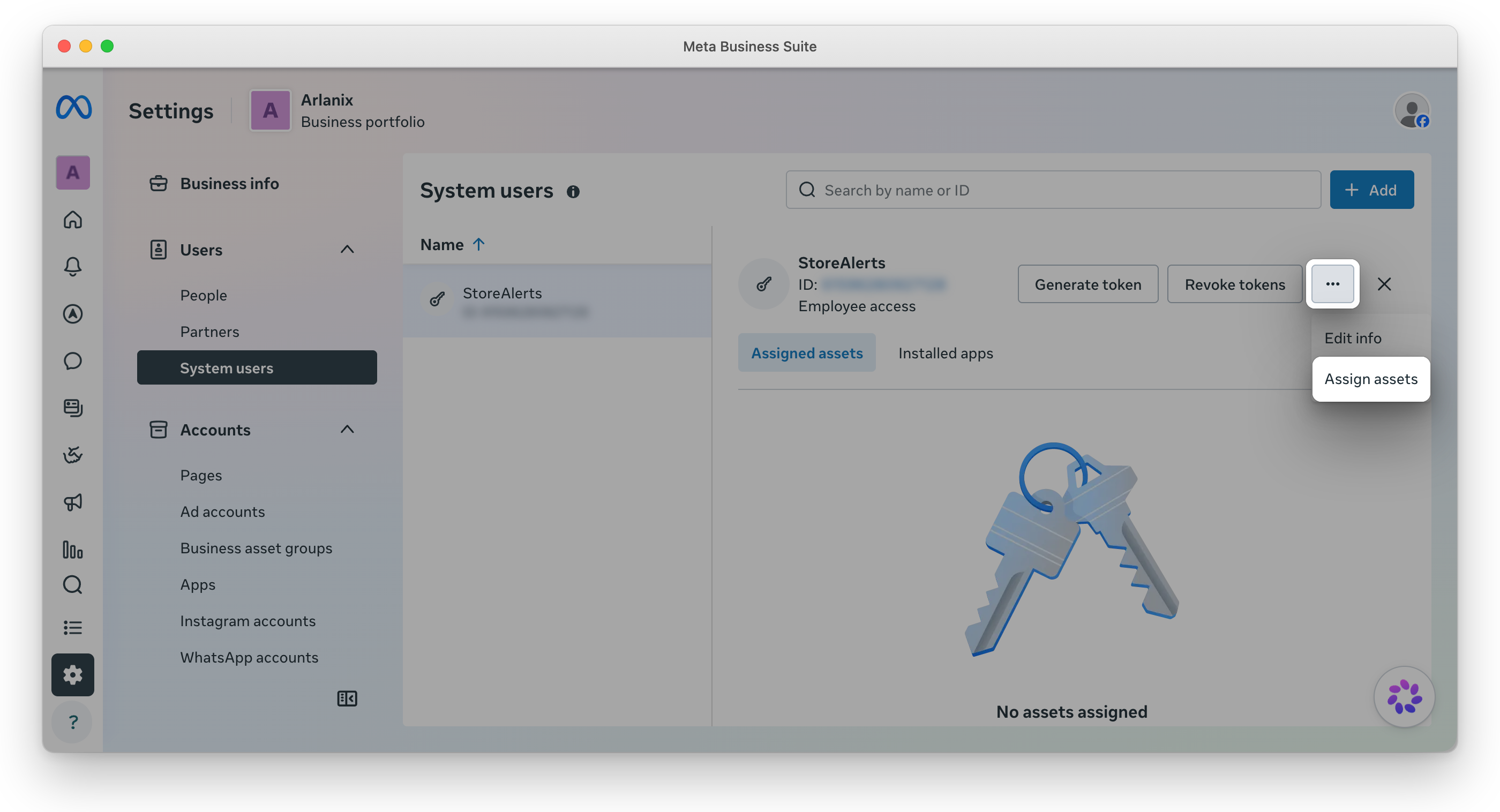
On the system user, open ••• and choose Assign assets.
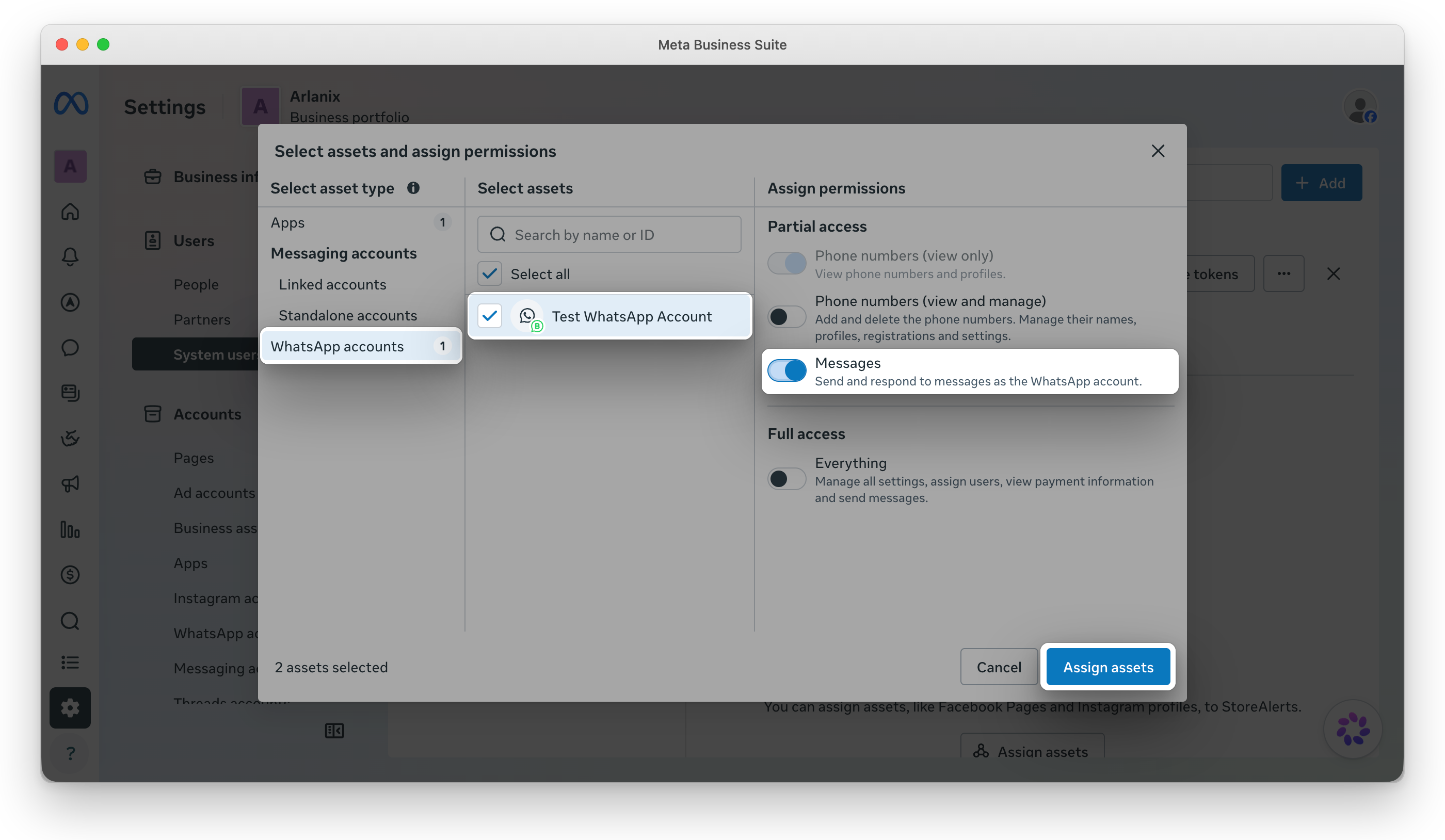
Under Apps, select your app with Develop app. Under WhatsApp accounts, select the WhatsApp account with Messages, then click Assign assets.
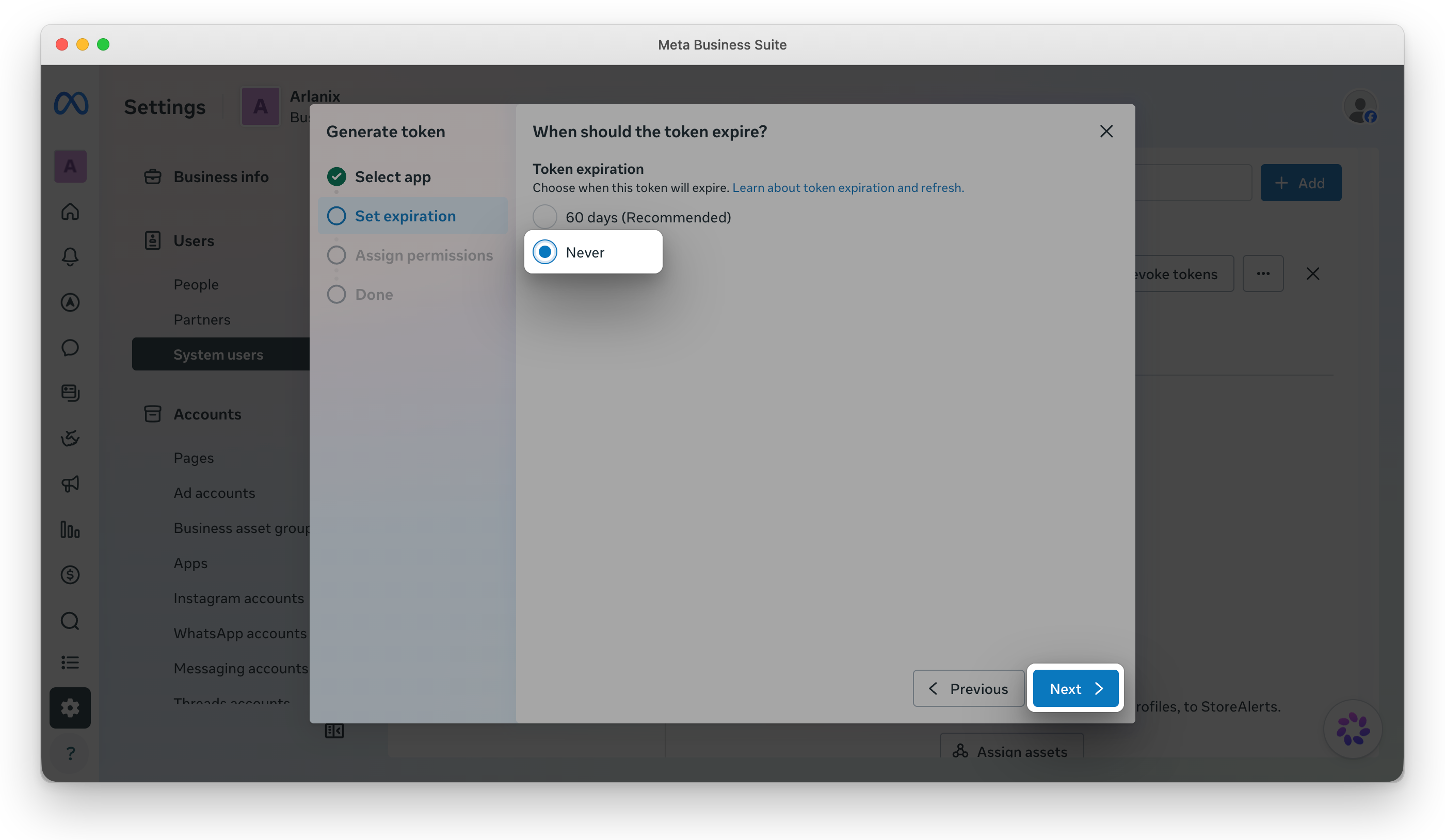
Click Generate token and select your app.
Under token expiration, choose Never. A token that expires stops the notifications on the day it expires.
Select the permission
whatsapp_business_messagingand click Generate token.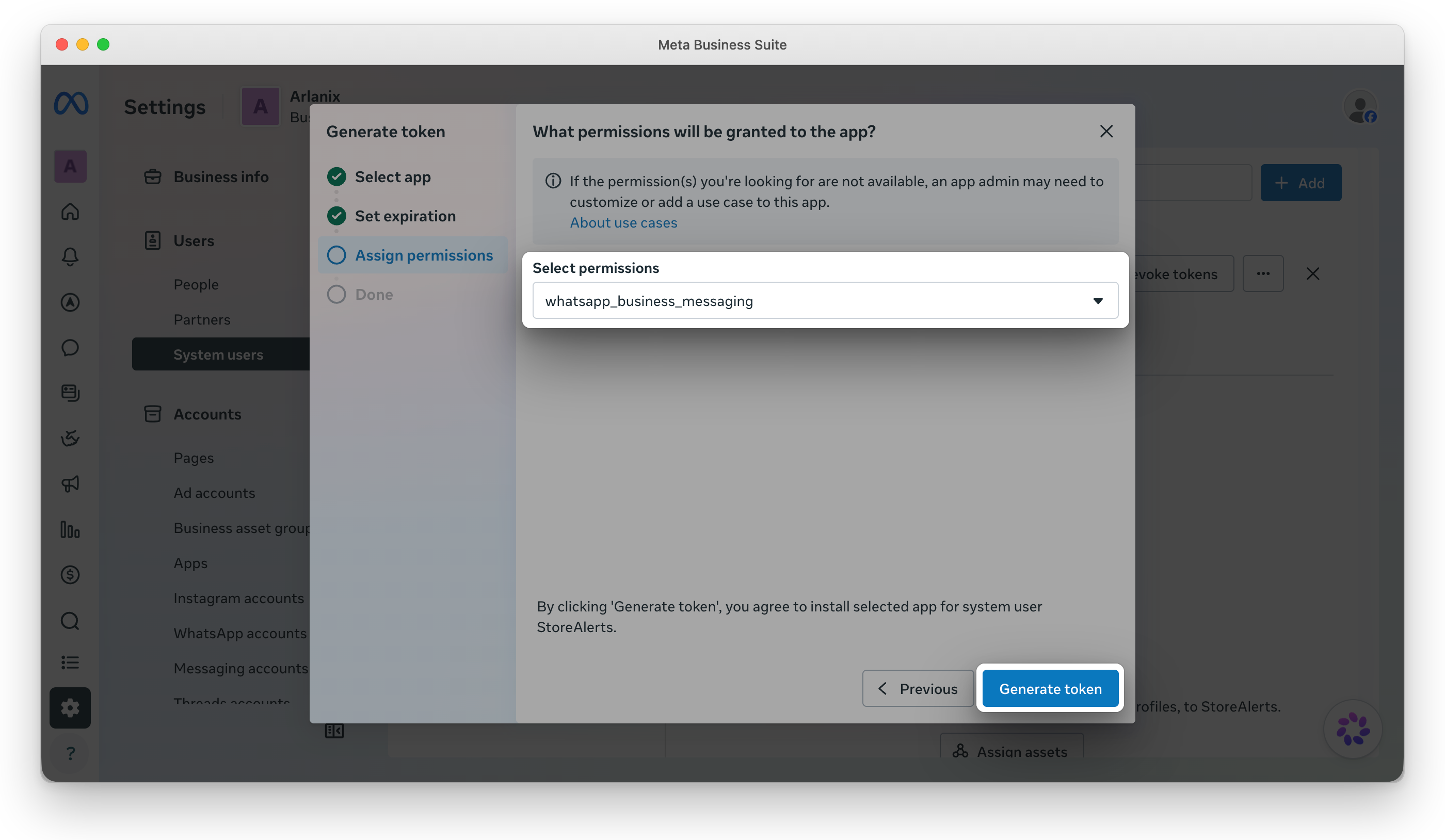
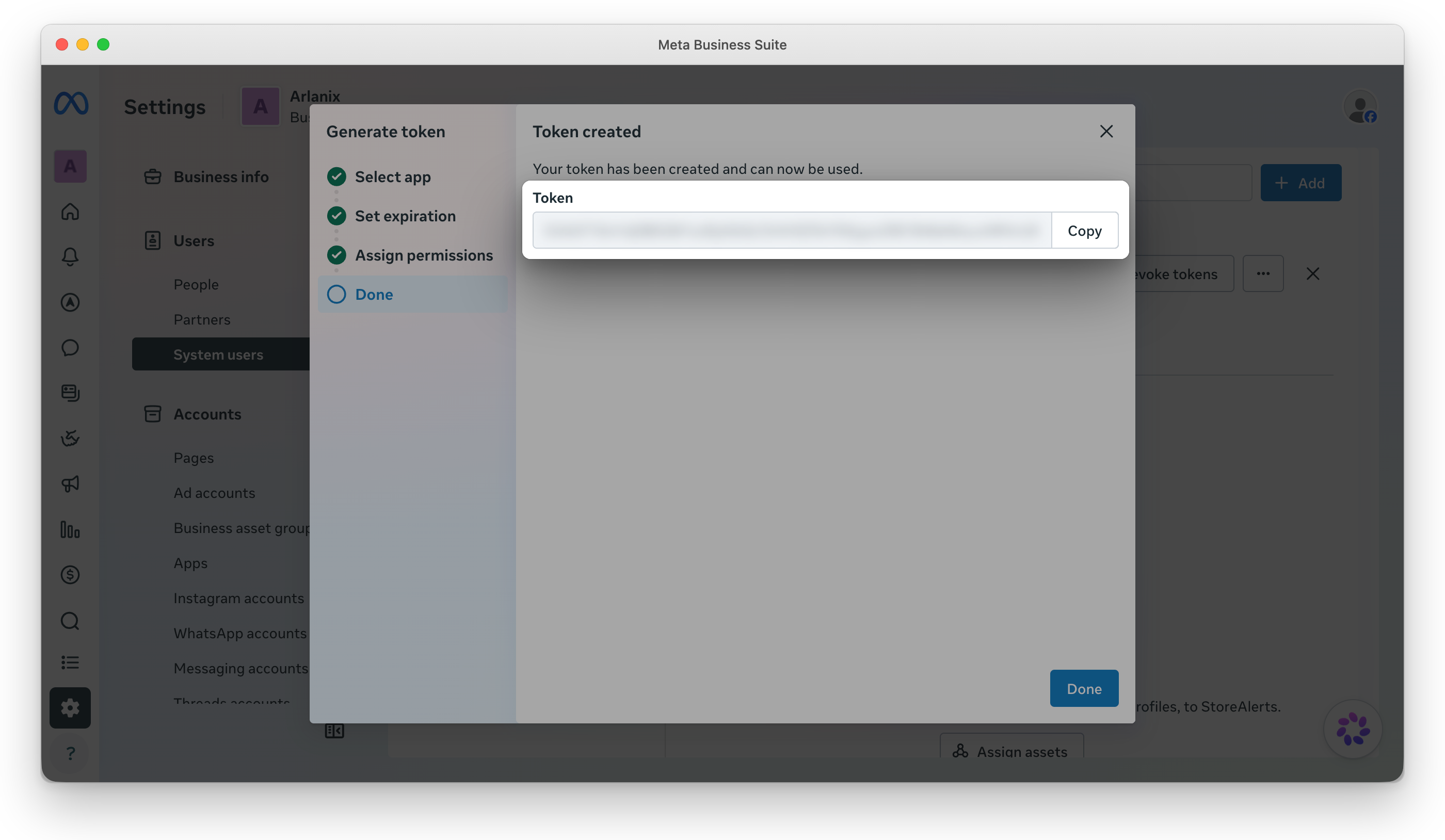
Click Copy. Meta shows the token only once. Keep it secret, like a password: anyone who has it can send messages from your number.
4. Subscribe the number
Add a subscription on the topic's page or in Subscriptions. See Subscriptions.
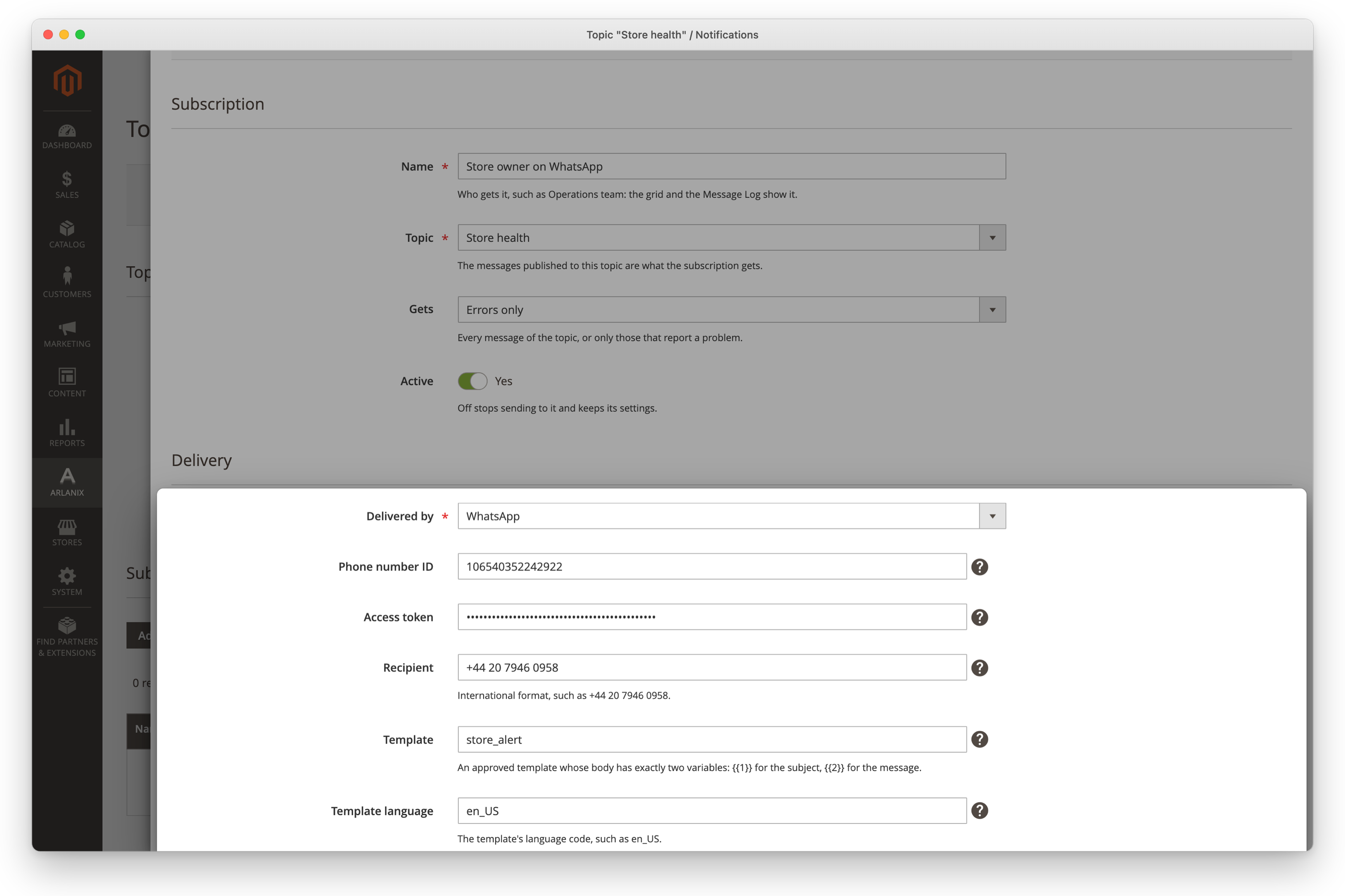
Under Delivery, set Delivered by to WhatsApp.
Enter Phone number ID. Its tooltip says “The Phone number ID from WhatsApp Manager, not the phone number itself.”
Paste the Access token. It is a secret, stored encrypted and never shown again. Its tooltip says “A system user access token with permission to send WhatsApp messages.”
Enter Recipient. The notice says “International format, such as +44 20 7946 0958.”
Enter Template, using the name from WhatsApp Manager. The notice says “An approved template whose body has exactly two variables: {{1}} for the subject, {{2}} for the message.”
Enter Template language. The notice says “The template's language code, such as en_US.”
Save the subscription, then click Send test message. Check that it arrives on WhatsApp.
To replace the access token later, paste the new one. To keep it, leave the field blank. The form says “An access token is stored. Leave blank to keep it.”
The grid shows the recipient as +digits, with spaces, hyphens and parentheses removed. A topic can have only one subscription to the same recipient.
How messages look
Each delivery is one template message. A digest holds up to 25 different messages in that same template message:
{{1}}is the subject, cut to 200 characters.{{2}}is the message, cut to 900 characters.
Each variable is plain text on one line. Line breaks become ·, and tabs become spaces. The template's own layout, such as the blank line in the example above, separates the variables. The Message Log keeps every message in full.
What it costs
Meta charges per delivered template message. The store pays Meta directly. See Meta's WhatsApp pricing (opens in a new tab).
When WhatsApp refuses
When WhatsApp refuses a message, its answer appears in Last delivery on the subscription and on the message's page in the Message Log. Saving can also show a problem before anything is sent.
| Message | What to do |
|---|---|
| “Enter the Phone number ID from WhatsApp Manager: digits only.” | Copy the business phone number's ID from WhatsApp Manager into Phone number ID. |
| “Enter the access token to send with.” | Paste the system user's access token into Access token. |
| “Enter the recipient's number in international format, such as +44 20 7946 0958.” | Enter the full international number in Recipient. |
| “Enter the template's name as WhatsApp Manager shows it: lower-case letters, digits and underscores.” | Copy the approved template's name into Template. |
| “Enter the template's language code, such as en_US.” | Enter the approved language code in Template language. |
| “WhatsApp refused the access token: it expired or was revoked. Make a new one and paste it into the subscription.” | Make a new permanent system user token with whatsapp_business_messaging, paste it into Access token, and save. |
| “WhatsApp has no approved template TEMPLATE in LANGUAGE that takes exactly two body variables. Check the template's name, language and approval in WhatsApp Manager.” | Check the template in WhatsApp Manager, including approval and its two body variables. Correct Template and Template language if needed. |
| “WhatsApp cannot deliver to +RECIPIENT: the number is not on WhatsApp, not allowed for a test number, or cannot receive it now.” | Check Recipient and whether that number can receive messages from your business phone number. |
| “WhatsApp asked to wait N second(s): too many messages at once.” | The store waits as long as WhatsApp asks, one hour at most, then tries again. During the first day after publication, this wait does not use up a delivery attempt. |
| “WhatsApp answered with HTTP status 400: (#133010) Account not registered” | The business phone number cannot send yet. In WhatsApp Manager, check that Meta has verified the business and that the number's status is no longer Pending. |
| “WhatsApp answered with HTTP status N: …” / “WhatsApp answered with HTTP status N.” | Read the returned text, if any, and ask your developer to check it. The access token is redacted. |
RECIPIENT is the recipient's digits; TEMPLATE and LANGUAGE are the saved template name and language. N is the HTTP status or number of seconds; … is the text WhatsApp returned.
The store tries a failed delivery again by itself. See When a delivery fails. After fixing the subscription, use Retry now on the message's page in the Message Log to send it again.