For arlanix/notification 1.0.0
Telegram
A Telegram subscription posts a topic's messages to one chat: a person's, a group or a channel. A bot posts them: the store's, set up once, or one of the subscription's own. It comes with arlanix/module-notification-telegram, which your developer installs.
1. Make a bot
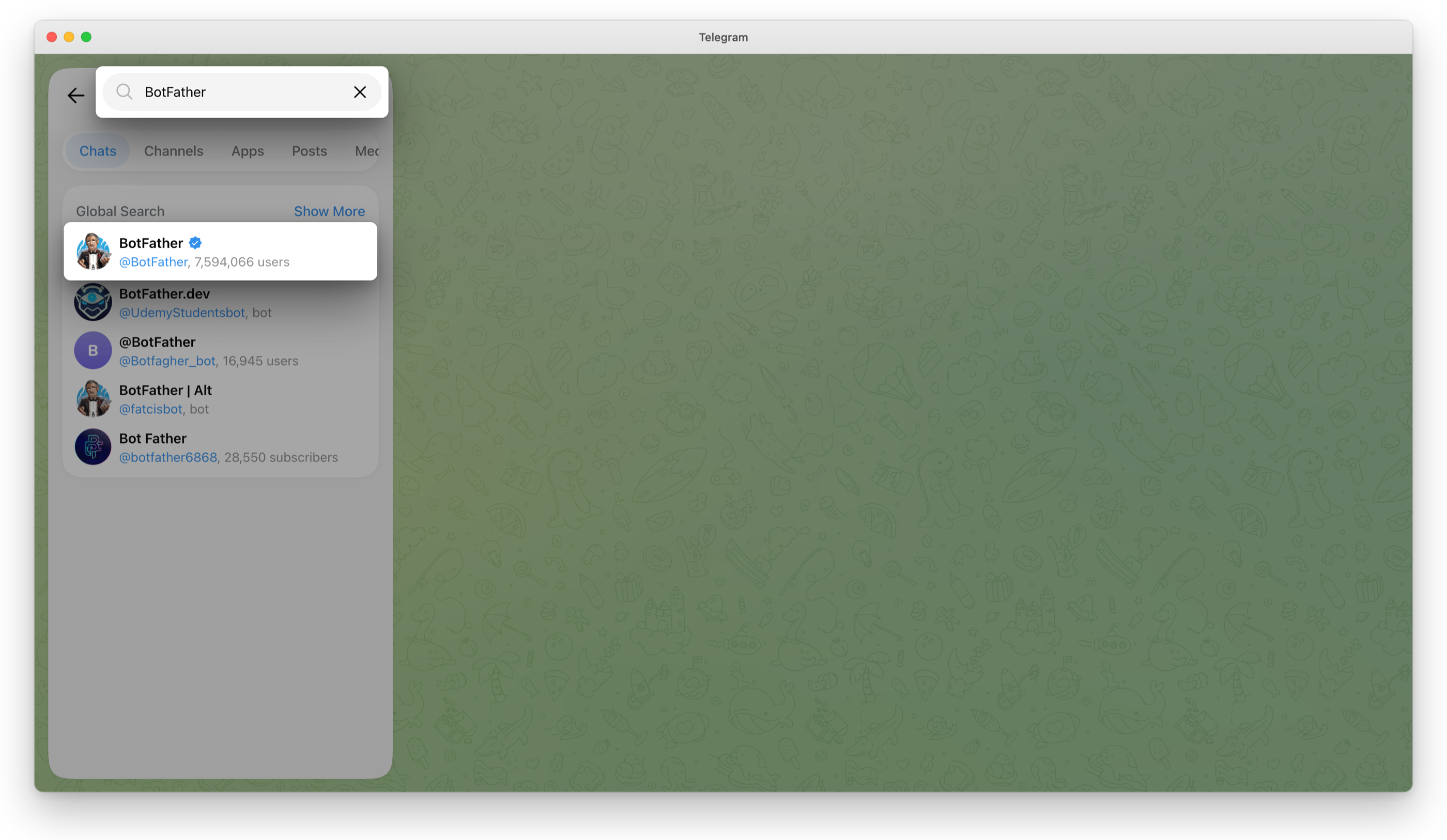
In Telegram, search for BotFather and open @BotFather, the one with the blue check: the others only borrow its name. Click Start, the first time.
Send it
/newbot. Give the bot a name, such as Store alerts, and a username ending inbot, such asyour_store_alerts_bot.BotFather answers with the bot's token, such as
7384215590:AAF3…. Keep it like a password: whoever has it can post as the bot.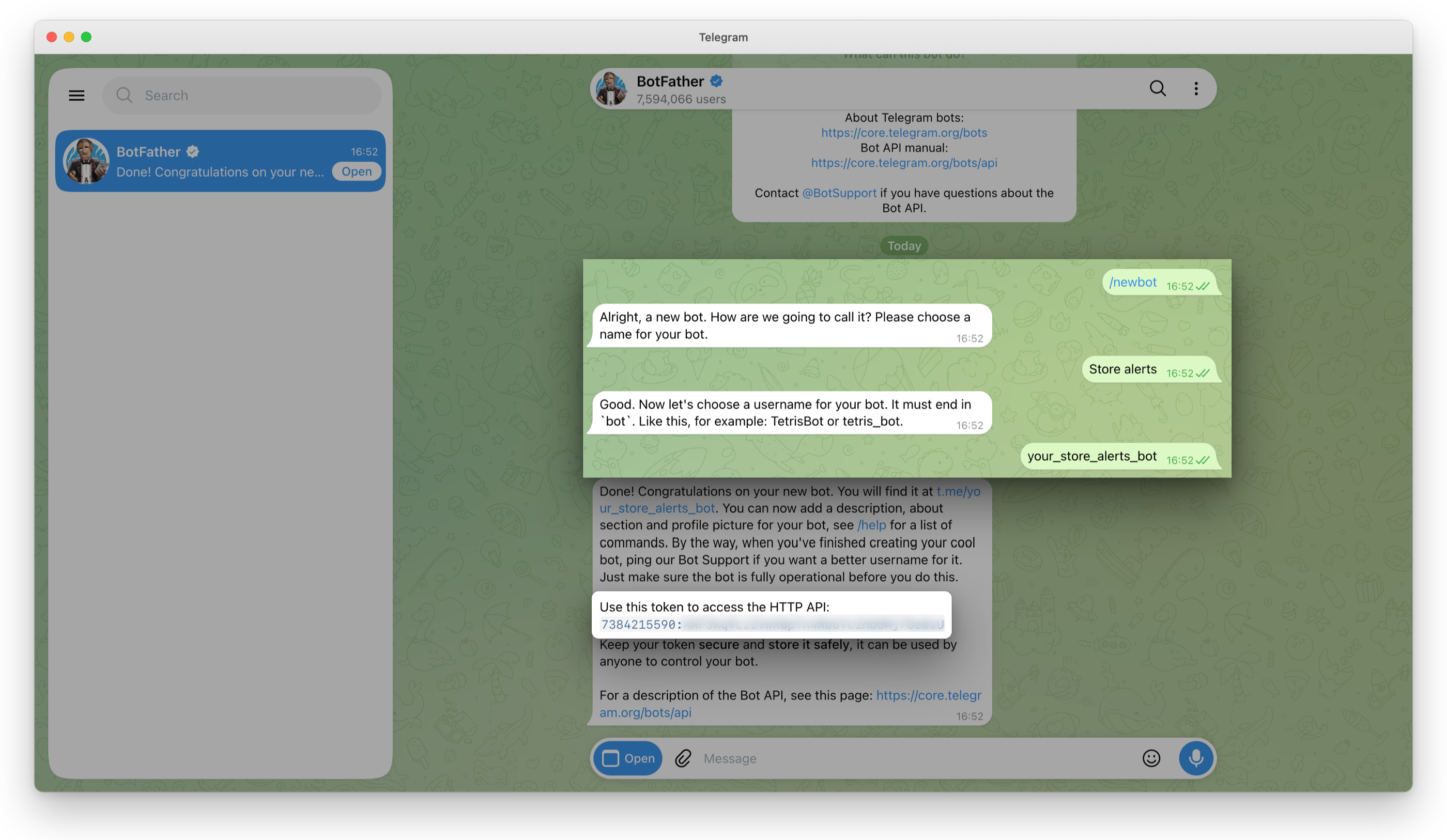
2. Give the store the bot
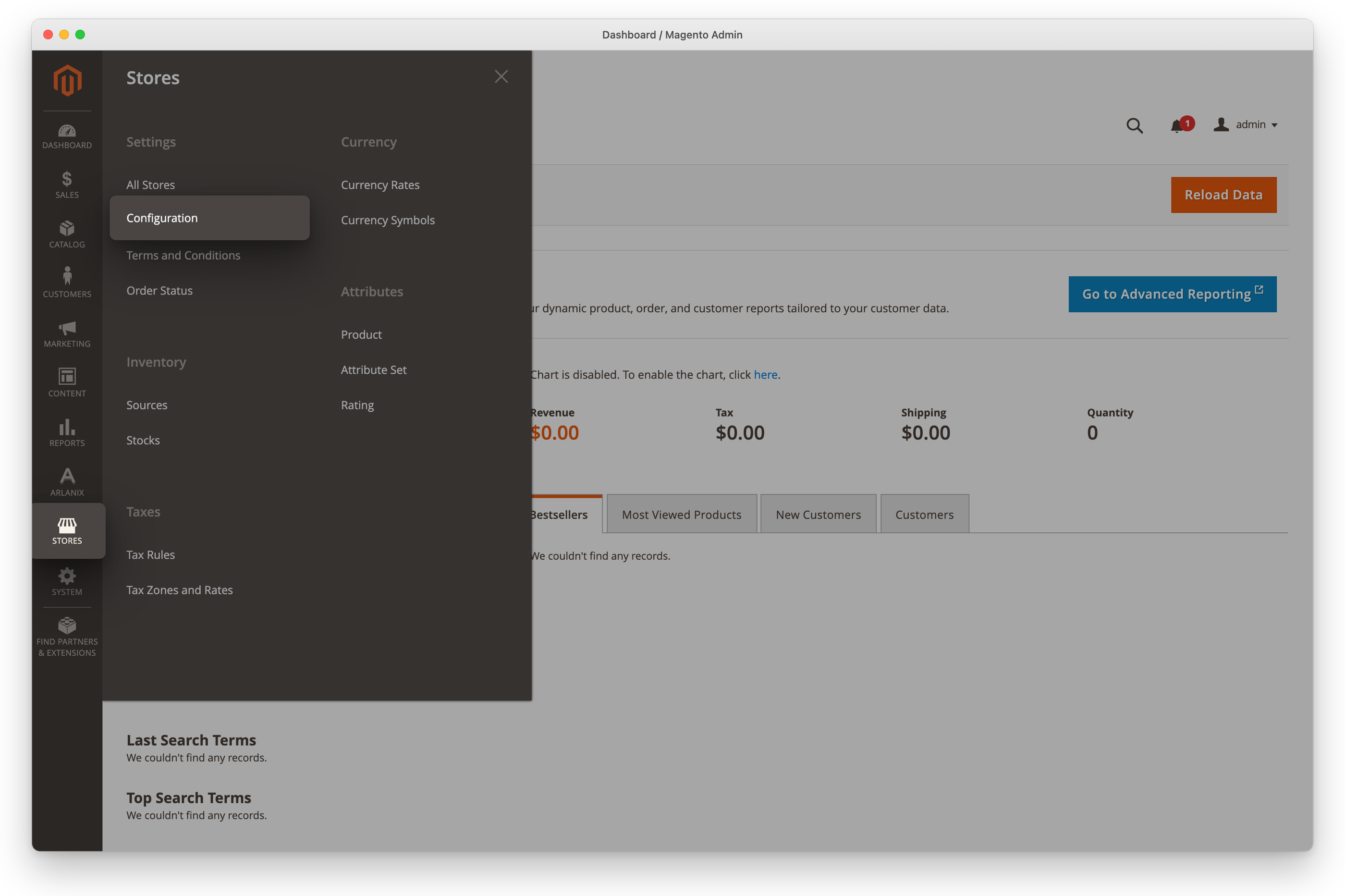
Click Stores in the admin's menu, then Configuration under Settings.
In the list on the left, click Arlanix, then Notifications.
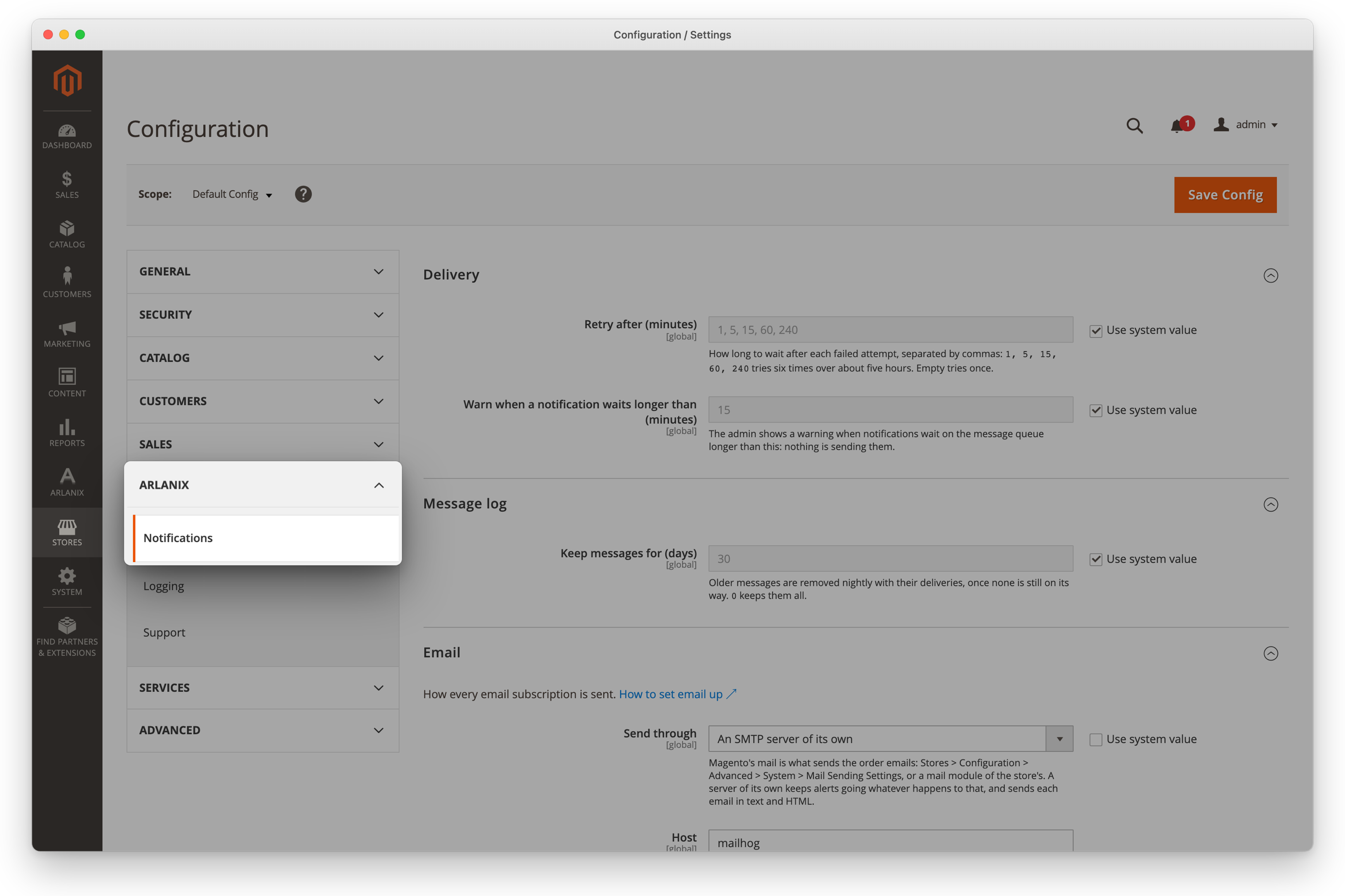
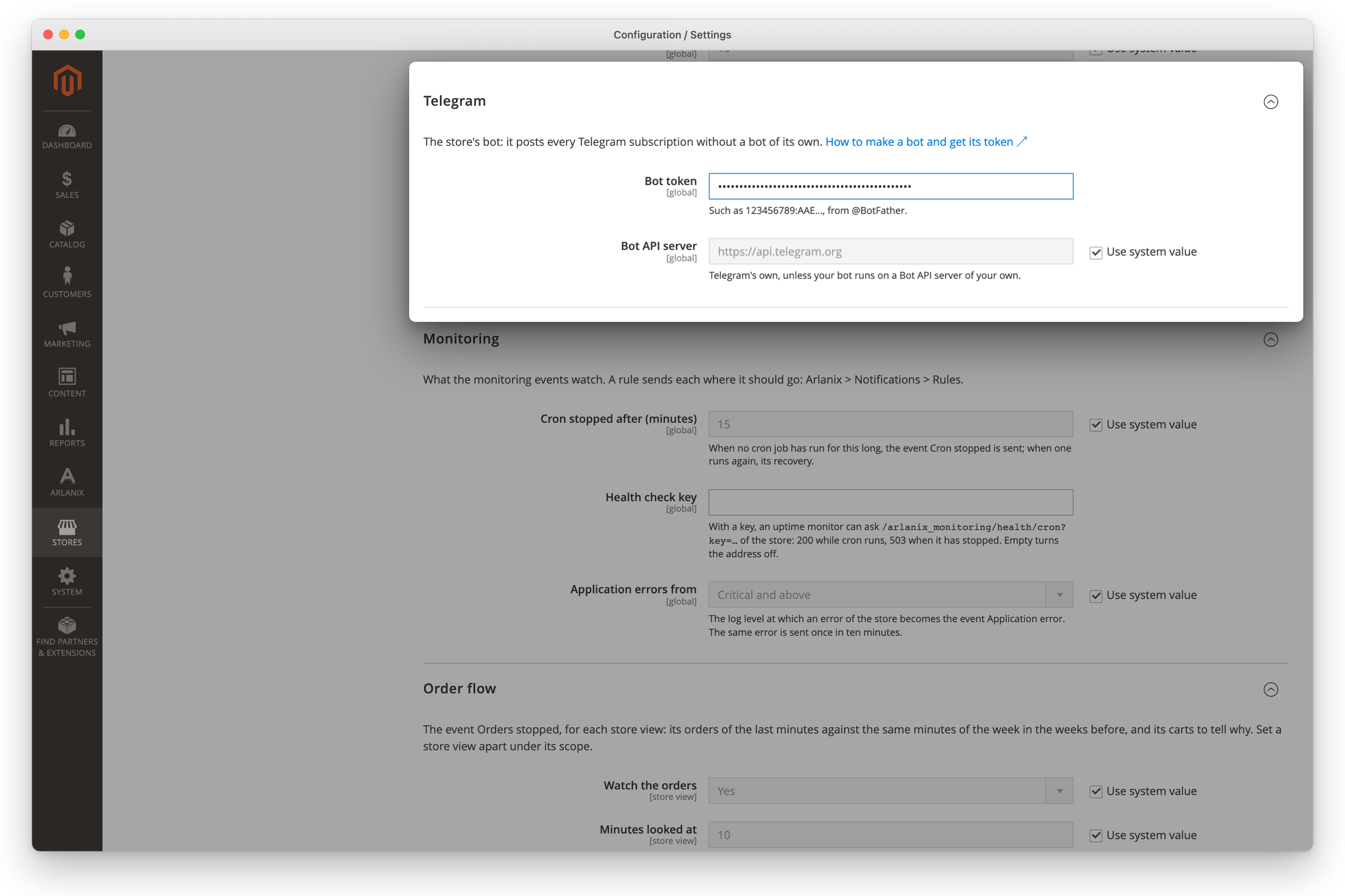
Open the Telegram group, paste the token into Bot token and click Save Config. It is stored encrypted. Leave Bot API server as it is, unless your developer runs a Bot API server of their own.
3. Let the bot into the chat
A bot posts only where it is let in:
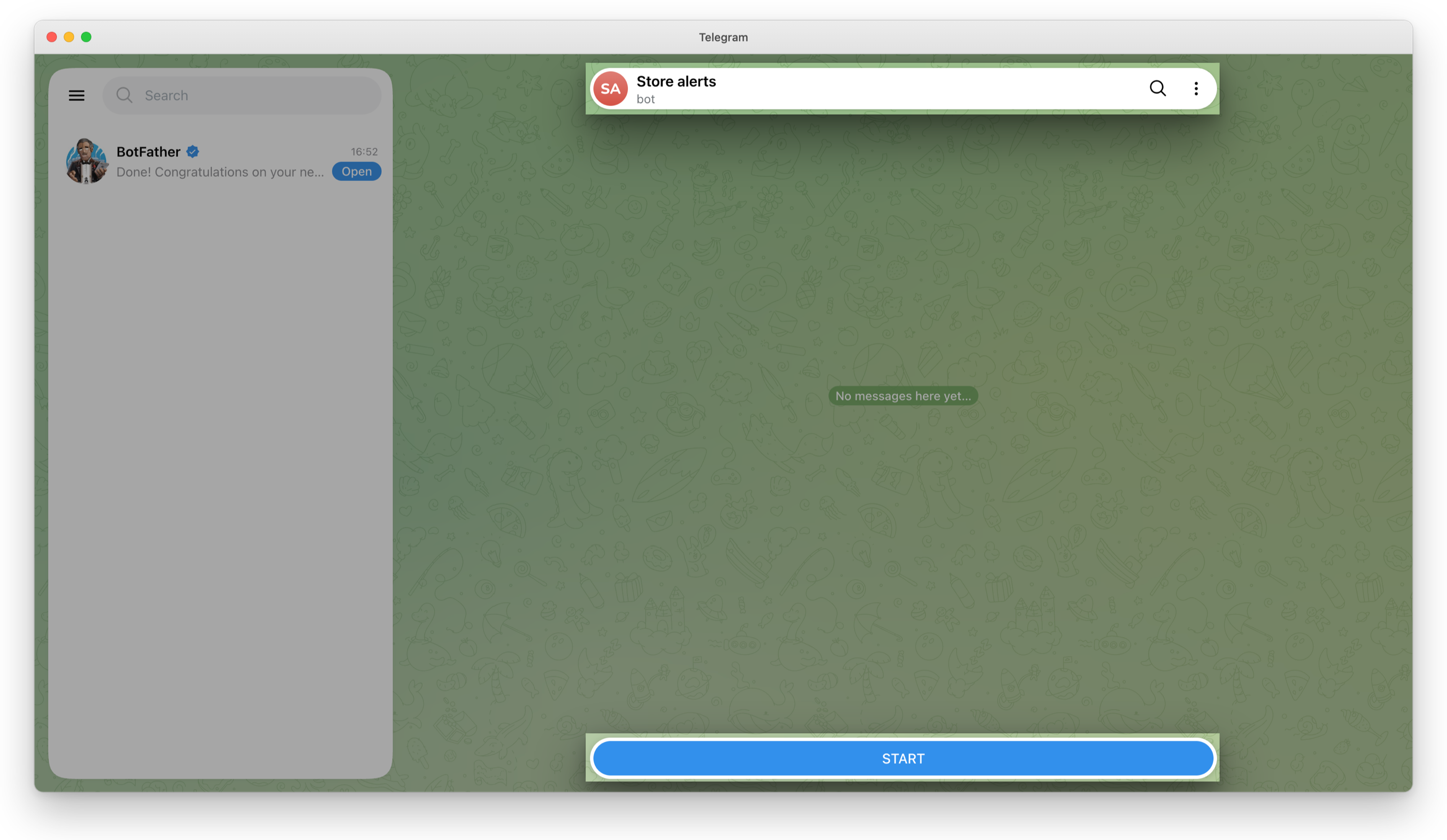
A person's chat: they open the bot in Telegram, by its username, and press Start.
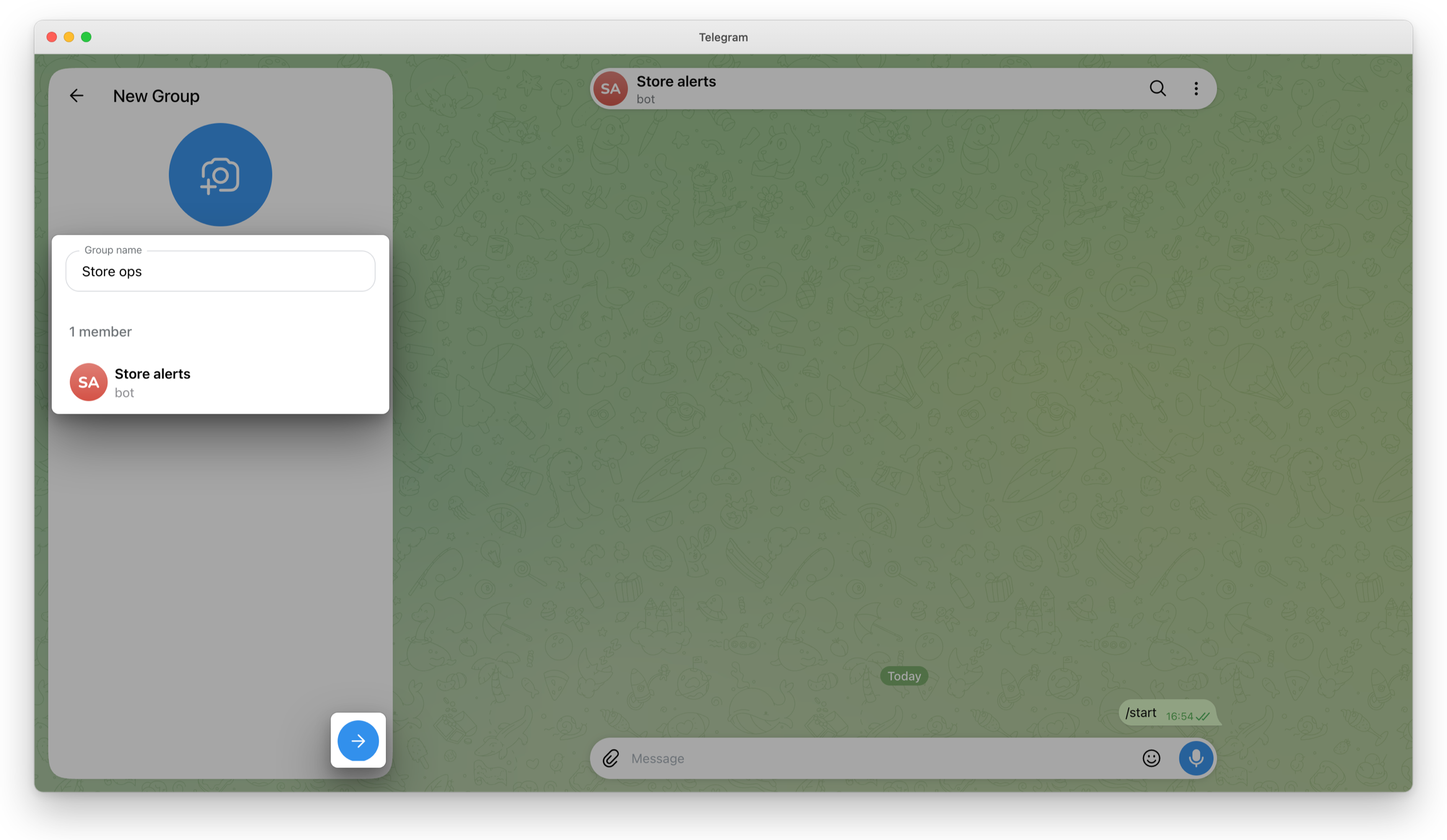
A group: add the bot to it as a member. A new group takes it at once: New Group, choose the bot by its username, name the group and create it. A group you have takes it as anyone else, by its username.
Then mention the bot in the group, such as
@your_store_alerts_bot, so everyone there sees it is in.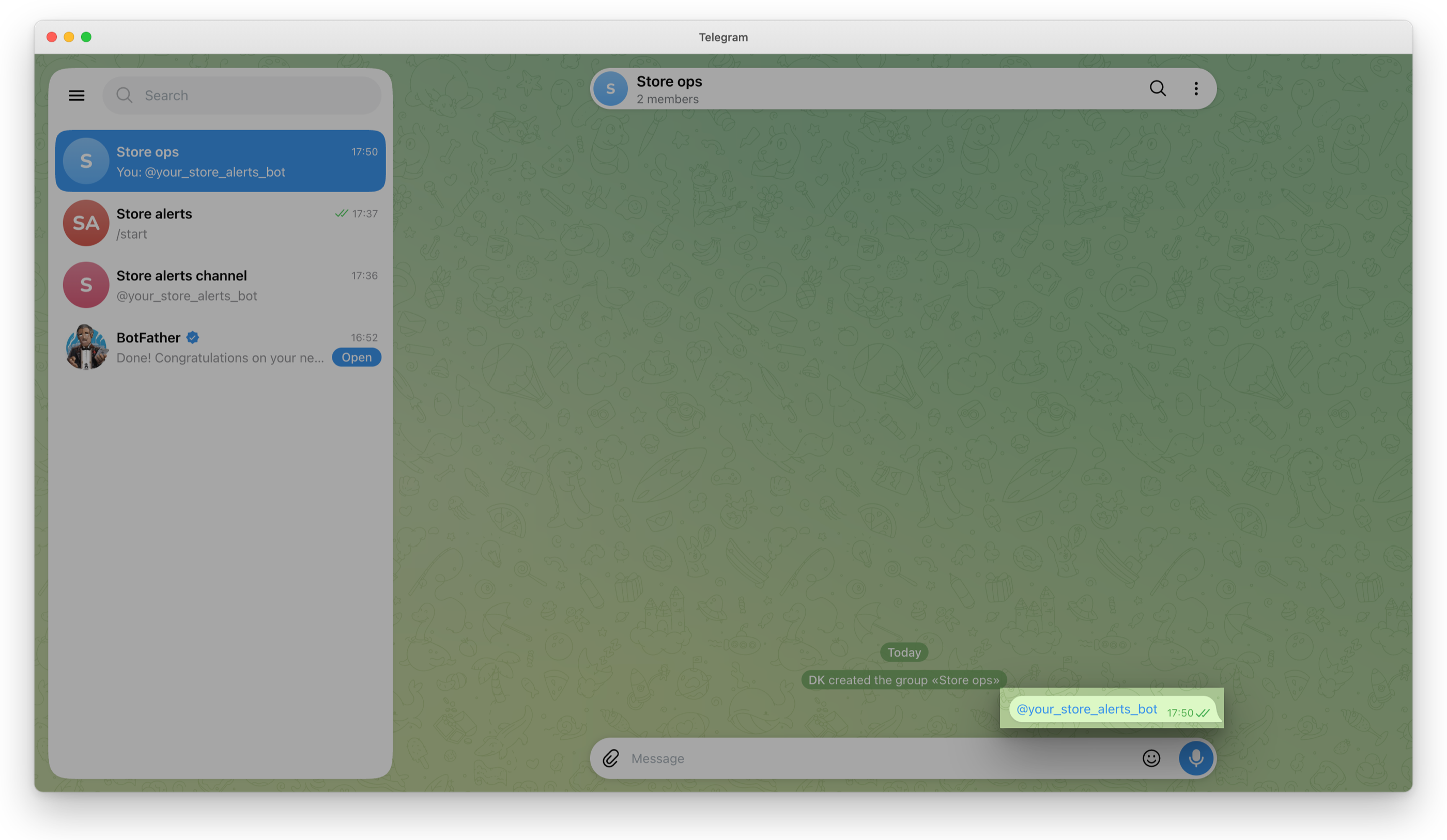
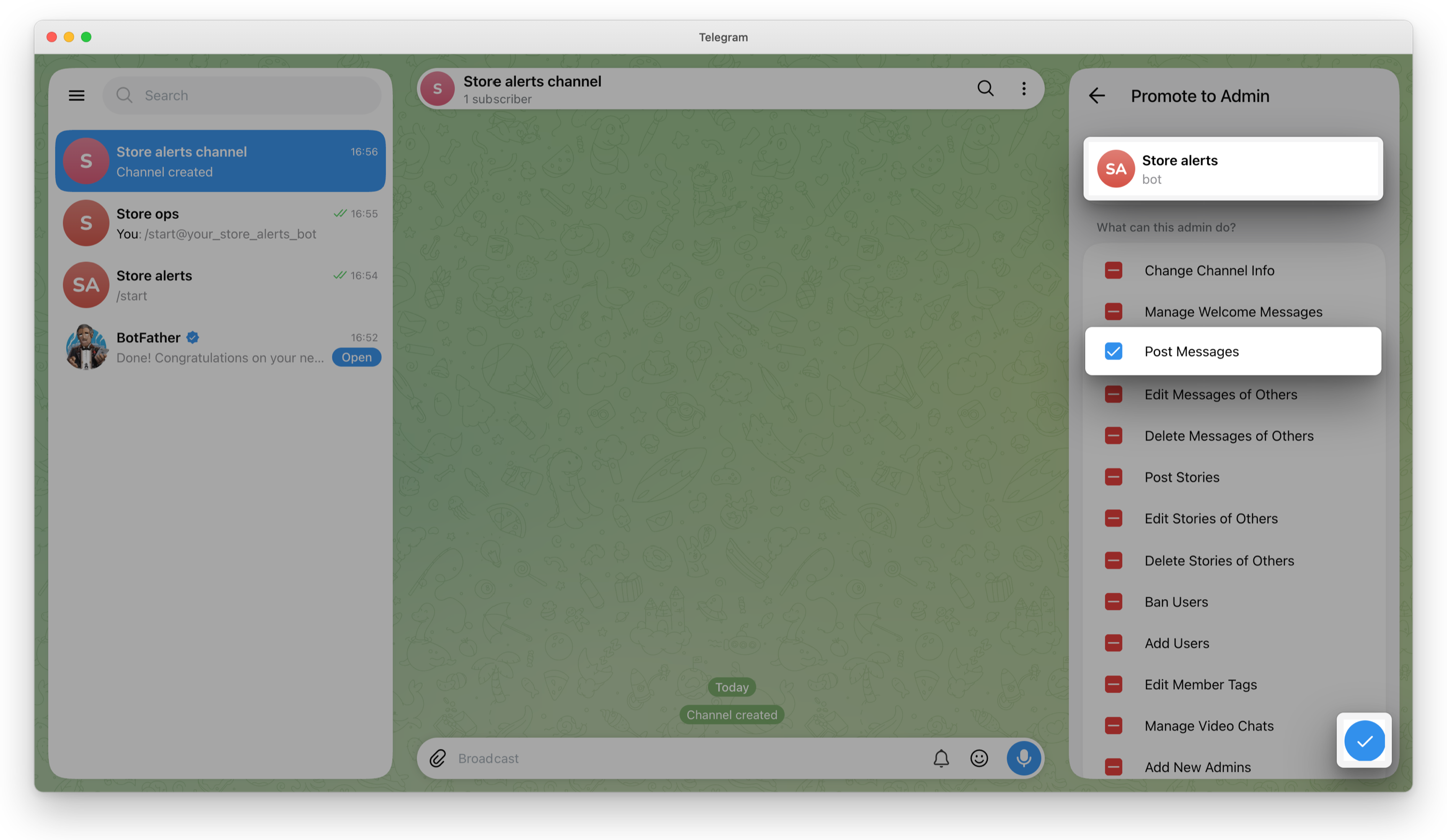
A channel: add the bot to it as an administrator that may post messages: open the channel's info, Edit, Administrators, add an admin and choose the bot. Leave Post Messages on: the bot needs nothing else, so the rest can be off. Save.
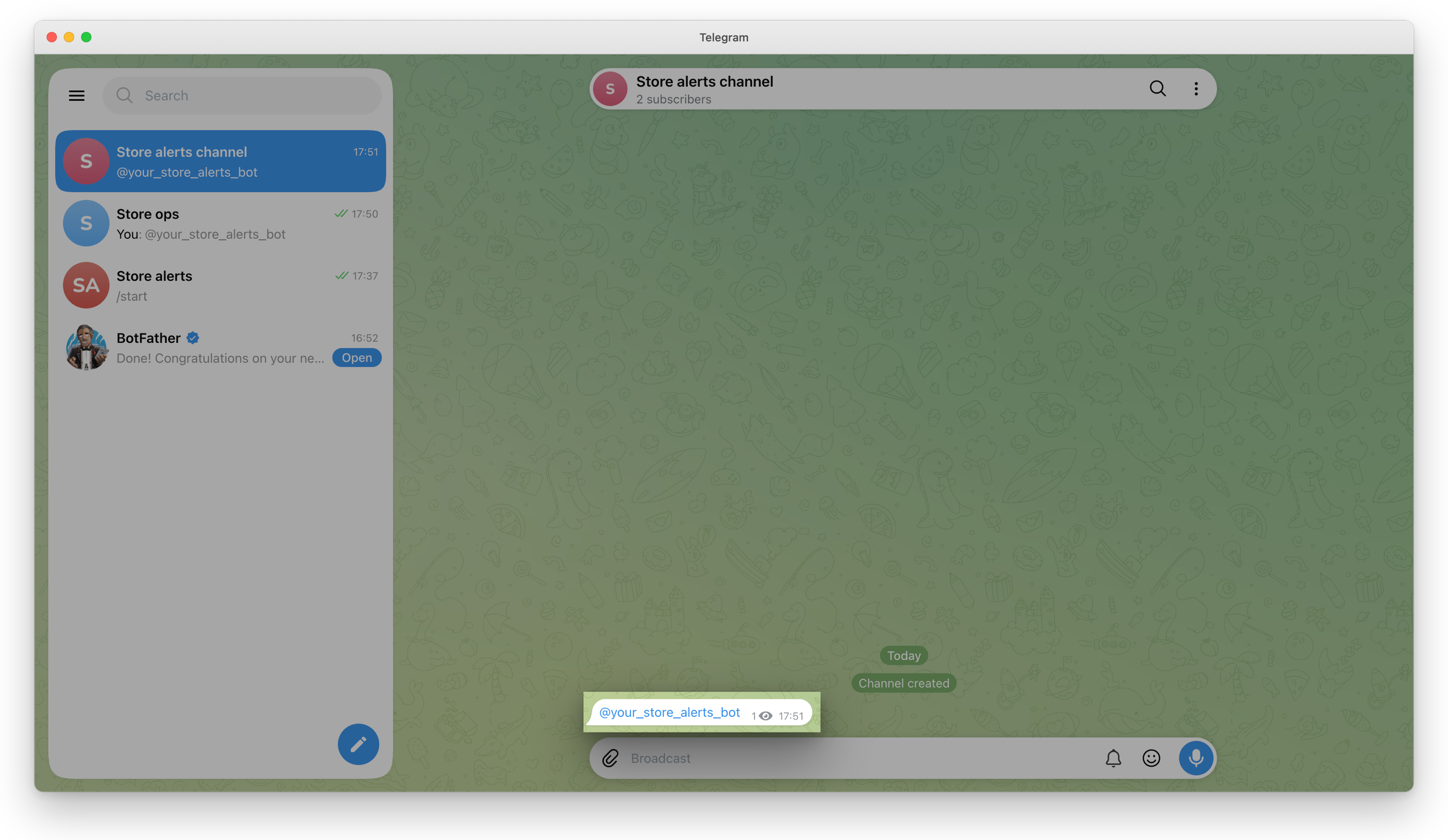
Then mention the bot in a post, as in a group.
4. Subscribe the chat
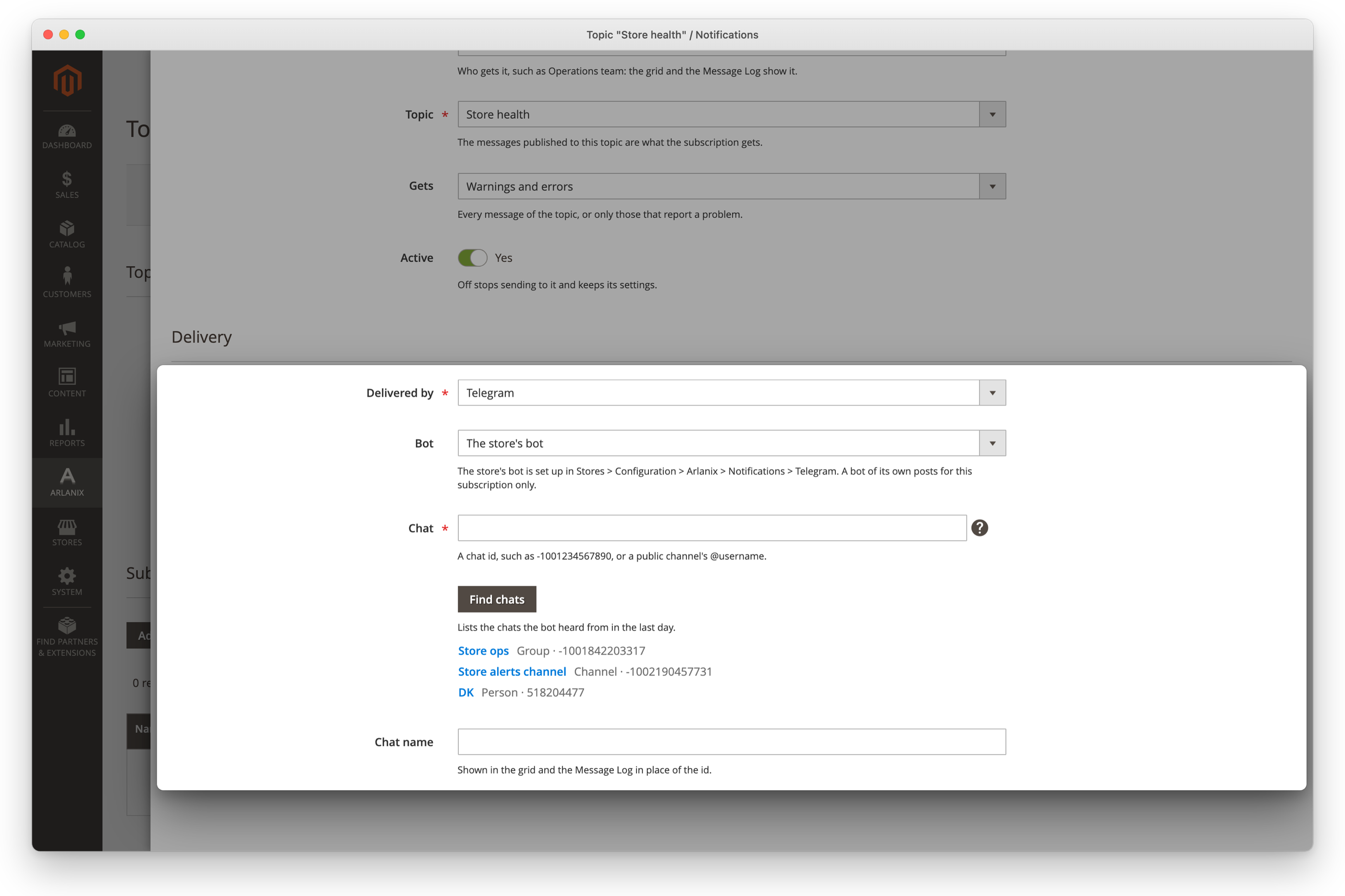
Add a subscription, on the topic's page or in Subscriptions: see Subscriptions. Under Delivery, choose Delivered by Telegram.
Leave Bot on The store's bot.
Click Find chats. It lists the chats the bot heard from in the last day: whoever pressed Start, the groups and channels it was added to. Click the chat to send to: it fills in Chat and Chat name.
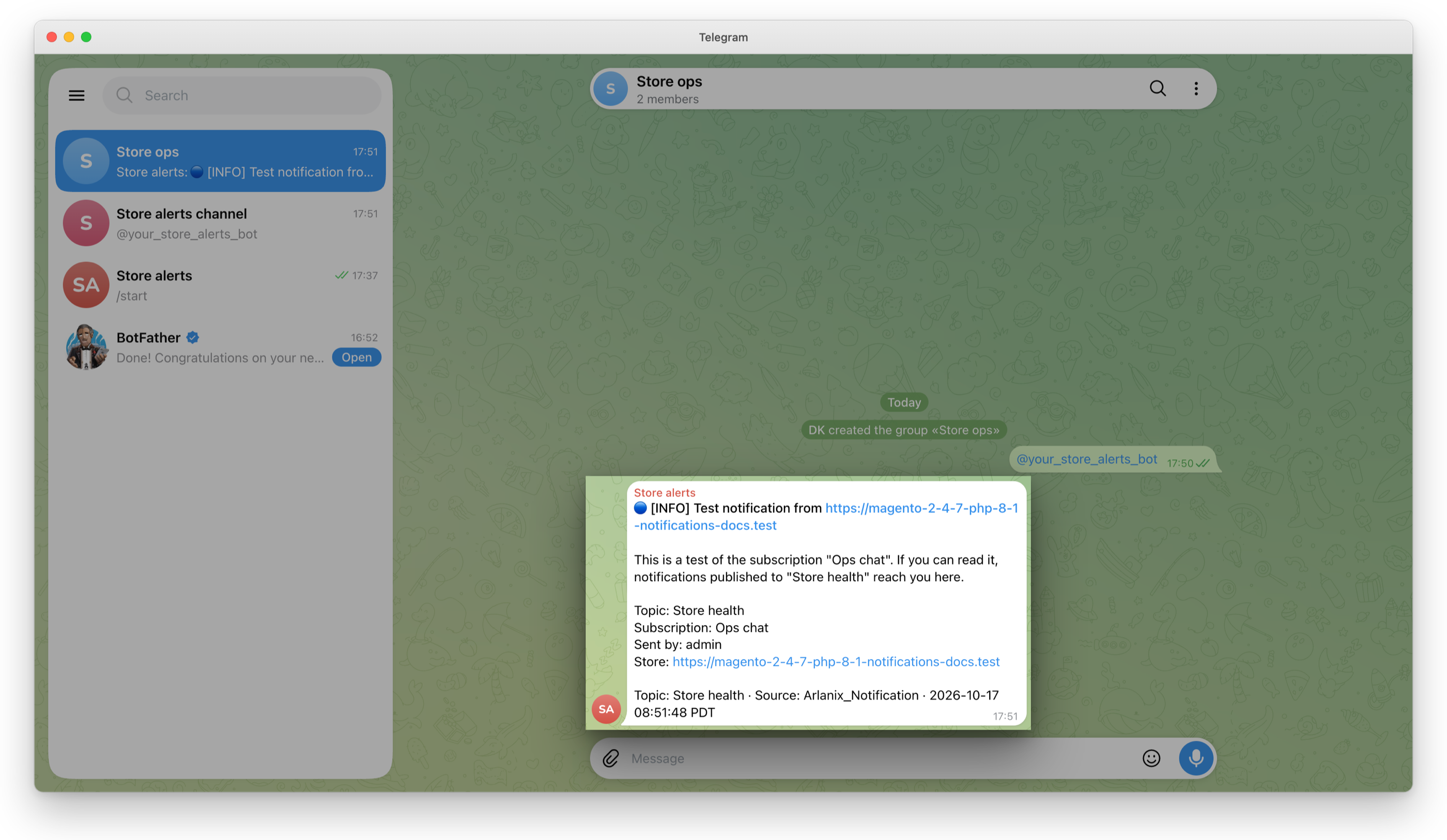
Save, then Send test message: the test arrives in the chat, from the bot.
Chat can also be typed: a chat's number, such as -1001234567890 for a group or a channel, or a public channel's @username. Chat name is what the grid and the Message Log show in its place; change it as you like. A topic takes a chat once.
If Find chats lacks a group or a channel the bot was just added to, mention the bot there, such as @your_store_alerts_bot, and click Find chats again. A person's chat that is missing: they press Start again. Telegram keeps only a day of what the bot heard, so a chat the bot was let into earlier may need the same.
A bot of its own
A subscription can post as another bot, for example one a team already has in its group. Choose Bot A bot of its own and paste that bot's token into Bot token: it is stored encrypted, and never shown again. Find chats then asks that bot.
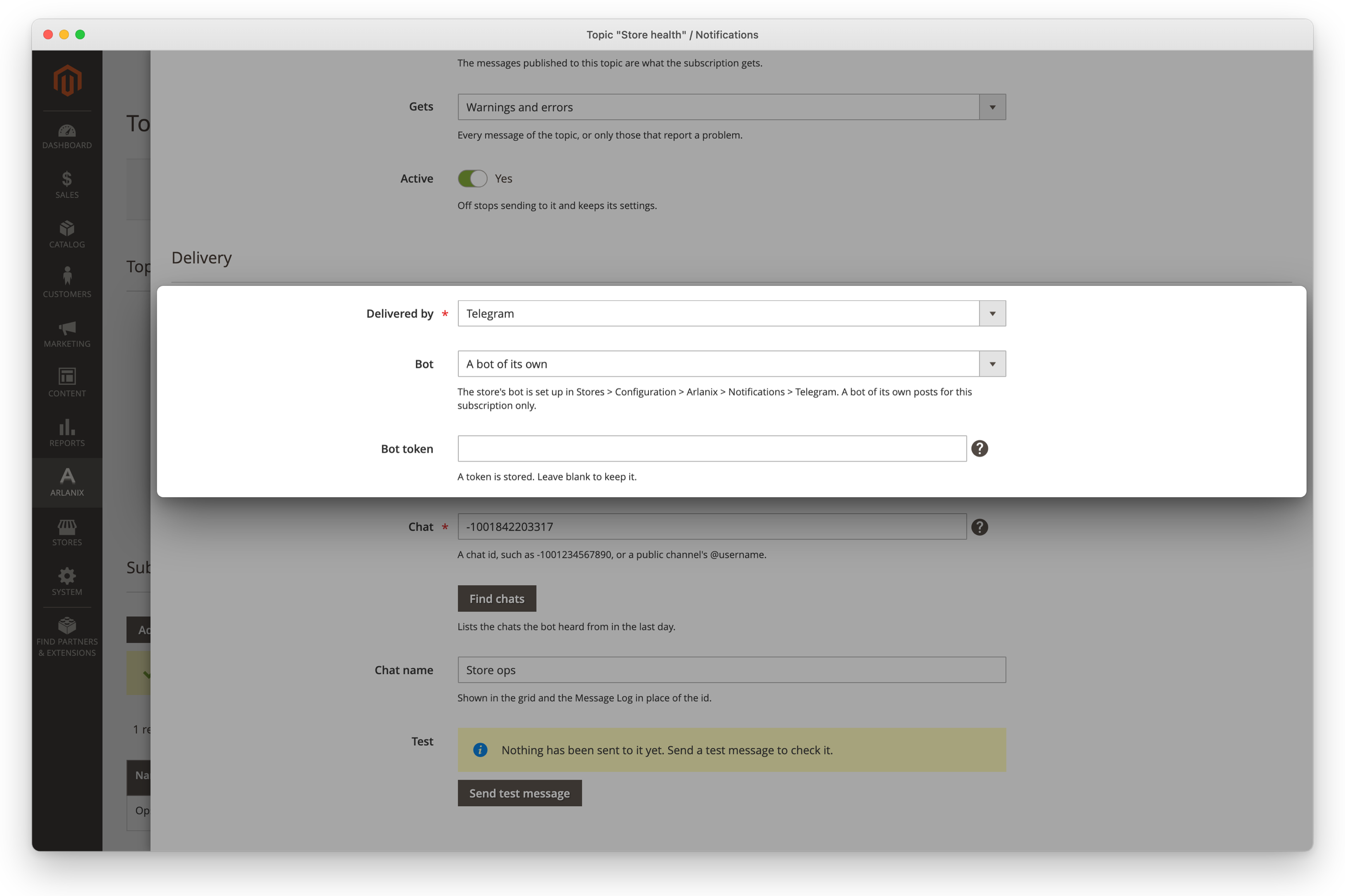
Leave Bot token empty to keep the stored one. Choosing The store's bot again forgets it when you save. A subscription on a bot of its own sends whether or not the store has one.
The messages
Each notification, or each digest, is one message: the subject in bold, after a mark for its severity, 🔴 for an error, 🟠 a warning, 🔵 info, then the text and the facts. Links can be tapped, and show no preview. A digest longer than Telegram allows shows the messages that fit and ends with how many more there are, such as … and 3 more: see the Message Log.; a single message that long is cut, ending with …. The Message Log keeps every message in full.
When Telegram refuses
What Telegram said is in the subscription's Last delivery, and on the message's page in the Message Log, with what to do:
| Telegram says | Do |
|---|---|
| Unauthorized | The token is wrong: check Bot token, in the settings or on the subscription. |
| Bad Request: chat not found | The bot is not in the chat: add it, or have the person press Start. |
| Forbidden: bot was blocked by the user | The person blocked the bot: they unblock it, or delete the subscription. |
| Forbidden: bot is not a member of the channel chat | Add the bot to the channel as an administrator. |
| group chat was upgraded to a supergroup chat | The group got a new number, which the message gives: enter it as Chat. |
| Conflict: … webhook is active | Another program receives the bot's updates, so Find chats cannot: type Chat yourself, or use another bot. |
| Telegram asked to wait … second(s) | Too many messages went to the chat at once: the rest go by themselves once that time has passed, an hour at most, and for a day after the message was published the wait uses none of the delivery's attempts. |
A delivery that failed is tried again by itself, as When a delivery fails says, and Retry now on the message's page sends it again within a minute or so.