For arlanix/notification 1.0.0
Rules
A rule turns something that happens in the store into a message. When its event happens, such as a new order, and its conditions are met, such as a grand total of $100 or more, the rule publishes a message to its topic, and the topic's subscribers get it.
The events come with the modules that watch for them: orders, customers, reviews and more, and the store's own health. Your first rule makes one with its topic and subscription.
Open Rules
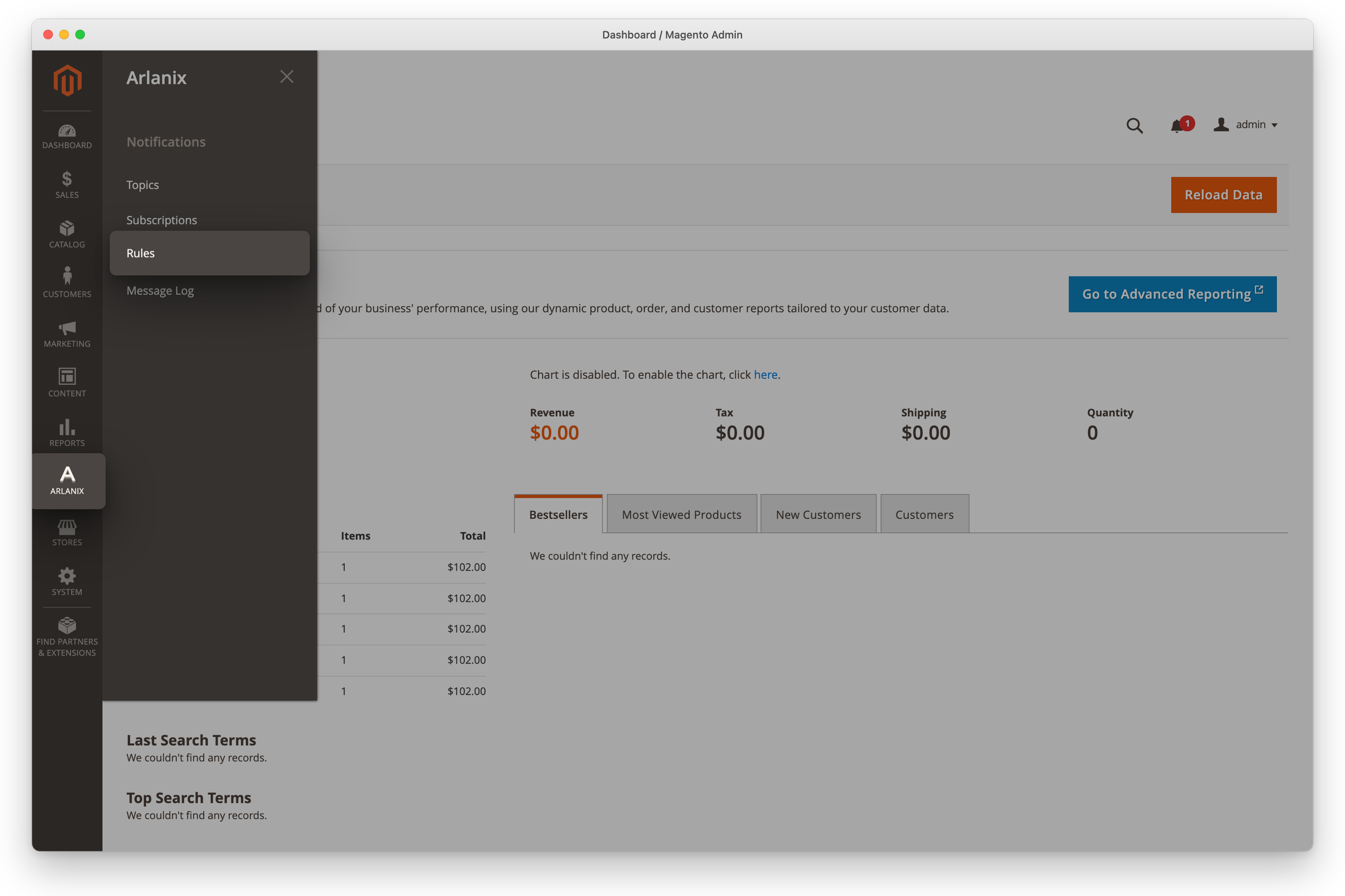
Click Arlanix in the admin's menu, then Rules under Notifications.
Make a rule
Below, a rule sends every order of $100 or more to the topic Orders, which the sales team is subscribed to.
Click Add rule.
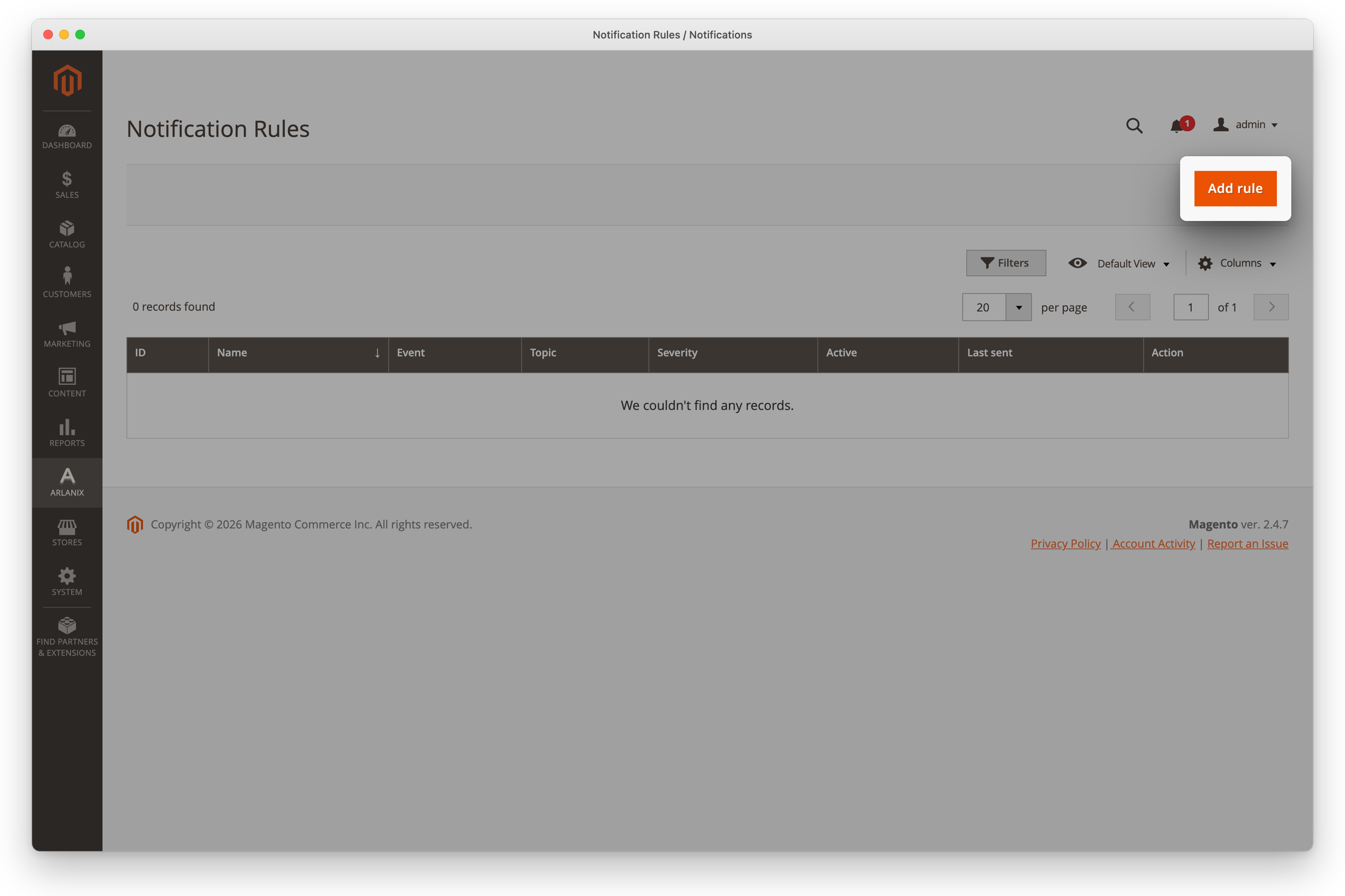
Enter a Name, such as Big orders to the sales team: the grid and the Message Log show it. Choose the Event, New order, and the Topic the message goes to, Orders. Leave Severity on As the event says and Active on.
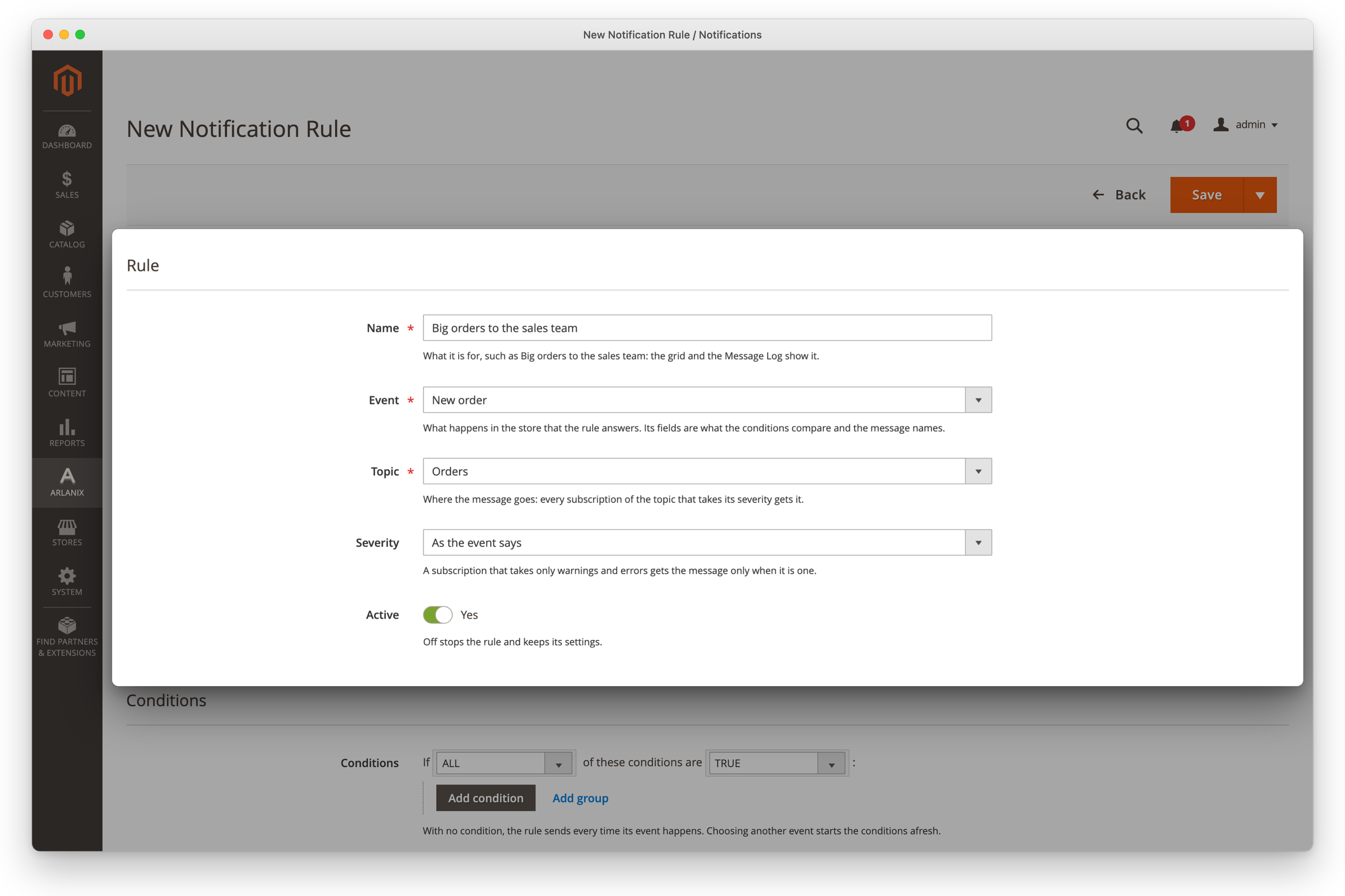
Under Conditions, click Add condition and choose Grand total, equals or greater than, and type 100.
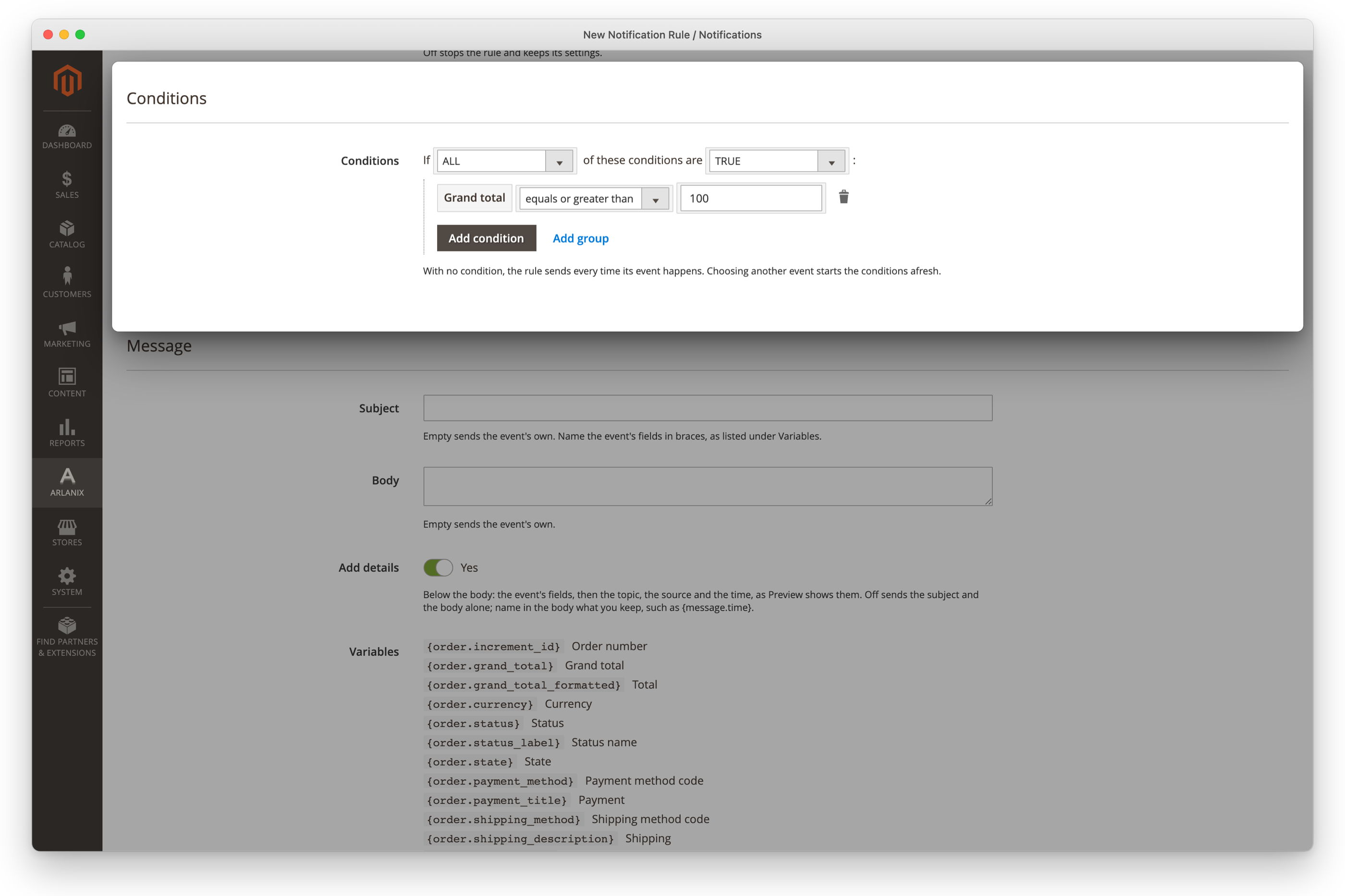
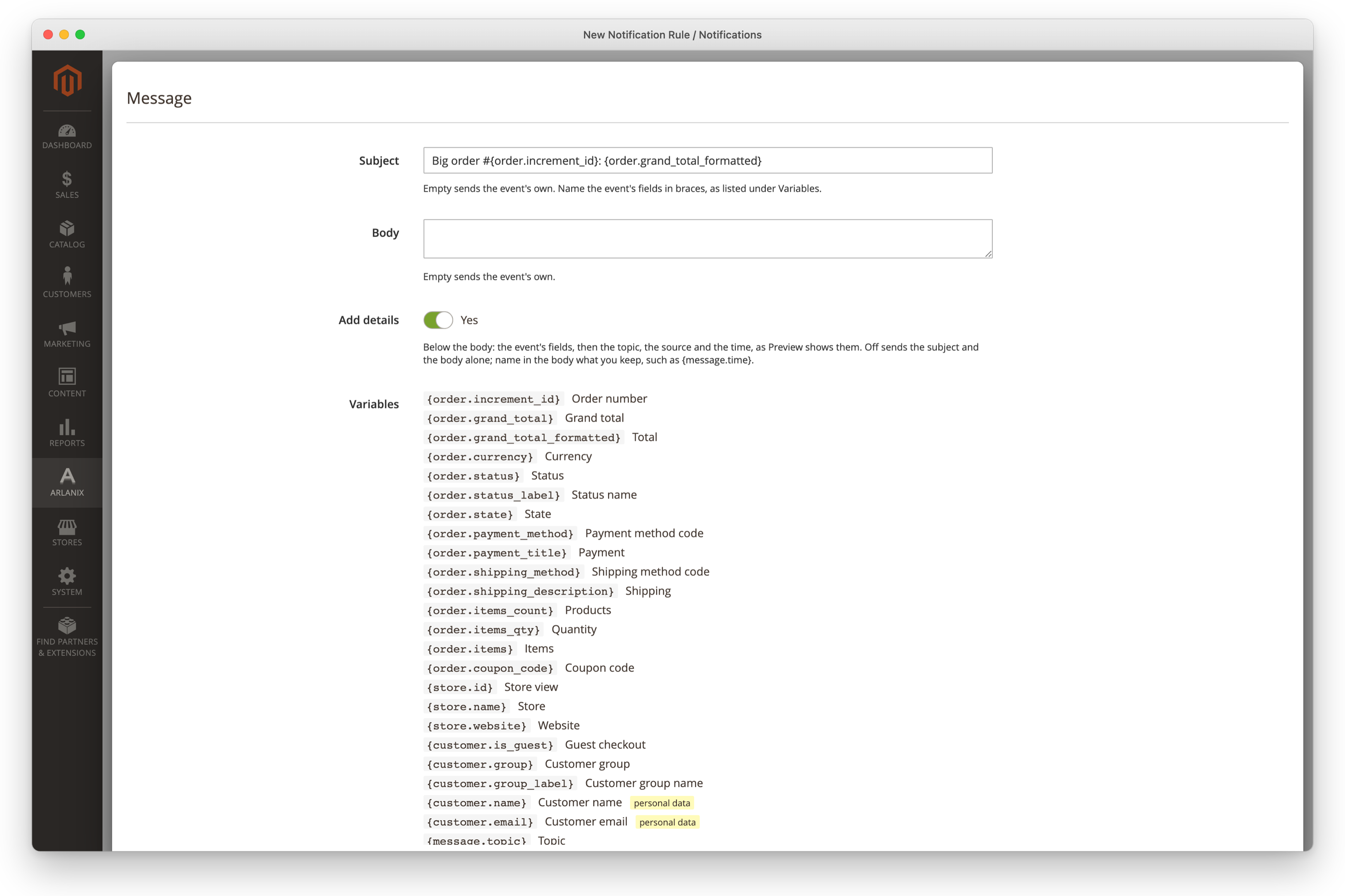
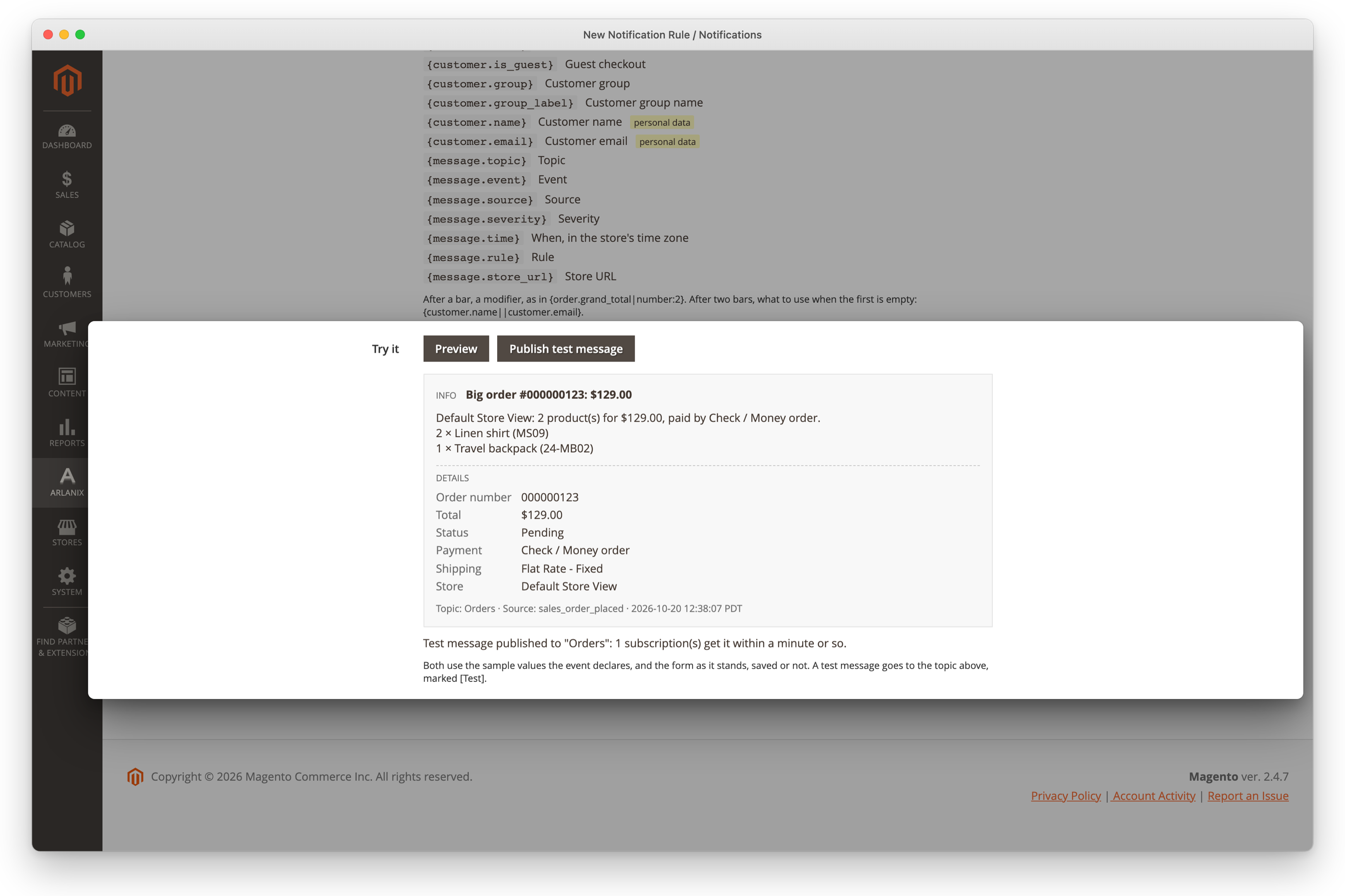
Under Message, type the Subject Big order #{order.increment_id}: {order.grand_total_formatted} and leave Body empty: it is the event's own. Click Preview to see the message with sample values, as it will be sent: the subject, the body and, under Details, the event's fields, the topic, the source and the time. From then on the preview follows the form: change the subject, the body or a setting, and it redraws.
Click Publish test message to send it, with the sample values, to Orders, marked [Test]. The page says how many subscriptions get it.
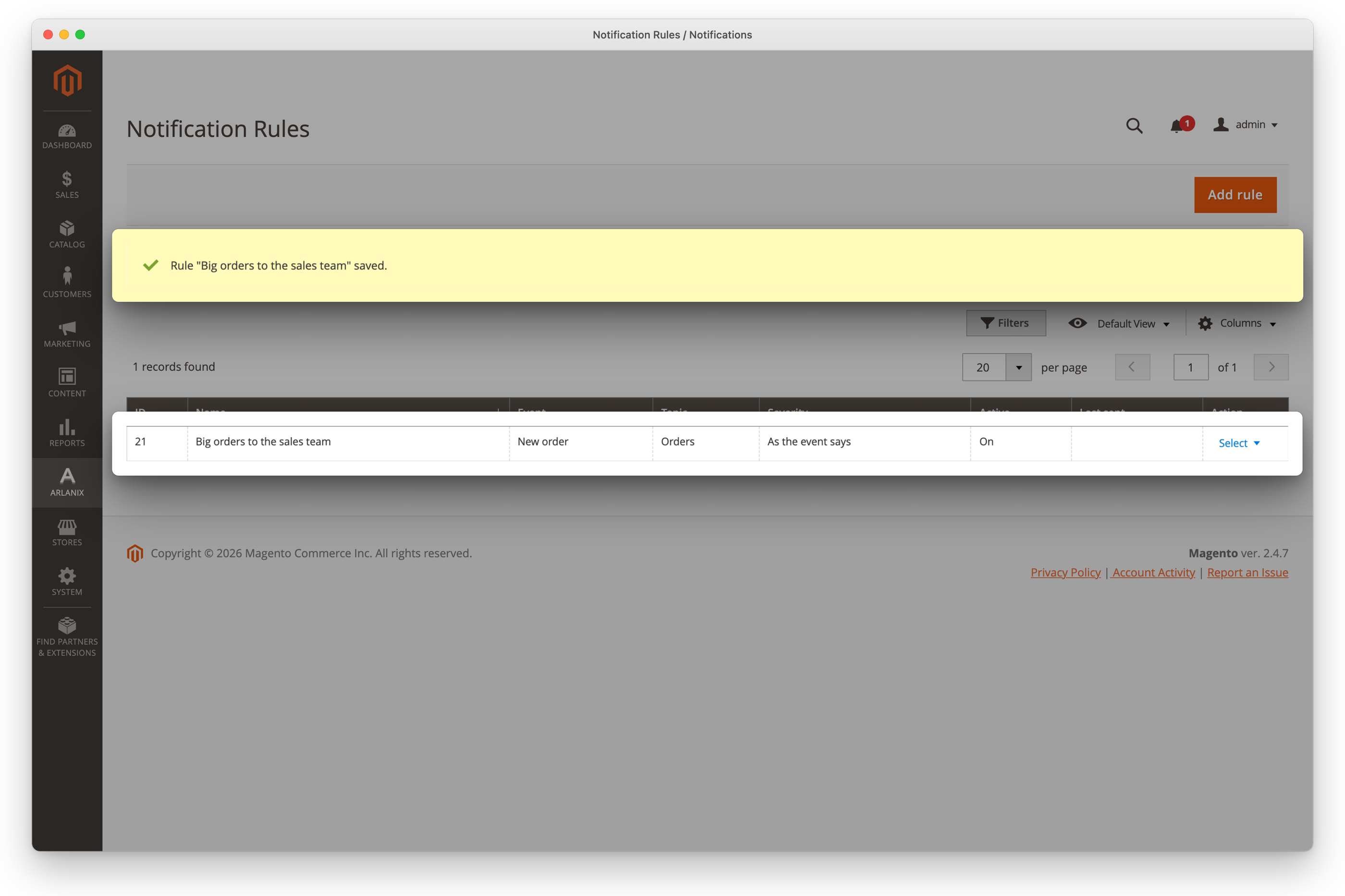
Click the arrow beside Save, then Save & Close. The grid says Rule "Big orders to the sales team" saved.
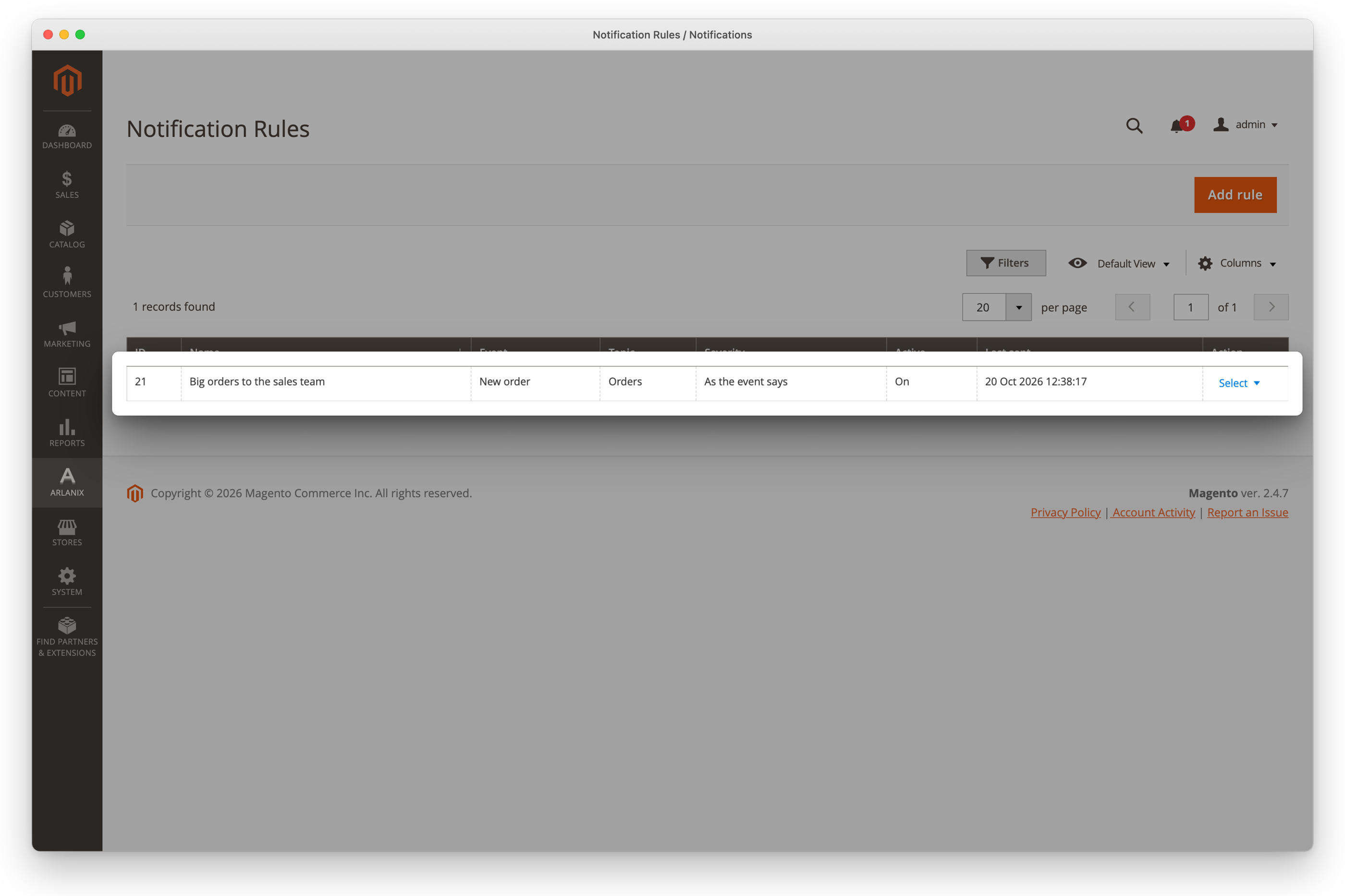
From then on it sends each time a new order of $100 or more is placed, within a minute or so. The Message Log names the rule that sent each message, and the Rules grid says when each rule last sent.
Severity
Severity is what the message says it is: As the event says, which for a new order is Info, or Info, Warning or Error. A subscription that takes only warnings and errors gets the message only when it is one.
Conditions
- With no condition, the rule sends every time its event happens.
- If ALL of these conditions are TRUE needs every condition; switch it to ANY for one of them. Add group nests conditions, for example any of these payment methods inside all of these.
- A field with a list, such as Status or Customer group, offers its choices. Choosing another event starts the conditions afresh, as its fields differ.
Several currencies and store views
- An order's amounts are in the currency it was placed in. In a store that takes several, Grand total equals or greater than 100 is met by 100 dollars and by 100 yen alike: add the condition Currency is USD, or make a rule for each currency.
- Store view keeps a rule to the orders of one store view, or of some.
{store.name}names the store view the order was placed in.{message.store_url}is always the default store view's address.
The message
The Subject and the Body are the event's own when left empty. To word them yourself, type the text and name fields in braces, as Variables lists them:
- the event's fields, such as
{order.increment_id}or{order.grand_total_formatted}; - the message's own, the same for every event:
{message.topic},{message.event}(the event's name, such as New order),{message.source}(its code, such as sales_order_placed),{message.severity},{message.time}(when it is published, in the store's time zone),{message.rule}(the rule's name) and{message.store_url}(the default store view's address, whichever store view the event happened in).
A field marked personal data, such as the customer's name or email, is sent only when the subject or the body names it. What a message says goes to the mail server, Telegram, Slack or Discord, which keep it as they keep any message, and stays in the Message Log for Keep messages for (days), 30 by default. Name a customer's data only in a message to people who may see it.
Details below the body
With Add details on, as it is at first, each message carries its details below the body: the event's fields, such as the order number and the total, then the topic, the source and the time. The preview shows them under Details.
To send only what you wrote, switch Add details off and name in the body what you keep, such as:
{message.event} #{order.increment_id} for {order.grand_total_formatted}, at {message.time}.
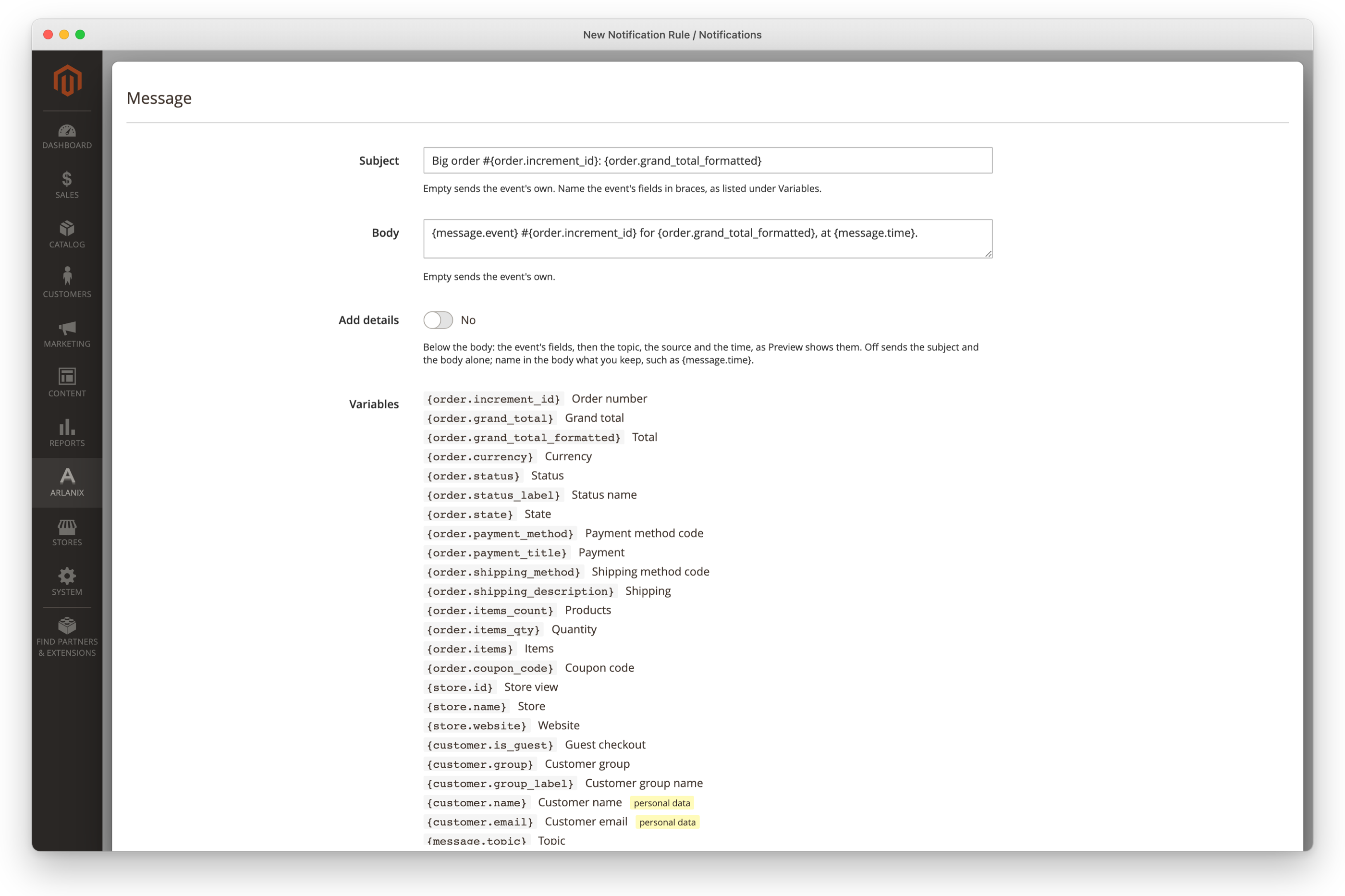
The message is then the subject and that body, in the email and in the chat alike: the preview drops the details as soon as you switch it off. In a digest of several messages, each still says when it was published, so they can be told apart.
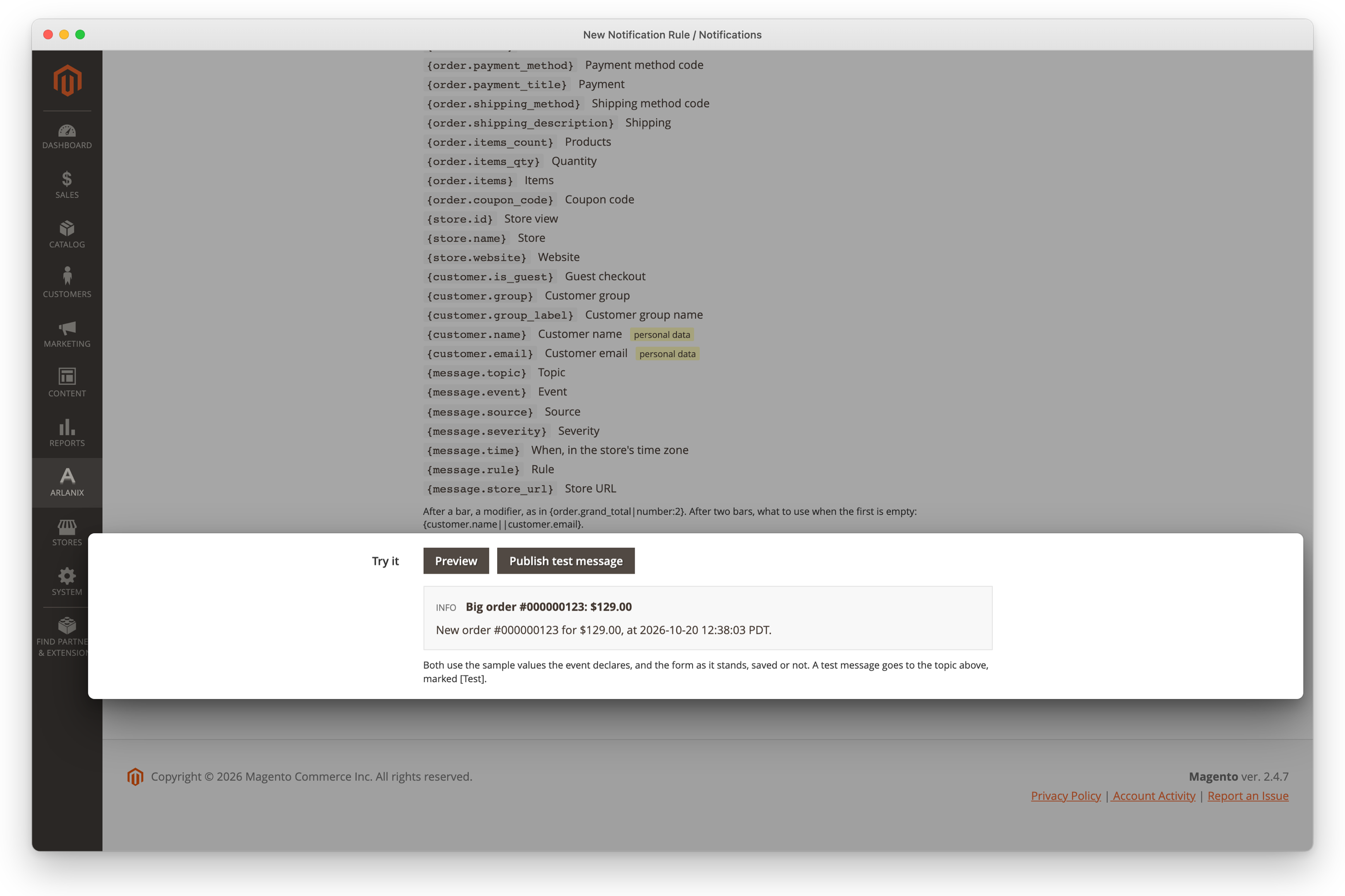
With Add details off, the body has to be written: an empty one is refused.
Modifiers
A field takes a modifier after a bar: {order.grand_total|number:2}. Two bars give a field to use when the first is empty: {customer.name||customer.email}. Braces to keep as they are go after a backslash: \{not a field\}.
| Modifier | Does |
|---|---|
number, number:0 |
Formats a number: two decimals unless the argument says otherwise. |
currency, currency:EUR |
Formats an amount as money, the way the store shows a price: `{order.grand_total |
date:Y-m-d |
Formats a date, PHP date() syntax. |
truncate:150 |
Cuts to a length, on a word boundary. |
default:text |
Uses this text when the value is empty. |
upper, lower, ucfirst |
Upper case, lower case, first letter capitalised. |
prefix:text, suffix:text |
Puts text in front of, or after, the value. |
replace:from:to |
Replaces one piece of text with another. |
trim, strip_tags |
Removes spaces from both ends; removes HTML. |
A field the event does not have, or a modifier the module does not know, refuses the save, naming it.
Change or stop a rule
- In the rule's row, Select > Edit opens it again.
- Active off stops the rule and keeps its settings.
- Select > Delete removes the rule, after asking. Its messages stay in the Message Log.
- Deleting a topic deletes its rules.
One event can have several rules: one for big orders to the sales team, another for orders paid by bank transfer to accounting. Each sends on its own. Rule examples has more to start from.