For arlanix/notification 1.0.0
Monitoring
The monitoring events tell you about the store itself: when its background jobs stop, when something breaks, when orders stop coming, when someone tries the admin, and when an import or an export ends. Like every event, each goes where a rule sends it. They come with arlanix/module-notification-monitoring, which your developer installs.
| Event | Tells you |
|---|---|
| Cron stopped | No background job has run for 15 minutes: feeds, emails, indexers and notifications wait. Then, when one runs again, that it recovered. |
| Cron job failed | A background job ended in an error, and which. |
| Indexer needs reindex | An indexer is invalid, so the store shows what was indexed before; then that it is valid again. |
| Application error | The store wrote an error to its log. The same error comes once in ten minutes. |
| Orders stopped | A store view takes far fewer orders than it does at this time of the week, and why: shoppers fill carts but their orders fail, or shoppers are gone. Then, when orders come again, that it recovered. |
| Admin login failed | Someone failed to sign in to the admin, as whom and why. |
| Admin logged in | An admin signed in, and whether from an address or a device they had not used. |
| Import finished | An import ended: what was created, updated and deleted, and how many errors. |
| Import failed | An import stopped before it ended, and why. |
| Export finished | An export's file is ready to download. |
| Export failed | An export made no file, and why. |
Their fields are in Events.
Send them somewhere
Make a topic for them, such as Store health, and subscribe whoever looks after the store: see Topics. Telegram, Slack or Discord suit them well: they are read at once.
Open Arlanix > Notifications > Rules and click Add rule: see Rules. Enter a Name, such as Cron stopped, choose the Event Cron stopped and the Topic Store health.
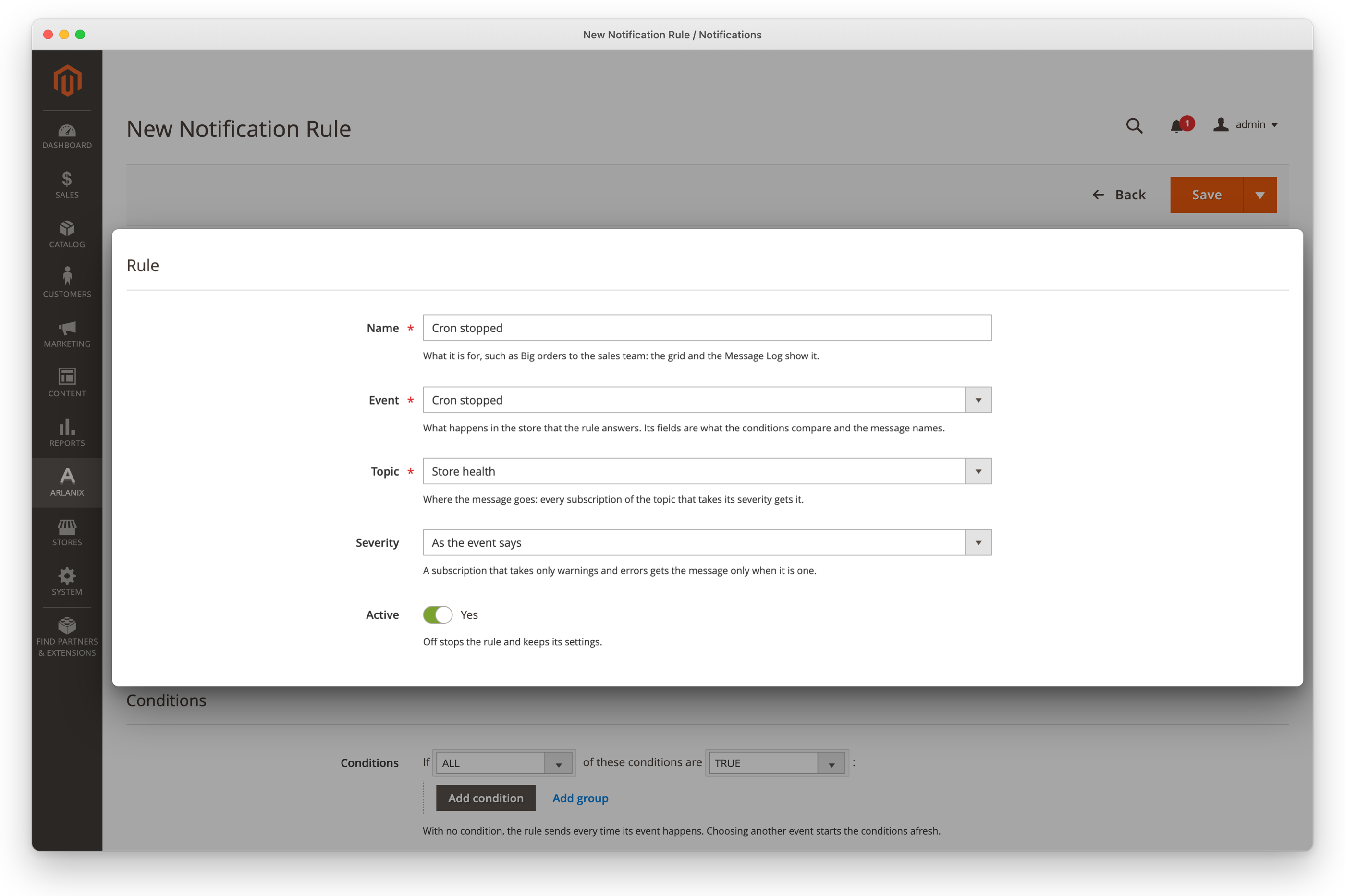
Click the arrow beside Save, then Save & Close. Add a rule the same way for each event you want, with that topic. For example:
- Cron stopped, no condition: both the stop and the recovery.
- Application error, no condition.
- Orders stopped, no condition, or Store view is one of yours: a checkout that stopped taking orders.
- Admin login failed, no condition, or only for the username admin.
- Admin logged in, with the condition From a new device is Yes: a sign-in from a browser the admin had not used, not every one. From a new address does the same for the IP address.
- Import finished, with the condition Errors greater than 0 and the severity Warning: an import that left rows out.
- Export finished, no condition: the file is ready, without waiting on the Export page.
Each event comes as it happens; a check of cron, jobs, indexers and orders runs every five minutes. A check reports when a state changes: a stopped cron is one message however long it stays stopped, and its recovery another.
The settings
Click Stores, then Configuration; in the list on the left, Arlanix, then Notifications, as Email shows; then open the Monitoring group. Change a setting, and click Save Config.
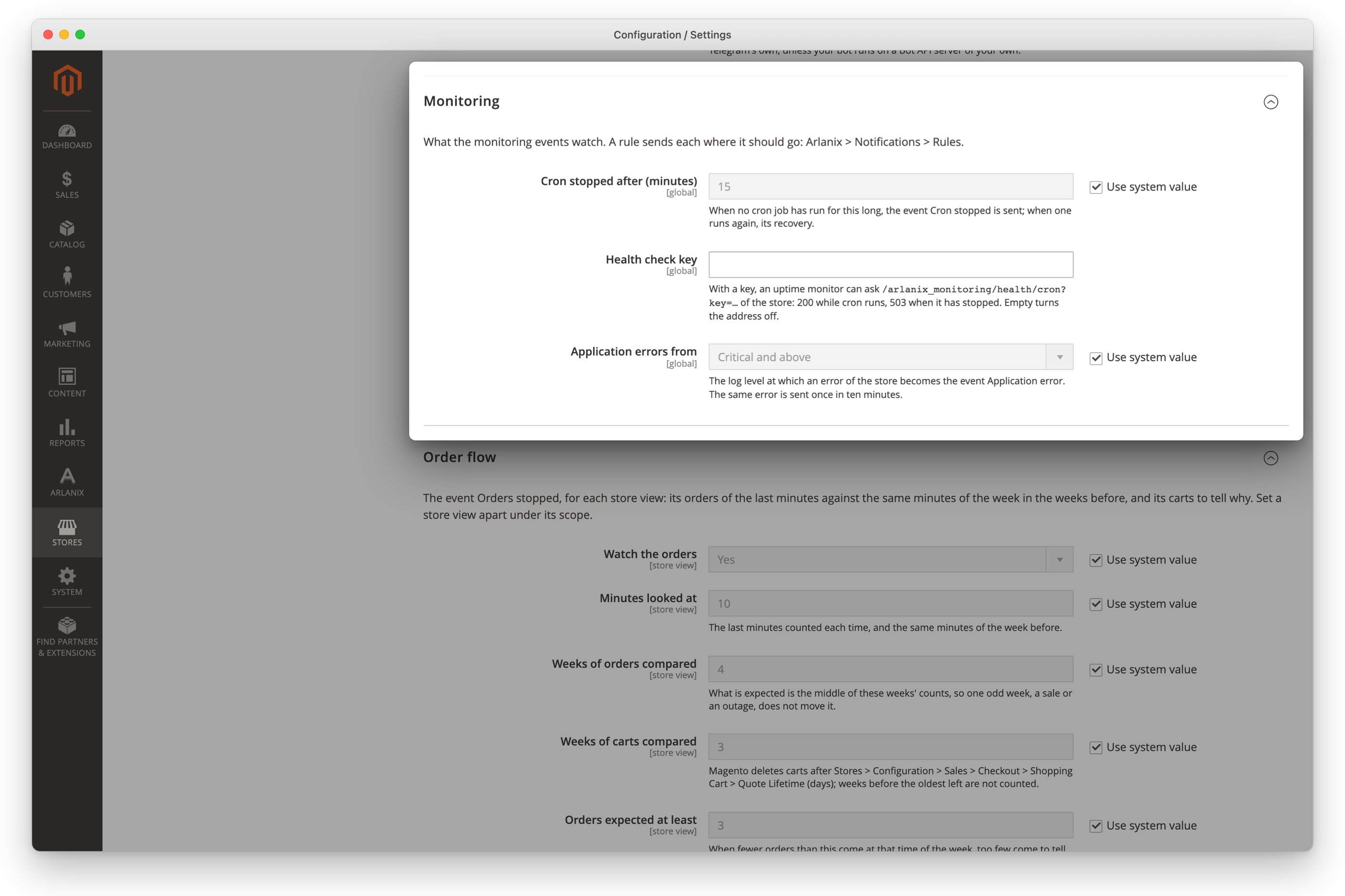
| Setting | Default | What it does |
|---|---|---|
| Cron stopped after (minutes) | 15 | When no background job has run for this long, Cron stopped is sent. |
| Health check key | Turns on the address an uptime monitor checks; see below. Stored encrypted. | |
| Application errors from | Critical and above | Which errors of the store's log become Application error: Error and above sends more, Emergency only fewer. |
Orders that stop
Every five minutes the check counts each store view's orders of the last 10 minutes, and the carts its shoppers changed, and compares them with the same 10 minutes of the week before, the orders in the four weeks before and the carts in the three: a Tuesday at noon with Tuesdays at noon. Orders stopped comes when the orders fall below a quarter of those expected:
- Shoppers fill carts, no orders come: carts are as usual. The checkout, a payment method or a shipping method fails. Place a test order.
- Shoppers are gone: carts are gone too. The storefront cannot be reached, or its traffic stopped.
When the orders are that low and the carts are fewer than usual but not gone, nothing comes: neither tells it apart from a quiet day. It is sent when two looks in a row see it, so one quiet window does not send it, and when the orders come again you hear that too.
Nothing comes either at a time of the week that brings fewer than 3 orders in those 10 minutes, about 18 an hour, in the middle of the four weeks before: too few orders come to tell. With the defaults, a smaller store view hears nothing. Set its Minutes looked at to 60, and 3 orders in that hour of the week are enough, though a stop is then told later. A new store view is watched once it has a few weeks of orders behind it.
The Order flow group under the settings changes these numbers. They can differ for each store view: choose it under Scope at the top of the page, clear Use Website beside a setting, and change it, or set Watch the orders to No for a store view with too few orders.
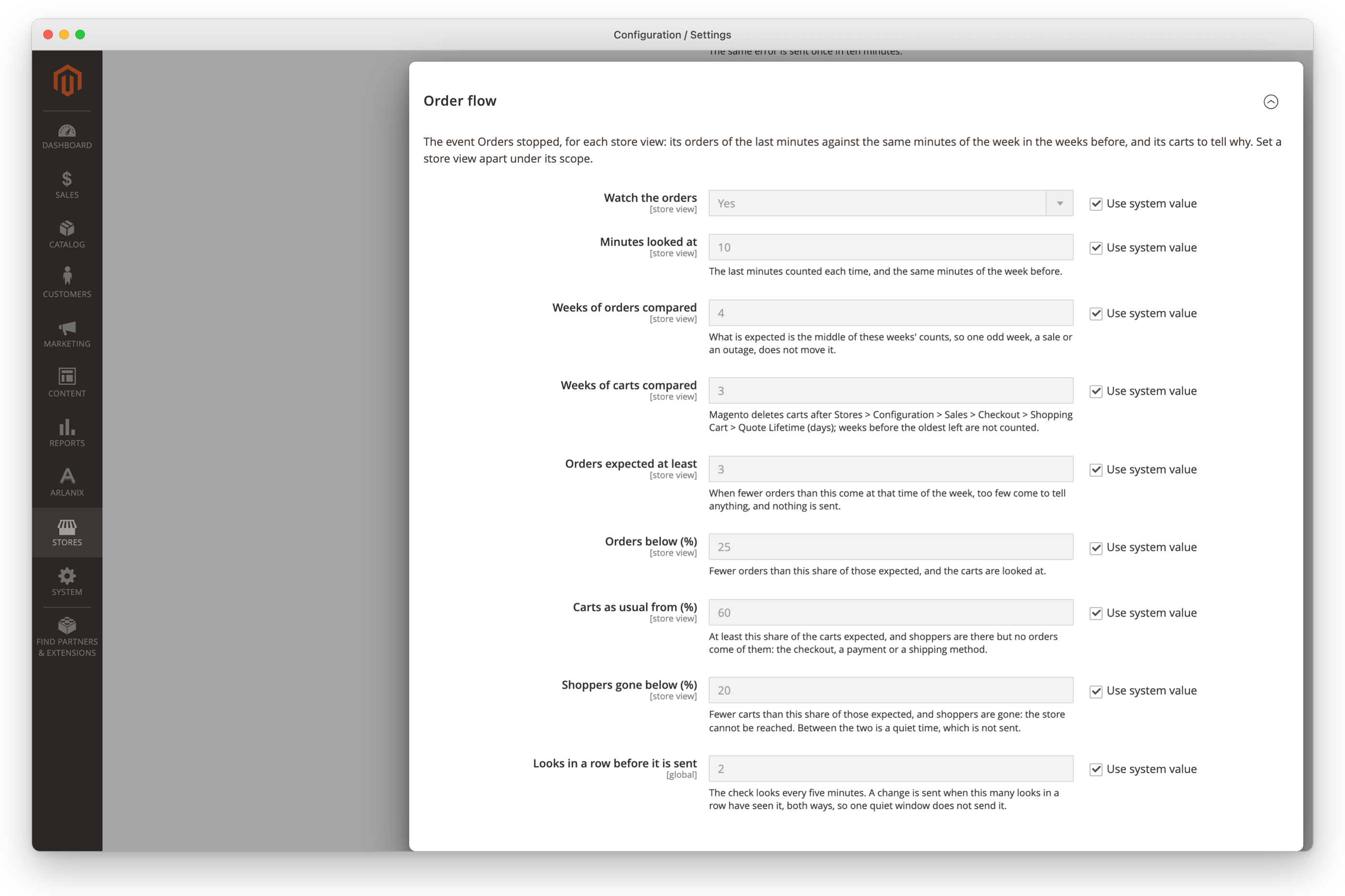
| Setting | Default | What it does |
|---|---|---|
| Watch the orders | Yes | Whether the store view's orders are looked at. |
| Minutes looked at | 10 | The last minutes counted, and the same minutes of each week before. |
| Weeks of orders compared | 4 | The weeks whose orders make what is expected. |
| Weeks of carts compared | 3 | The same for carts. Magento keeps carts for Quote Lifetime (days), so ask for fewer weeks than that. |
| Orders expected at least | 3 | Fewer expected than this, and nothing is sent. |
| Orders below (%) | 25 | Fewer orders than this share of those expected, and the carts are looked at. |
| Carts as usual from (%) | 60 | At least this share of the carts expected: shoppers are there. |
| Shoppers gone below (%) | 20 | Fewer carts than this share: shoppers are gone. |
| Looks in a row before it is sent | 2 | Set for the whole store. |
When cron itself stops
Cron runs the checks, so a stopped cron cannot say it stopped. Two things notice it instead, and send Cron stopped at once, past the queue that waits for cron too:
- The admin. A page of the admin checks, at most once in five minutes.
- An uptime monitor, such as UptimeRobot or Pingdom, from outside the store. Set a Health check key, any long random text, save, and point the monitor at your store's address followed by
/arlanix_monitoring/health/cron?key=and the key. It answers 200 while cron runs, and 503 once it has stopped, or when it has never run, which the monitor reports. Without a key the address answers 404. Your developer may need to adjust the address for your store: see The health check.
Sent at once, the message goes by email, Telegram, Slack or Discord without cron. One that fails is tried again by cron, like any other, once it runs.
Imports and exports
Imports are run from System > Data Transfer > Import, and by integrations or schedules that use Magento's import. Whoever imports from the Import page sees the result there; the events tell the others, and the imports nobody watches.
- Import finished comes even when some rows had errors and were left out: Errors counts them. A rule can send only those, as above.
- Import failed comes when the import stopped: more errors than it allows, or one that ends it at once.
Exports are made in the background: Export in System > Data Transfer > Export only asks for one, and a background job makes the file. Export finished says when it is ready; Export failed says why there is none, which the Export page does not show. That job waits for cron, like the notifications, so with cron stopped no export is made and neither message comes: Cron stopped tells you that.
Admin sign-ins
The username and the reason are in the message. The IP address and the browser are personal data: name {admin.ip} or {admin.user_agent} in the rule's body to have them. To tell a new address or a new device, the store remembers the ones each admin signed in from for a year after the last sign-in, as hashes only this store can make, never the address itself. The device is the browser, known by a cookie it keeps: a private window, another browser or cleared cookies sign in as a new device.
The store starts remembering when the module is installed, so each admin's first sign-in after that is from a new address and a new device: a rule on either sends once for every admin then, and after that only for what is new.