For arlanix/notification 1.0.0
Your first rule
Three things make a notification, and each answers one question:
| Answers | Here | |
|---|---|---|
| Topic | What is it about? | Orders |
| Subscription | Who gets it, and how? | The sales team, by email |
| Rule | When is it sent? | A new order of $100 or more |
A rule sends a message to a topic, and the topic hands it to every subscription it has:
New order of $117 → rule Big orders to the sales team → topic Orders → subscription Sales team → email
A topic takes any number of subscriptions, each with its own address and way of delivery, and the messages of any number of rules.
Below, you make one of each and see an order arrive, in about ten minutes. Email has to work first: see Before you start.
1. Make the topic
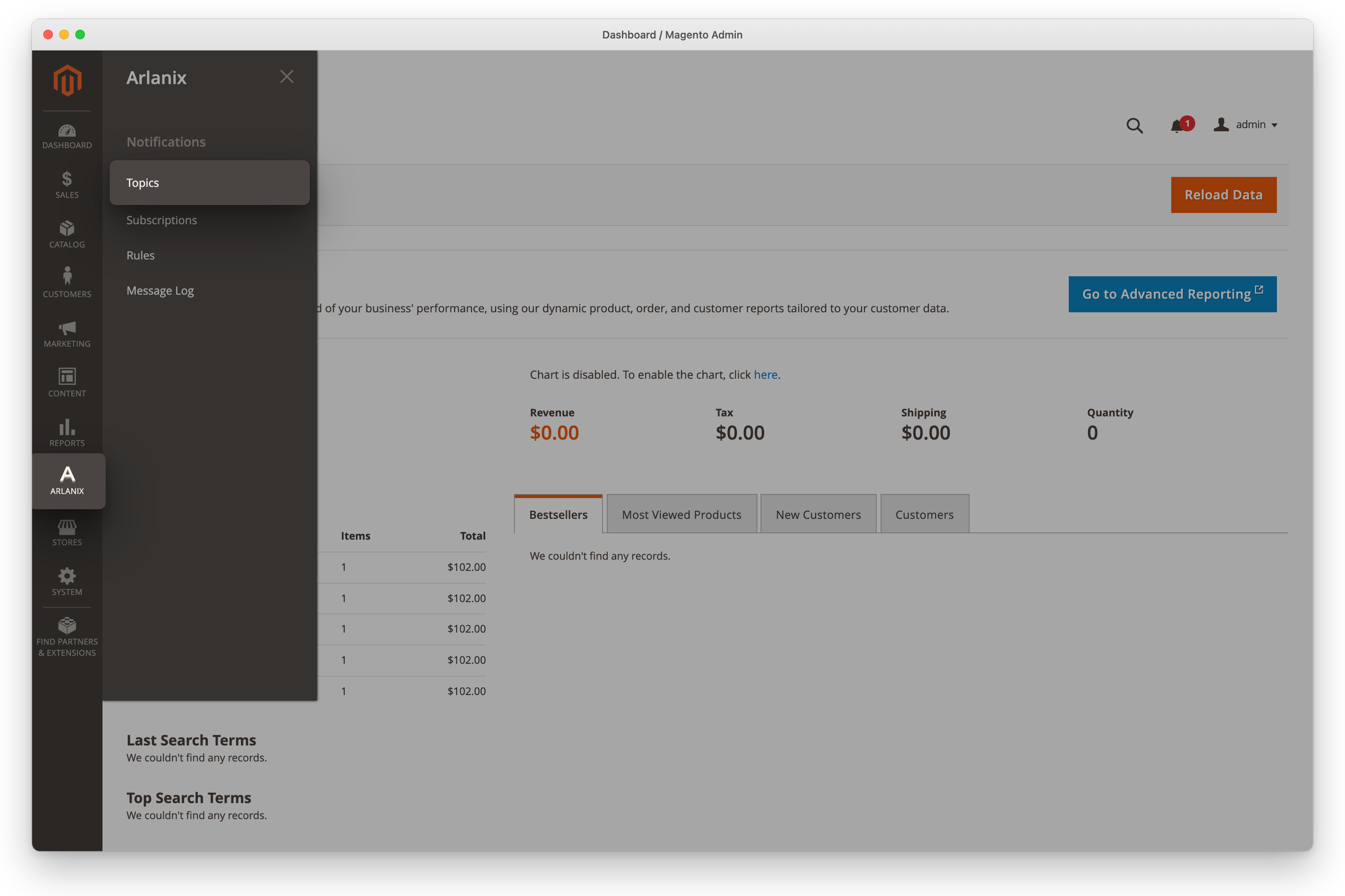
Open Arlanix > Notifications > Topics.
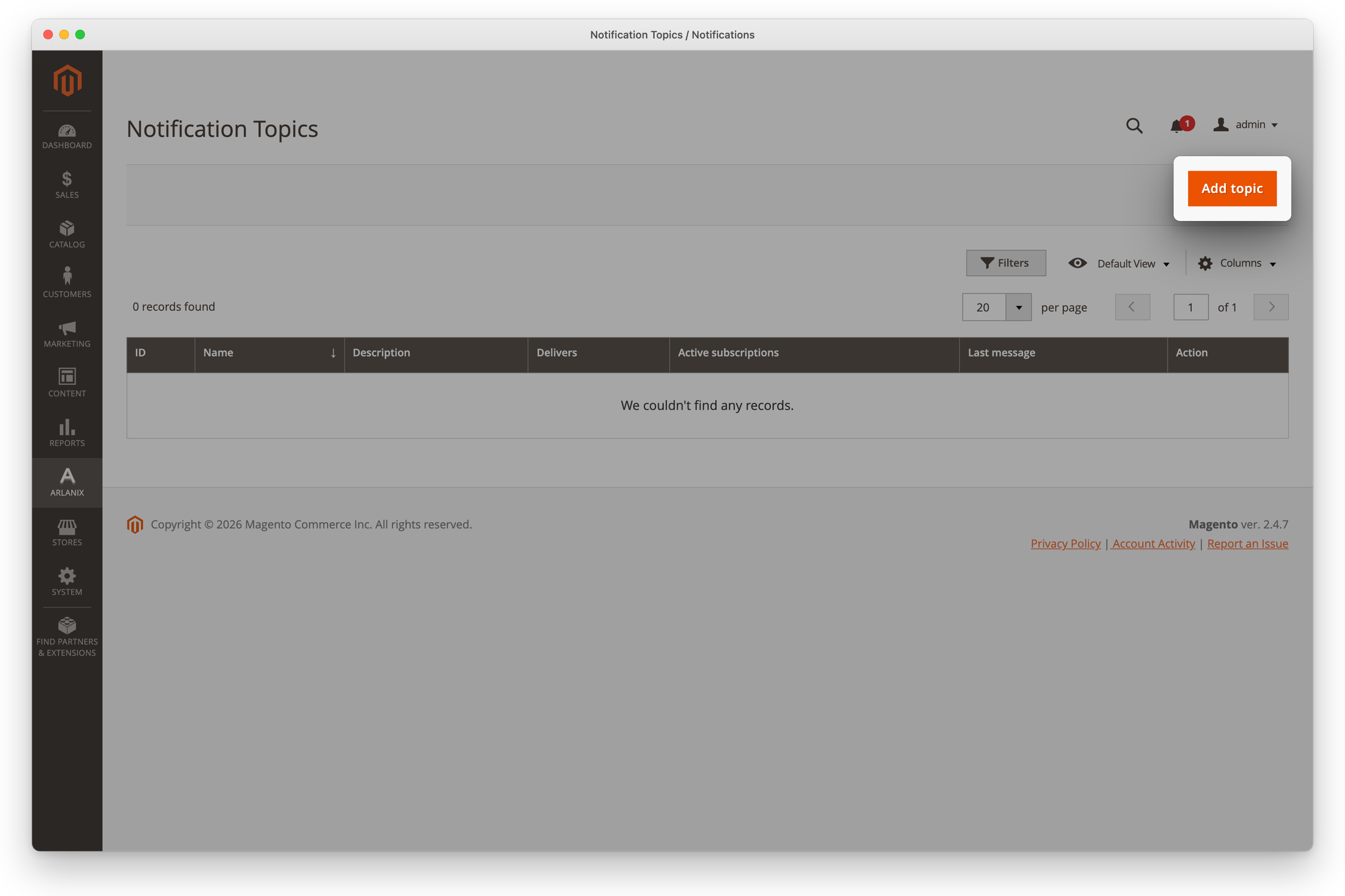
Click Add topic.
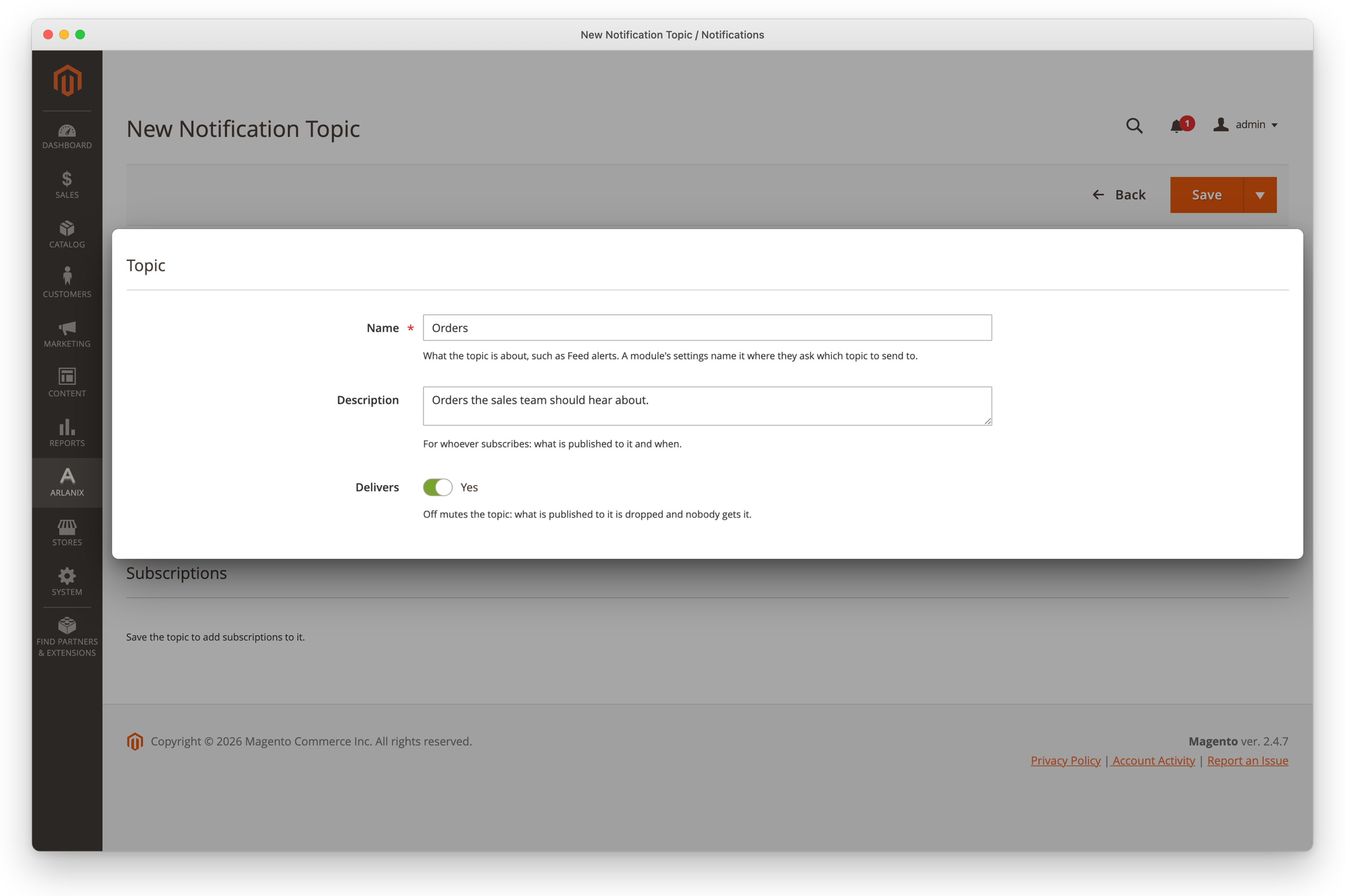
Enter a Name, Orders, and, for whoever subscribes later, a Description of what is sent to it. Leave Delivers on.
Click Save. The topic's page stays open, now with Subscriptions under it.
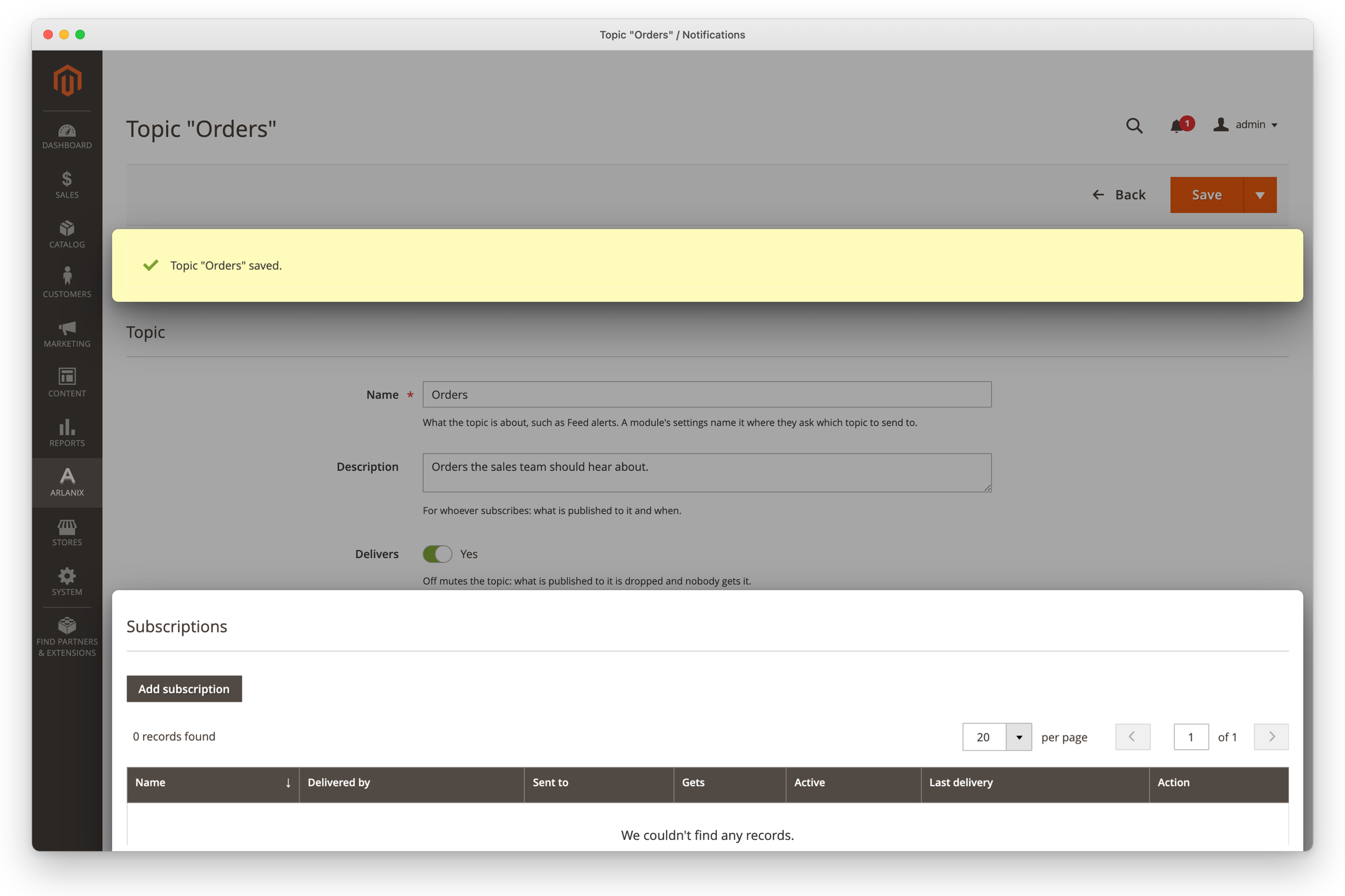
2. Subscribe the sales team
Under Subscriptions, click Add subscription. The subscription form opens in a panel, on this topic.
Enter a Name for who gets it, Sales team. Leave Gets on Everything.
Under Delivery, leave Delivered by on Email and enter one Email address, such as [email protected]: your own, for now.
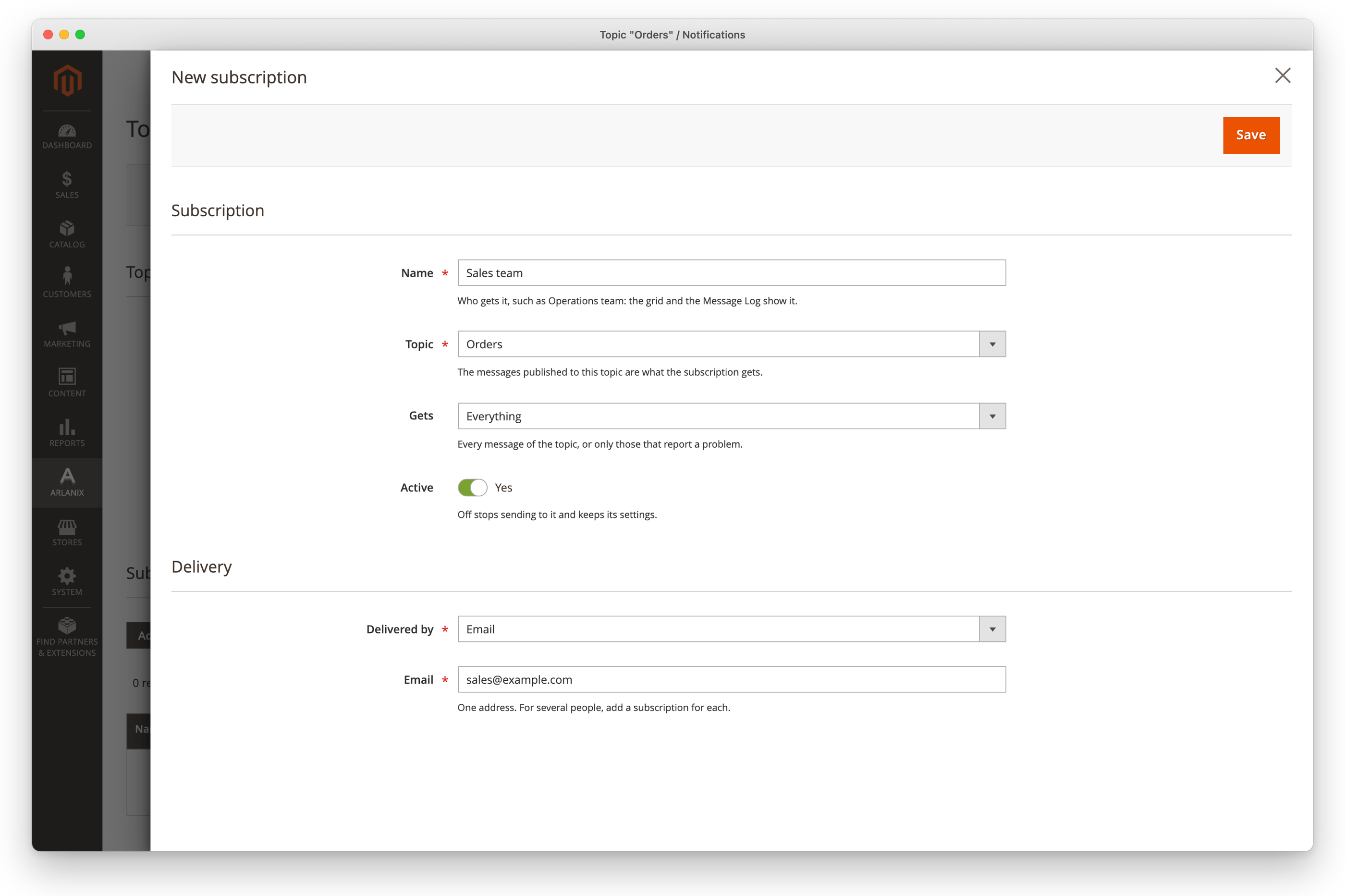
Click Save in the panel. It closes, and the topic's page lists the subscription, with Nothing sent yet under Last delivery.
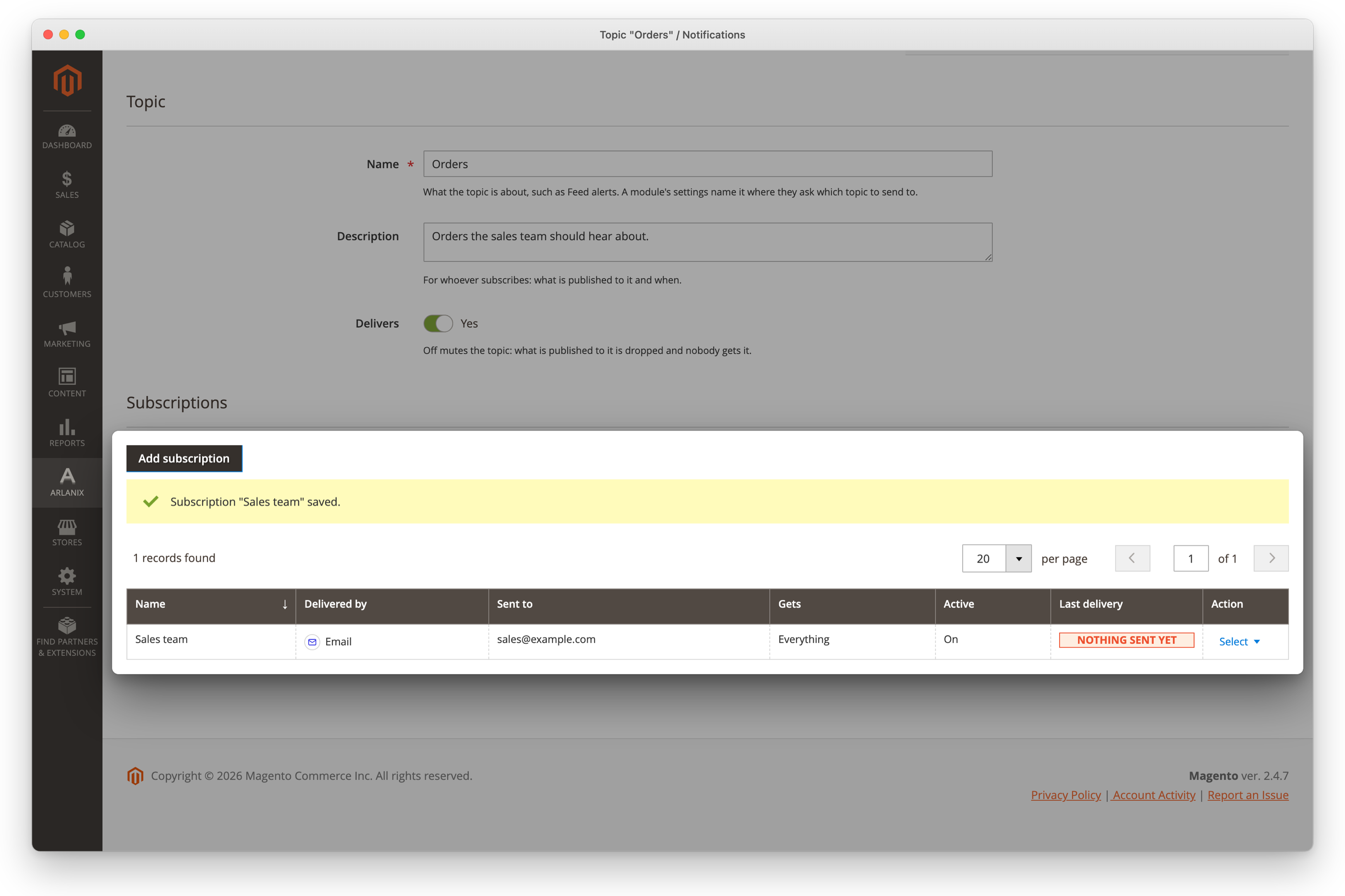
In the subscription's row, click Select, then Send test message.
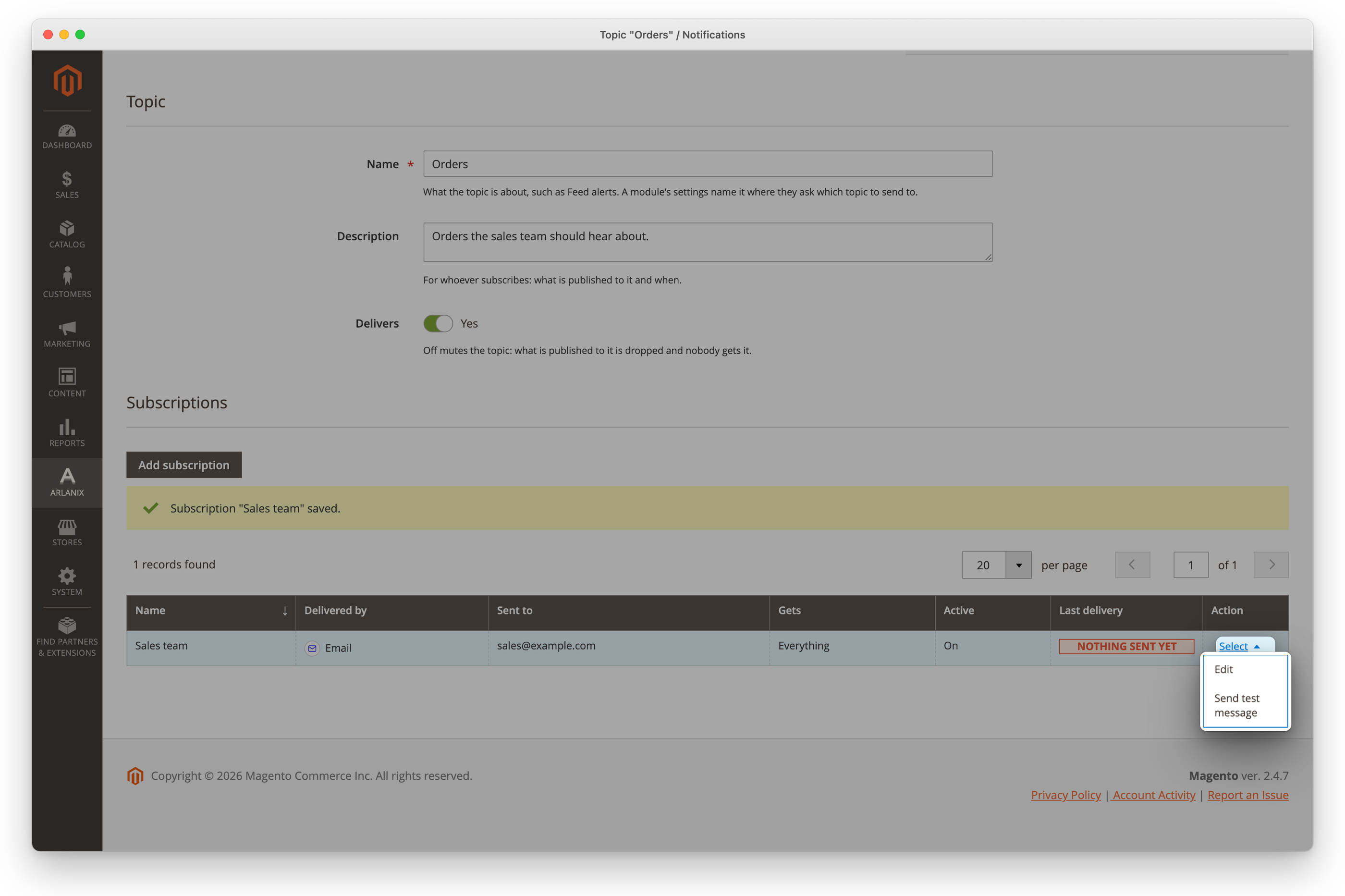
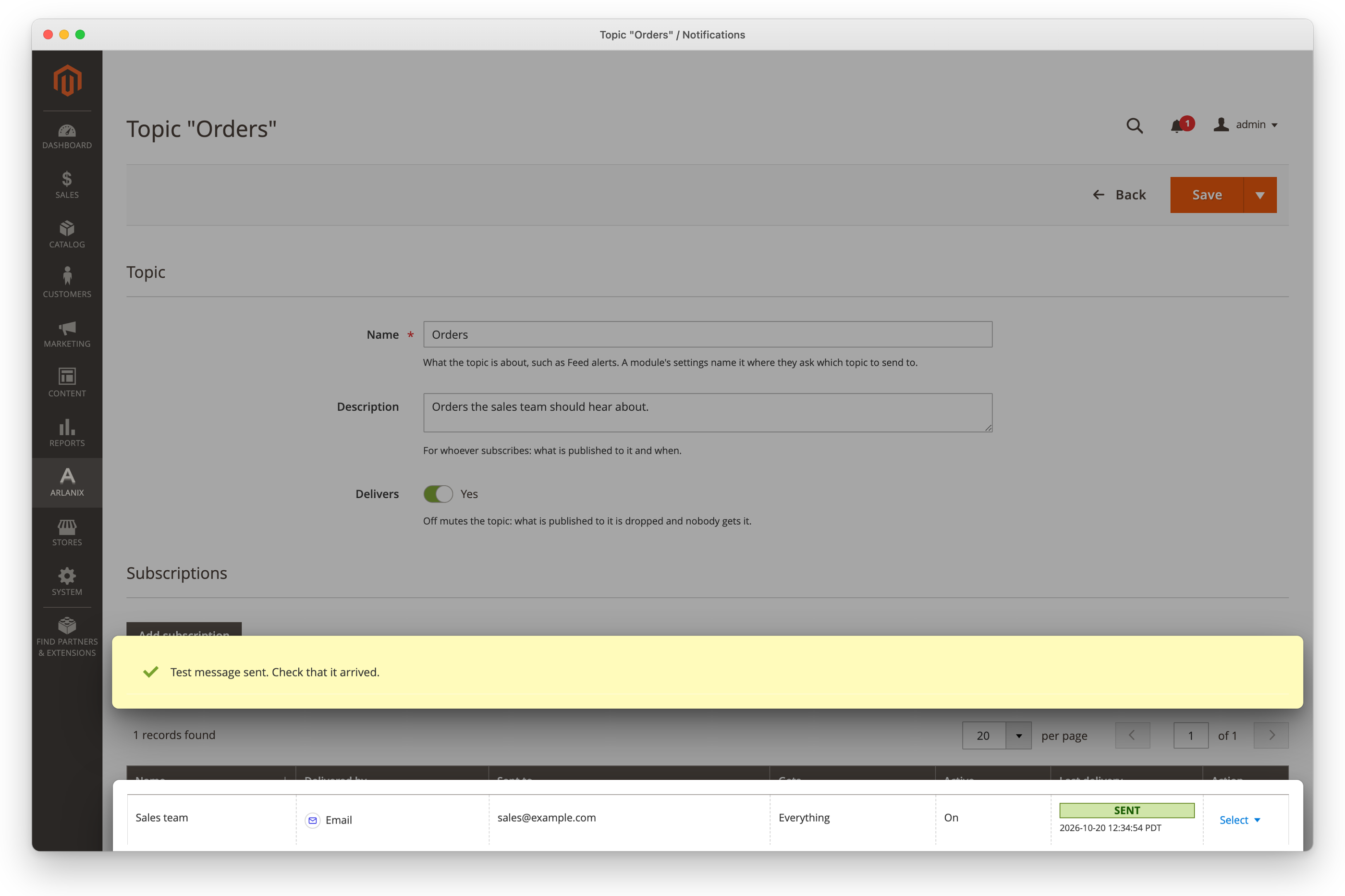
Above the list, the page says Test message sent. Check that it arrived., and the row's Last delivery says it was sent.
The test arrives in your inbox: whatever is sent to Orders reaches the address.
![The test email: [INFO] Test notification from the store](/notification/img/notif-test-email.png)
3. Make the rule
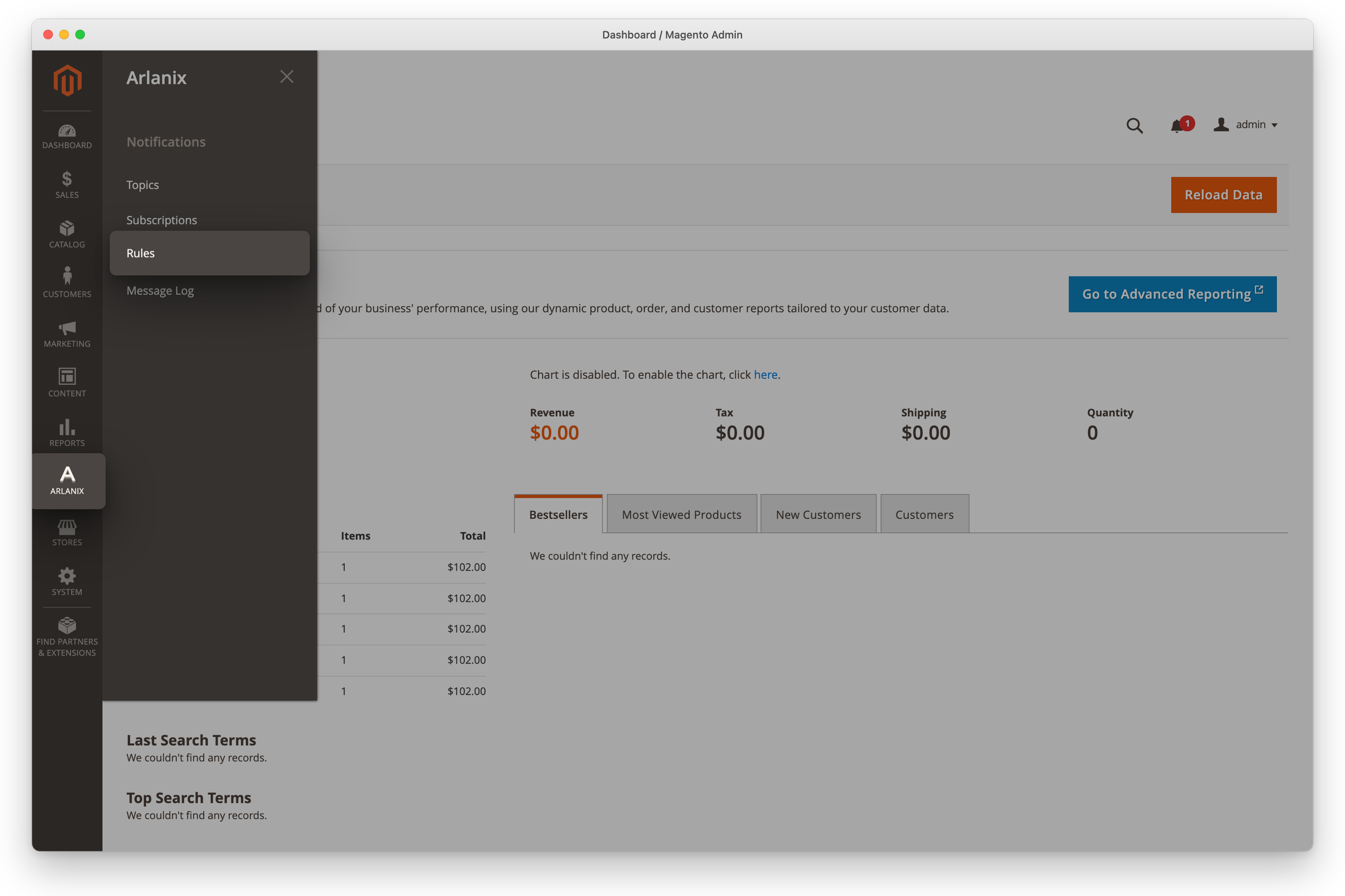
Open Arlanix > Notifications > Rules.
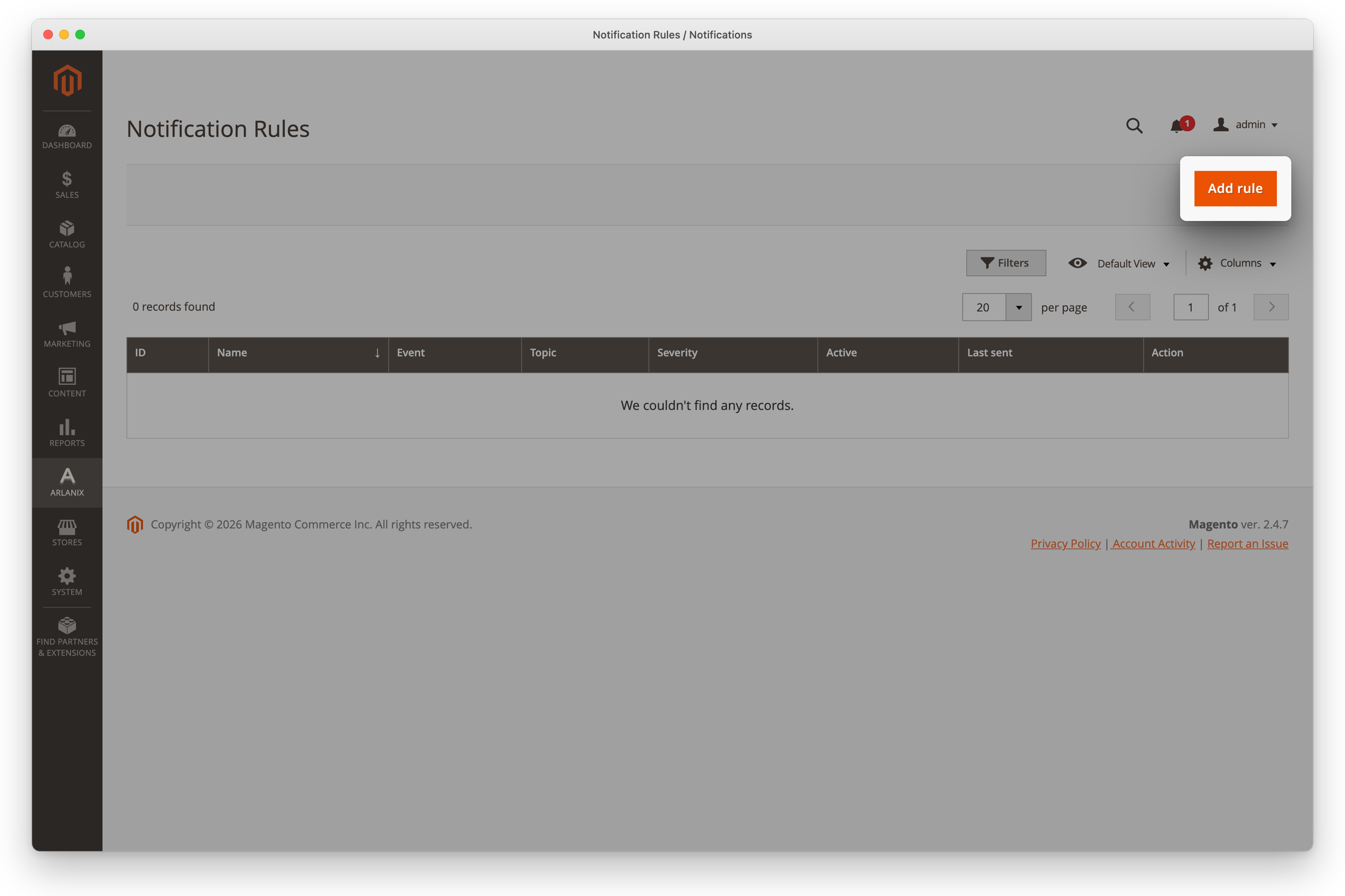
Click Add rule.
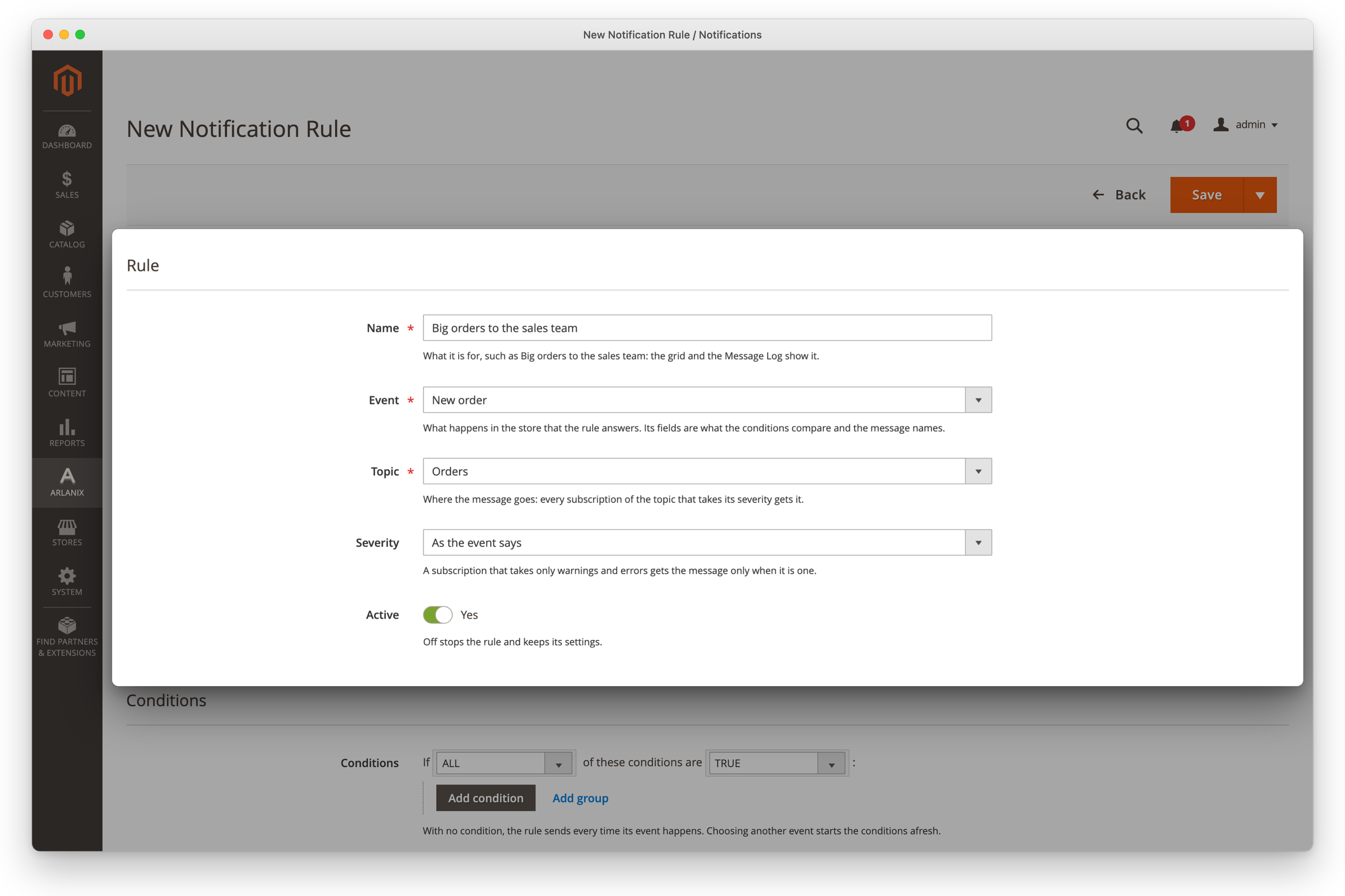
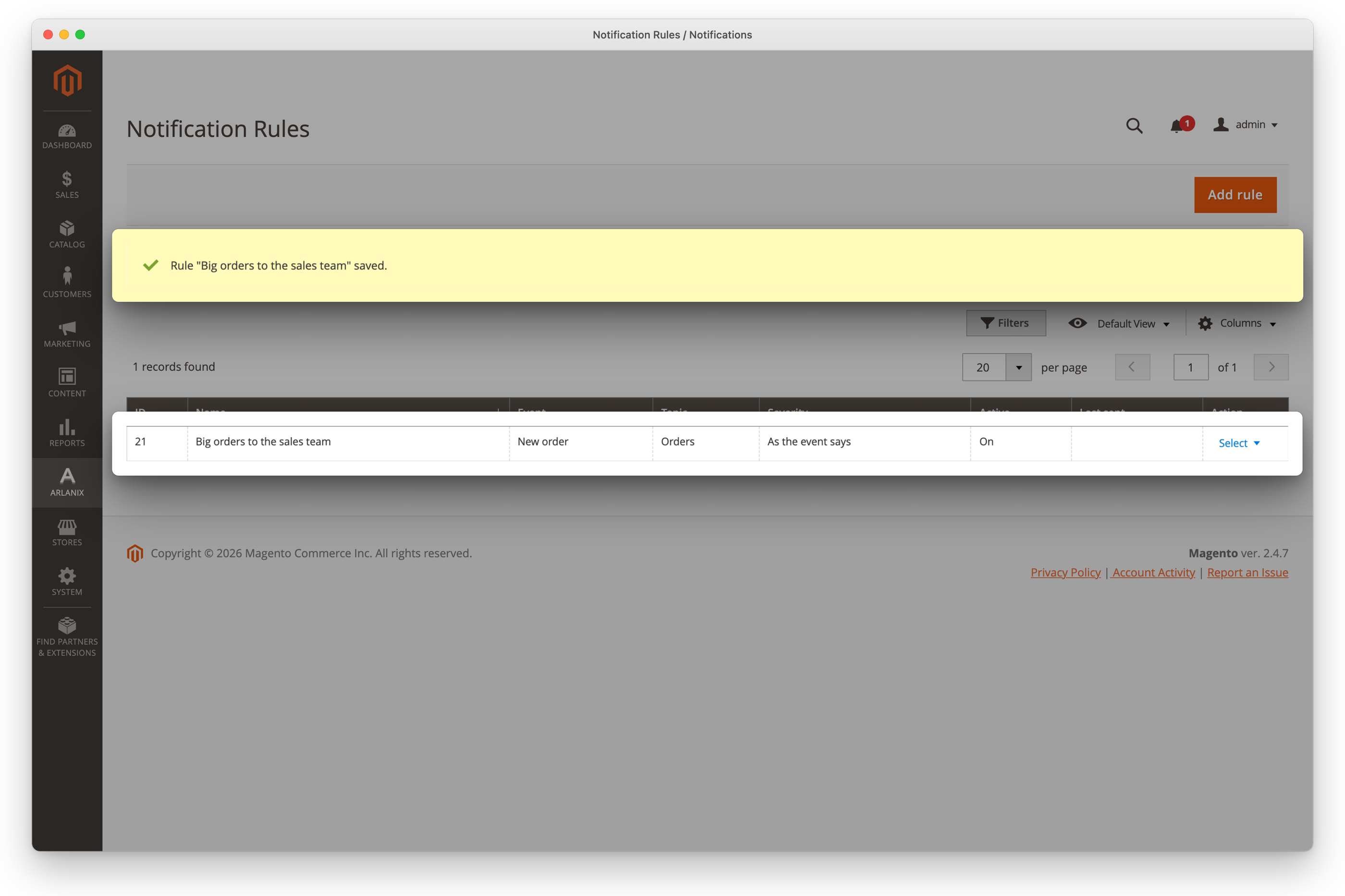
Enter a Name, Big orders to the sales team: the grid and the Message Log show it. Choose the Event, New order, and the Topic the message goes to, Orders.
Under Conditions, click Add condition and choose Grand total, equals or greater than, 100. Without a condition, the rule would send every order.
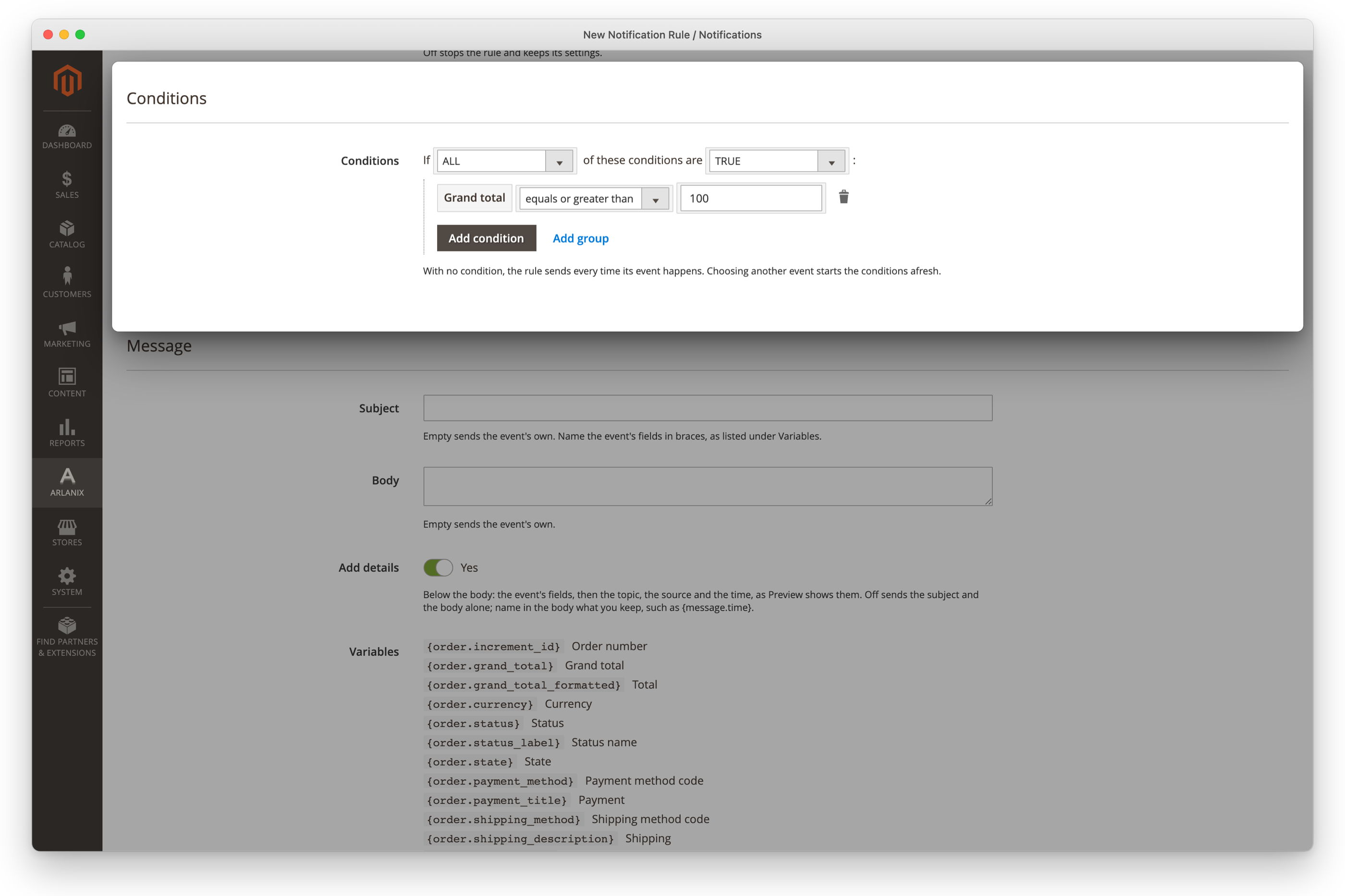
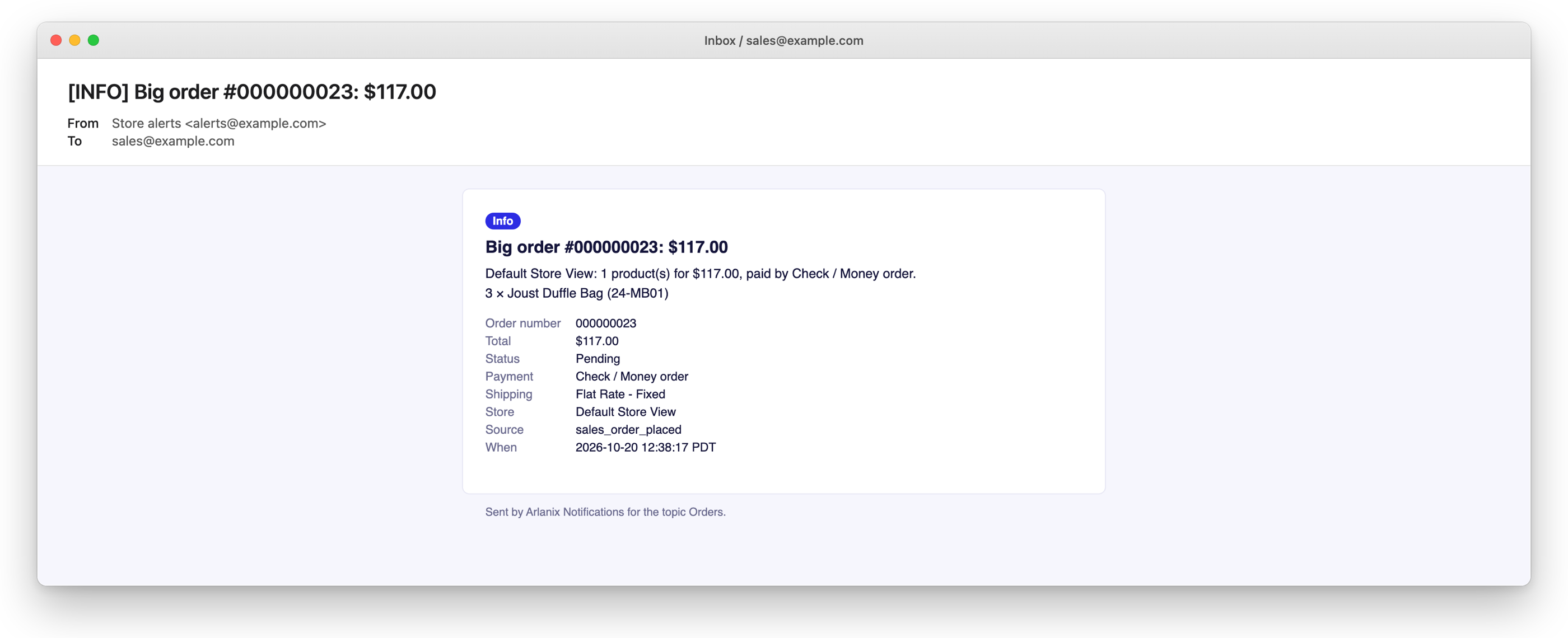
Under Message, enter the Subject Big order #{order.increment_id}: {order.grand_total_formatted}. The braces name the order's fields; left empty, the subject is the event's own.
Click Save & Close under the arrow beside Save. The grid lists the rule.
4. See it send
Place an order of $100 or more in the store. Within a minute or so, the email arrives.
To try it without an order, Publish test message on the rule's page sends the message to Orders with sample values, marked [Test].
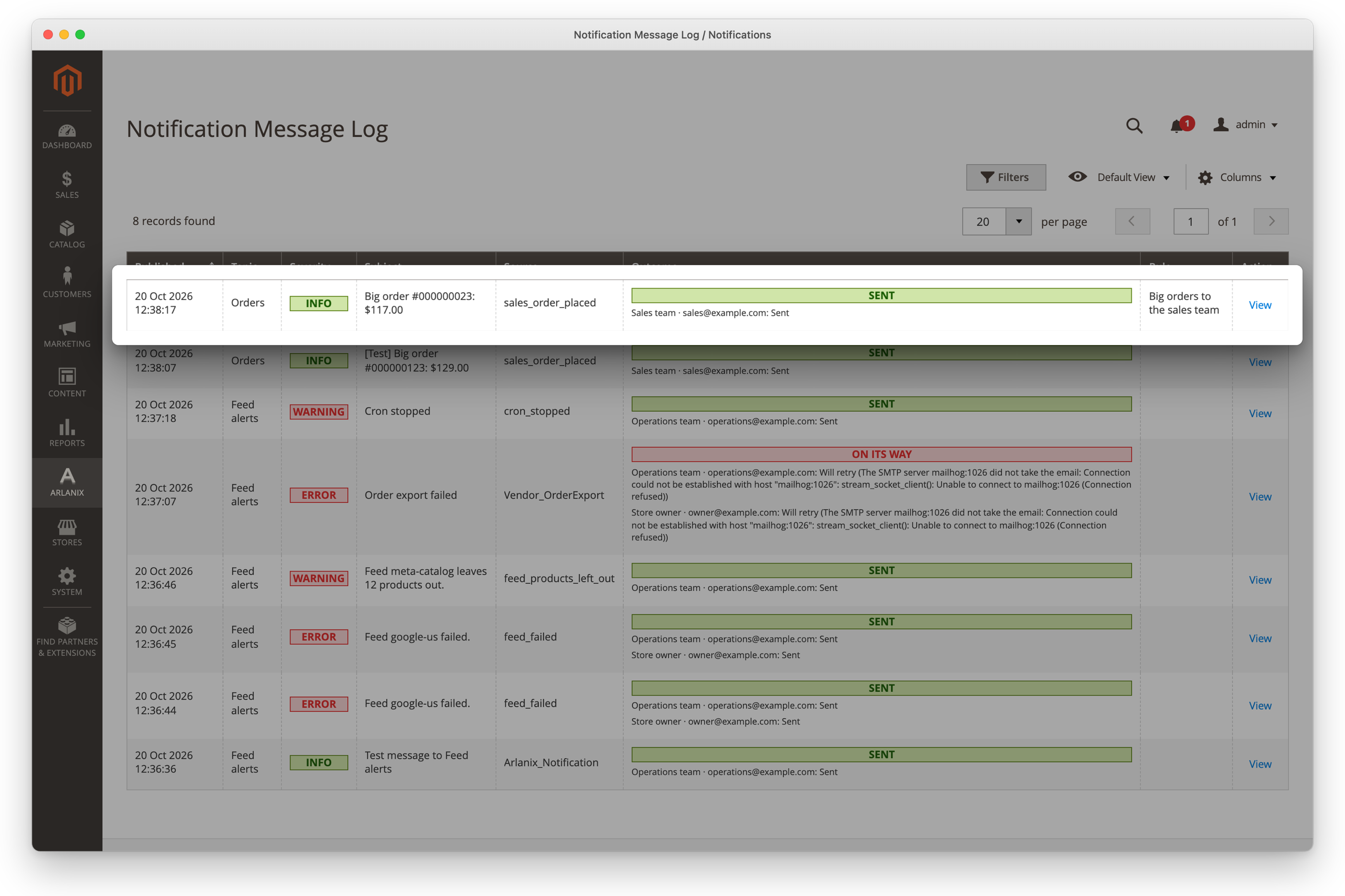
The Message Log lists the message, with the rule that sent it and who got it.
From here:
- Subscribe more people to Orders, each their own way: an address, a Telegram chat, a Slack or Discord channel. One that should hear only of problems takes only warnings and errors: see Subscriptions.
- Add rules for other events, to this topic or a new one, such as the store's own health: see Rules.
- Hear about a product feed that fails or delivers again: Arlanix Product Feed brings its own events, and Get told when a feed fails has rules to copy.