For arlanix/notification 1.1.0
An email subscription sends a topic's messages to one email address. You choose once, for the whole store, how the emails are sent.
Open the settings
In the admin menu, click Stores, then Configuration under Settings.
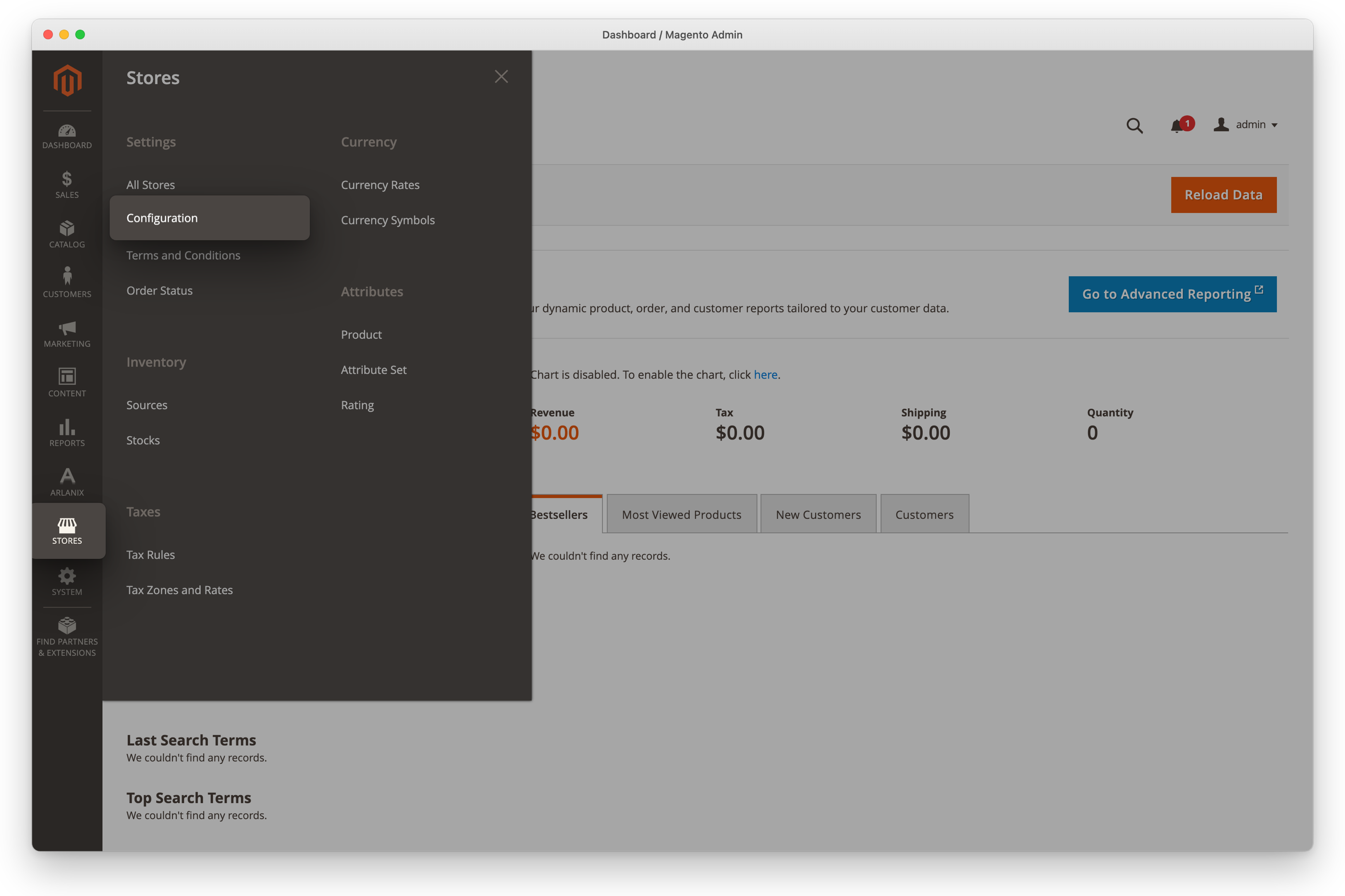
In the list on the left, click Arlanix, then Notifications.
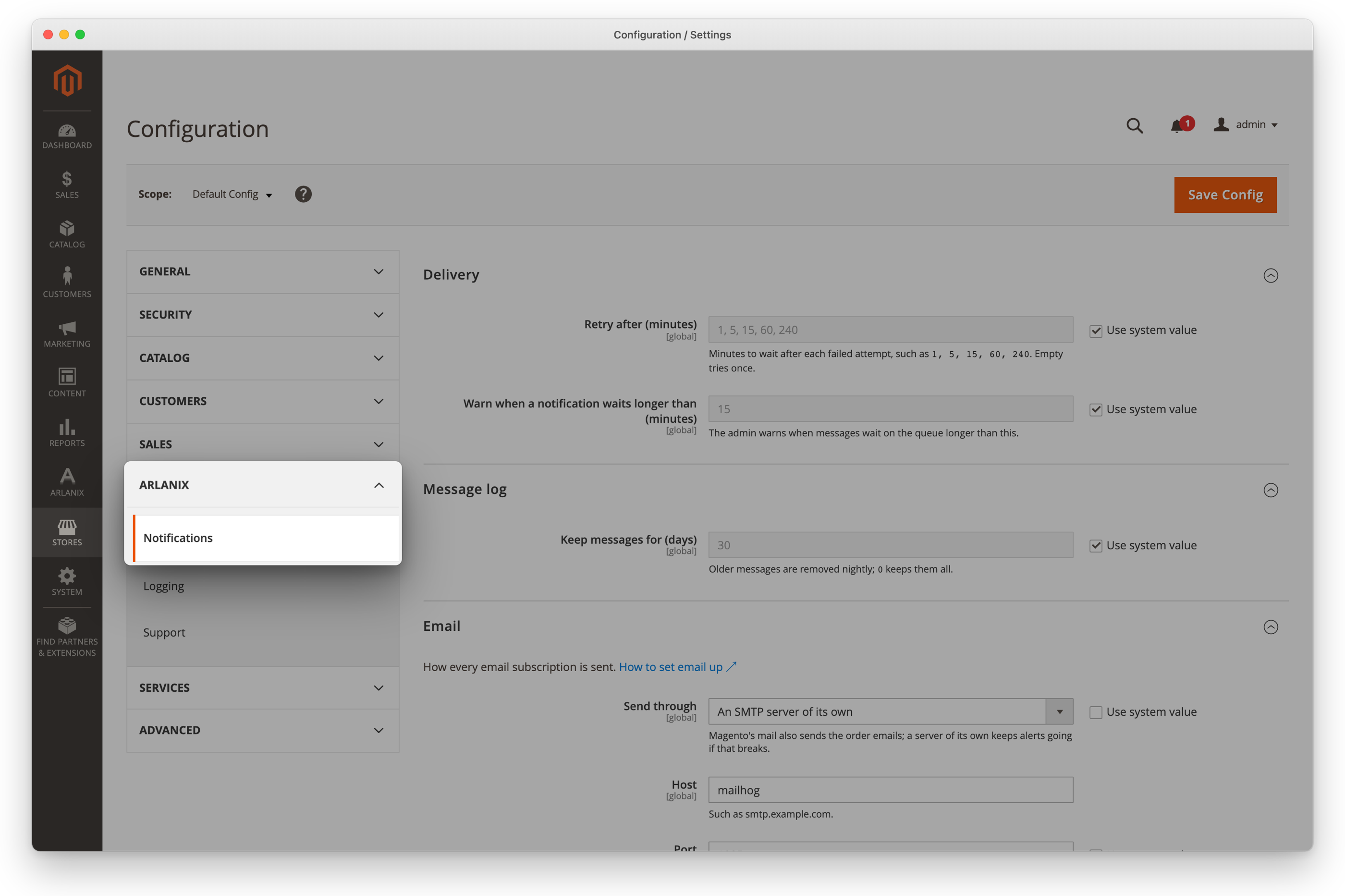
Open the Email group.
Choose how emails are sent
The Send through setting has two options:
- Magento's mail is the default. The store sends notifications the same way it sends order confirmations. That way is set in Stores > Configuration > Advanced > System > Mail Sending Settings, or by a mail module the store uses. You do not need to set up anything else. If the store's order emails arrive, notification emails arrive too.
- An SMTP server of its own sends notifications through a separate mail server, such as your company's mail server or a service like Amazon SES, Mailgun or Postmark. Notifications then keep going out even when the store's own mail has a problem. Each email also has a plain-text version. Your developer usually fills in the server's details. See Email in the developer docs.
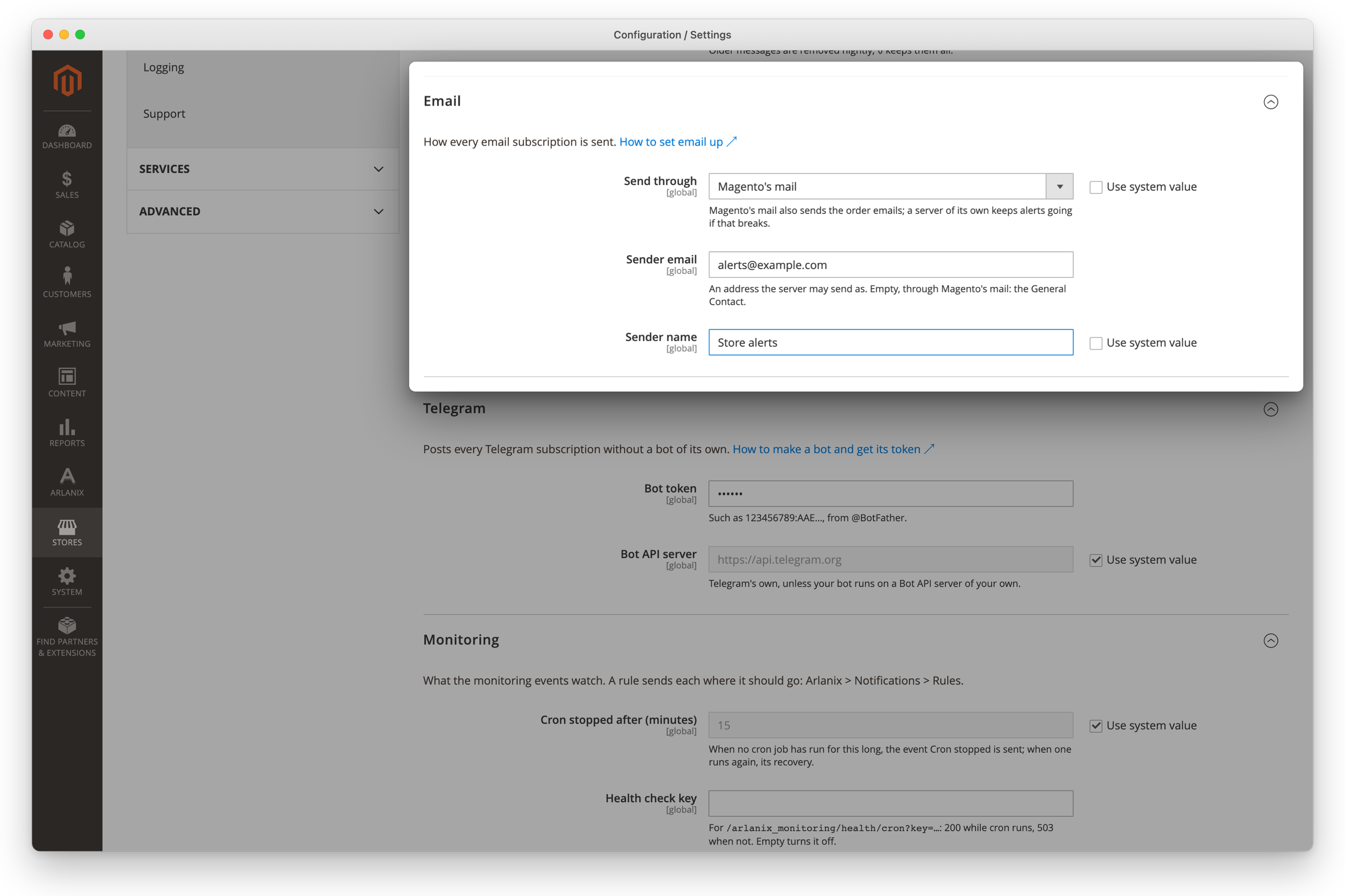
Send through Magento's mail
- Leave Send through set to Magento's mail.
- Optional: fill in Sender email and Sender name. See Set the sender.
- Click Save Config.
Send through an SMTP server of its own
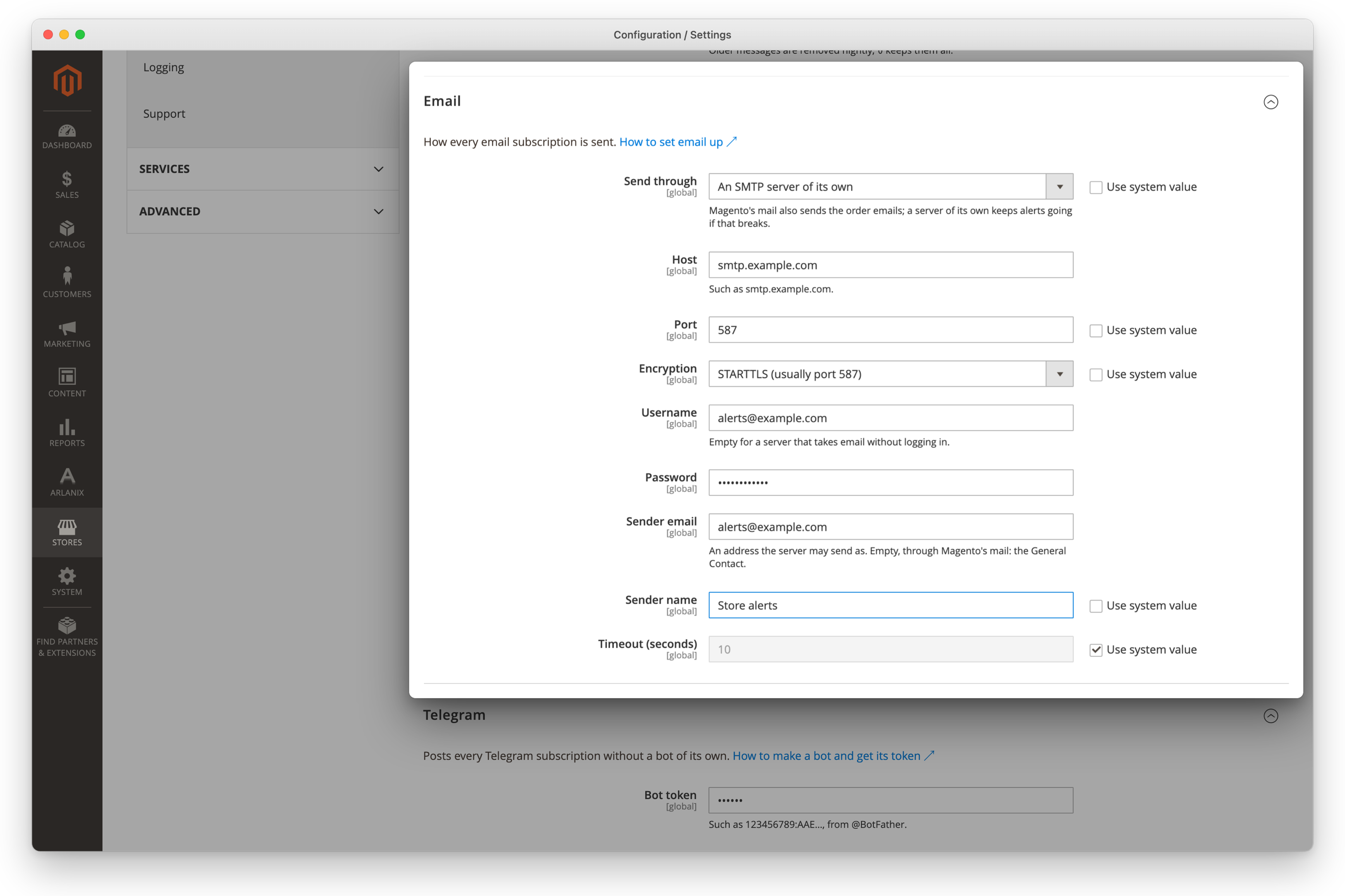
- Set Send through to An SMTP server of its own. The fields for the server appear.
- Fill in the details that your mail provider gives you. For example:
- Host: smtp.example.com
- Port: 587
- Encryption: STARTTLS (usually port 587)
- Username: [email protected]
- Password: the password of that account
- Fill in Sender email and Sender name, for example [email protected] and Store alerts.
- Click Save Config.
Set the sender
Sender email and Sender name set who the emails come from. Use an address that your mail server is allowed to send from. Otherwise the server may refuse the emails, or they may end up in spam.
When you send through Magento's mail, Sender email can stay empty. The emails then come from the store's General Contact, with the General Contact's name. You set the General Contact in Stores > Configuration > General > Store Email Addresses. Sender name is used only when Sender email is filled in. To send as Store alerts, fill in both fields, for example [email protected] and Store alerts.
When you send through an SMTP server of its own, Sender email is required.
When no email is sent
The store sends no notification emails in these cases:
- You send through Magento's mail, and Disable Email Communications is set to Yes in Stores > Configuration > Advanced > System > Mail Sending Settings.
- You send through an SMTP server of its own, and Host or Sender email is empty.
When you save an email subscription in one of these cases, the admin warns you that nothing can be sent to it yet. The deliveries wait and are tried again. In the Message Log, they show as Failed after the last attempt. See When a delivery fails.
The address
An email subscription has one Email address. To send to several people, add a subscription for each person.
Upper and lower case do not matter. [email protected] and [email protected] are the same mailbox. So a topic can have only one subscription to that address.
How the emails look
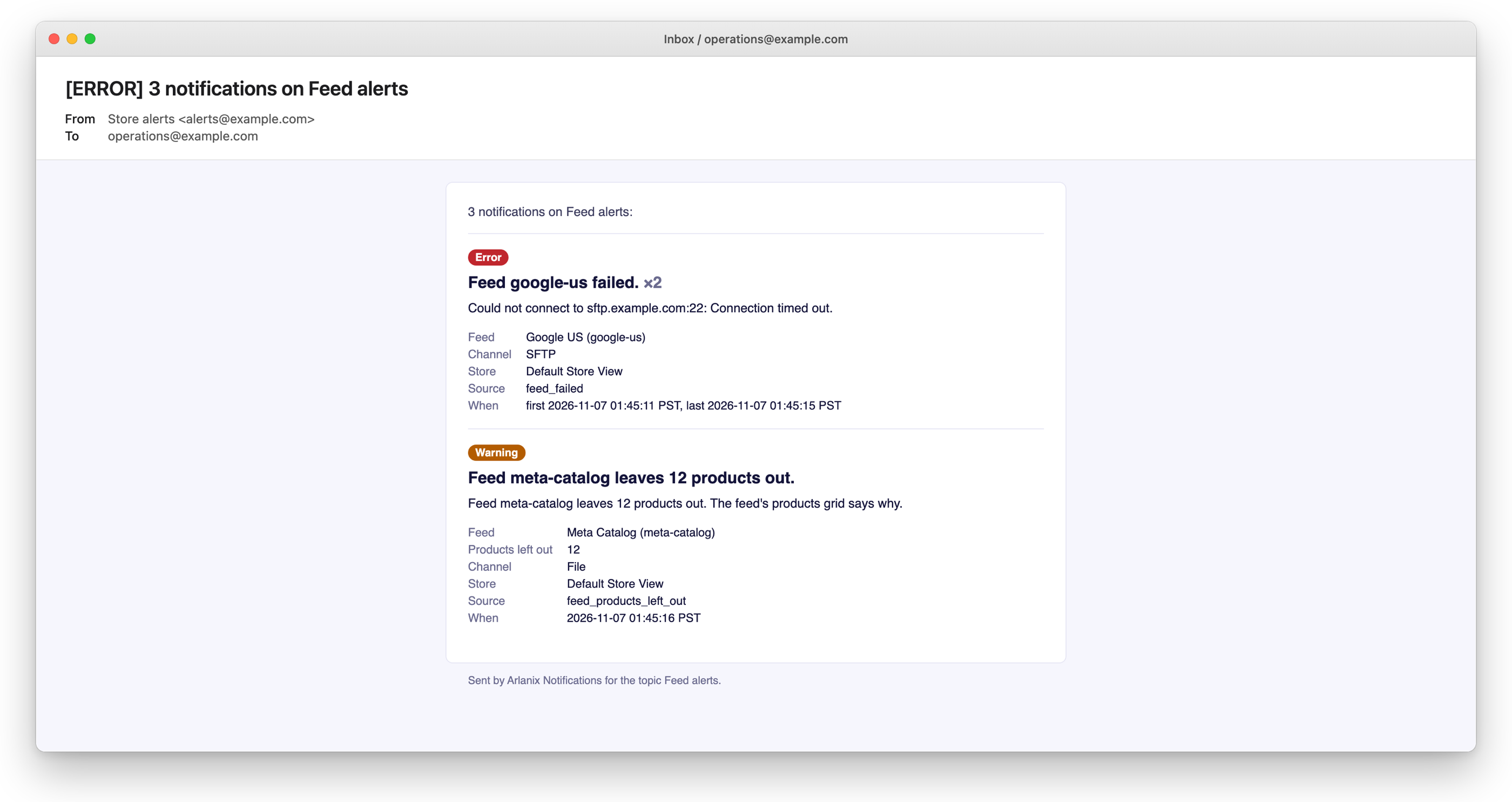
One message arrives as one email:
- The subject is the message's subject, after its severity. For example: [ERROR] Feed google-us failed.
- The email shows the message's text and the details that the event adds, such as the feed. After them come the topic, the source of the message, and when it was published.
When several messages wait for the same address, the store sends them together in one email, called a digest:
- The subject starts with the most severe level among the messages. For example: [ERROR] 12 notifications on Feed alerts.
- One digest holds up to 25 different messages. If more are waiting, they go in the next email.
- A message that was published several times appears once, with the number of times.
When you send through an SMTP server of its own, each email is marked as sent automatically. Out-of-office replies then do not answer it. Magento's mail sends the email the same way as the store's other emails, without this mark.