For arlanix/notification 1.1.0
Multichannel Store Notifications manual
Multichannel Store Notifications sends a message to the right people when something in the store needs their attention.
Each message is published to a topic, such as Feed alerts or Orders. Everyone who is subscribed to that topic gets the message by email, in Telegram, in Slack, in Discord, in Microsoft Teams, in WhatsApp or through a Webhook receiver.
The messages come from rules that you make. A rule publishes a message when something happens in the store. For example:
- an order over $100 is placed
- a refund is made
- a review is waiting for moderation
- someone fails to sign in to the admin
- cron stops
- a product feed fails
Each of these is an event. The events come from the modules that you install. The store events module and the monitoring module add events about the store. Arlanix Product Feed adds events about product feeds.
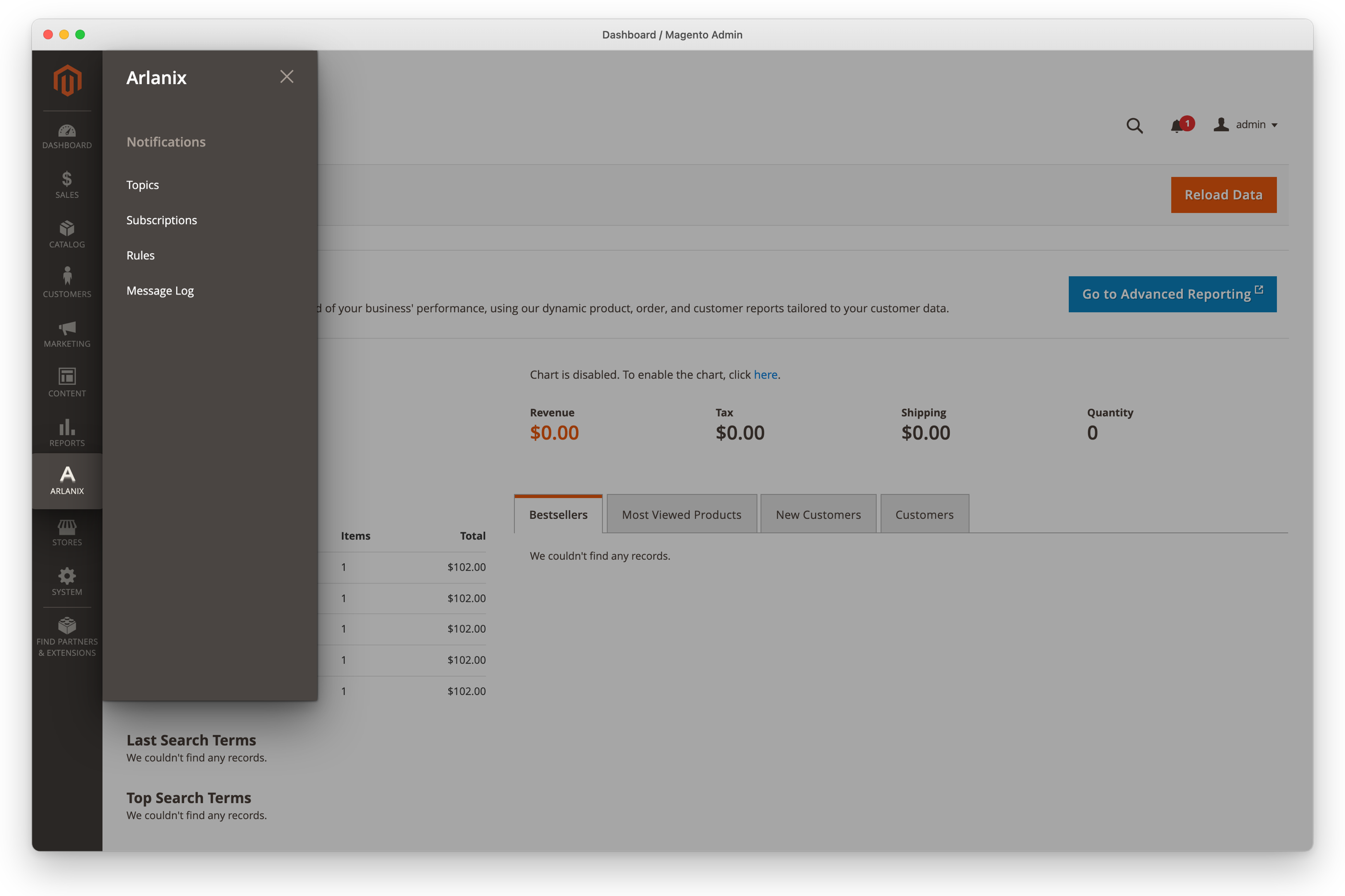
You set up everything in the admin, under Arlanix > Notifications. You do not need to write code.
How it works
- Your developer installs Multichannel Store Notifications. Send them the documentation. Before you start says how to check it was done.
- You make a topic for the things you want to know about, such as Orders.
- On the topic's page, you subscribe the people who should get its messages. Each subscription is one email address, one Telegram chat, one Slack, Discord or Microsoft Teams channel, one WhatsApp number, or one Webhook receiver. You send each subscription a test message.
- You make a rule that sends to the topic. The rule sends a store event to the topic, such as an order of $100 or more, or a feed that fails.
- When the event happens, every subscriber gets the message, usually within a minute. If several messages are sent at the same time, they arrive together as one digest.
Your first rule walks you through steps 2 to 4.
What it does
- A topic says what a message is about. The same kind of message always goes to the same people.
- A subscription sends a topic's messages to one address. It can take every message, only warnings and errors, or only errors.
- A rule sends a store event to a topic when the rule's conditions are met. You can write the message text yourself.
- Messages that are sent at the same time go out together. One email or chat message holds up to 25 different messages. For example, 30 failed feeds send two emails, not 30. If the same message is sent several times, it appears once, with the number of times it was sent.
- If a delivery fails, the module tries again for about five hours. See When a delivery fails.
- The Message Log keeps each message for 30 days by default. It shows who the message went to, and why a message did not arrive.
Try the demo
You can try these screens in the demo (opens in a new tab) before you install anything. The sign-in page shows the username and password.
The demo has sample topics, subscriptions, rules and messages, and you can change them or make your own. It opens only the notification screens, not orders, products or the store's configuration.
- Nothing is really sent. Deliveries are simulated, and the Message Log shows them as sent.
- Other visitors use the same account. They can see what you enter, so do not enter real email addresses, chat IDs or webhook URLs.
- The demo resets every day. It goes back to the sample content and removes what visitors made.
Where to start
Find the page for what you want to do:
- To begin, read Before you start, then follow Your first rule. It shows how a topic, a subscription and a rule work together.
- To manage topics and subscriptions, see Topics, Subscriptions, Email, Telegram, Slack, Discord, Microsoft Teams, WhatsApp, Webhook and the Message Log.
- To compare the channels before you choose, see Choose a channel.
- To send messages about what happens in the store, see Rules, Rule examples, Monitoring and the list of Events.
- To understand how messages are delivered, see How a notification is delivered.
- To look up a screen or a field, see the screens and their fields and the Glossary.
- When something does not work, see Troubleshooting, then Get help.