For arlanix/notification 1.1.0
Subscriptions
A subscription sends the messages of one topic to one address. The address is an email address, a Telegram chat, a Slack, Discord or Microsoft Teams channel, a WhatsApp number, or a Webhook receiver. To send a topic's messages to three people, make three subscriptions. A topic can have only one subscription for each address.
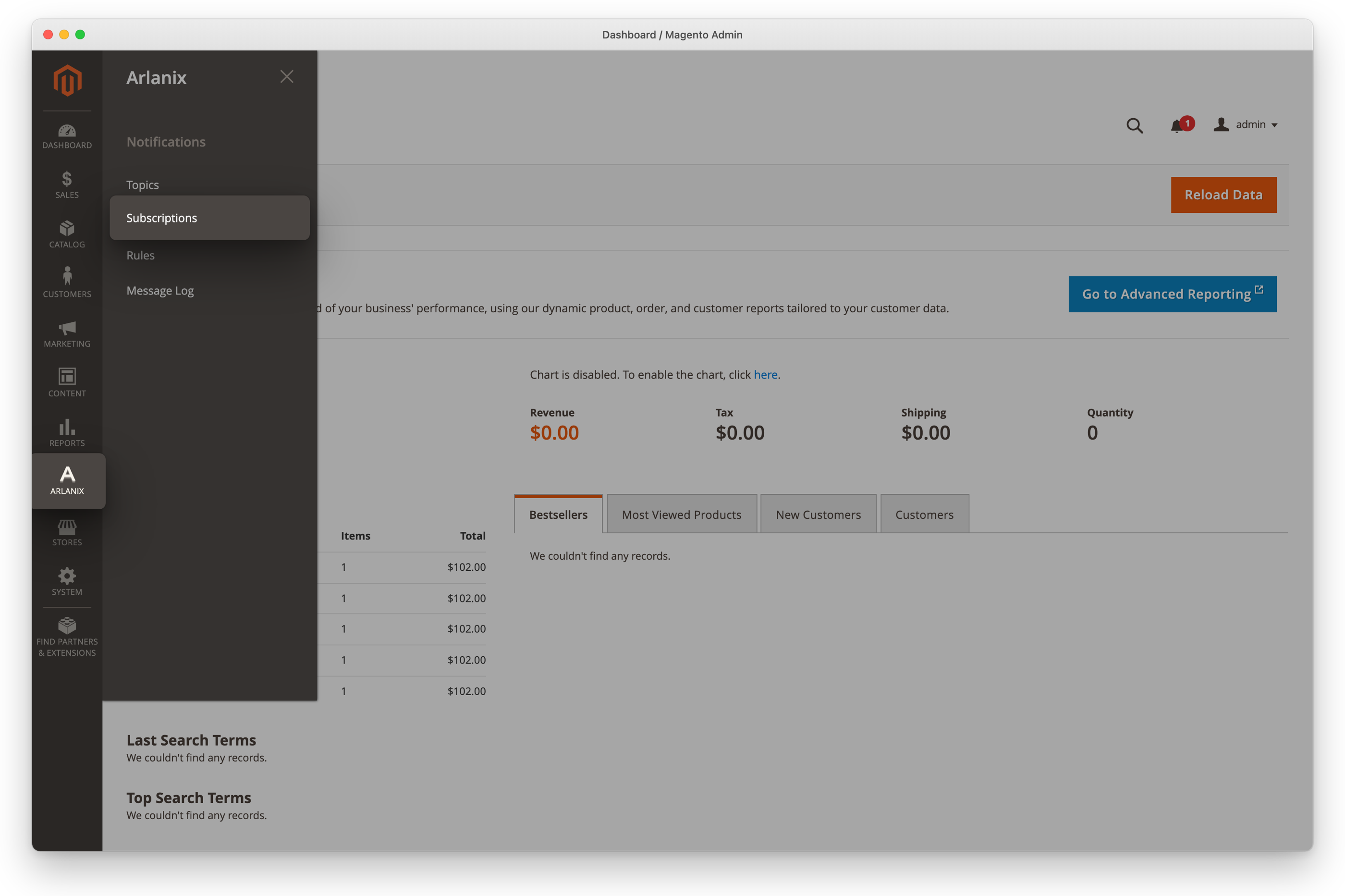
Open Subscriptions
In the admin menu, click Arlanix, then click Subscriptions under Notifications. You can also see a topic's subscriptions on the topic's page.
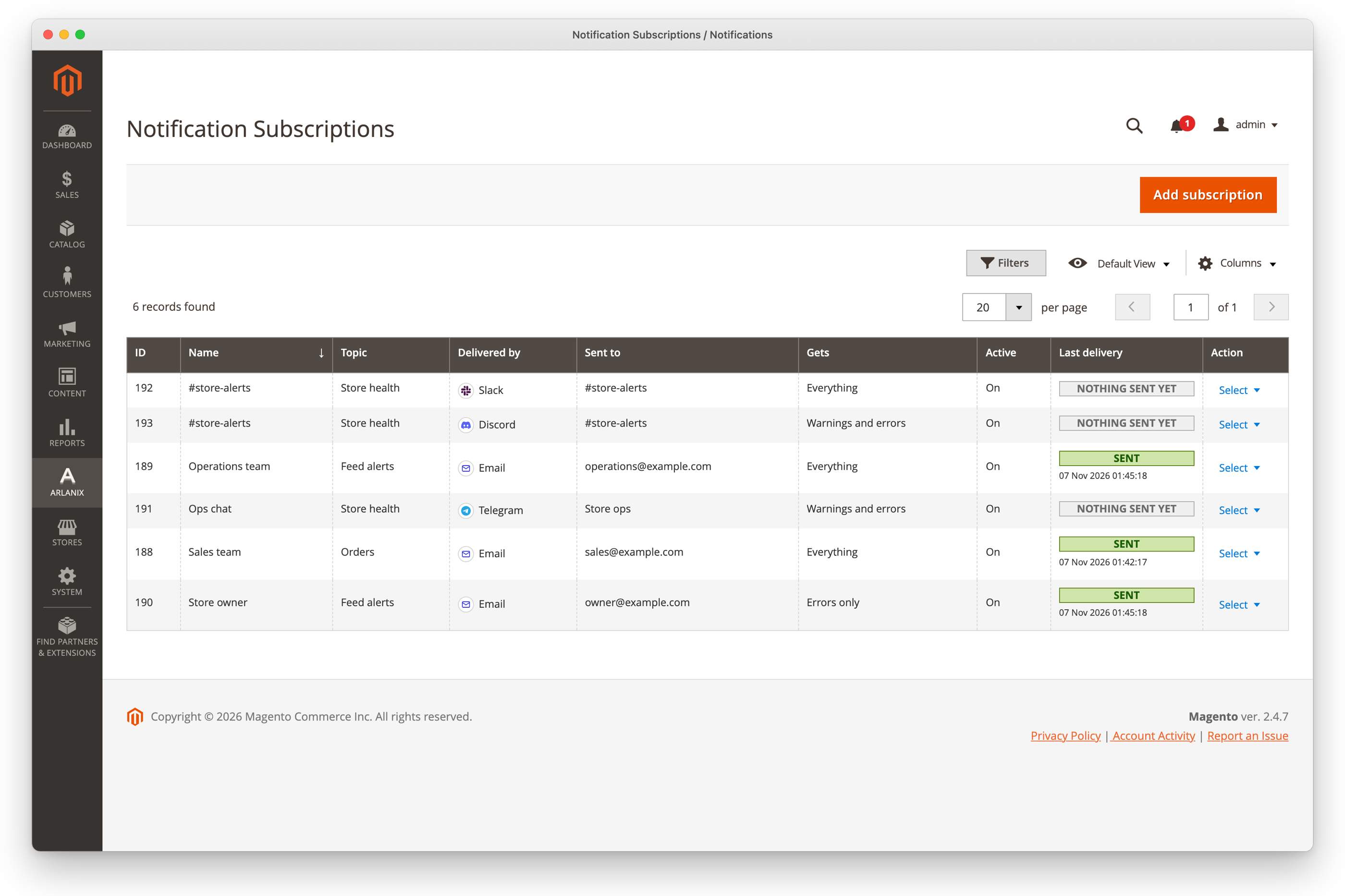
The grid lists every subscription. For each subscription, it shows the topic, how it is delivered, where it is delivered to, which messages it gets, and the result of its last delivery.
Subscribe someone
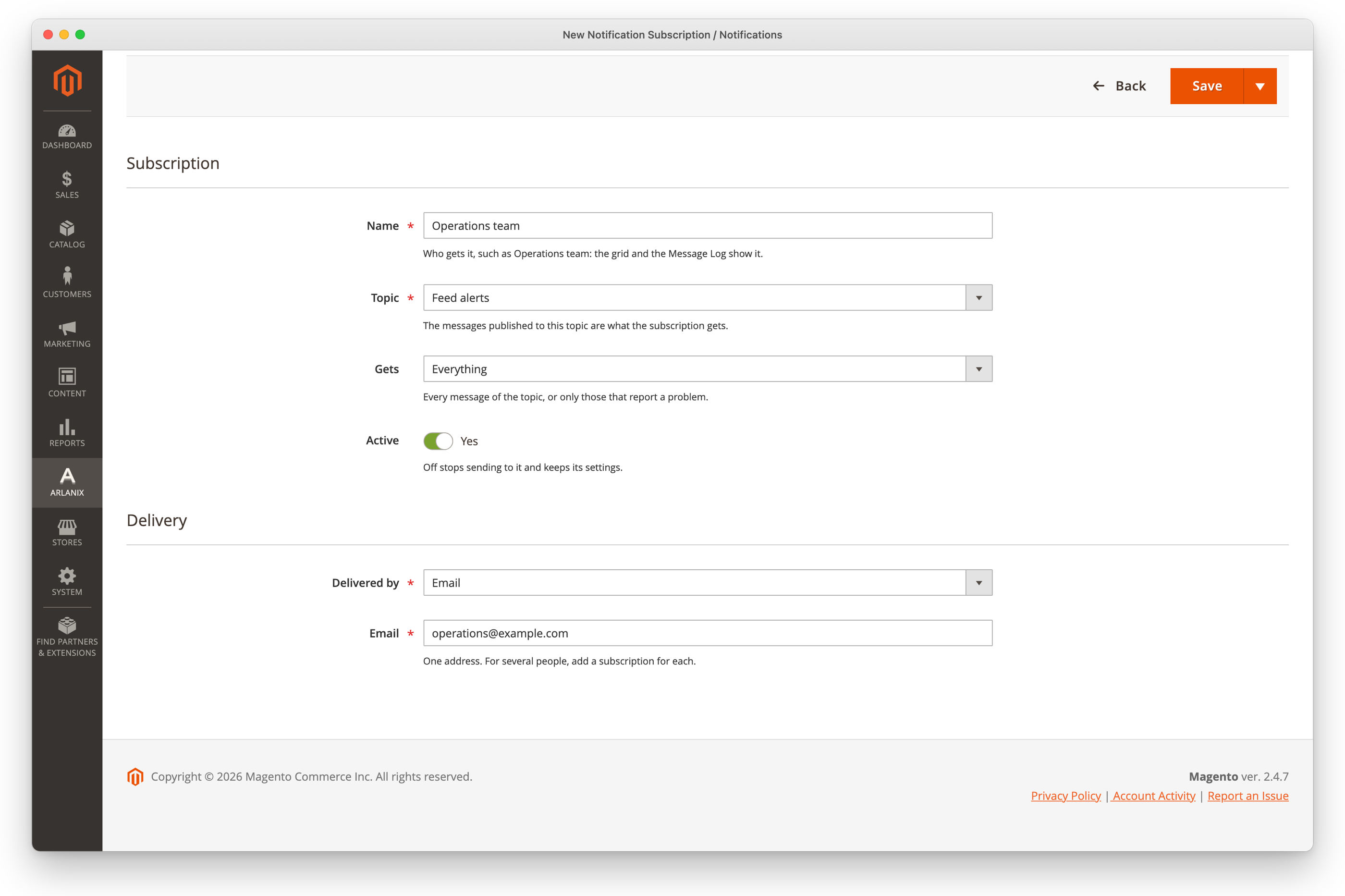
In this example, the Operations team gets every message of the topic Feed alerts by email.
Click Add subscription.
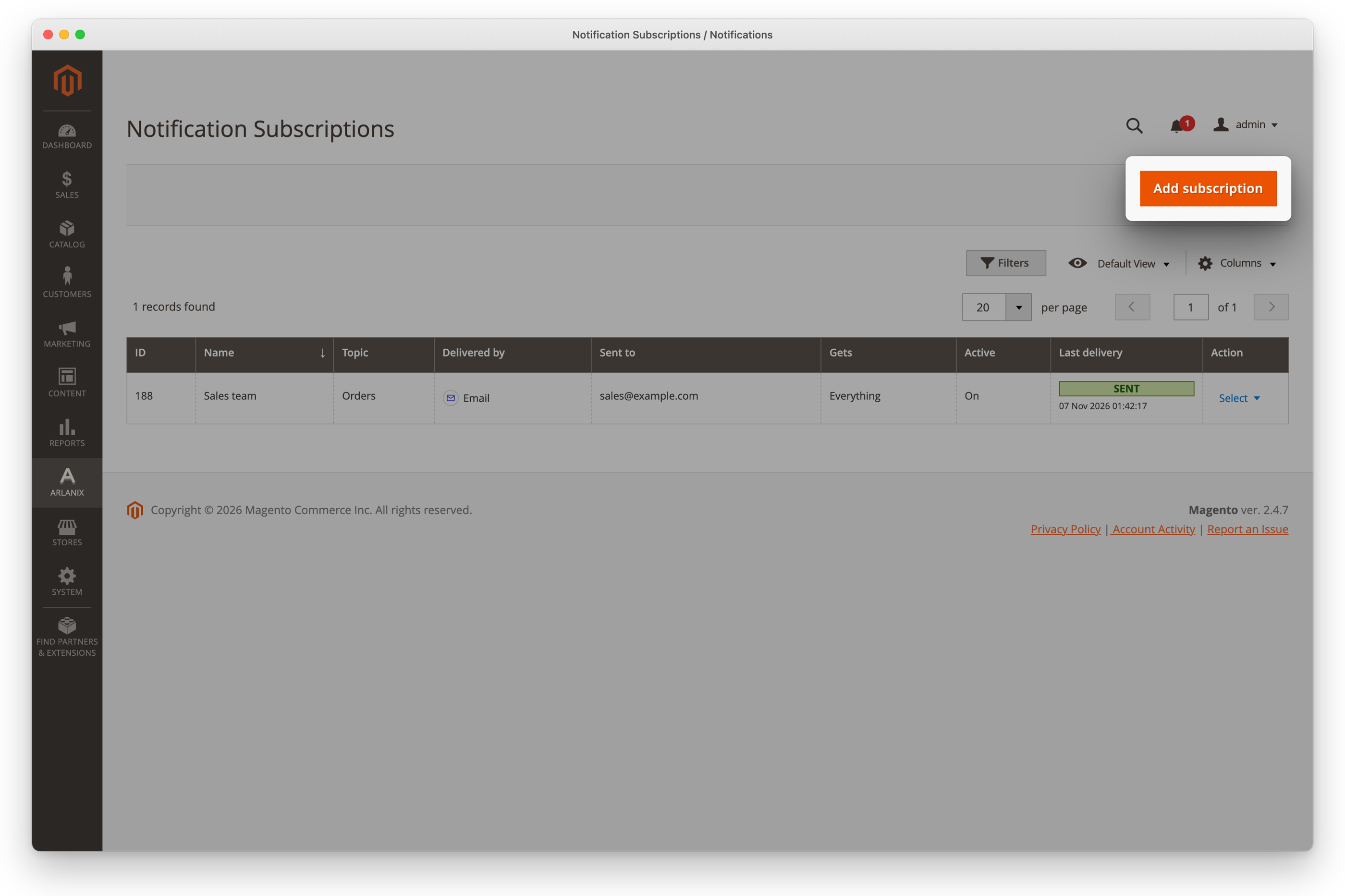
A topic's page has its own Add subscription button. It opens the same form in a panel, with that topic already chosen.
In Name, enter who gets the messages, such as Operations team. The grid and the Message Log show this name.
In Topic, choose Feed alerts.
In Gets, choose which of the topic's messages the subscription gets:
- Everything: all messages, test messages included.
- Warnings and errors: only the messages that report a problem.
- Errors only: only the messages about something that failed.
In Delivered by, choose Email. Then, in Email, enter one address, such as [email protected].
Delivered by lists the delivery methods available in your store. The other methods have their own pages:
- Email.
- Telegram. You choose a chat, and Find chats helps you find it.
- Slack and Discord. You enter the channel's webhook.
- Microsoft Teams. You enter the channel's workflow URL.
- WhatsApp. You enter the business phone number ID, access token, recipient and approved template.
- Webhook. You enter your receiver's HTTPS URL, with optional signing secret and headers.
Click the arrow next to Save, then click Save & Close. The grid shows Subscription "Operations team" saved. and lists the new subscription. From now on, messages published to Feed alerts go to this address.
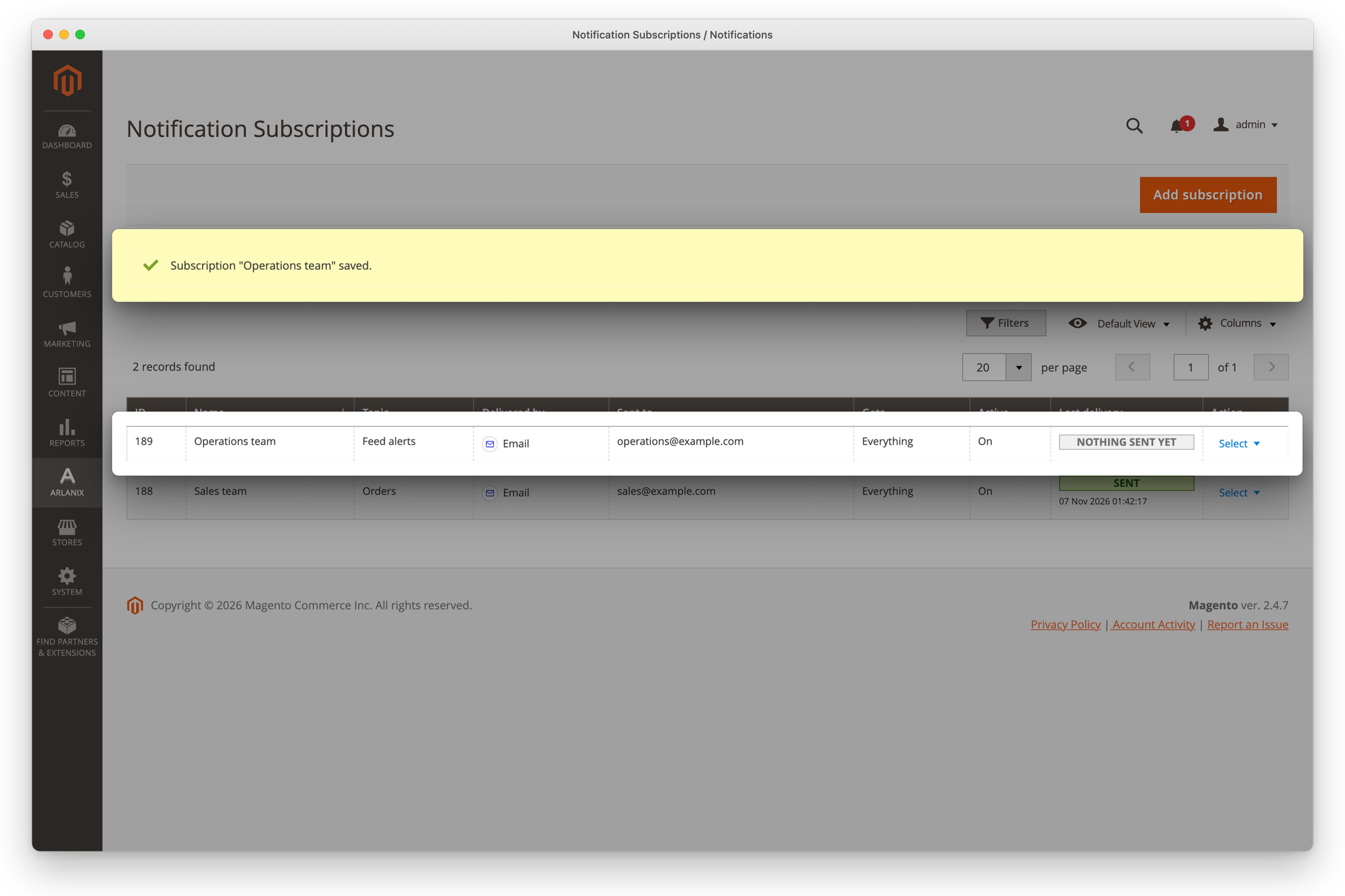
Send a test to check the address, as the next section explains. If the address has a typo, the test shows that nothing was delivered.
Send a test
Send test message sends one message directly to a subscription, right away. The test does not go through the queue and does not appear in the Message Log. It works even when the subscription is switched off.
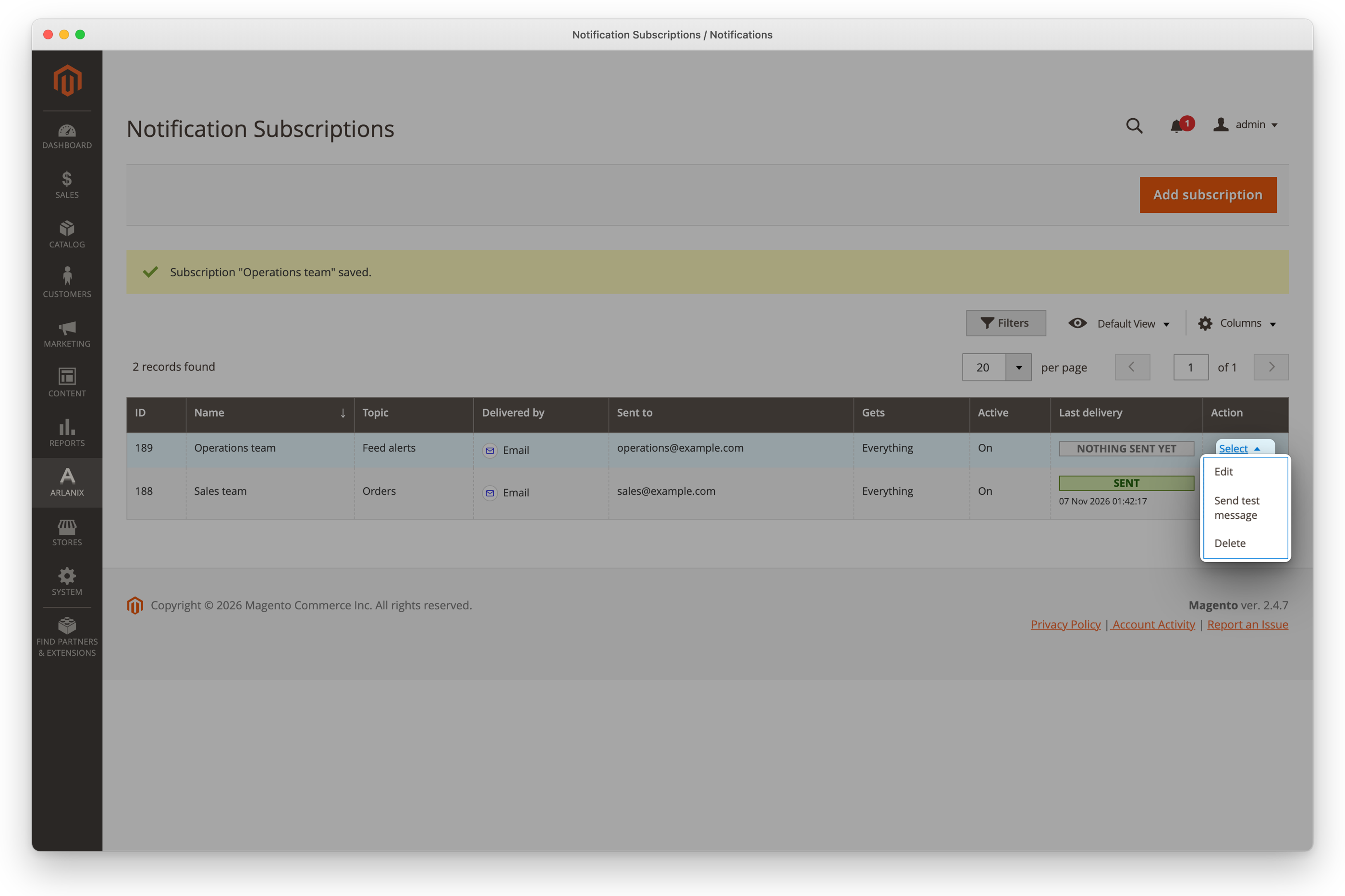
In the subscription's row, click Select, then click Send test message. The rows on a topic's page have this action too.
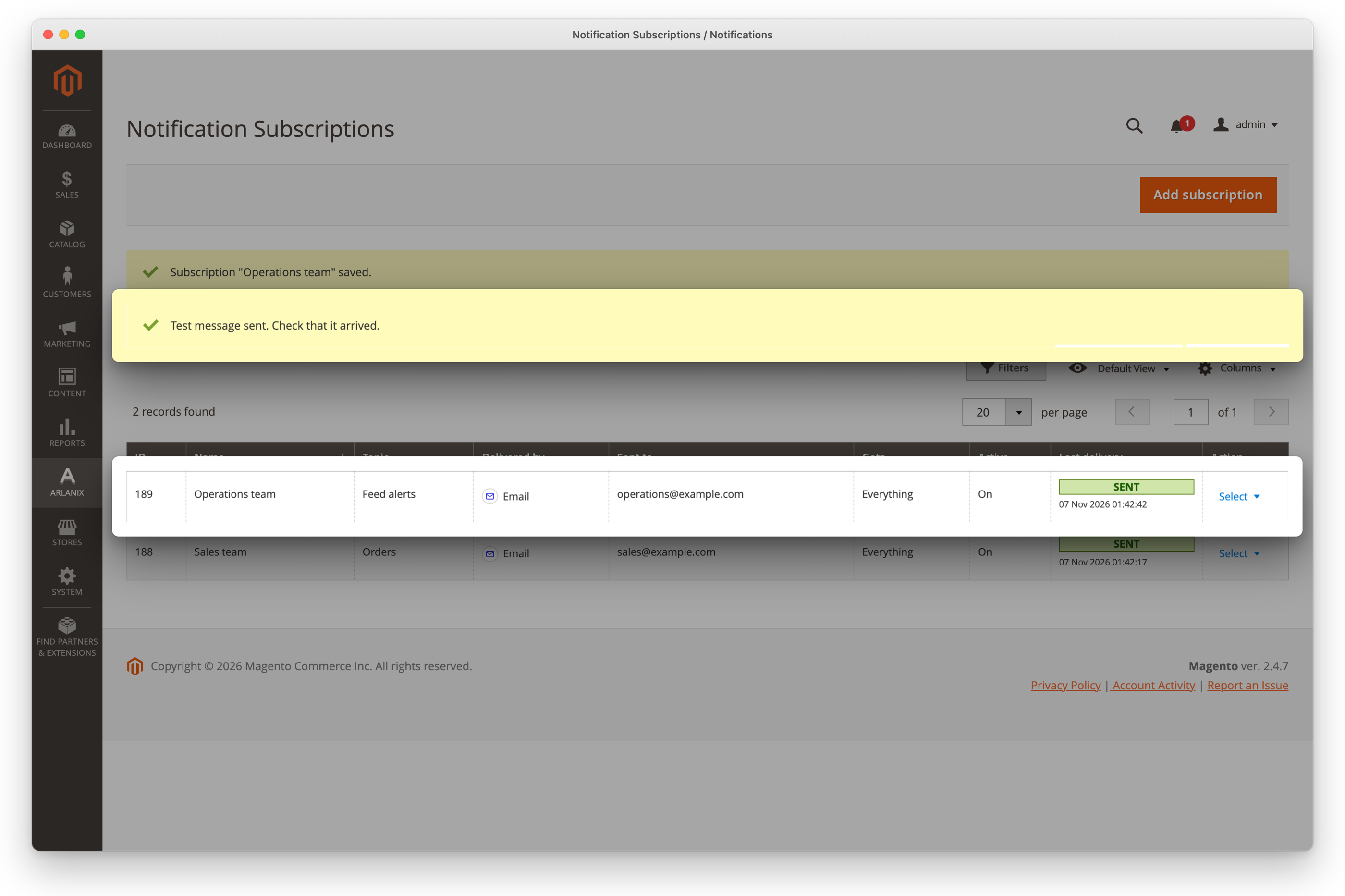
Read the message above the grid. It says whether the test was sent, or shows what the mail server, Telegram, Slack, Discord, Microsoft Teams, WhatsApp or the Webhook receiver replied. The row's Last delivery column shows the result too.
The subscription form also has Send test message, under Delivery. If you change where the subscription delivers to, the button is replaced by a note that asks you to save first. A test always goes to the saved address.
Switch it off, or delete it
You can stop a subscription or remove it:
To stop sending to a subscription and keep its settings, open it, switch Active off, and click Save.
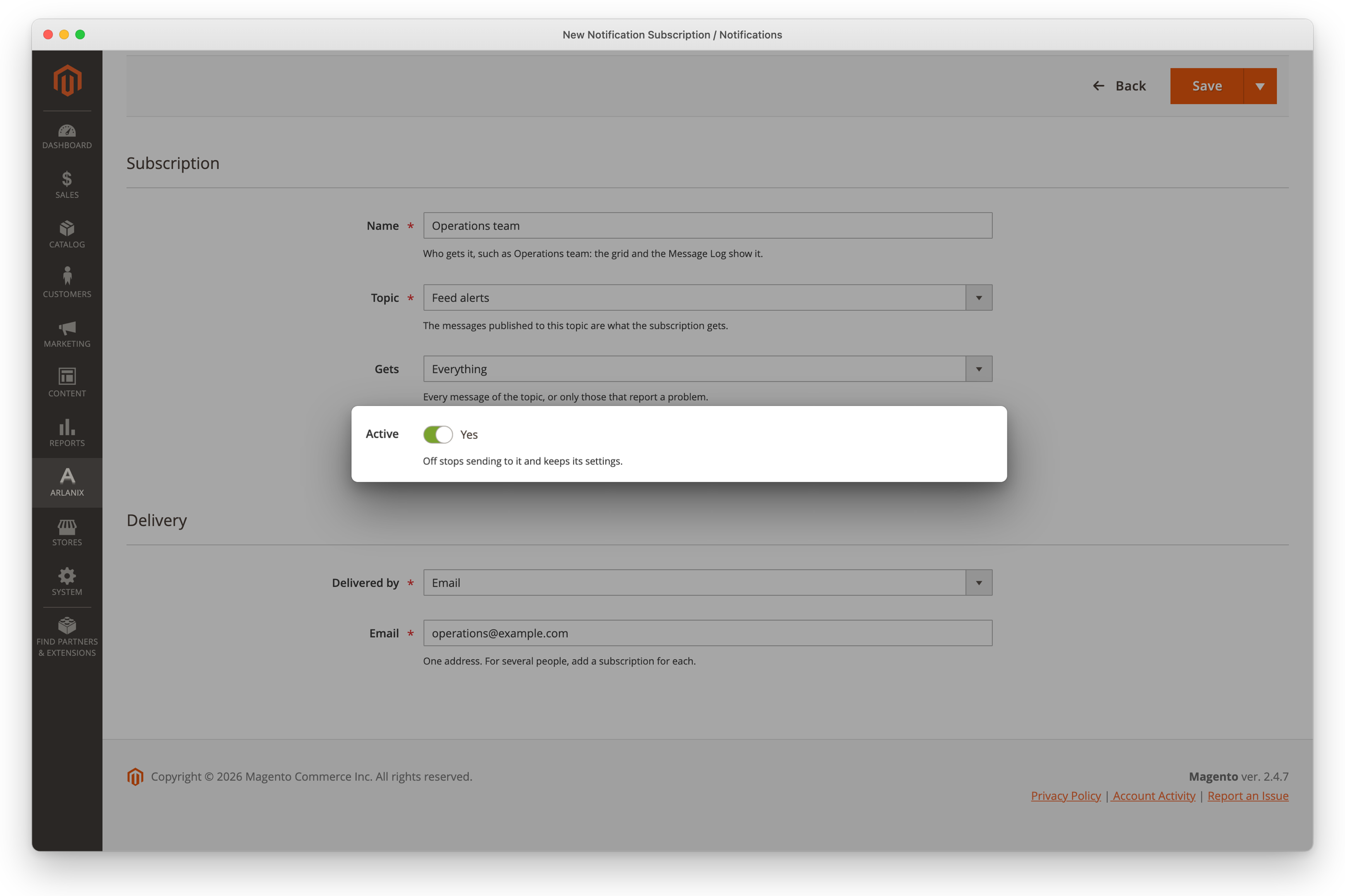
To delete a subscription, click Select > Delete in its row, then confirm. The messages already sent to it stay in the Message Log.