For arlanix/notification 1.1.0
Topics
A topic is a subject for messages, such as Feed alerts or Orders. Each rule sends its message to one topic. Everyone subscribed to that topic gets the message.
Open Topics
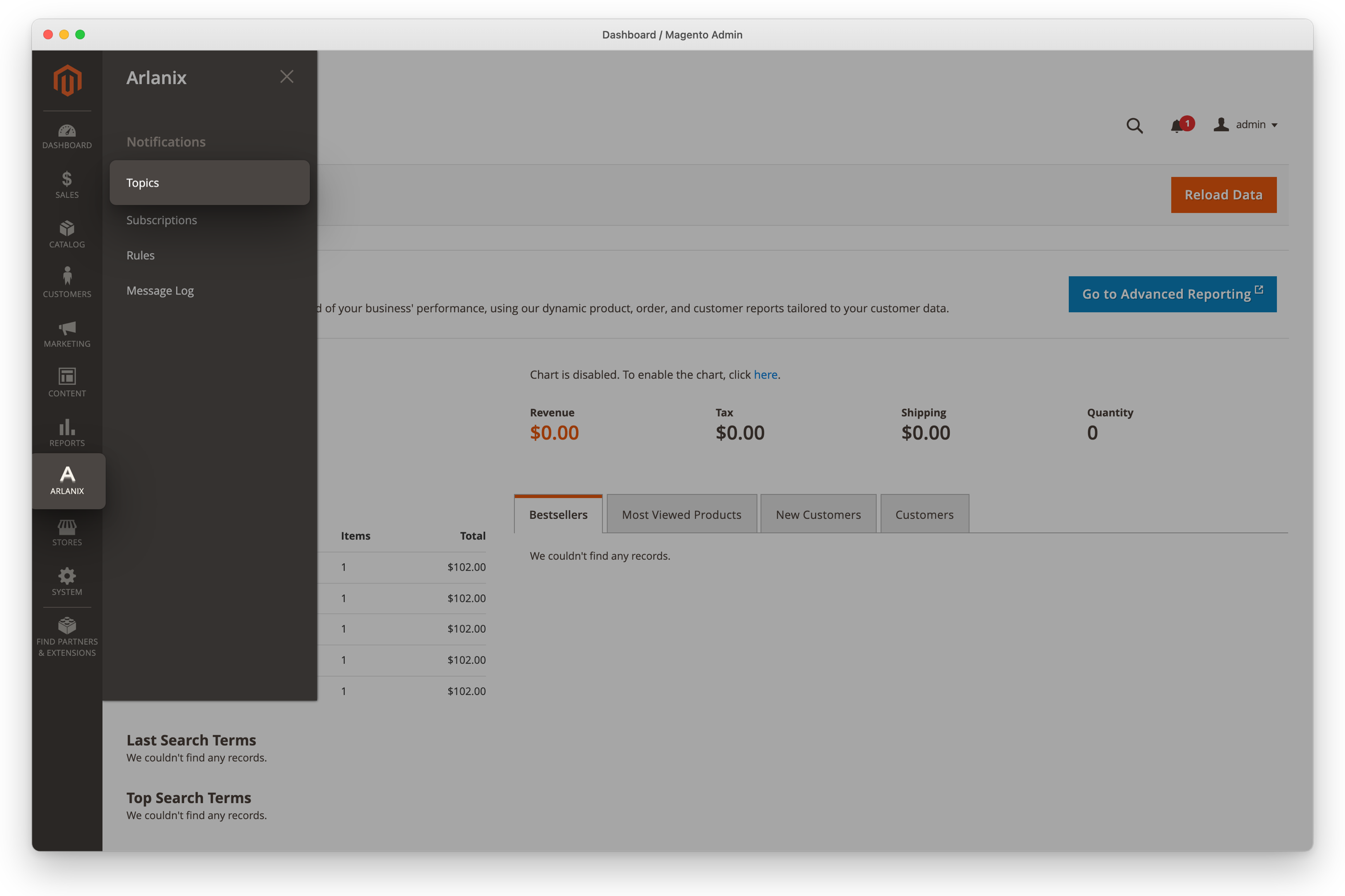
In the admin menu, click Arlanix, then click Topics under Notifications.
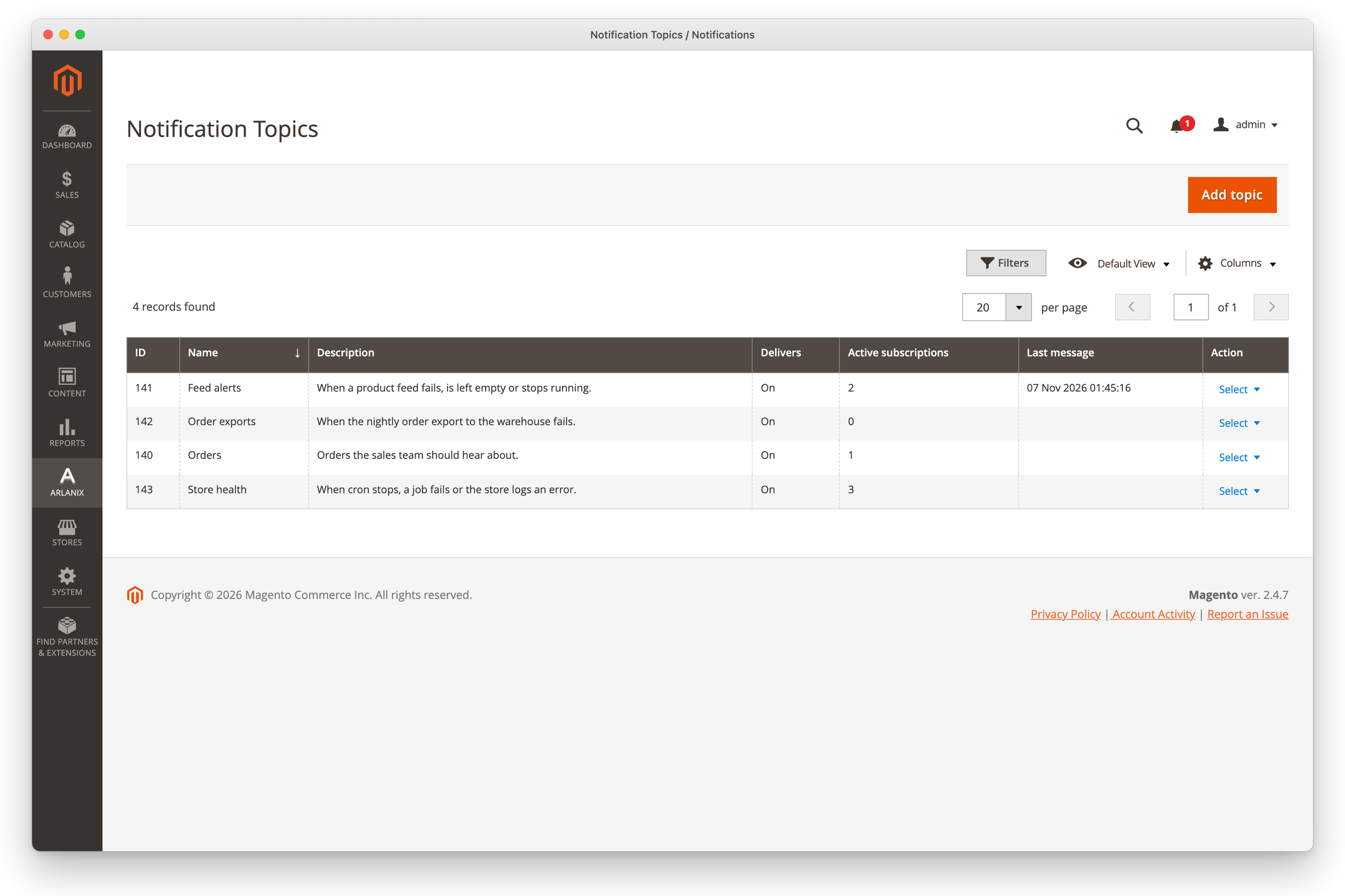
The grid lists all topics. For each topic, it shows the description, whether the topic delivers messages, how many active subscriptions it has, and when it last got a message.
Make a topic
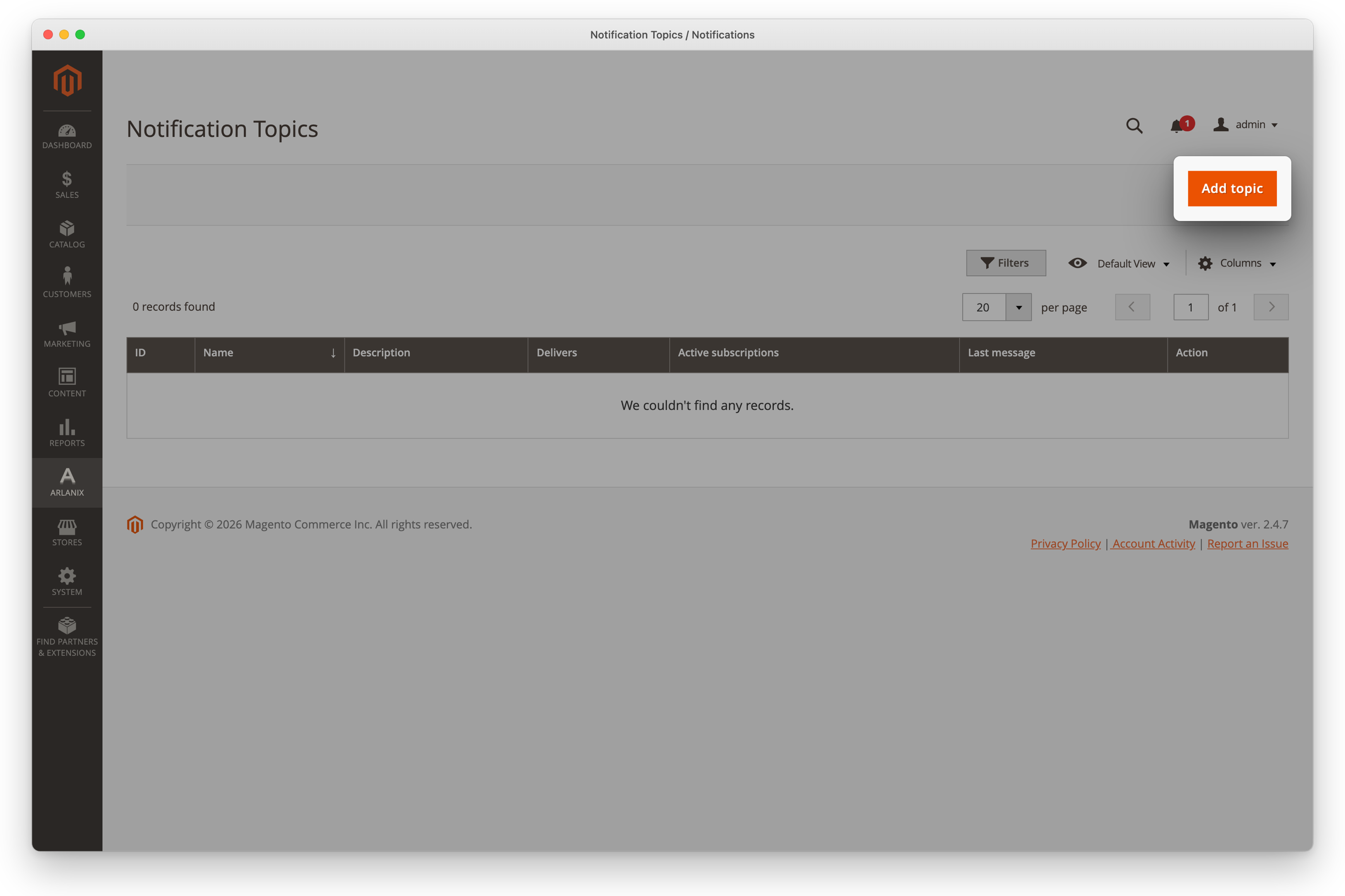
Click Add topic.
In Name, enter Orders.
In Description, enter what the topic is for, such as Orders the sales team should hear about. People who subscribe to the topic read this text.
Leave Delivers on.
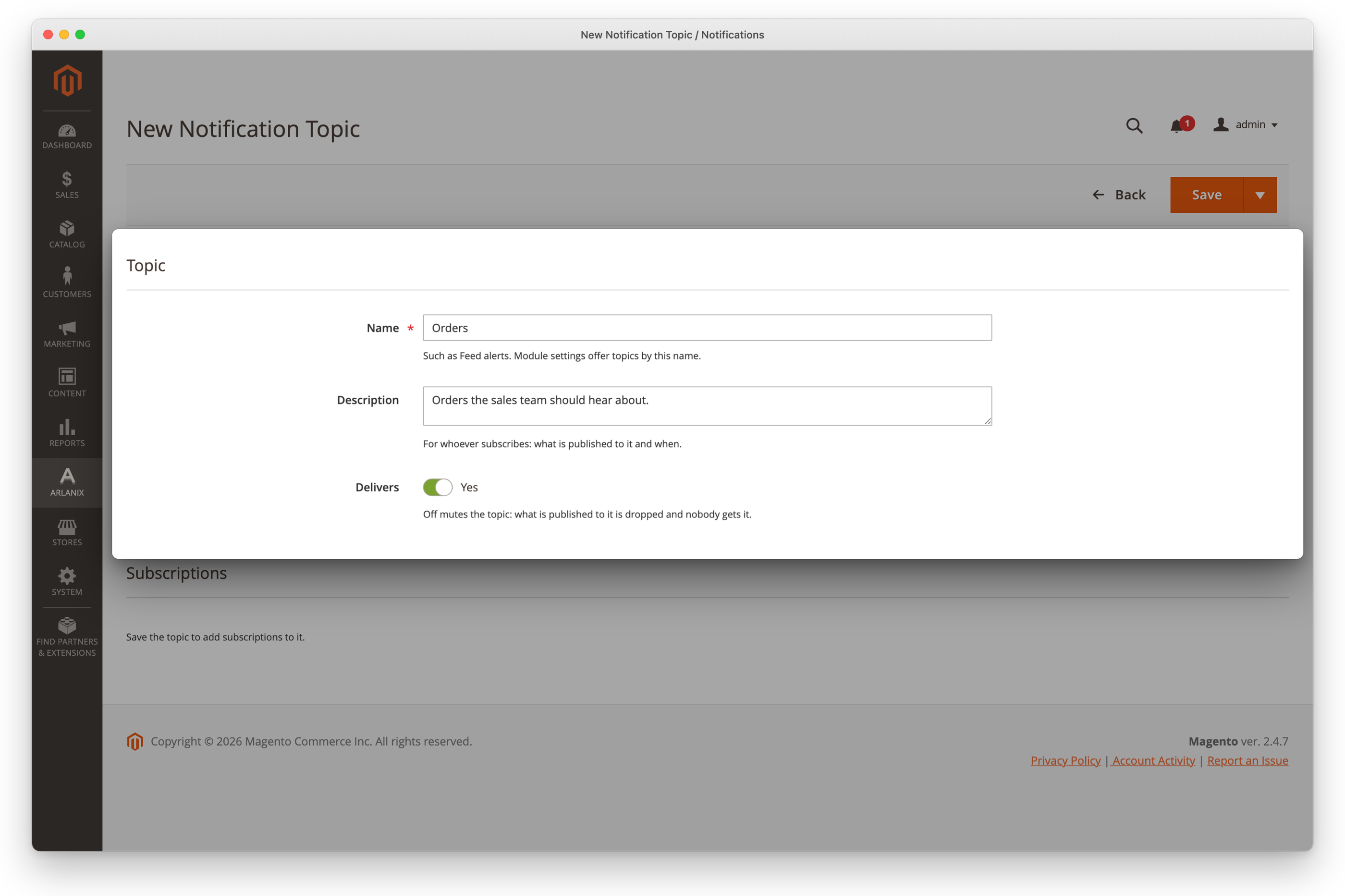
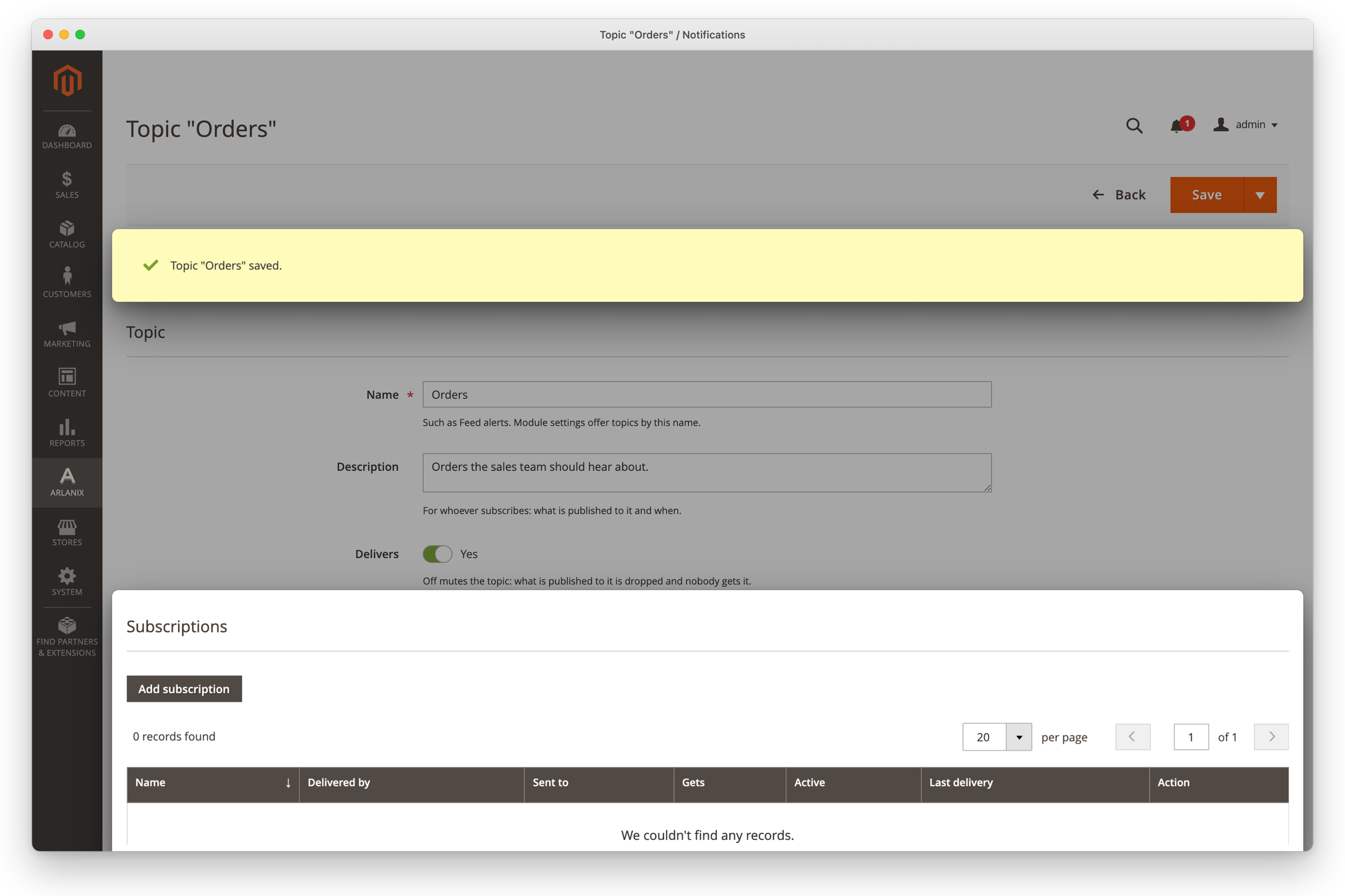
Click Save. The topic's page stays open and shows Topic "Orders" saved. A Subscriptions section now appears below the form.
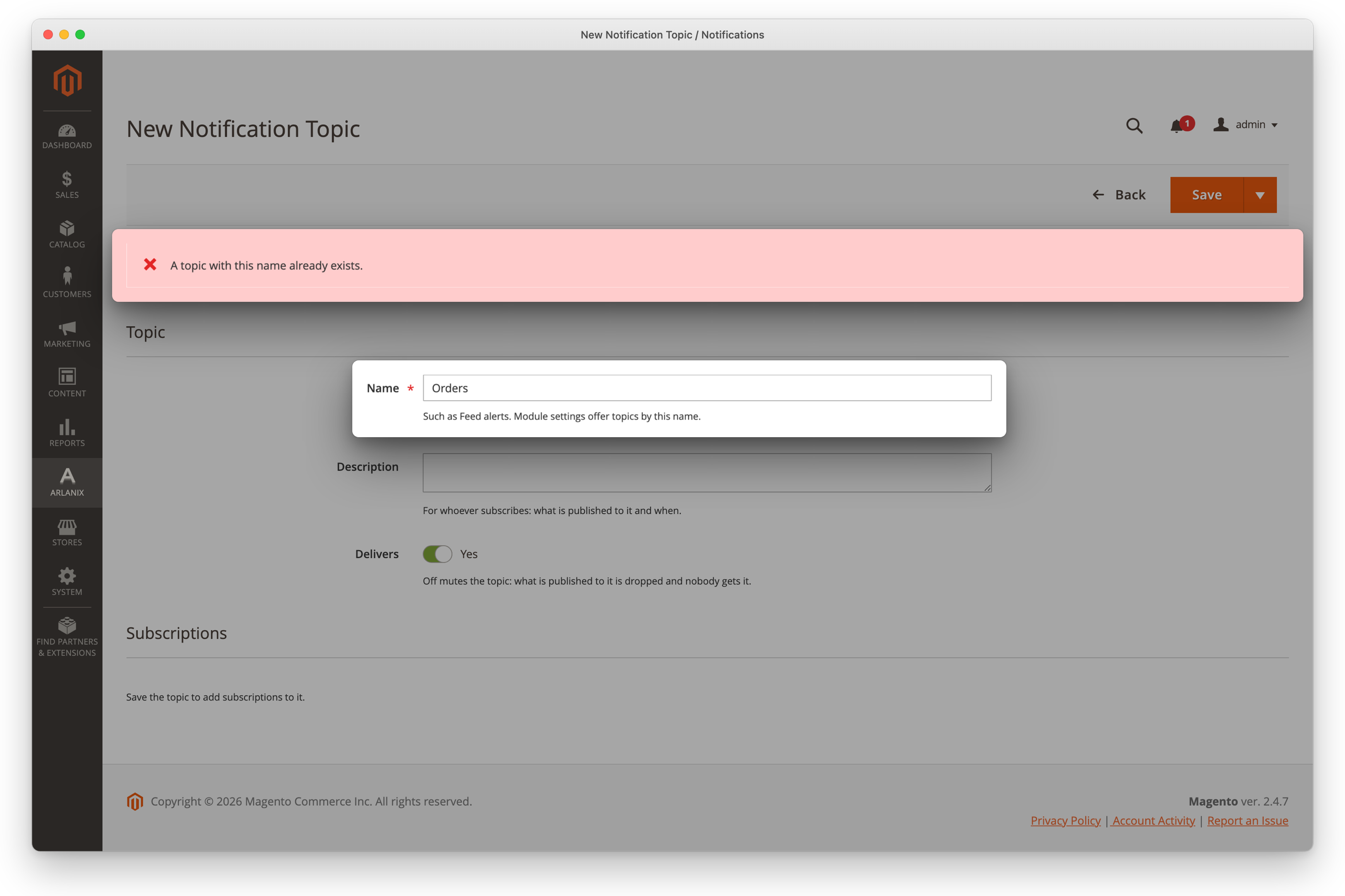
Each topic needs a unique name. If you try to save a second topic named Orders, the form shows A topic with this name already exists. and keeps what you typed.
Next, make a rule that sends messages to the topic. Until you do, the topic gets only your test messages.
Subscribe people on its page
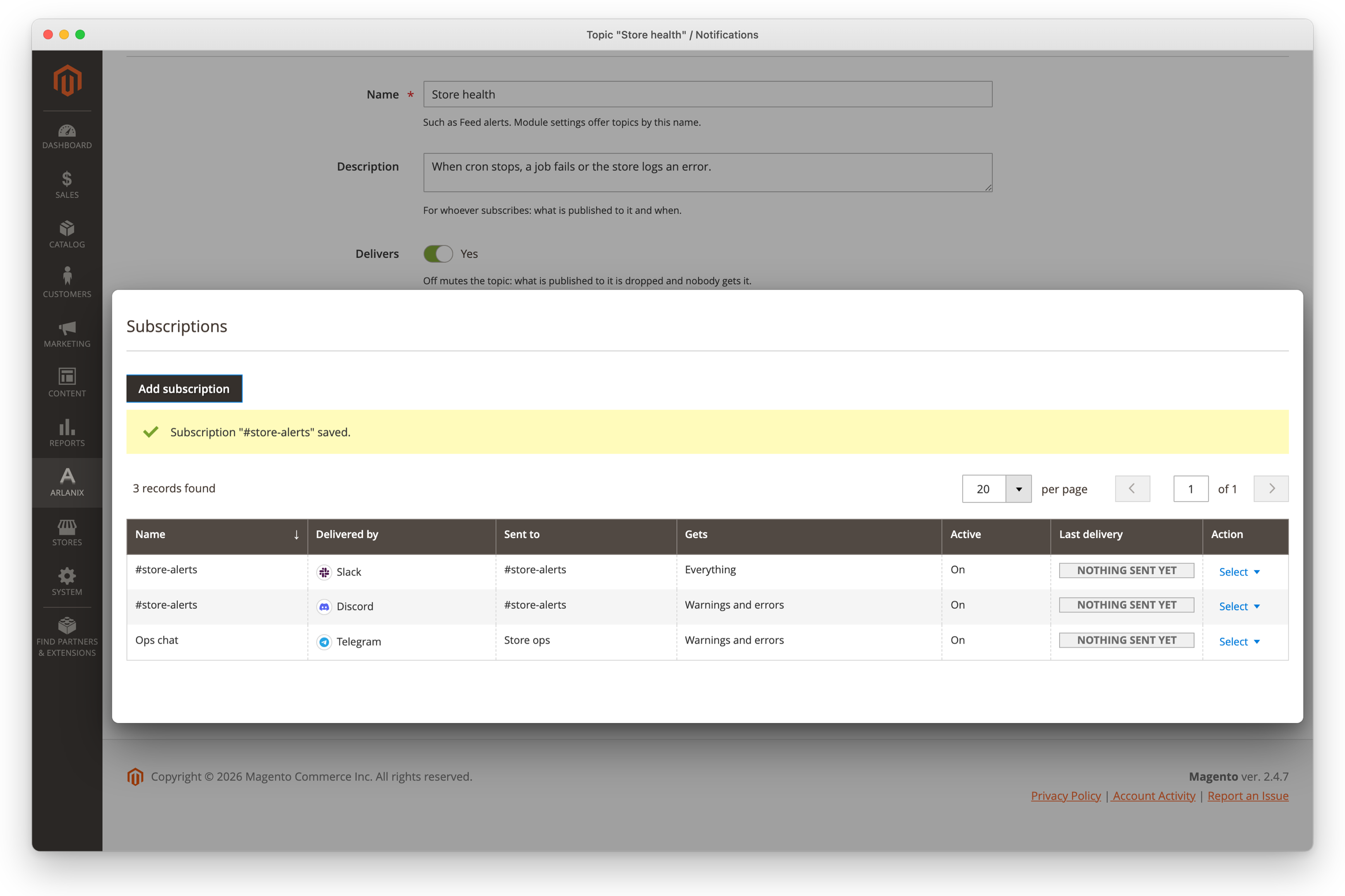
After you save a topic, its page lists its subscriptions under Subscriptions. For each subscription, the list shows how it is delivered, where it is delivered to, and the result of its last delivery.
To add a subscription from the topic's page:
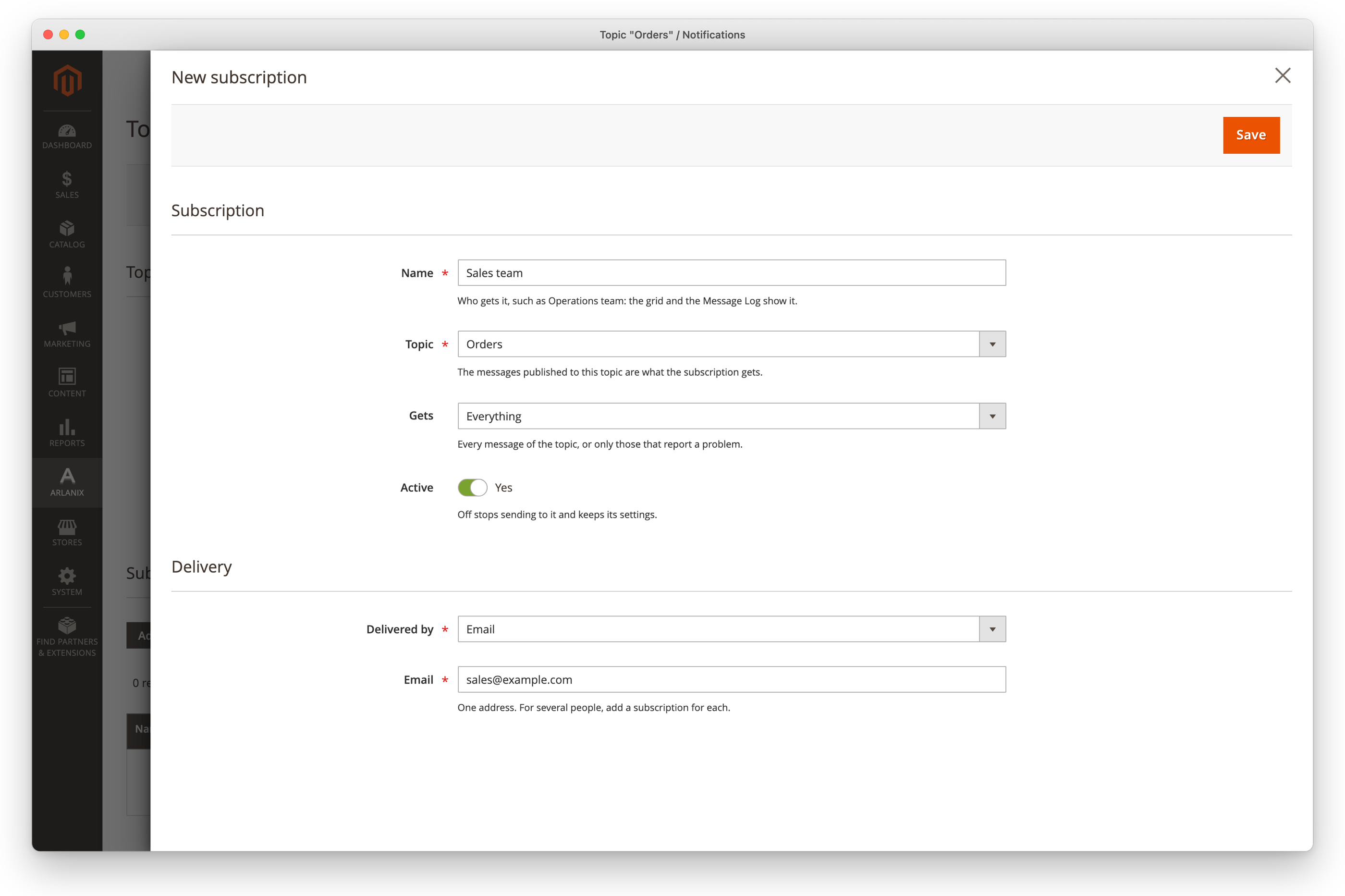
Click Add subscription. The subscription form opens in a panel over the page. The topic is already chosen.
Fill in the form as Subscriptions explains. For example, enter Sales team, choose Email, and enter [email protected].
Click Save in the panel. The panel closes, and the list shows the new subscription.
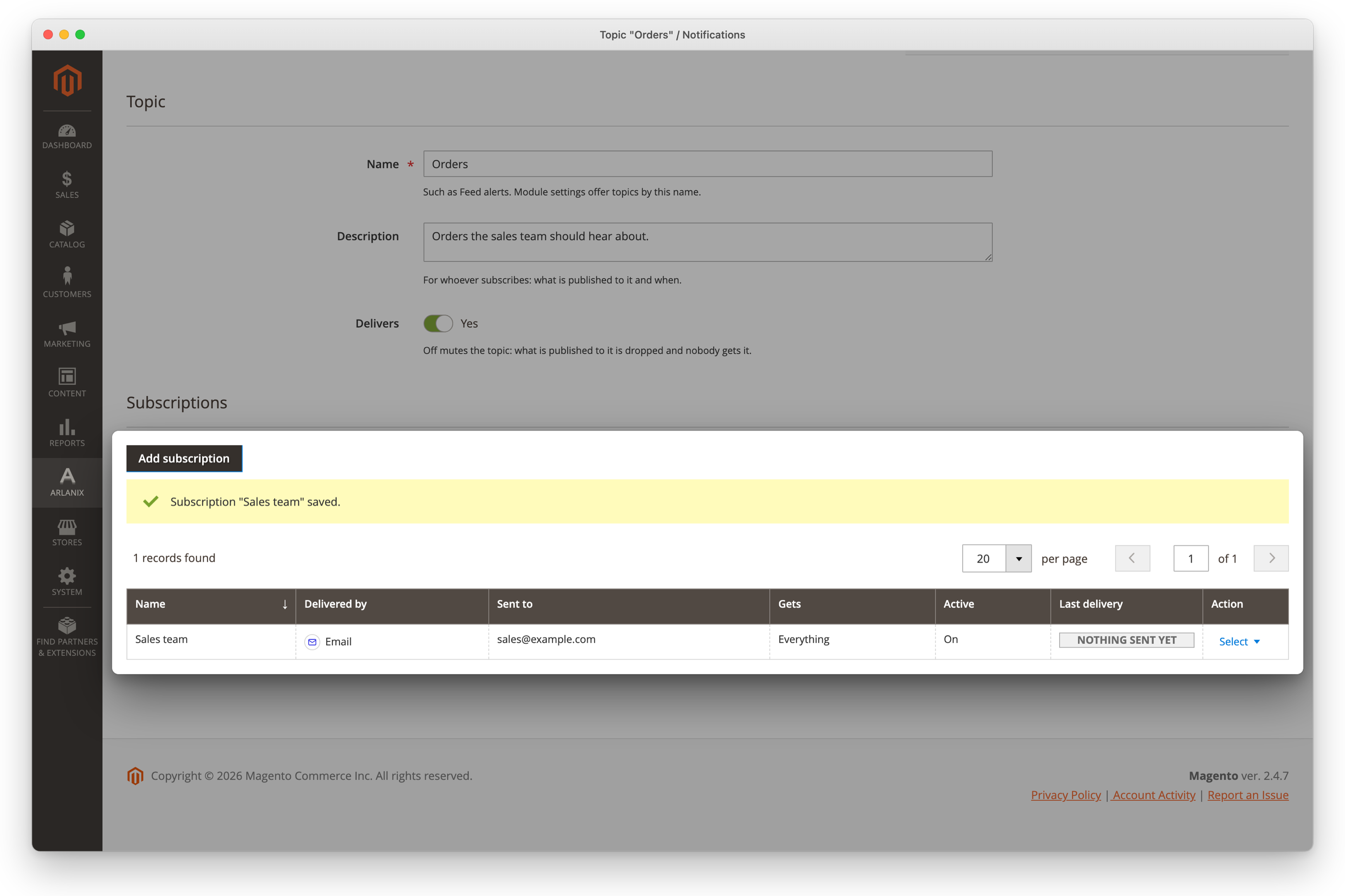
Each row of the list has two actions:
- Select > Edit opens the subscription in the panel again.
- Select > Send test message sends the subscription a test. See Subscriptions.
If the subscription cannot be saved, the panel stays open and shows the reason at the top. For example, a topic cannot have two subscriptions to the same address. A new topic has no list of subscriptions until you save it.
Try it
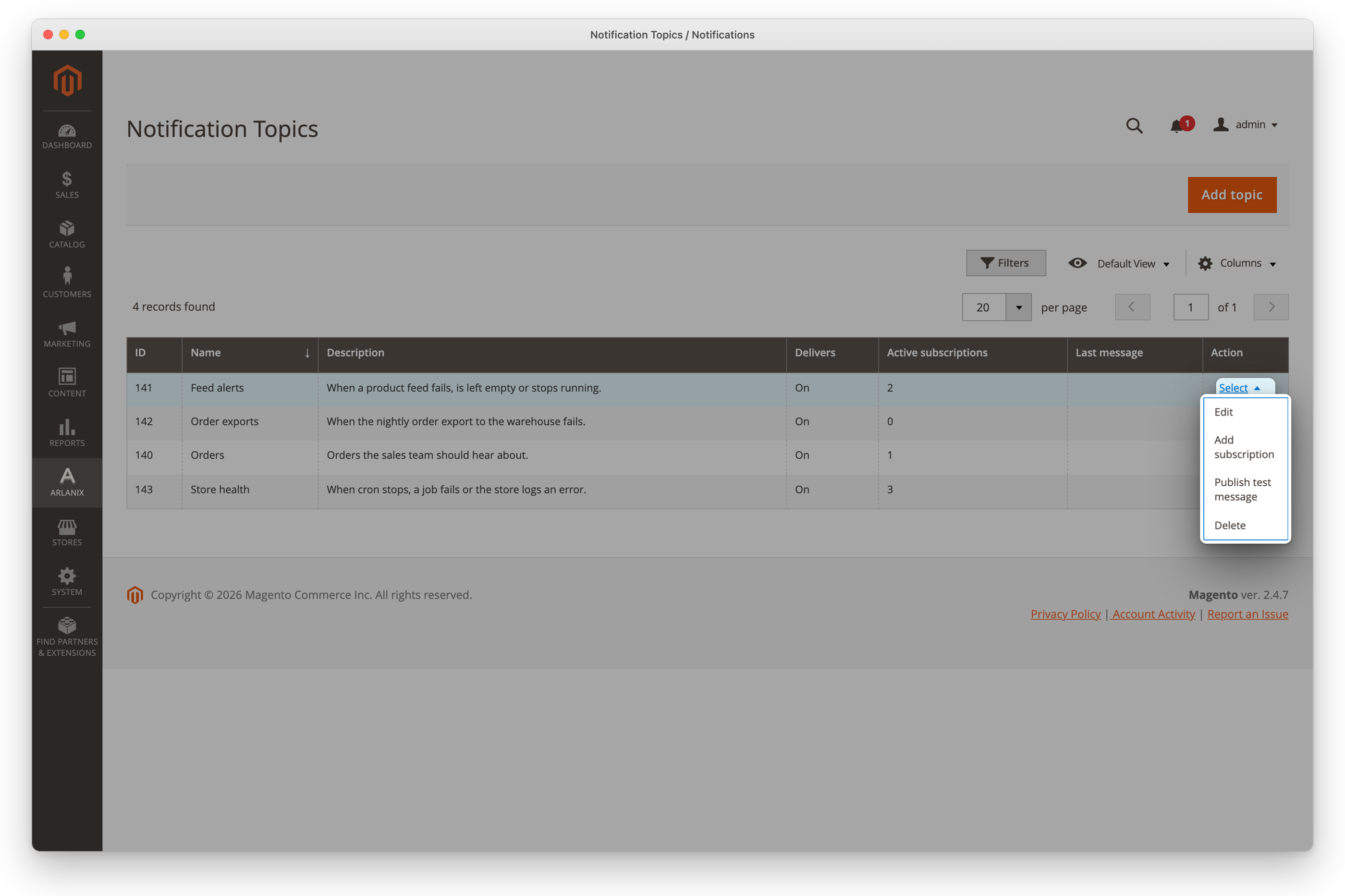
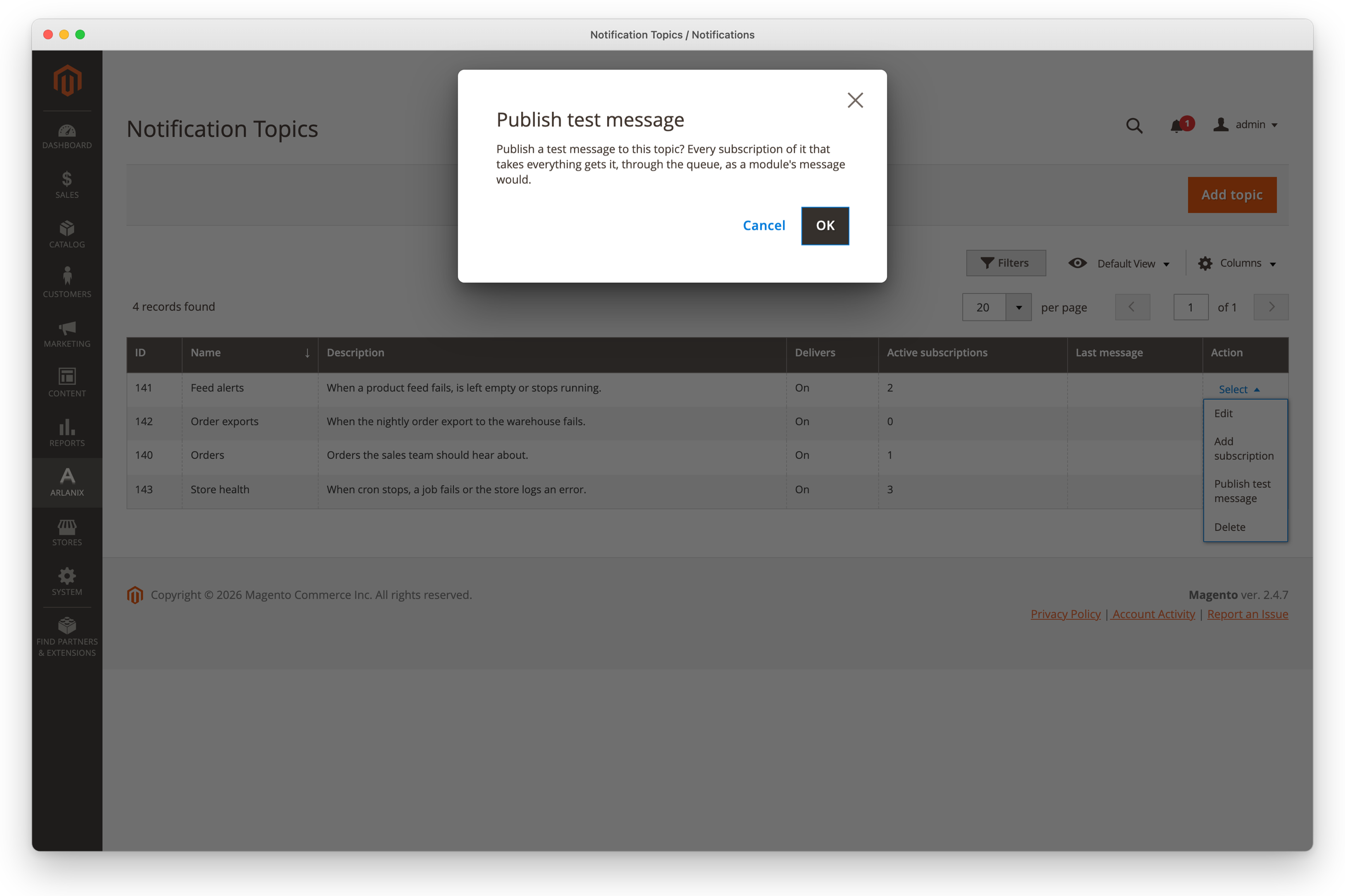
Publish test message sends a test message the same way a module sends a real message. The message appears in the Message Log. It goes to every subscription of the topic that gets Everything, and it arrives within about a minute.
In the topic's row, click Select, then click Publish test message.
Click OK.
The test message has the severity Info. So a subscription that gets only Warnings and errors or Errors only does not get it. To test one subscription on its own, use its Send test message. See Subscriptions.
Mute a topic
In the topic's row, click Select, then click Edit.
Switch Delivers off.
Click Save.
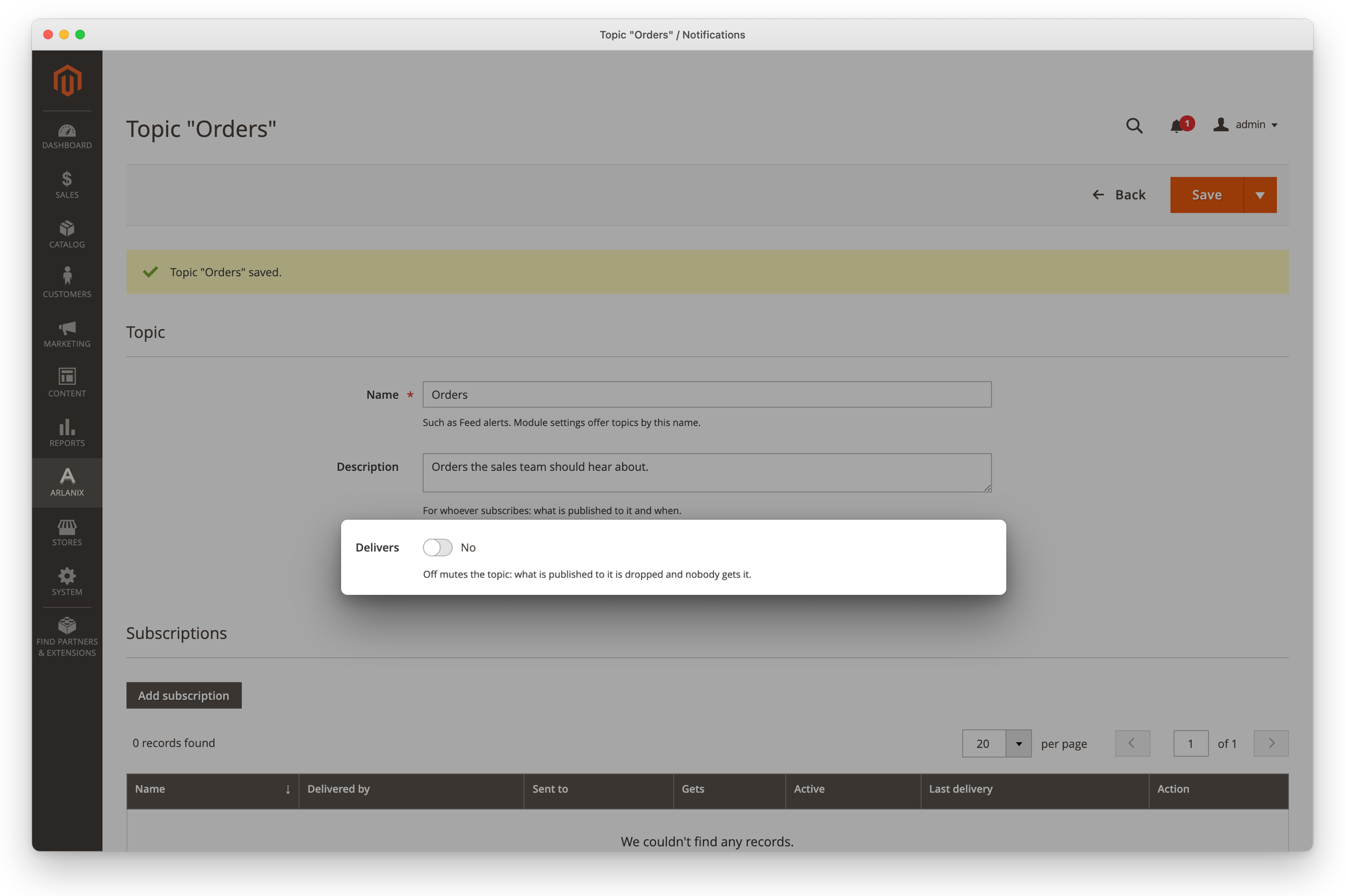
While the topic is muted, the module drops every message published to it, and no subscription gets these messages. To start delivery again, switch Delivers back on. The messages published while the topic was muted are not sent.
Delete a topic
In the topic's row, click Select, then click Delete.
Read the confirmation. It says what is deleted together with the topic. Click OK.
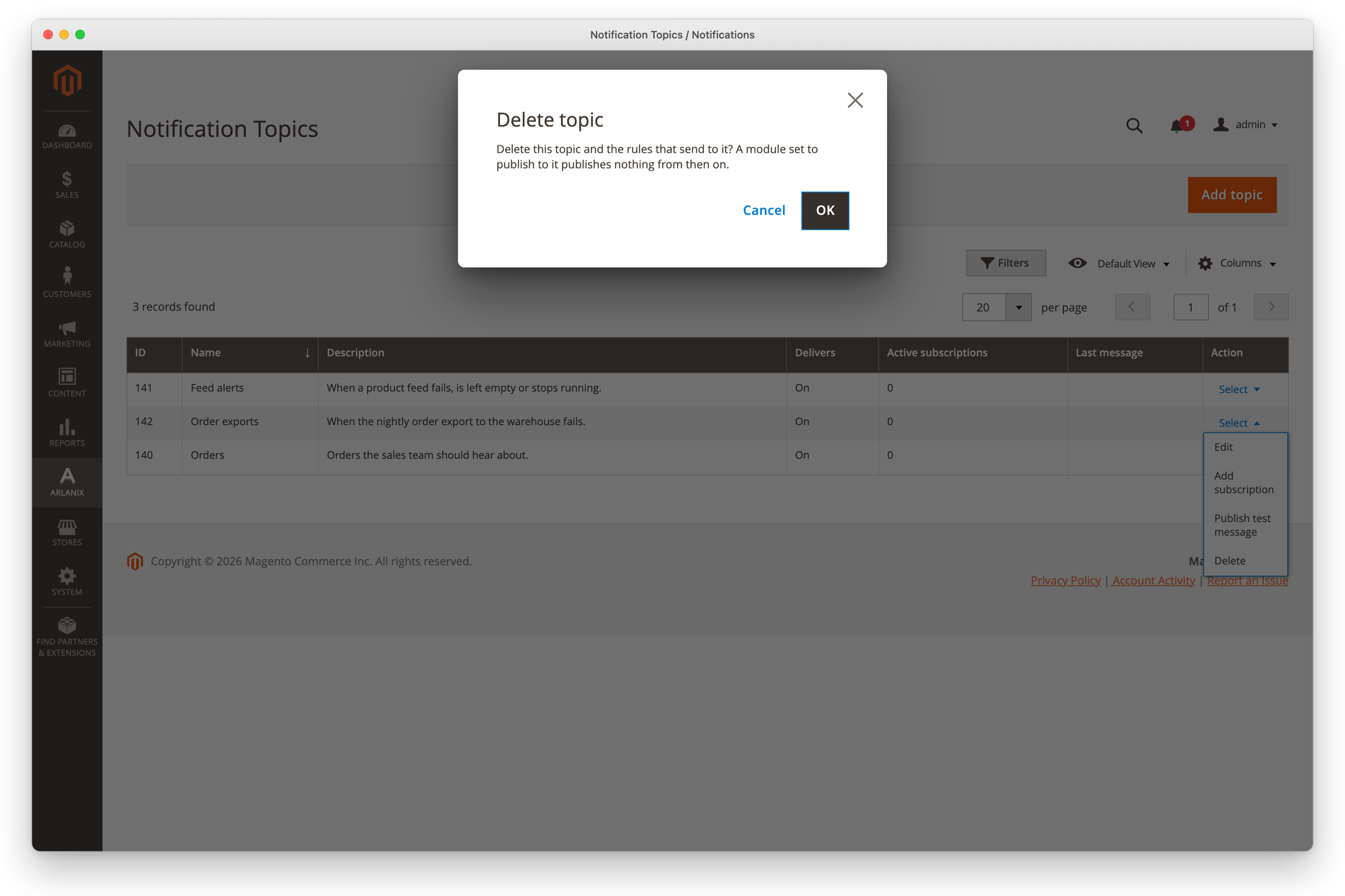
The topic's subscriptions and rules are deleted with it. Its messages stay in the Message Log.