For arlanix/notification 1.1.0
Message Log
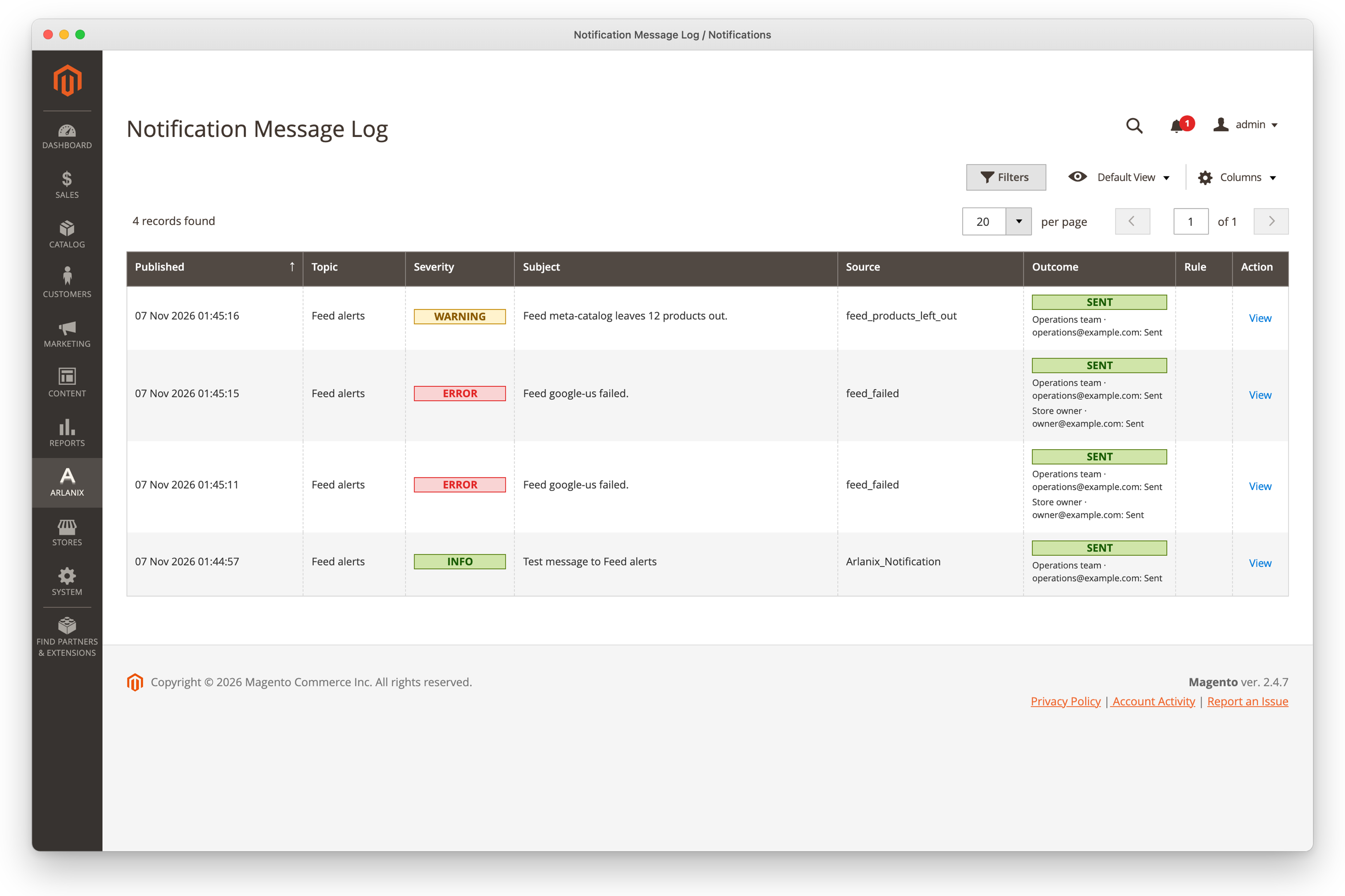
The Message Log keeps every message published to a topic. It shows when each message was published, where it came from, and what happened to it. If a rule sent the message, the Rule column shows the rule's name.
Open the Message Log
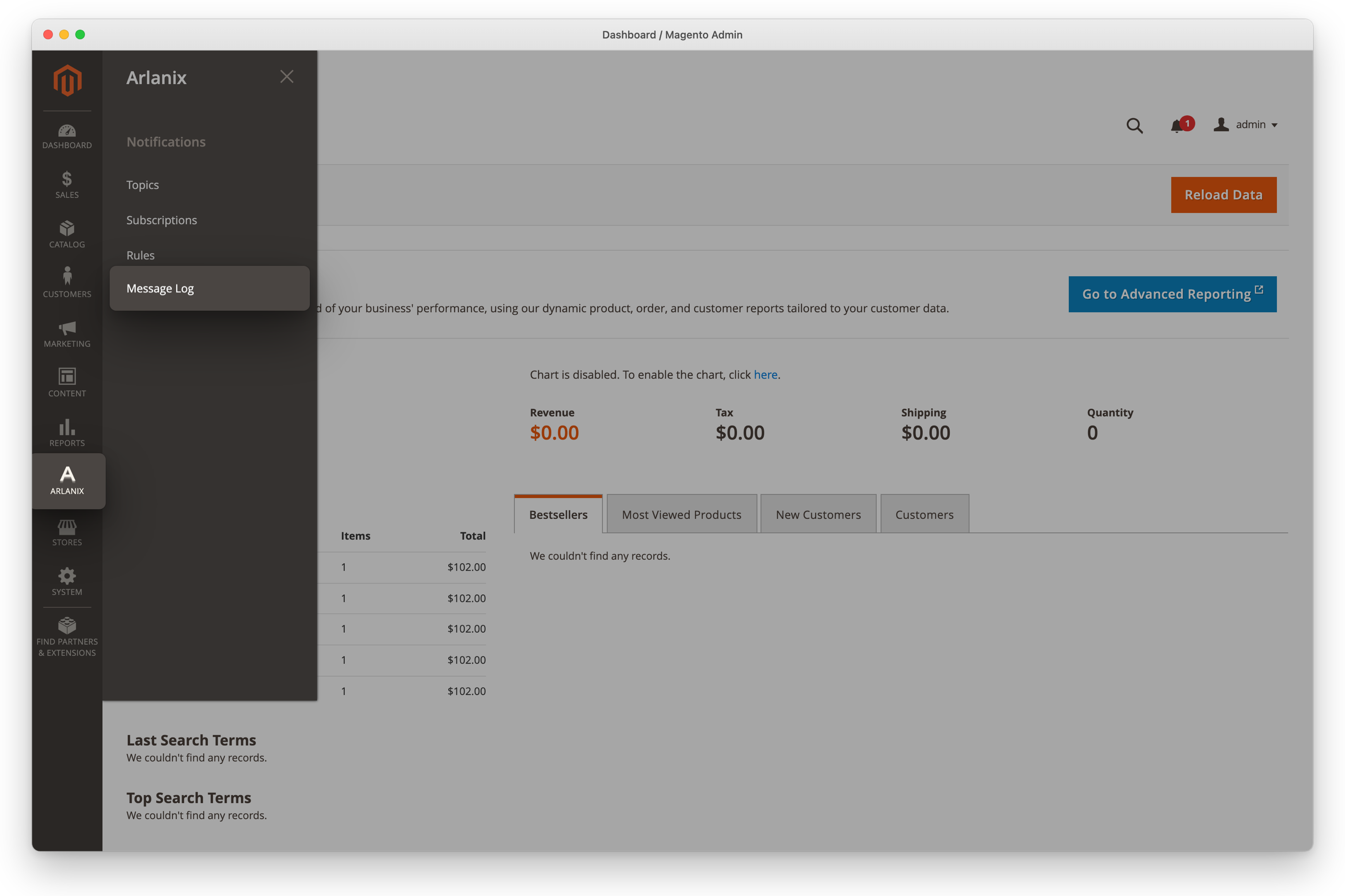
In the admin menu, click Arlanix, then click Message Log under Notifications.
What happened to a message
The Outcome column shows what happened to the message. Under the outcome, it lists where each delivery went. The outcomes are:
- Sent: at least one delivery was sent, and no delivery failed or is still waiting.
- On its way: at least one delivery is queued, being sent, or waiting to be tried again.
- Failed: at least one delivery used all its attempts and was not sent.
- Skipped: every delivery was skipped, because its subscription was deleted or switched off before the message was sent.
- No subscribers: no active subscription of the topic takes messages of this severity. The message is still logged.
Find a message
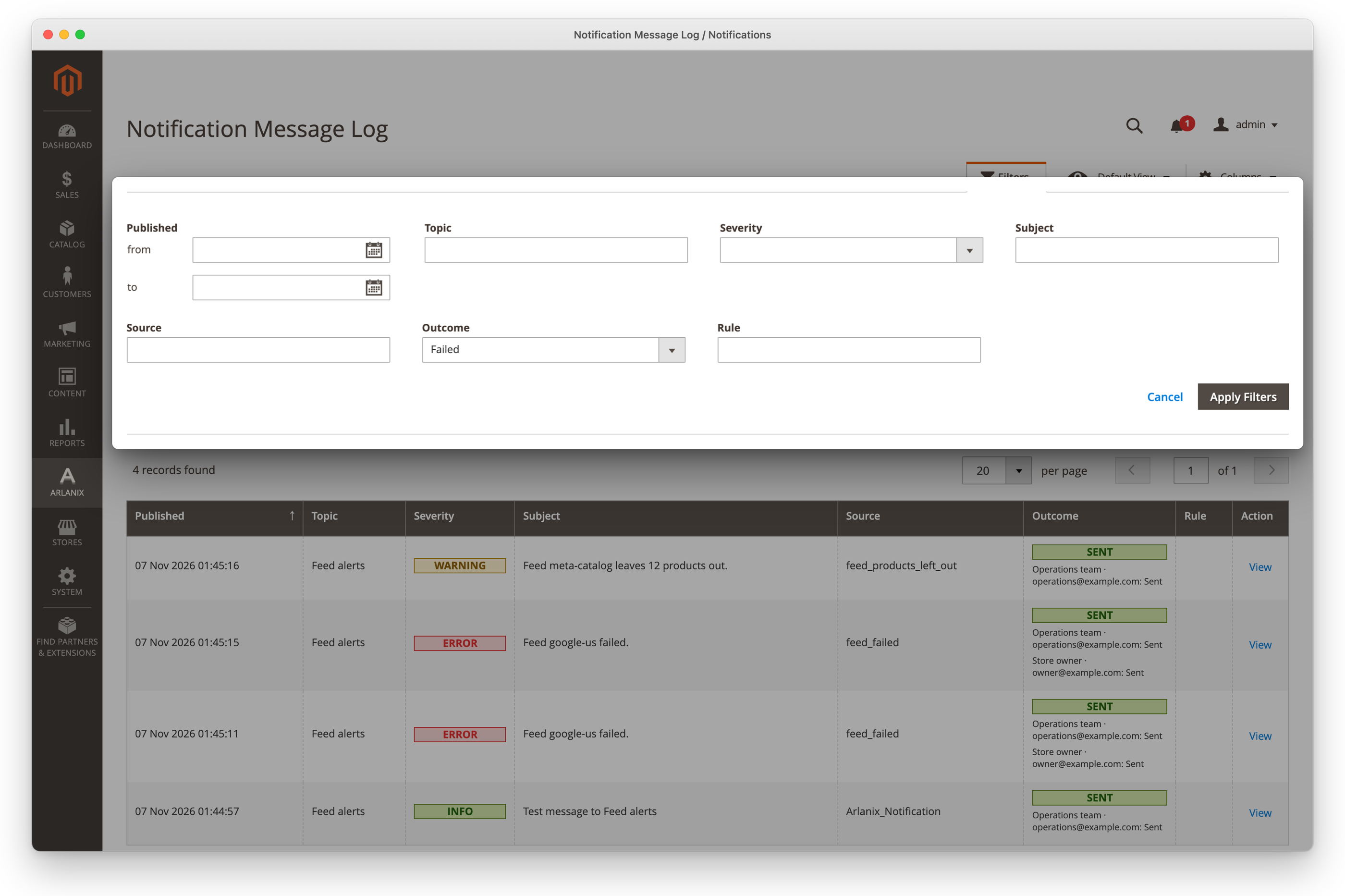
- Click Filters.
- Choose or type the values to filter by. For example, choose the Outcome Failed, or a Topic.
- Click Apply Filters.
You can filter by ID, Published, Topic, Severity, Subject, Source, Rule and Outcome.
View a message
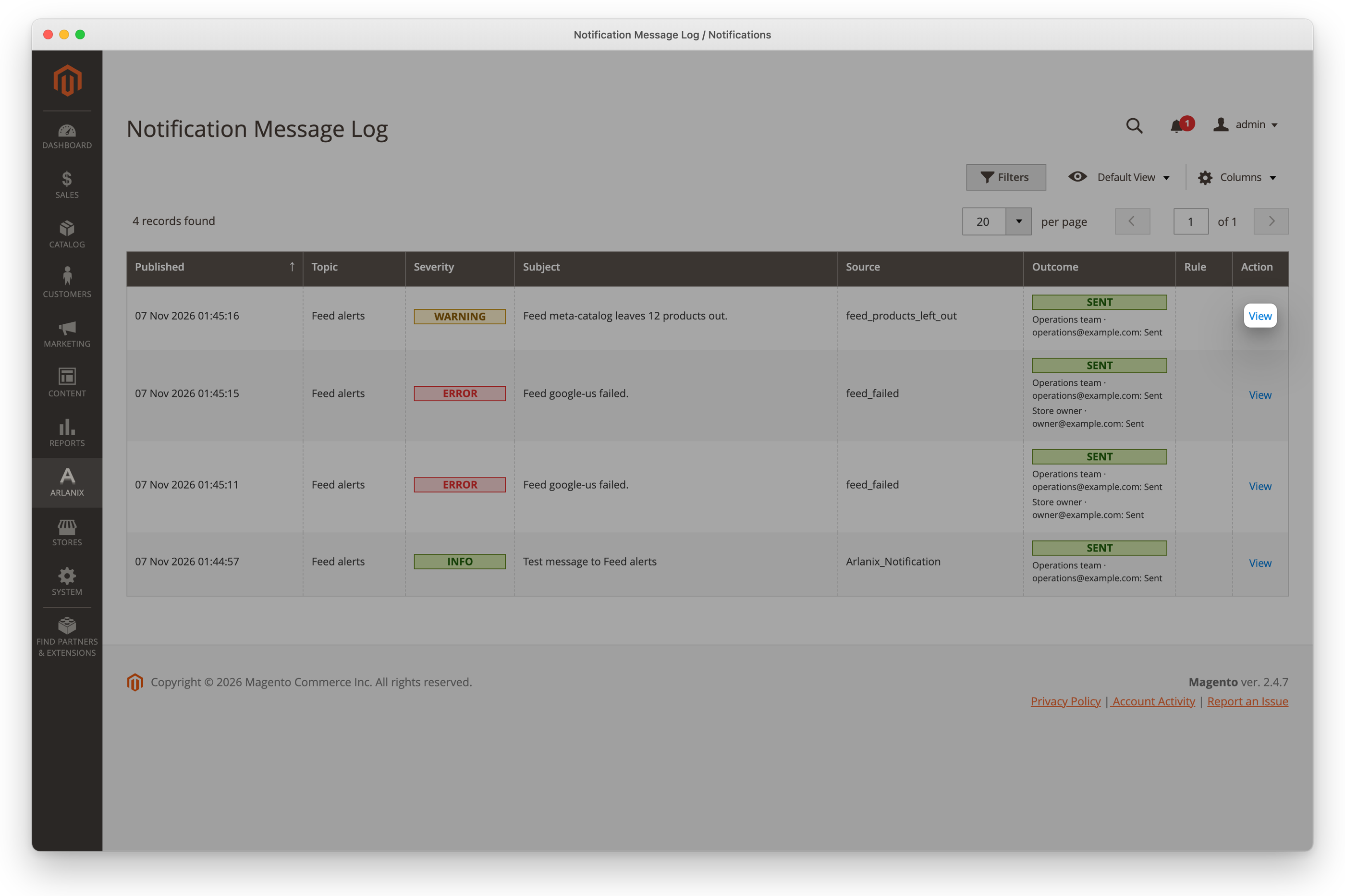
In the message's row, click View.
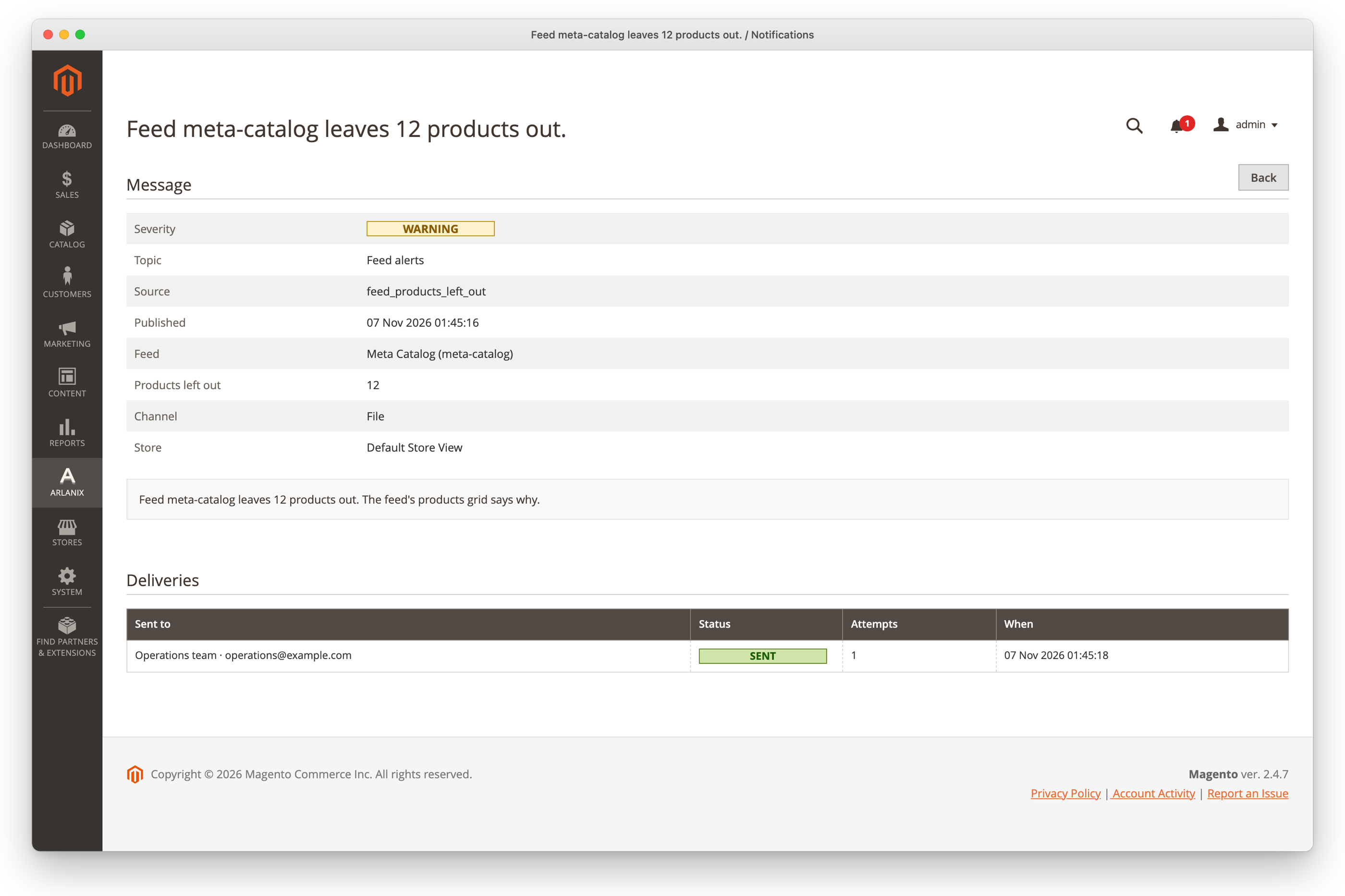
The message's page shows:
- the message's text and the details that came with it
- the rule that sent it, with a link to the rule
- each delivery, with its status and number of attempts
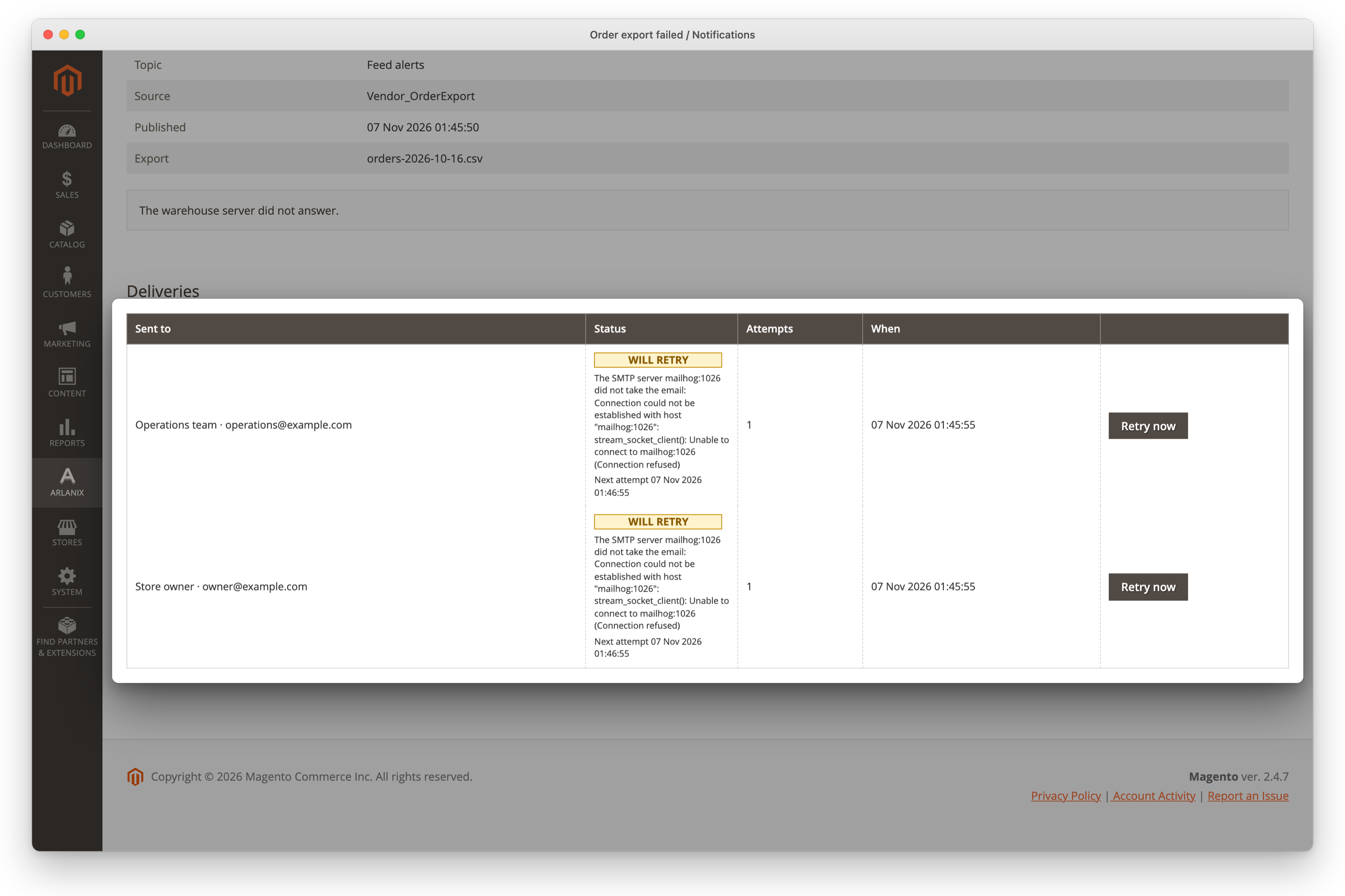
- for a delivery that failed, the answer from the mail server, Telegram, Slack, Discord, Microsoft Teams or WhatsApp
Send a failed delivery again
A delivery that failed, or one that waits to be tried again, has a Retry now button on the message's page.
- Fix the cause that the error names. If you do not, the delivery fails again. For example, a wrong password or bot token fails every time.
- Click Retry now.
The delivery goes back on the queue at once and is sent within a minute or so. If it fails again, it is tried again on the full retry schedule, like a new delivery. See When a delivery fails.
How long messages are kept
Every night, the store removes messages older than 30 days. It does not remove a message while one of its deliveries is still on its way.
To change how long messages are kept, set Stores > Configuration > Arlanix > Notifications > Message log > Keep messages for (days). Enter 0 to keep all messages.