For arlanix/notification 1.1.0
Monitoring
The monitoring events report on the store itself. You get a message when the store's background jobs stop, when something breaks, when orders stop, when someone signs in to the admin, and when an import or an export ends. Like every event, each one goes where a rule sends it.
The monitoring events are:
| Event | When it is sent |
|---|---|
| Cron stopped | No background job has run for 15 minutes. Until cron runs again, feeds, emails, indexers and notifications wait. When a job runs again, a second message says that cron has recovered. |
| Cron job failed | A background job ended with an error. The message names the job. |
| Indexer needs reindex | An indexer is invalid, so the store shows what was indexed before. When the indexer is valid again, a second message says so. |
| Application error | The store wrote an error to its log. The same error is sent at most once in ten minutes. |
| Orders stopped | A store view gets far fewer orders than it usually does at this time of the week. The message says why: shoppers fill carts but their orders fail, or shoppers are gone. When orders come back, a second message says so. |
| Admin login failed | Someone failed to sign in to the admin. The message gives the username and the reason. |
| Admin logged in | An admin signed in. The message says whether the address or the device is new for this admin. |
| Import finished | An import ended. The message gives how many records were created, updated and deleted, and how many errors there were. |
| Import failed | An import stopped before the end. The message says why. |
| Export finished | An export file is ready to download. |
| Export failed | An export did not make a file. The message says why. |
The fields of each event are listed in Events, under Orders stopped, Security, System and Import and export.
Send the events to a topic
Make a topic for these events, such as Store health. See Topics.
Subscribe the people who look after the store to the topic. Telegram, Slack, Discord, Teams and WhatsApp work well for these events, because people read chat messages at once.
Open Arlanix > Notifications > Rules and click Add rule. See Rules.
Enter a Name, such as Cron stopped. Choose the Event Cron stopped and the Topic Store health.
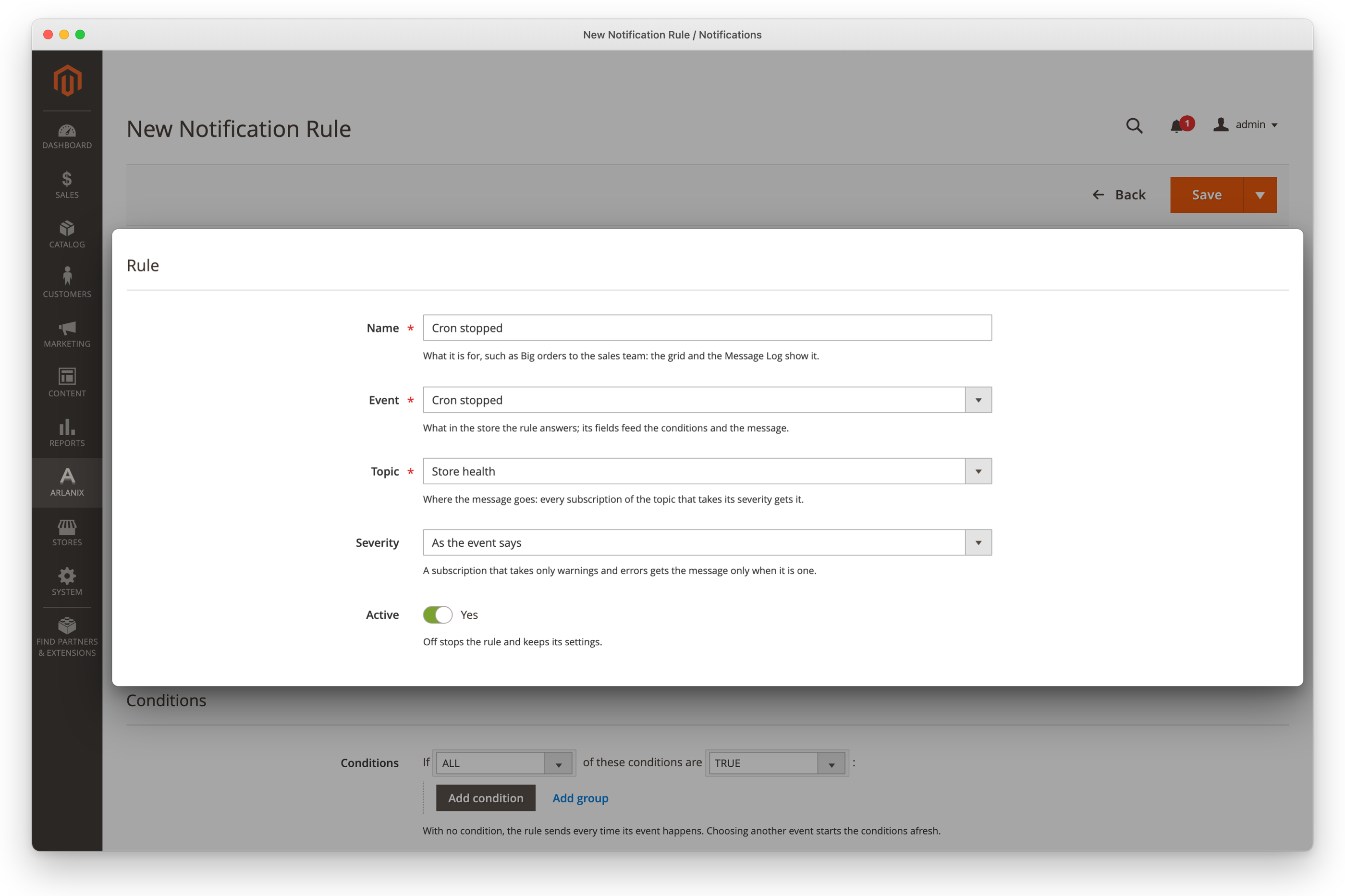
Click the arrow next to Save, then click Save & Close.
Add a rule in the same way for each event you want, with the same topic.
Here are some rules you can add:
- Cron stopped, with no condition. You get a message when cron stops and another when it runs again.
- Application error, with no condition.
- Orders stopped, with no condition, or with the condition Store view is one of your store views. You get a message when a checkout stops taking orders.
- Admin login failed, with no condition, or only for the username admin.
- Admin logged in, with the condition From a new device is Yes. You get a message when an admin signs in from a browser they have not used before, and not on every sign-in. From a new address works the same way for the IP address.
- Import finished, with the condition Errors greater than 0 and the severity Warning. You get a message when an import skipped rows because of errors.
- Export finished, with no condition. You know the file is ready without watching the Export page.
A check runs every five minutes. It checks cron, cron jobs, indexers and orders. The other events are sent as soon as they happen.
A check sends a message only when something changes. For example, a stopped cron sends one message, however long it stays stopped. When cron runs again, one more message says it has recovered.
The settings
To change the monitoring settings:
- Click Stores, then click Configuration.
- In the list on the left, click Arlanix, then click Notifications. Email shows these steps with pictures.
- Open the Monitoring group.
- Change a setting, and click Save Config.
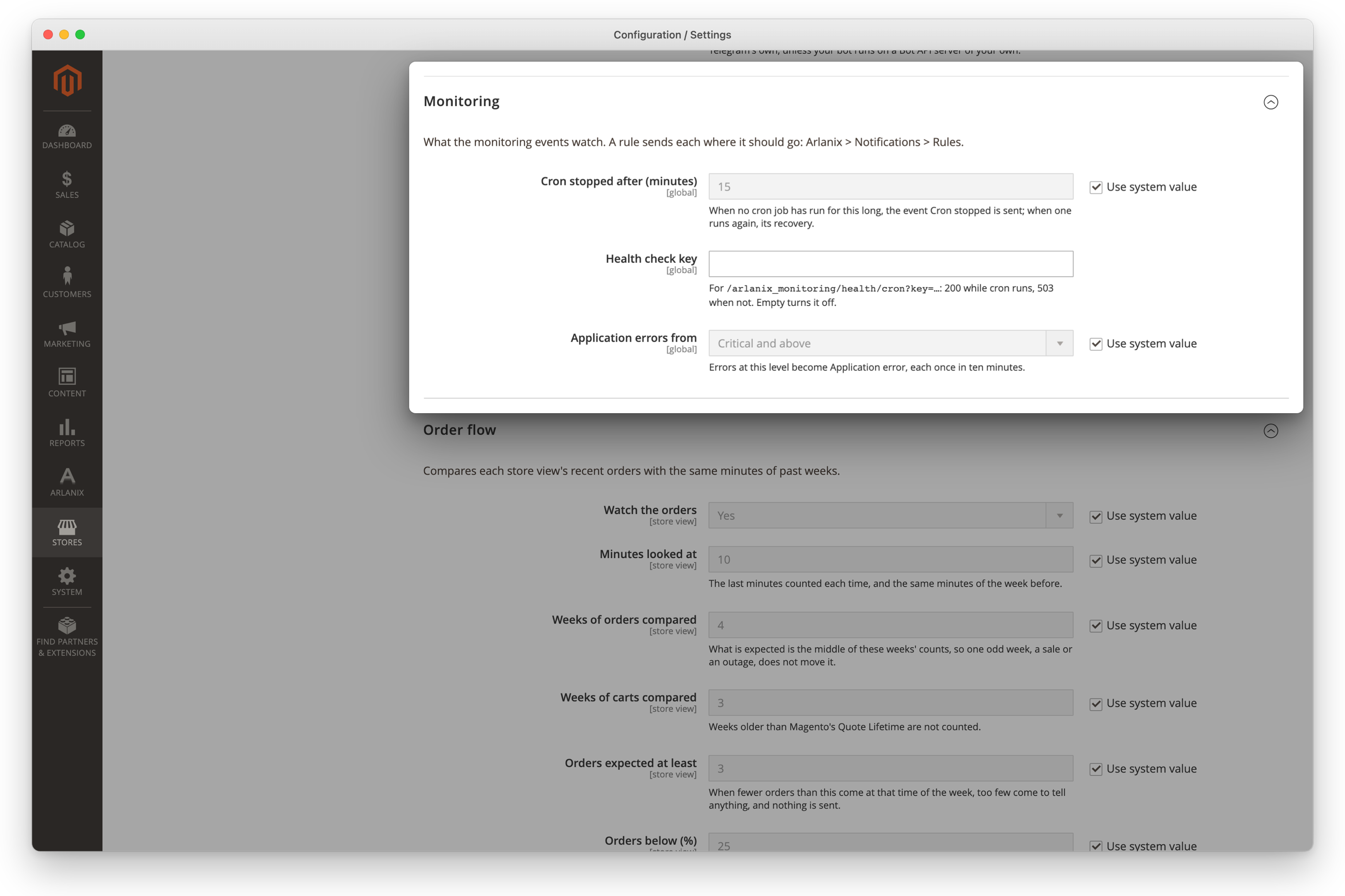
The Monitoring group has these settings:
| Setting | Default | What it does |
|---|---|---|
| Cron stopped after (minutes) | 15 | When no background job has run for this many minutes, Cron stopped is sent. |
| Health check key | Empty | Turns on the address that an uptime monitor checks. See When cron itself stops. The key is stored encrypted. |
| Application errors from | Critical and above | Which errors in the store's log are sent as Application error. Error and above sends more messages. Emergency only sends fewer. |
Orders that stop
Every five minutes, the check counts two things for each store view: the orders placed in the last 10 minutes, and the carts that shoppers changed in those minutes. It compares both numbers with the same 10 minutes on the same weekday in earlier weeks. For example, Tuesday 12:00 to 12:10 is compared with 12:00 to 12:10 on the Tuesdays before. Orders are compared with the last four weeks, and carts with the last three. The usual number is the median of those weeks, so one week with a sale or an outage does not change it.
When a store view gets fewer than a quarter of its usual orders, the check looks at the carts to find out why:
| Carts | Reason | What it means |
|---|---|---|
| At least 60% of the usual | Shoppers fill carts, no orders come | Shoppers are on the site, but their orders fail. The cause is the checkout, a payment method or a shipping method. Place a test order. |
| Below 20% of the usual | Shoppers are gone | Shoppers do not reach the store. The storefront is down, or its traffic has stopped. |
| Between 20% and 60% | None | Nothing is sent. Fewer shoppers than usual can be a normal quiet time. |
Orders stopped is sent only after two checks in a row see the stop, so one quiet window does not send it. When two checks in a row see that the orders are back, a second message says so.
Store views with few orders
The check needs enough orders to tell a real stop from chance. If a store view usually gets fewer than 3 orders in those 10 minutes at this time of the week, nothing is sent. That is about 18 orders an hour. So with the default settings, a store view with fewer orders is checked only in its busiest hours, or never.
To check a smaller store view, set its Minutes looked at to 60. Then 3 orders in an hour are enough. The cost is that a stop is noticed up to an hour later.
A new store view is compared with the weeks before it opened, when it had no orders. The check can judge it only after it has three weeks of orders.
Change the settings
The numbers above are settings in the Order flow group, on the same page as Monitoring. Each store view can have its own values. To change a value for one store view:
- At the top of the page, under Scope, choose the store view.
- Clear Use Website next to the setting.
- Change the setting, and click Save Config.
To stop checking a store view, set its Watch the orders to No.
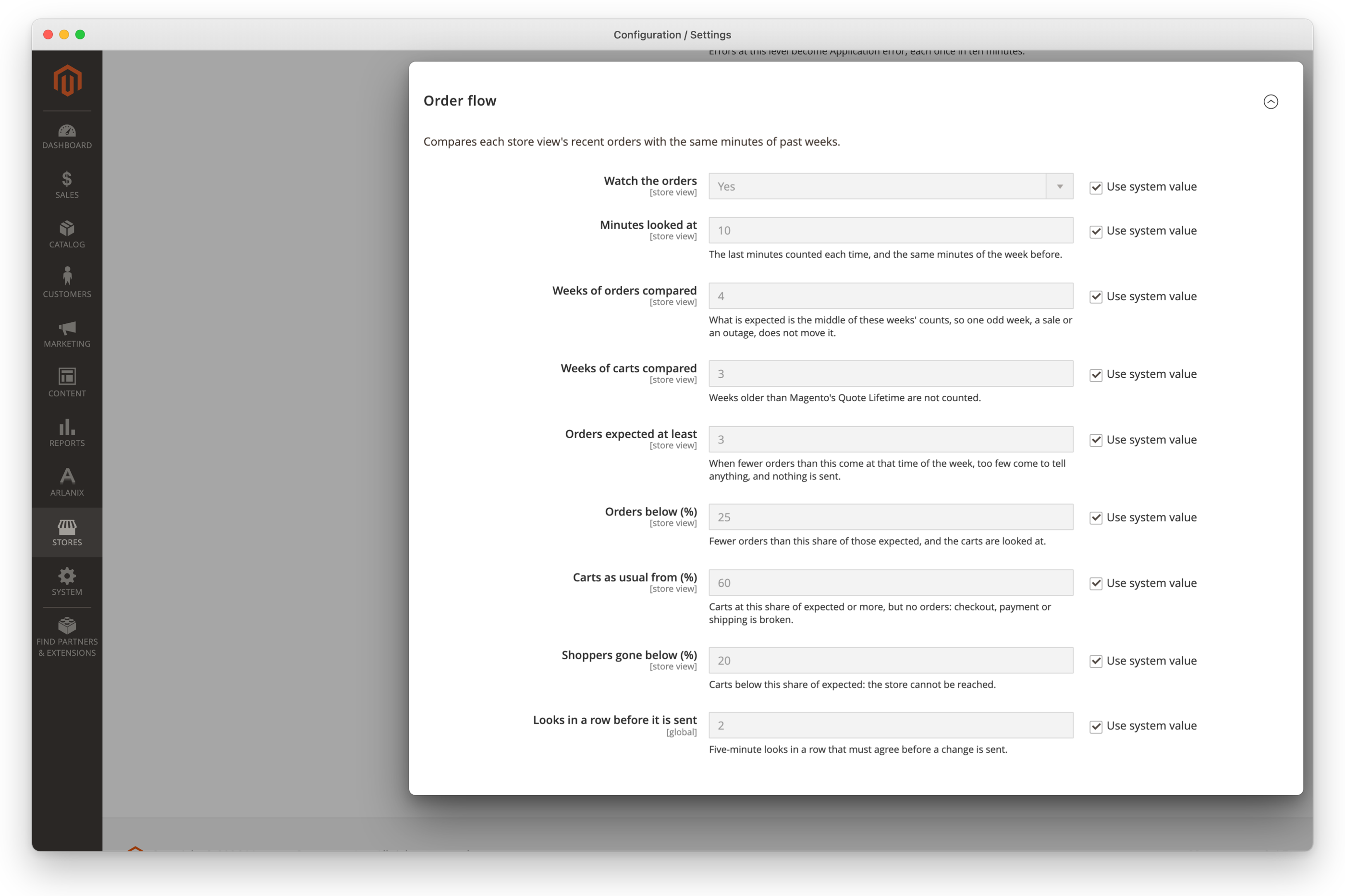
The Order flow group has these settings:
| Setting | Default | What it does |
|---|---|---|
| Watch the orders | Yes | Whether the check looks at this store view. |
| Minutes looked at | 10 | How many of the last minutes are counted and compared with the same minutes of earlier weeks. |
| Weeks of orders compared | 4 | How many earlier weeks give the usual number of orders. |
| Weeks of carts compared | 3 | The same for carts. Magento deletes carts after Quote Lifetime (days), 30 by default, so keep these weeks within it. |
| Orders expected at least | 3 | When fewer orders than this usually come in those minutes, nothing is sent. |
| Orders below (%) | 25 | Fewer orders than this share of the usual counts as a stop, and the carts are checked. |
| Carts as usual from (%) | 60 | Carts at or above this share of the usual mean that shoppers are there and their orders fail. |
| Shoppers gone below (%) | 20 | Carts below this share of the usual mean that shoppers are gone. Between this and Carts as usual from (%), nothing is sent. |
| Looks in a row before it is sent | 2 | How many checks in a row must see a stop, or its end, before a message is sent. One value for all store views. |
When cron itself stops
Cron runs the checks, so a stopped cron cannot report that it stopped. Two other things notice it instead:
- An admin page. When someone opens a page in the admin, the store checks whether cron runs. It does this at most once in five minutes.
- An uptime monitor outside the store, such as UptimeRobot or Pingdom.
Both send Cron stopped at once. They do not use the queue, because the queue also needs cron. So the message reaches email, Telegram, Slack, Discord, Teams and WhatsApp without cron. If this delivery fails, it is tried again like any other delivery, after cron runs again.
Set up an uptime monitor
- In the Monitoring settings, enter a Health check key. Use any long random text.
- Click Save Config.
- In your uptime monitor, add your store's address followed by
/arlanix_monitoring/health/cron?key=and the key.
The address answers 200 while cron runs. It answers 503 when cron has stopped or has never run, and the monitor reports this. Without a key, the address answers 404. Your developer may need to change the address for your store. See The health check.
Imports and exports
You run imports from System > Data Transfer > Import. Integrations and schedules that use Magento's import also run imports. The person who imports from the Import page sees the result there. The events tell everyone else. They also report imports that nobody watches.
- Import finished is sent even when some rows had errors and were not imported. Errors gives the number of these rows. A rule can send only these imports, as the examples in Send the events to a topic show.
- Import failed is sent when the import stopped. Either it had more errors than it allows, or it had an error that stops it at once.
Exports run in the background. When you click Continue on the System > Data Transfer > Export page, Magento only adds the export to a queue. A background job then makes the file. Export finished tells you when the file is ready. Export failed tells you why there is no file, which the Export page does not show.
The background job that makes exports needs cron, like the notifications do. If cron has stopped, no export is made and neither message is sent. Cron stopped tells you about this.
Admin sign-ins
The message gives the username and the reason. The IP address and the browser are personal data. To include them in the message, add {admin.ip} or {admin.user_agent} to the rule's body.
To know whether an address or a device is new, the store remembers the addresses and devices each admin signed in from. It keeps each one for a year after the last sign-in from it. It stores them as hashes that only this store can make, and never stores the address itself.
The device is the browser. The store recognizes it by a cookie that the browser keeps. A private window, another browser or cleared cookies count as a new device.
The store starts remembering when Multichannel Store Notifications is installed. So each admin's first sign-in after the installation is from a new address and a new device. A rule on either condition sends one message for each admin's first sign-in. After that, it sends a message only for a new address or device.