For arlanix/notification 1.1.0
Slack
A Slack subscription sends a topic's messages to one Slack channel. It posts through an incoming webhook, a web address that Slack makes for the channel.
You do not set anything up in Stores > Configuration. Each subscription has its own webhook.
1. Make a webhook
Sign in to your Slack workspace and open api.slack.com/apps (opens in a new tab).
Click Create New App, choose Blank app and click Continue.
Name the app, for example Store alerts, choose the workspace and click Continue.
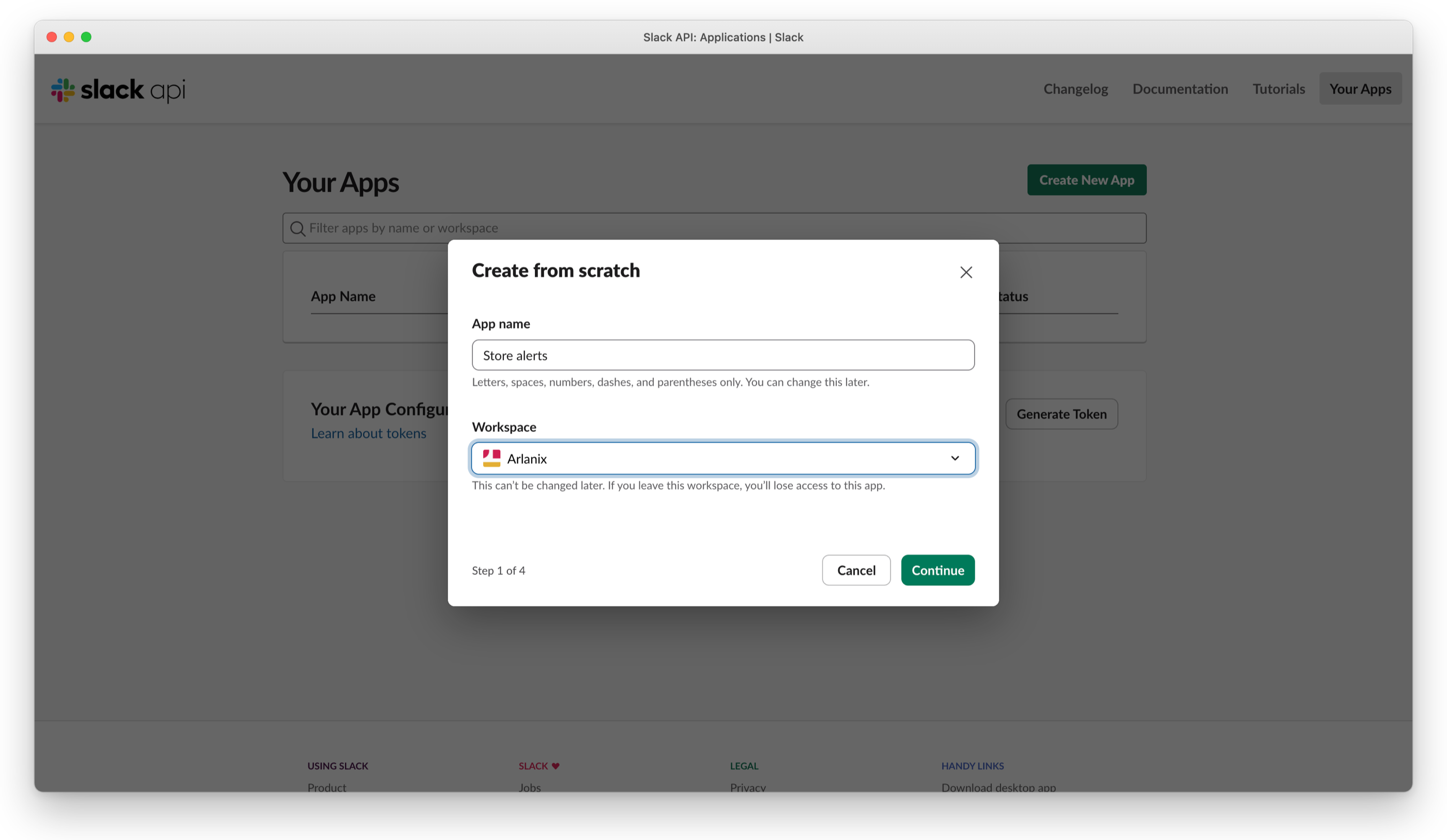
The app needs no scopes or events of its own. Click Continue to skip them, then click Create.
Slack says that the app cannot do anything yet. Click Create Anyway. The webhook gives the app all it needs.
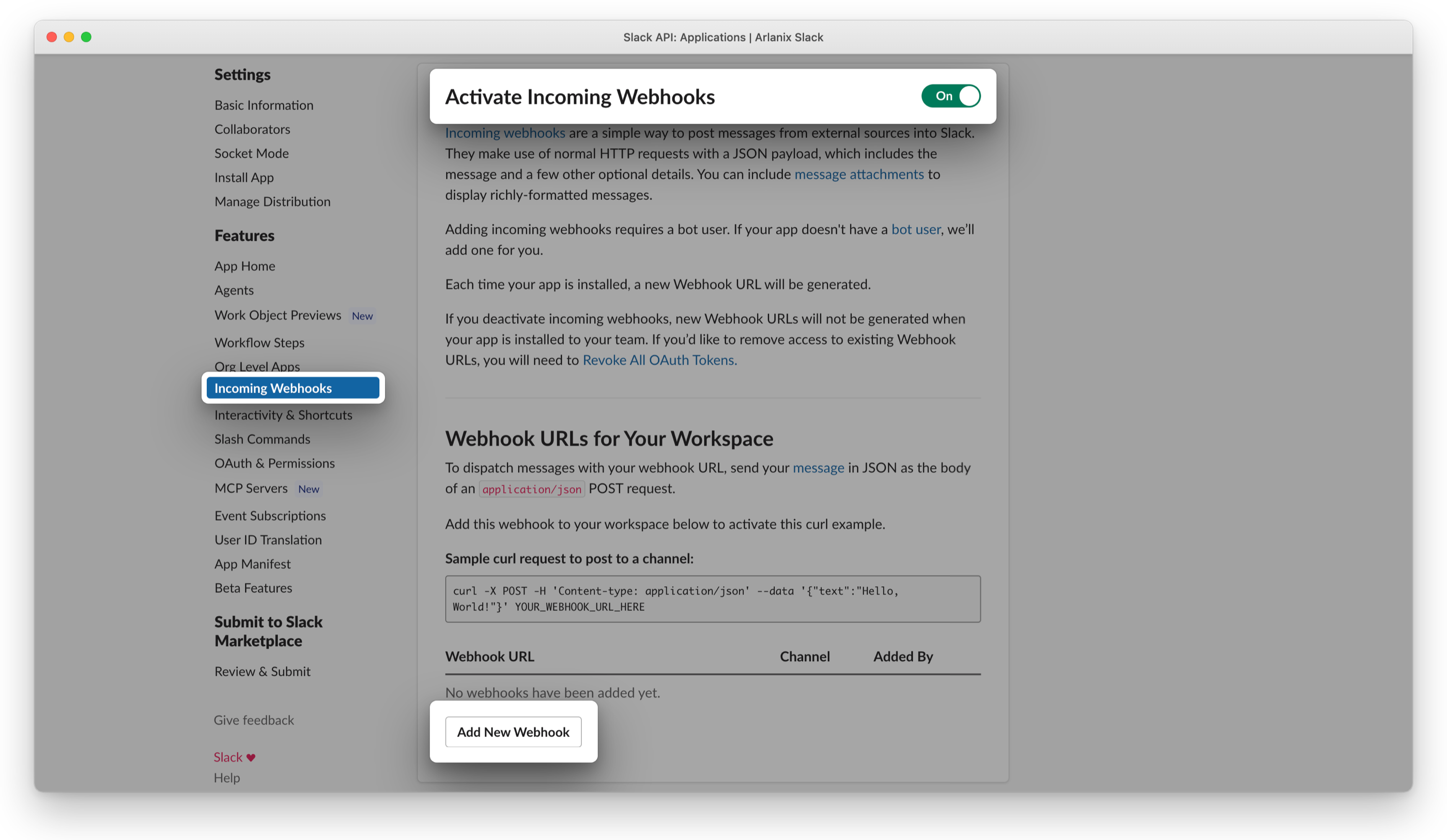
Under Features, open Incoming Webhooks.
Turn on Activate Incoming Webhooks and click Add New Webhook.
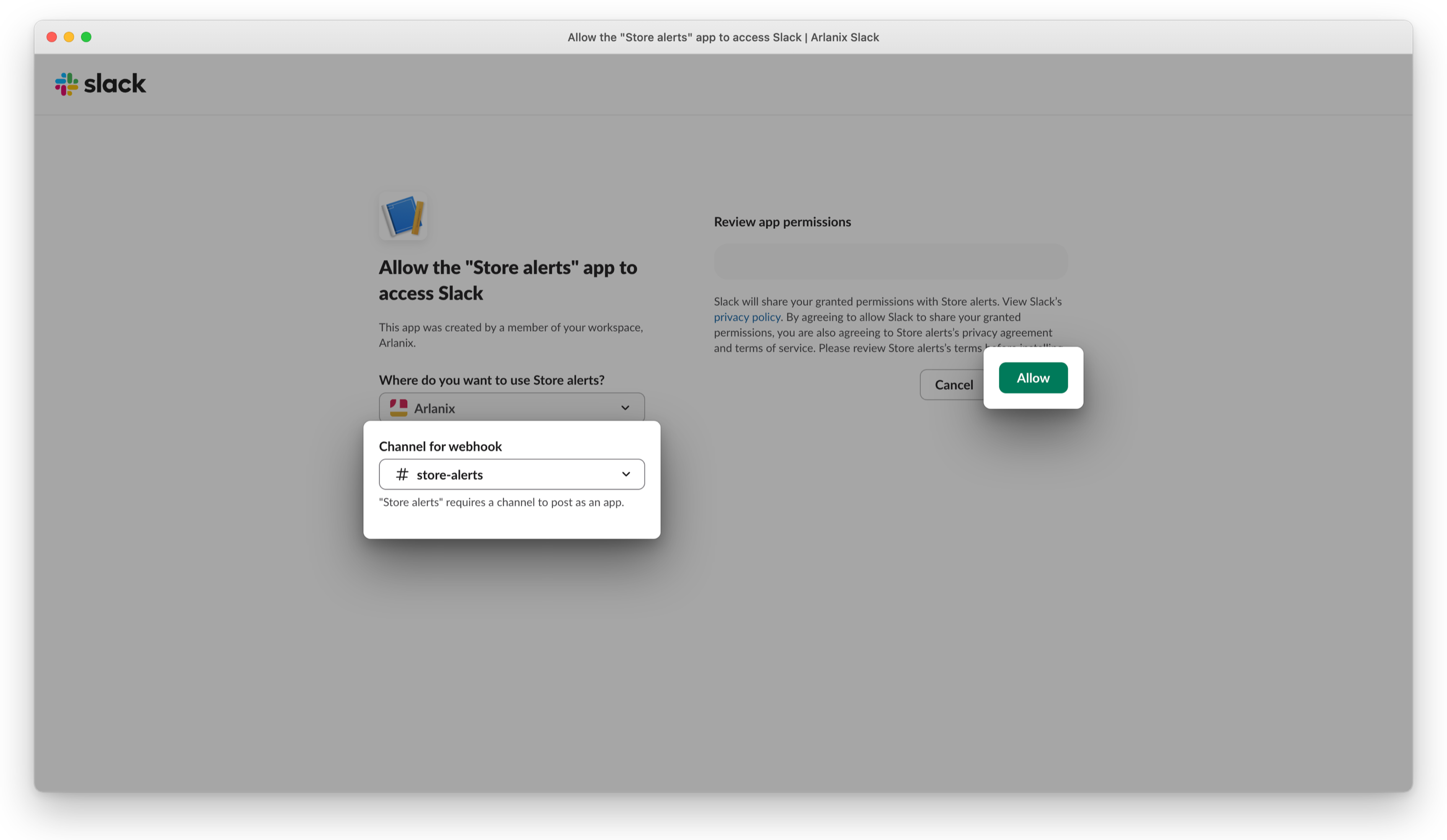
Choose the Channel for webhook, for example #store-alerts, and click Allow. If your workspace needs an admin to approve apps, Slack asks for the approval at this step.
Back on Incoming Webhooks, click Copy next to the new Webhook URL. It looks like
https://hooks.slack.com/services/…. Keep the URL secret, like a password. Anyone who has it can post to the channel.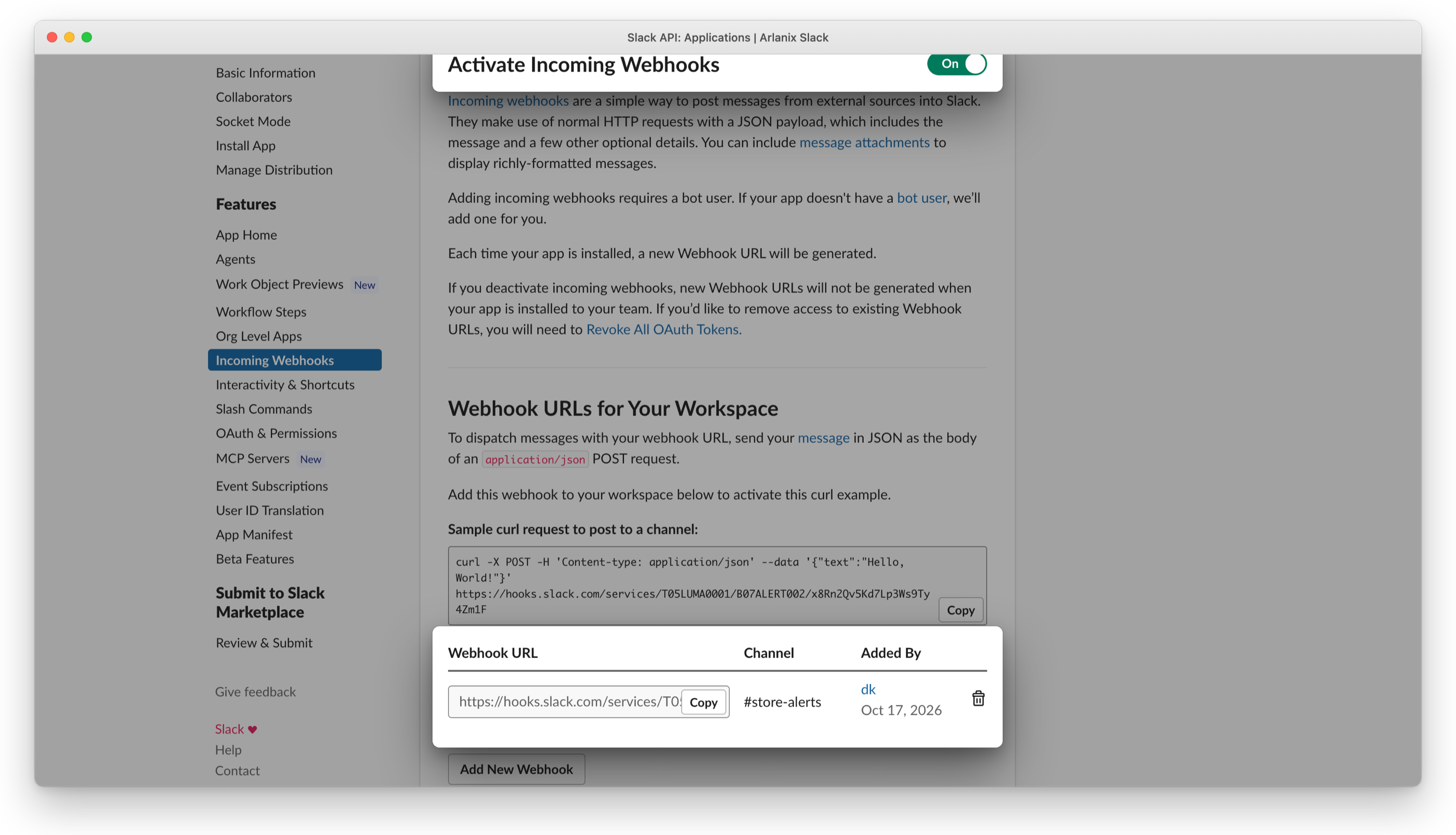
2. Subscribe the channel
Add a subscription on the topic's page or in Subscriptions. See Subscriptions.
Under Delivery, set Delivered by to Slack.
Paste the Webhook URL. The store keeps it encrypted and never shows it again.
Enter the Channel, for example #store-alerts. The grid and the Message Log show this name, because they never show the webhook.
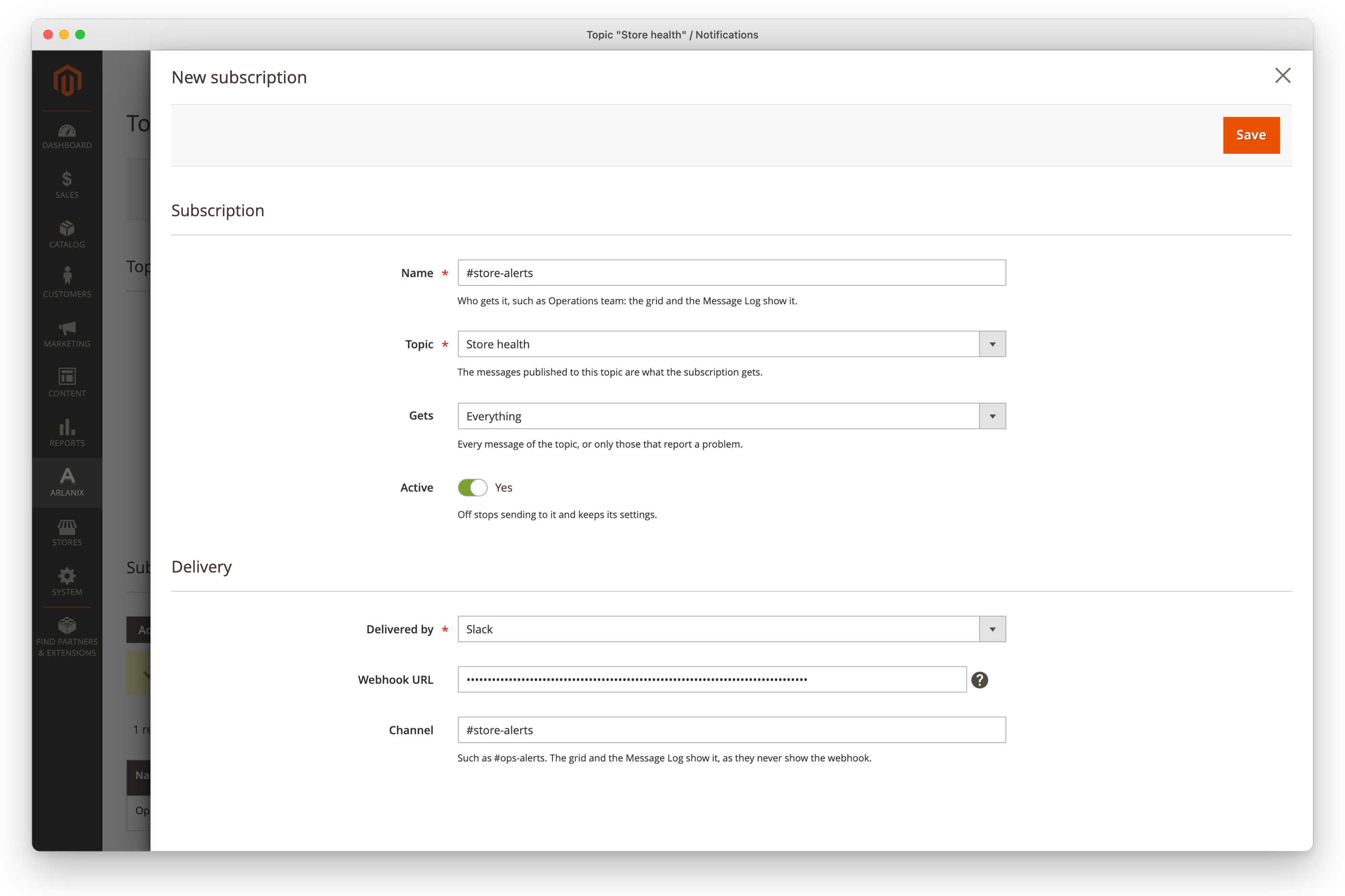
Save the subscription.
Click Send test message. The test message arrives in the channel.
To change the webhook later, paste the new one. To keep the stored webhook, leave the field empty.
A topic can have only one subscription to the same webhook.
How messages look
Each message is sent as one Slack message. A digest, several messages sent together, is also one Slack message. It looks like this:
- The subject is in bold, after a mark for the severity: 🔴 for an error, 🟠 for a warning, 🔵 for info.
- The text and the details follow.
- Links work, and Slack shows no preview for them.
If a digest is very long, it shows the messages that fit and ends with the number of the others, for example … and 3 more: see the Message Log. A single message that is too long is cut and ends with …. The Message Log keeps every message in full.
When Slack refuses
When Slack refuses a message, its answer appears in Last delivery on the subscription, and on the message's page in the Message Log. The common answers and what to do:
| Slack says | What to do |
|---|---|
| no_service, invalid_token, no_active_hooks, no_team | The webhook was removed or turned off, or its app was removed from the workspace. Make a new webhook and paste it into the subscription. |
| channel_not_found, channel_is_archived | The channel was deleted or archived. Make a webhook for a channel that exists. |
| action_prohibited | A workspace admin does not allow posting to the channel. Ask the admin. |
| Slack asked to wait … second(s) | Too many messages went to the channel at once. The store waits as long as Slack asks, one hour at most, and then sends the rest. In the first 24 hours after a message is published, this wait does not use up any of its delivery attempts. |
The store tries a failed delivery again by itself. See When a delivery fails. To send it again now, click Retry now on the message's page in the Message Log. It is sent within a minute or so.