For arlanix/product-feed 1.0.0
SFTP connections
A feed whose channel is SFTP is uploaded to another company's server, such as Google Merchant Center's or a marketplace's. For that, the store needs a connection to the server, made once under Arlanix → SFTP Connections. Every feed that uploads to the same server uses it.
What you need
Whoever runs the server gives you its details, usually with the login:
- the host, the server's address, and its port;
- the username and the password;
- the server's SHA-256 host-key fingerprint, which starts with
SHA256:. It proves the server is the one you mean.
For Google Merchant Center's own server, Merchant Center shows them all:
- In Merchant Center, go to Products → Data sources and press Add product source.
- Choose Add products from a file, then Add a file using SFTP or Google Cloud Storage.
- Press View SFTP and Google Cloud Storage details. The dialog shows the server, port, username and fingerprint. The password is the one you set there with Reset password: Merchant Center shows it only once, so copy it straight into the connection.
If you were given a key file rather than a password, or no fingerprint, ask your developer to make the connection: it is in their documentation.
Make the connection
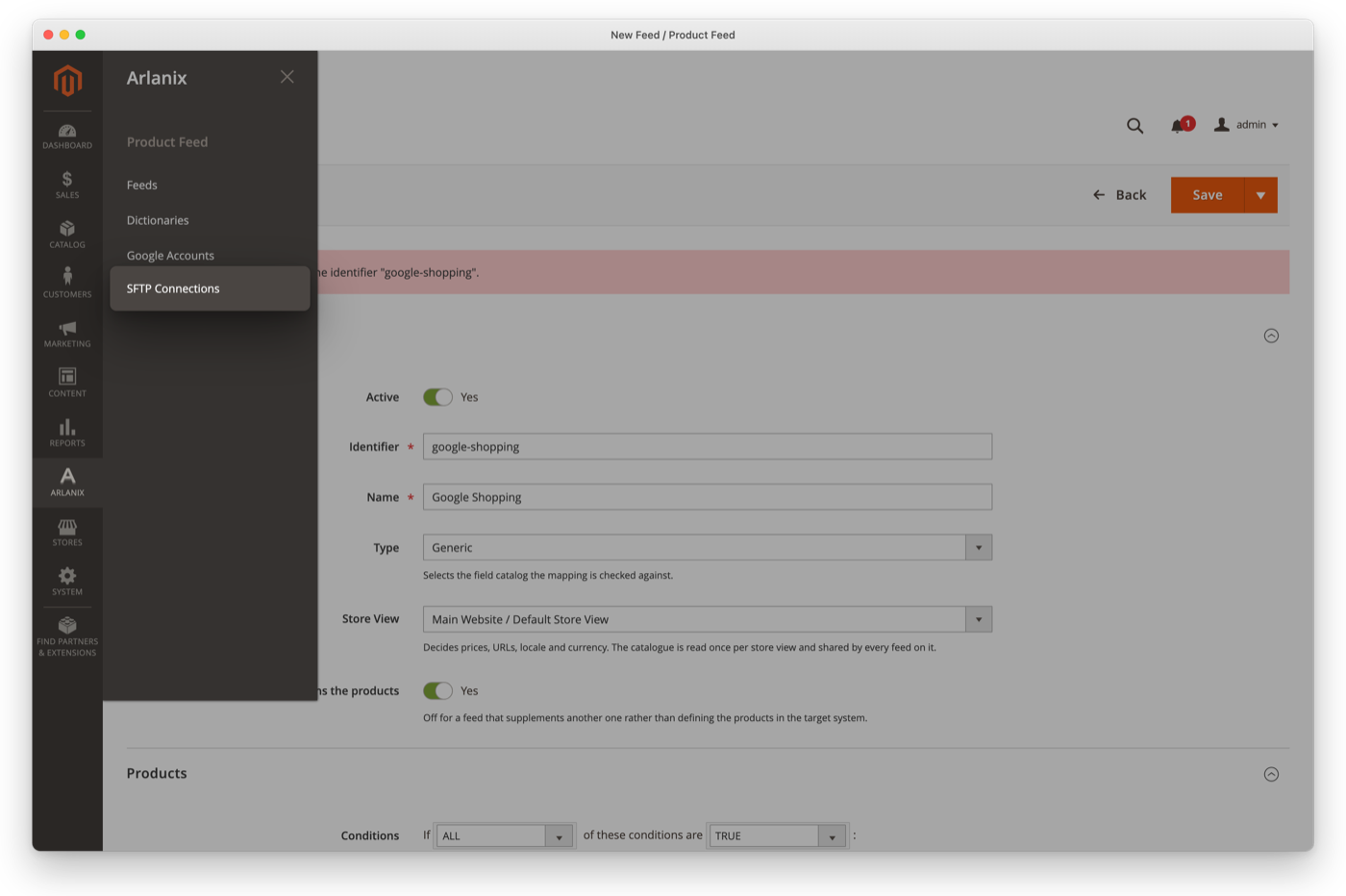
Open the Arlanix menu and choose SFTP Connections:
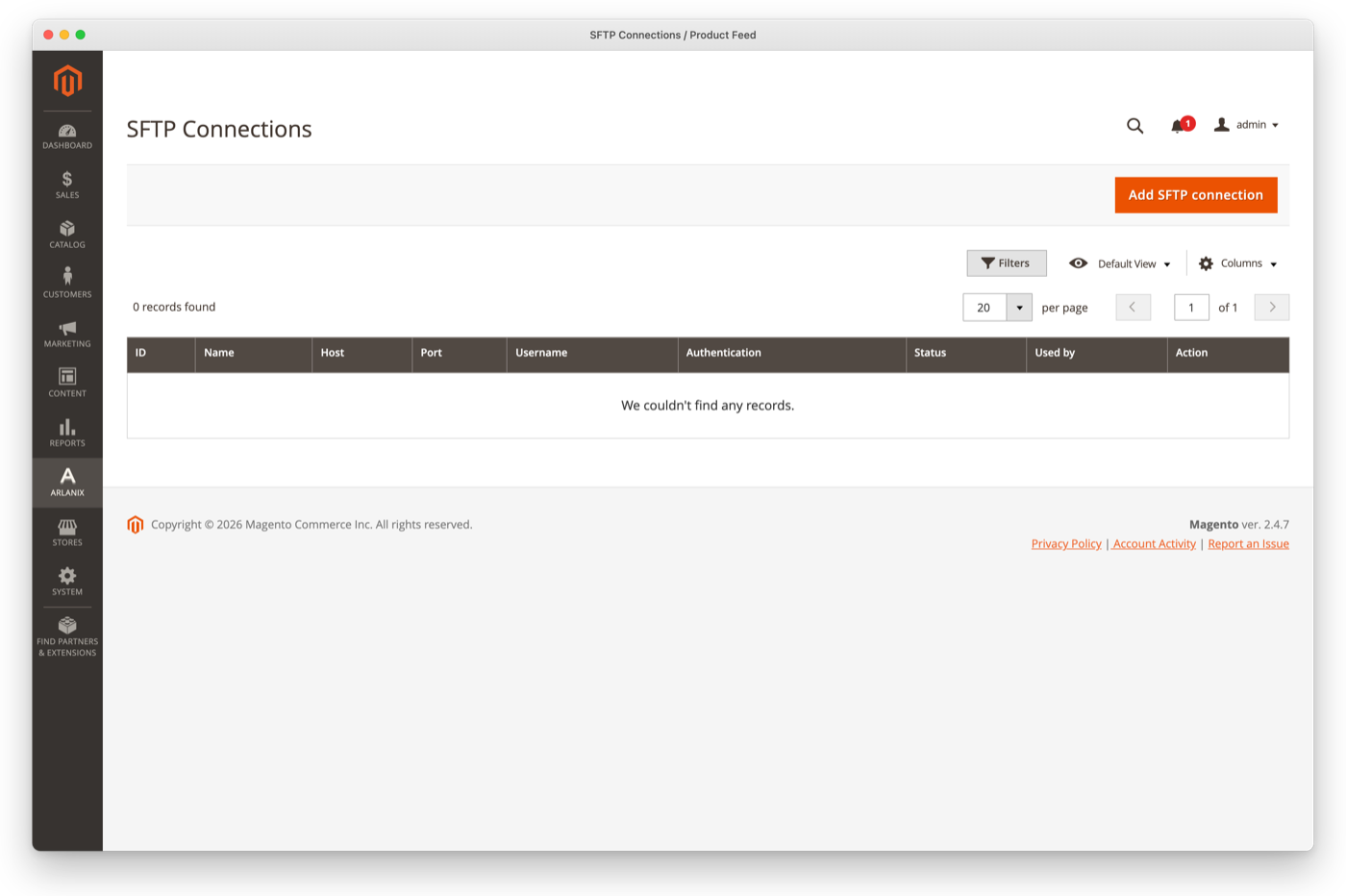
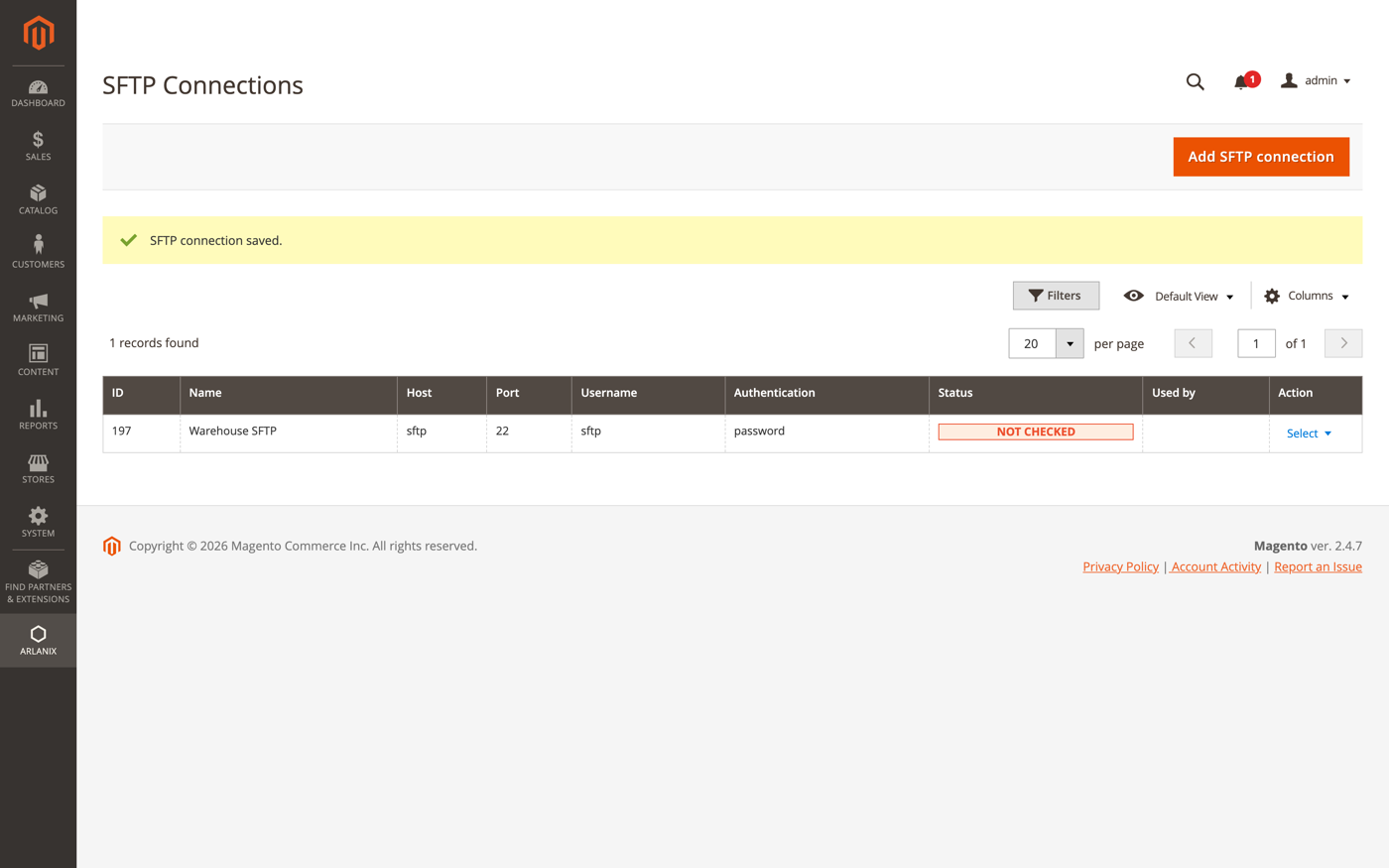
The grid lists the connections. The first time, it is empty:
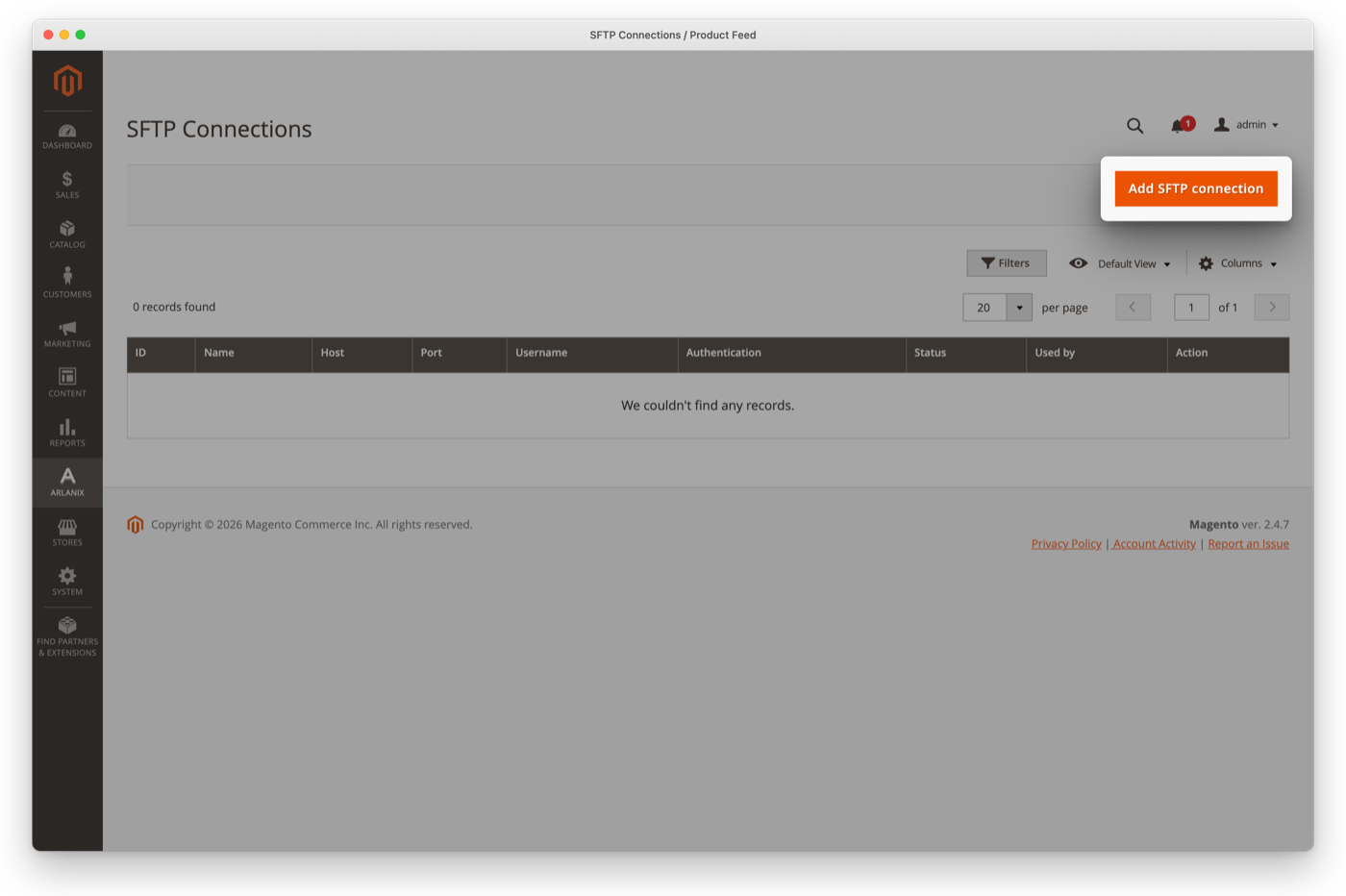
Press Add SFTP connection:
Fill in the form:
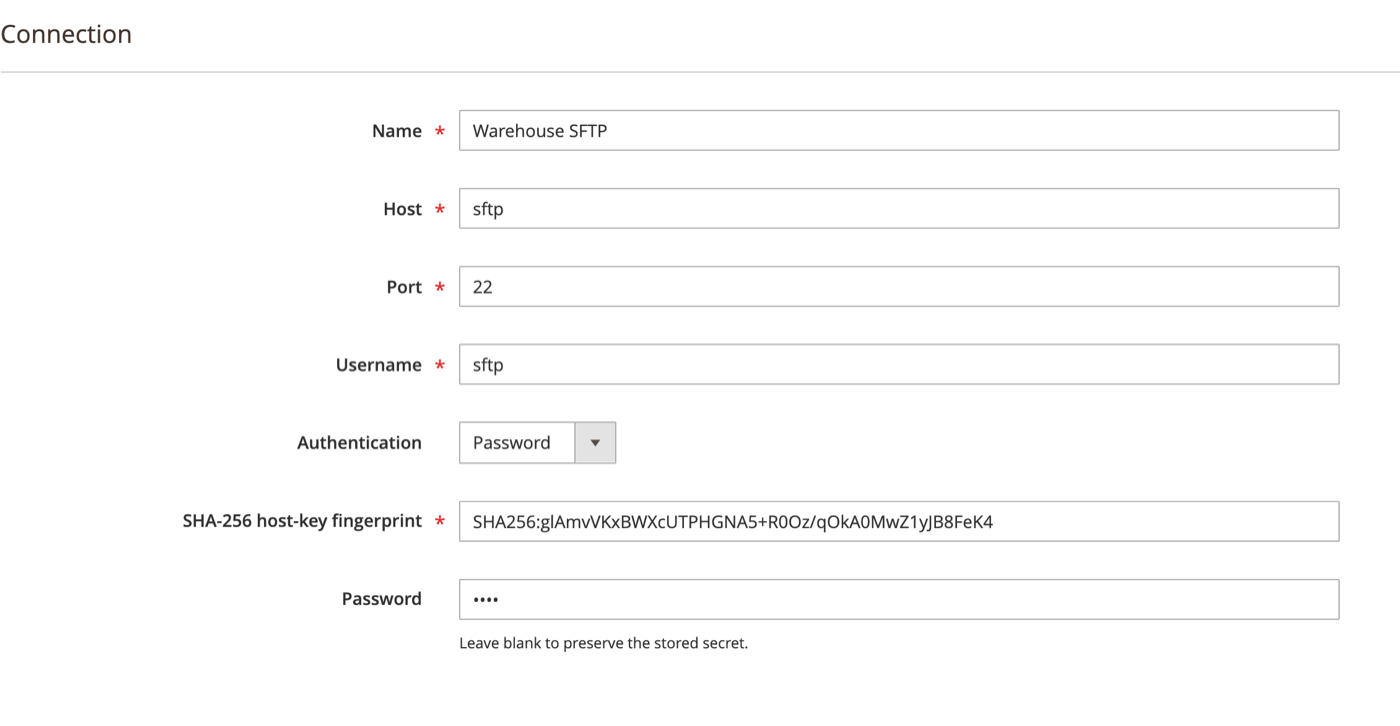
- Name: your own name for the connection, such as Google Merchant Center.
- Host, Port and Username: as you were given them. The port is 22 unless you were told otherwise; Google Merchant Center's is 19321.
- Authentication: Password.
- SHA-256 host-key fingerprint: the fingerprint, as you were given it.
- Password: the password.
Press Save:
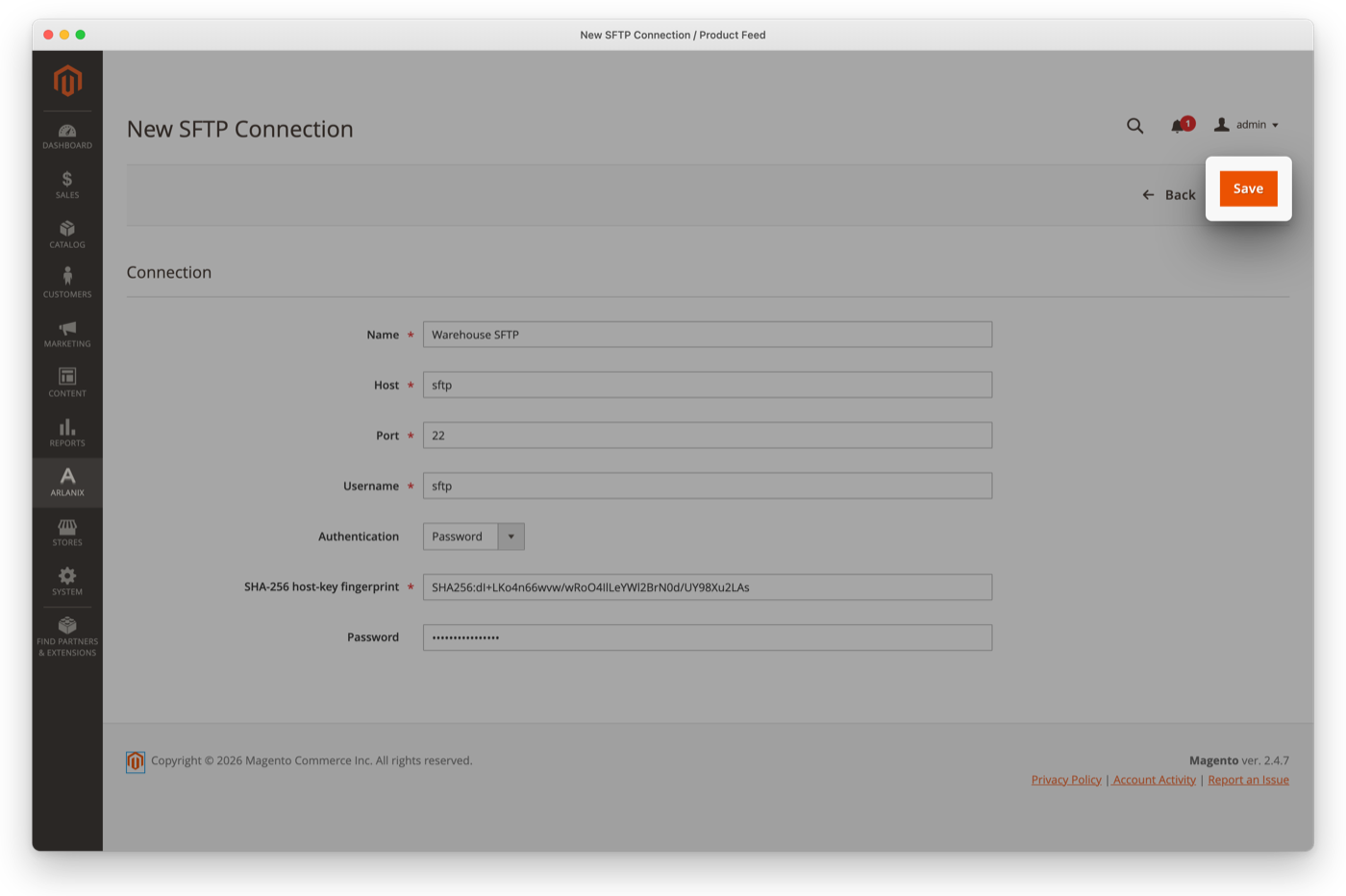
Saving checks the connection: the store logs in to the server, which takes a few seconds.
When it is verified
The grid comes back with SFTP connection saved and verified., and the connection is Verified:
To upload a feed through it, unfold the feed's Channel section, set Channel to SFTP, choose the connection under SFTP connection and enter the file's name under Remote file name or path. For Google Merchant Center, that is the file name you gave the data source there.
When the server refuses it
The connection is saved all the same, as Failed, and no feed uploads through it. The form comes back with the reason at the top, and again above Verify connection:
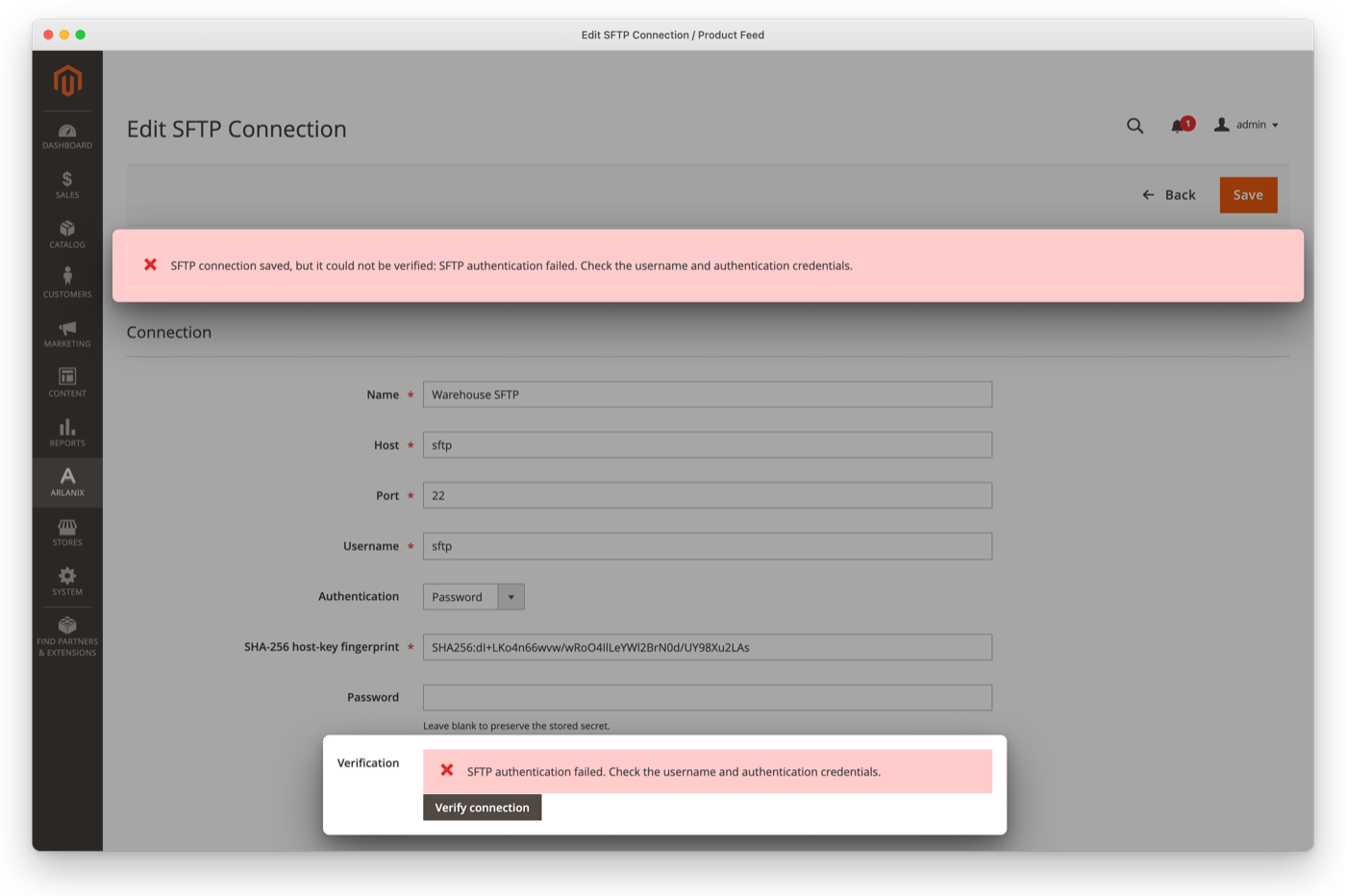
What to do depends on the message:
- SFTP authentication failed: the username or the password is wrong. Correct it and press Save again.
- Could not connect to the SFTP server: check the host and the port. If they are right, the server may be down, or it does not let your store in: press Verify connection later, or send the message to your developer.
- SFTP server host-key fingerprint does not match the configured SHA-256 fingerprint.: check the fingerprint. If it is as you were given it, send the message to your developer.
For any other message, send it to your developer.