For arlanix/product-feed 1.0.0
Run and check a feed
Run a feed, check its result and preview individual products. For automatic delivery and retries, see How a feed is sent.
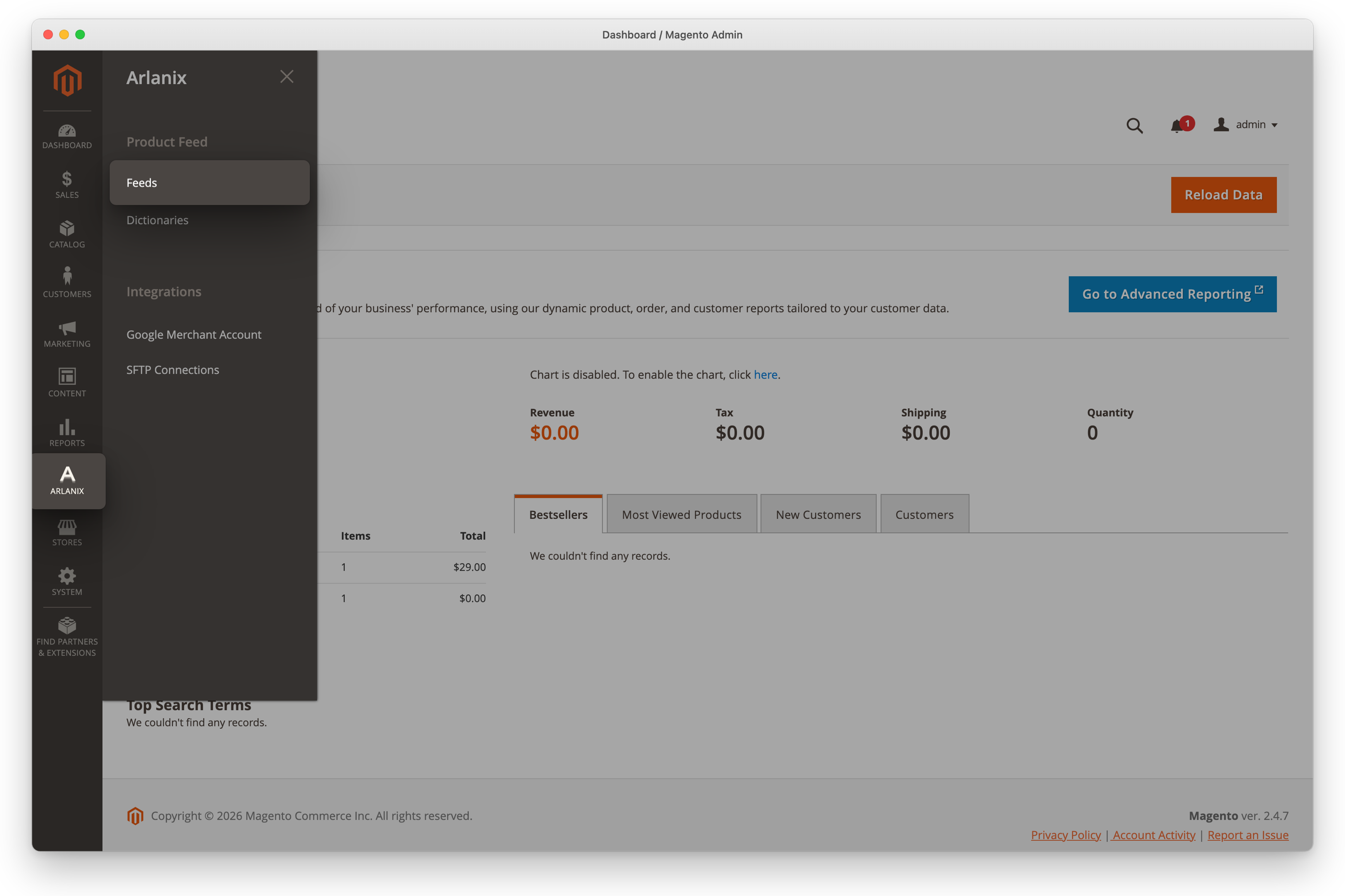
Open Feeds
Click Arlanix in the admin's menu, then Feeds under Product Feed.
Run it now
In the feed's row, choose Select → Generate, or Deliver to SFTP for an SFTP feed. Merchant API feeds send changes automatically and have no manual run option.
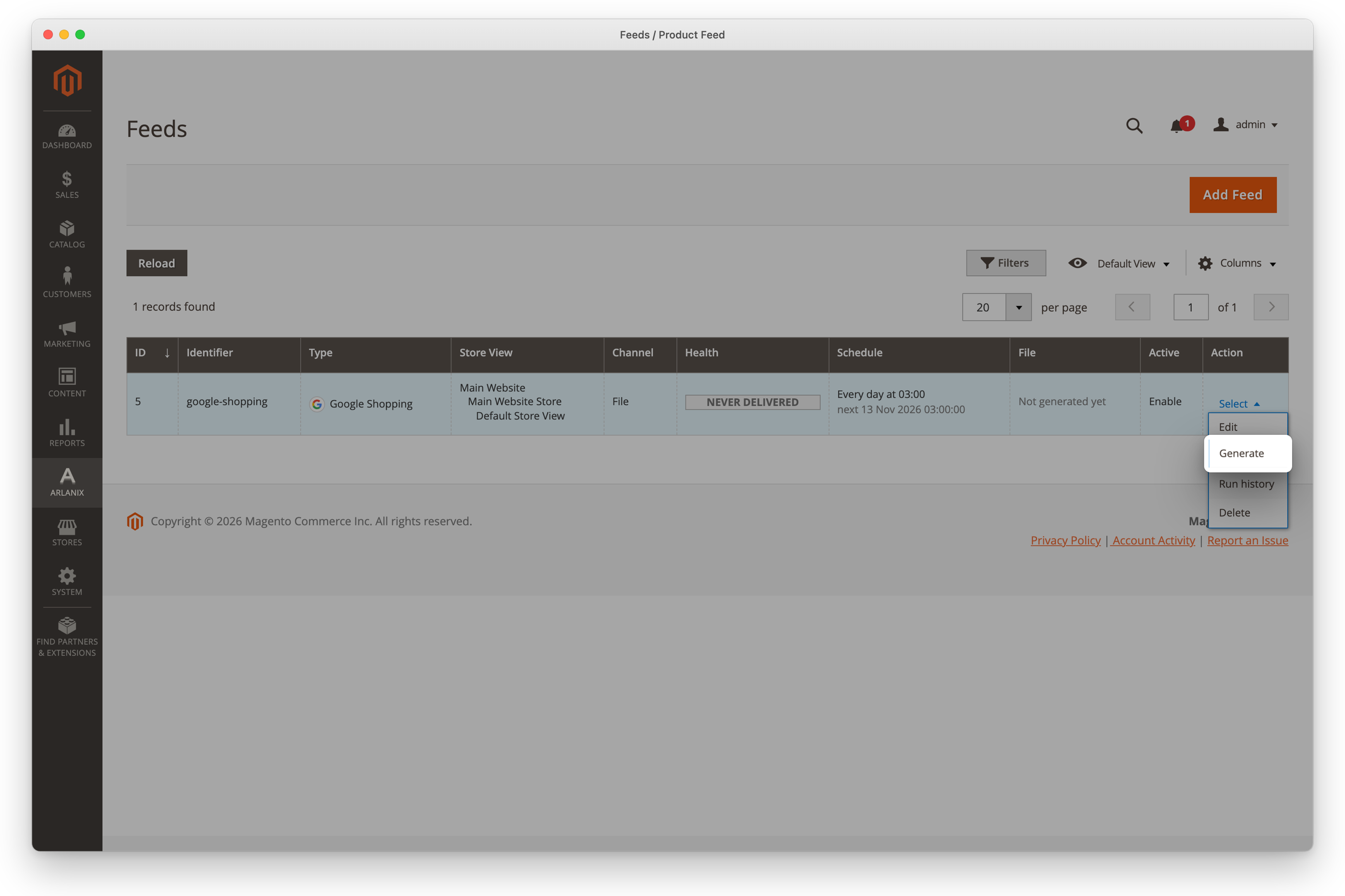
The feed is queued. The next cron pass generates and delivers it in the background.
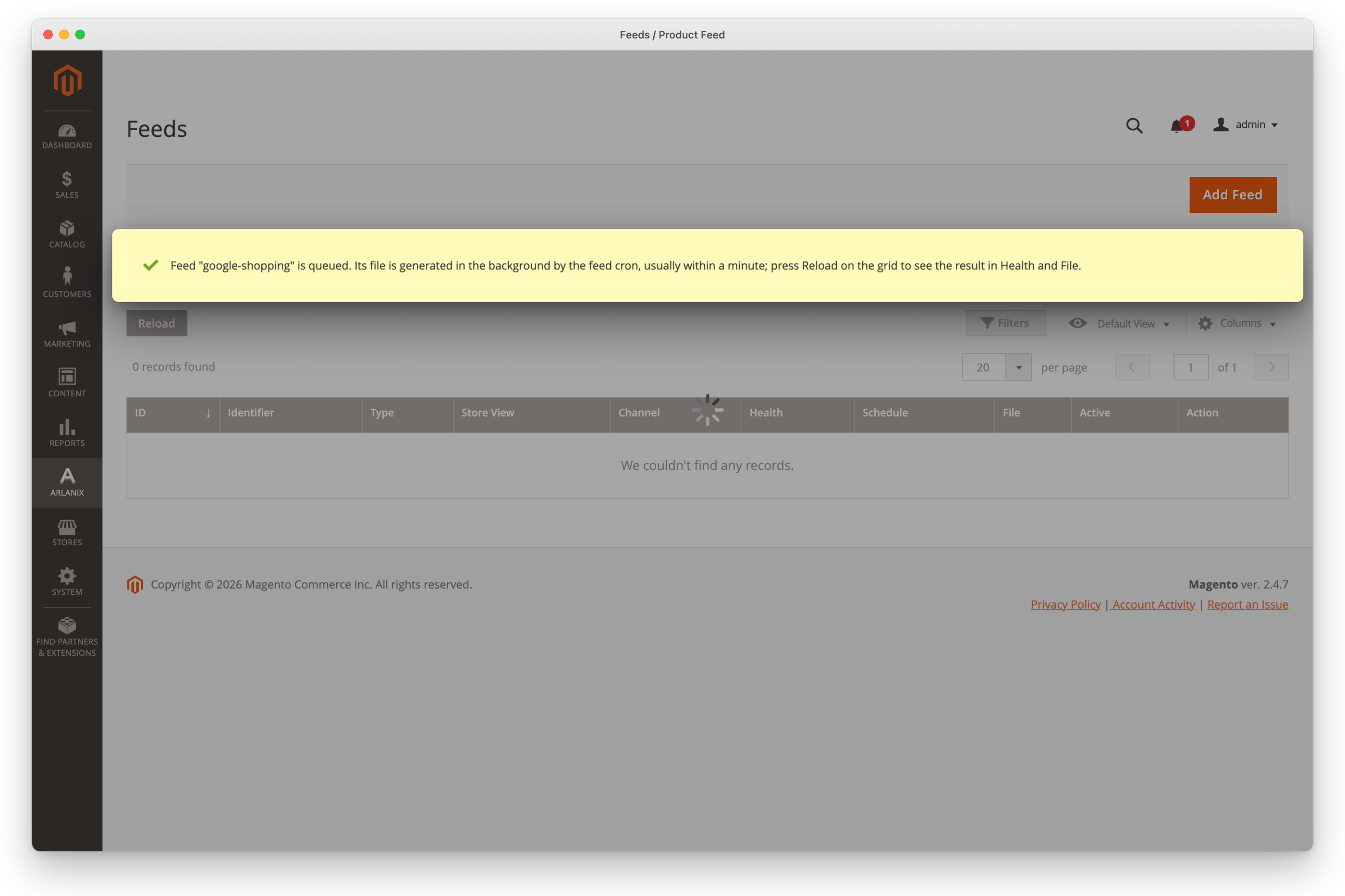
A minute or two later, press Reload on the grid. The row shows the result:
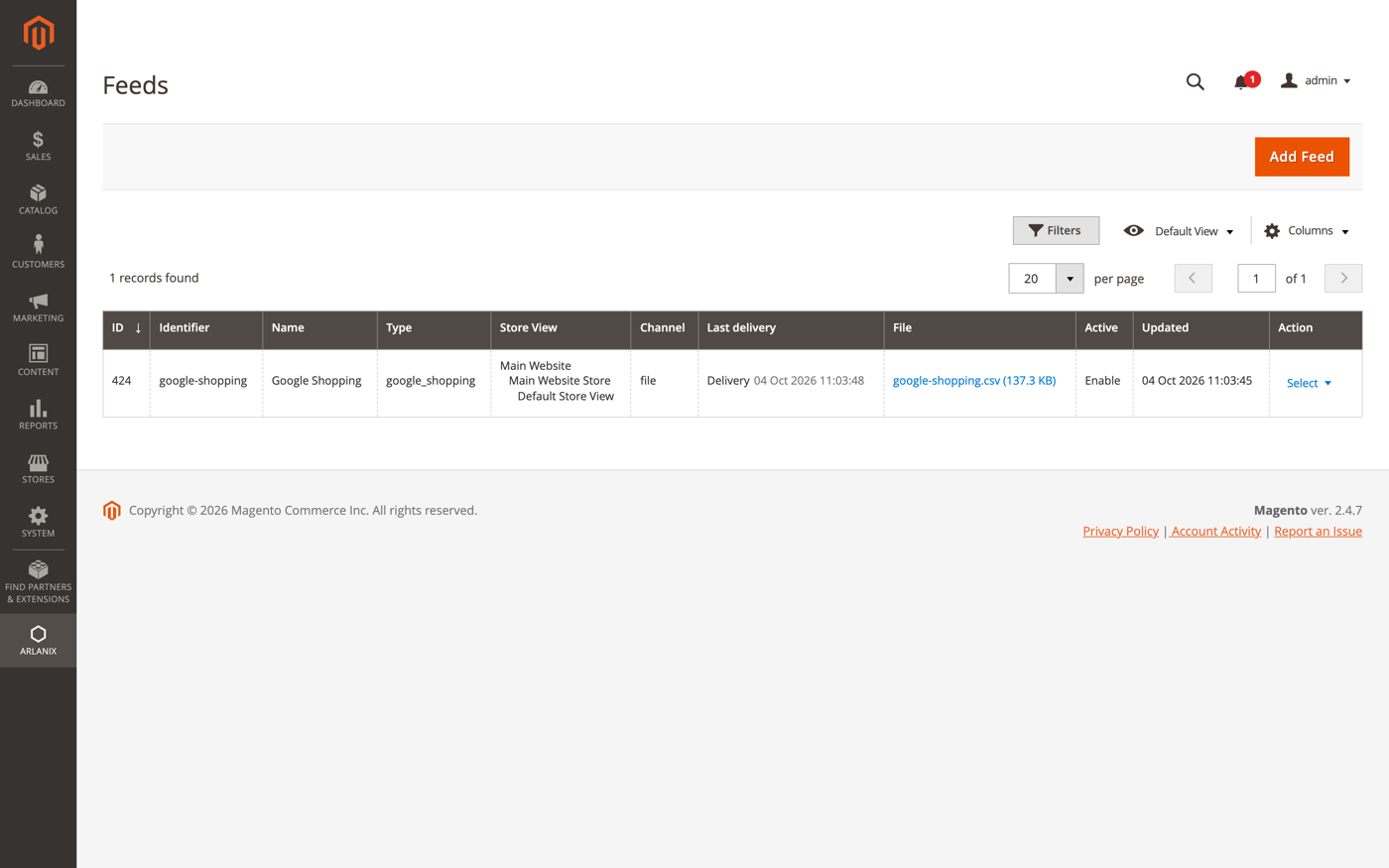
The feed grid says what each column shows.
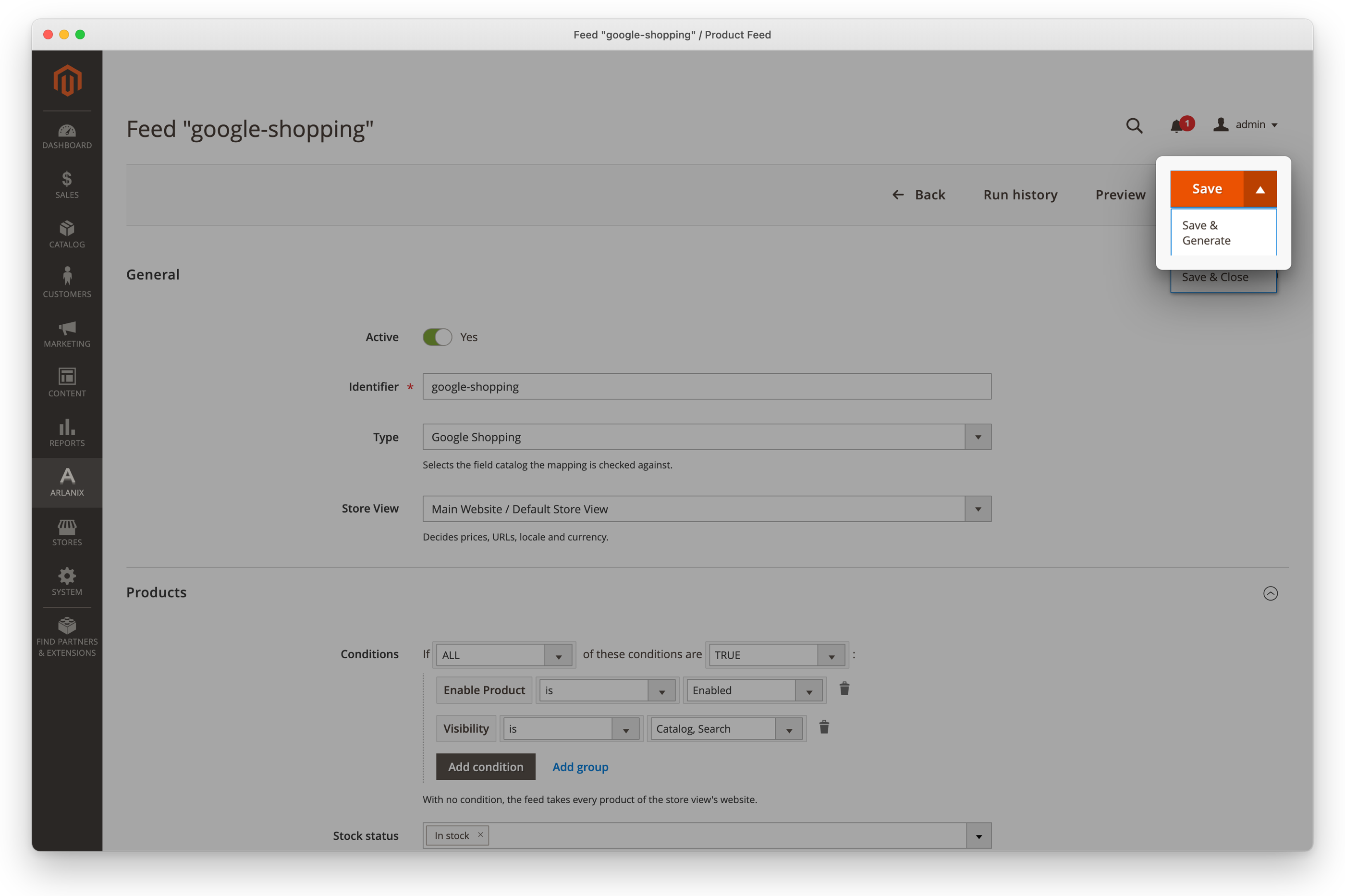
From the feed form, use the arrow beside Save → Save & Generate, or Save & Deliver to SFTP. This saves your changes and queues delivery. If saving fails, nothing is queued.
Where the file is
A file feed's Channel section shows the file's address as URL, and the grid's File column links to it. The button after the link copies it:
https://your-store/media/arlanix/product-feeds/google-shopping.xml
Give this address to the platform. Each successful run replaces the file. Failed runs keep the previous file; empty runs do too unless Allow an empty feed is on. See Empty feeds.
Why is a product not in the feed?
Click Details beside the left out count in Health to see excluded products and their reasons. For Merchant API feeds, this includes exclusions from earlier runs that still apply.
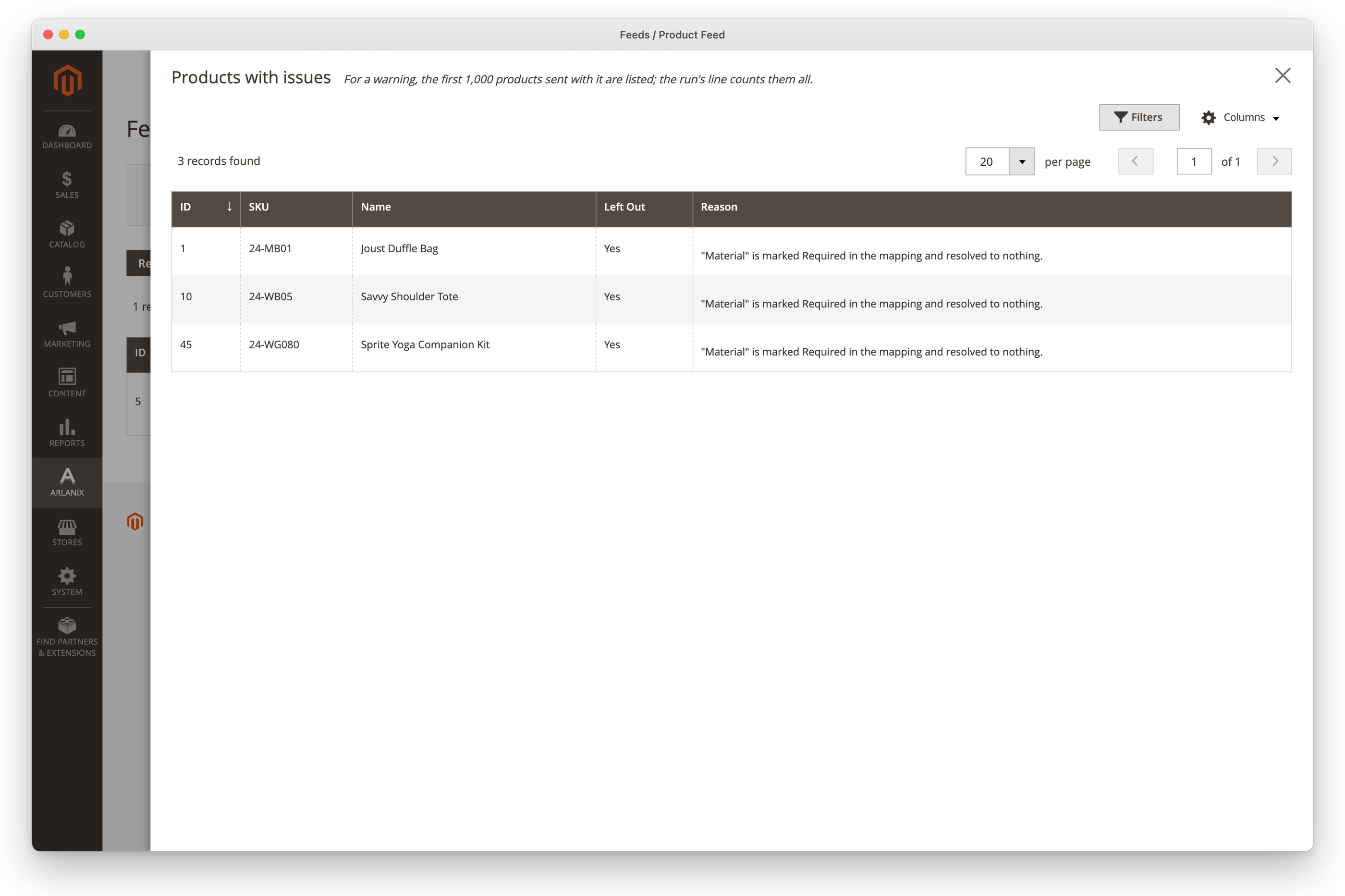
The list reflects the last time each product was checked. Changes appear after the next run. Products refused by Google open from the separate refused count.
You can also open Details from the yellow or red message on the feed form.
For missing products, also check:
- Stock status in the feed controls stock filtering. Magento's Display Out of Stock Products setting controls storefront listings: see Stock status.
- A hidden variation needs a visible, enabled configurable parent for its link. Without one, the link is empty and a Required link field excludes it.
The feed's run history
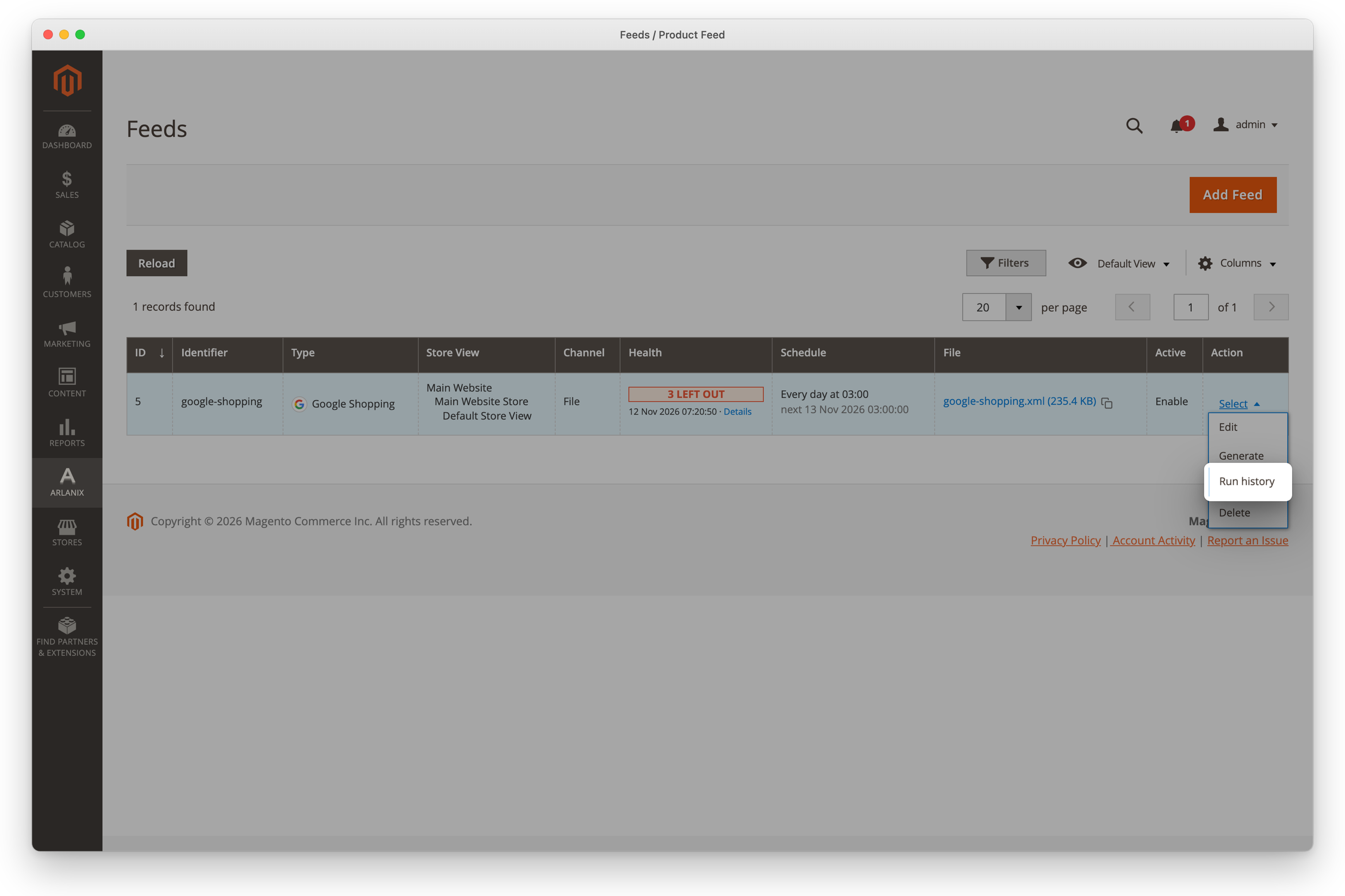
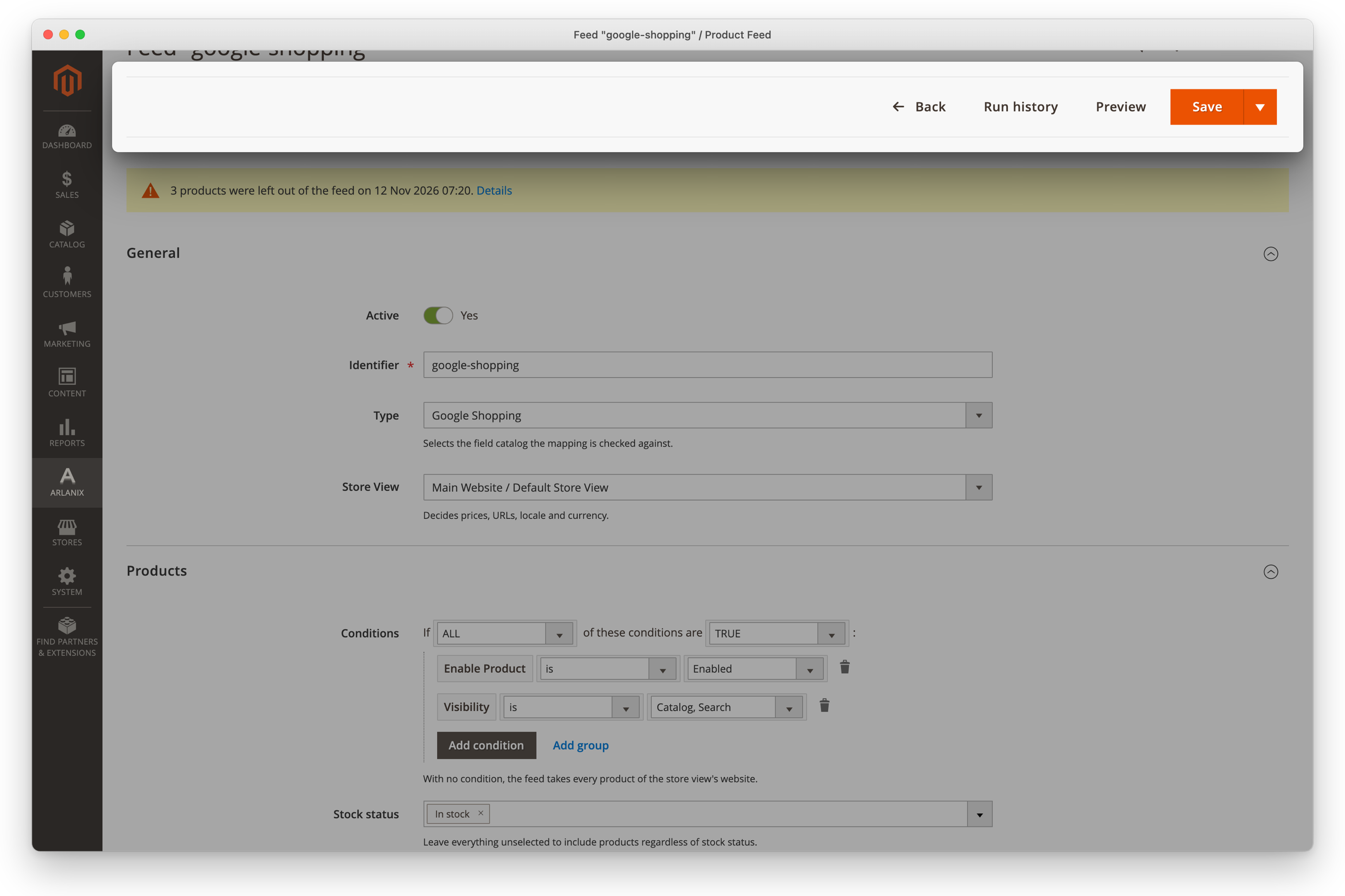
Open Run history from the row's Select menu or the button on the feed form:
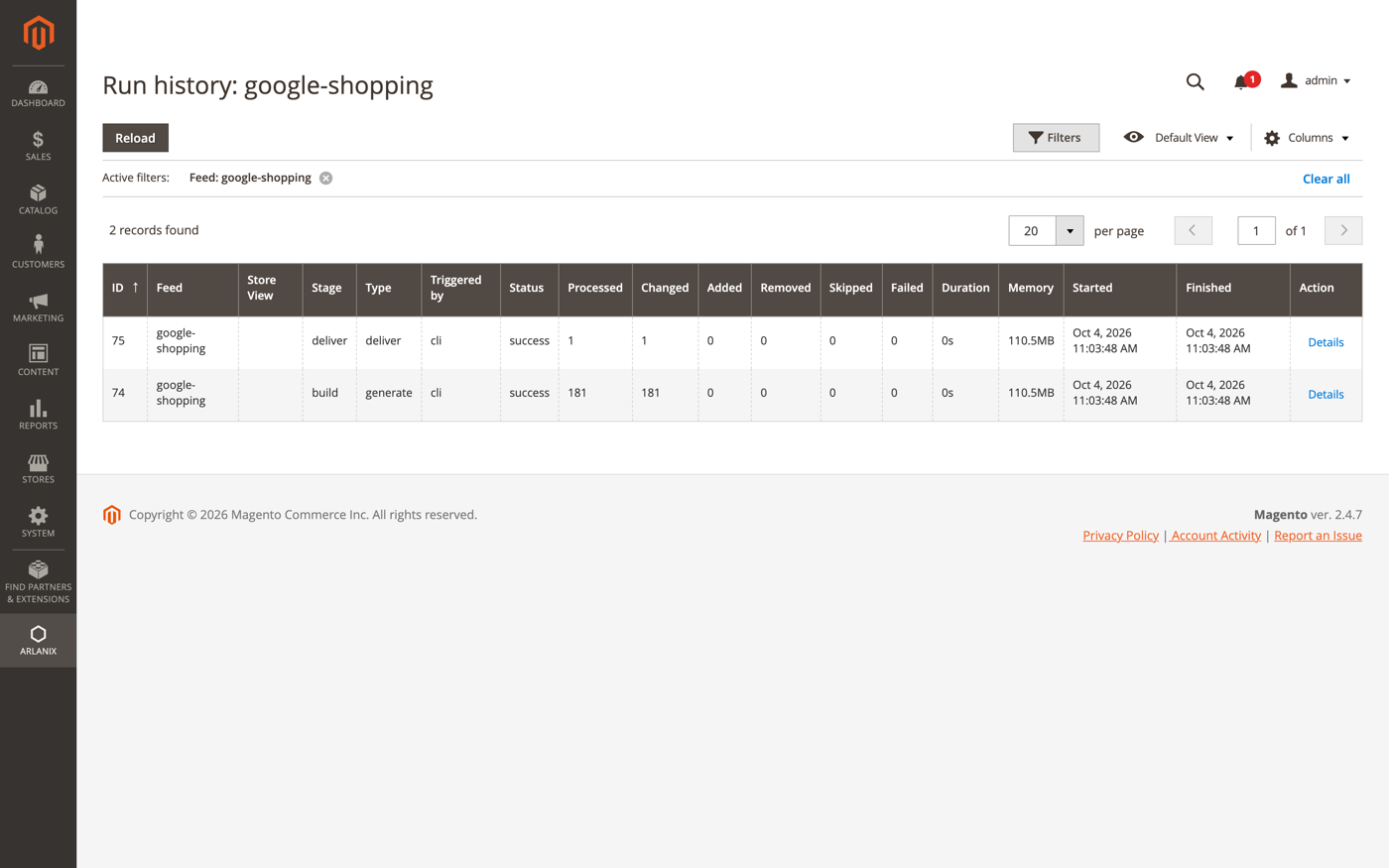
Each row shows the trigger, result, product counts, time and duration.
Click a run's Details for its messages. A Failed or Stopped responding status in Health opens the last run's messages too.
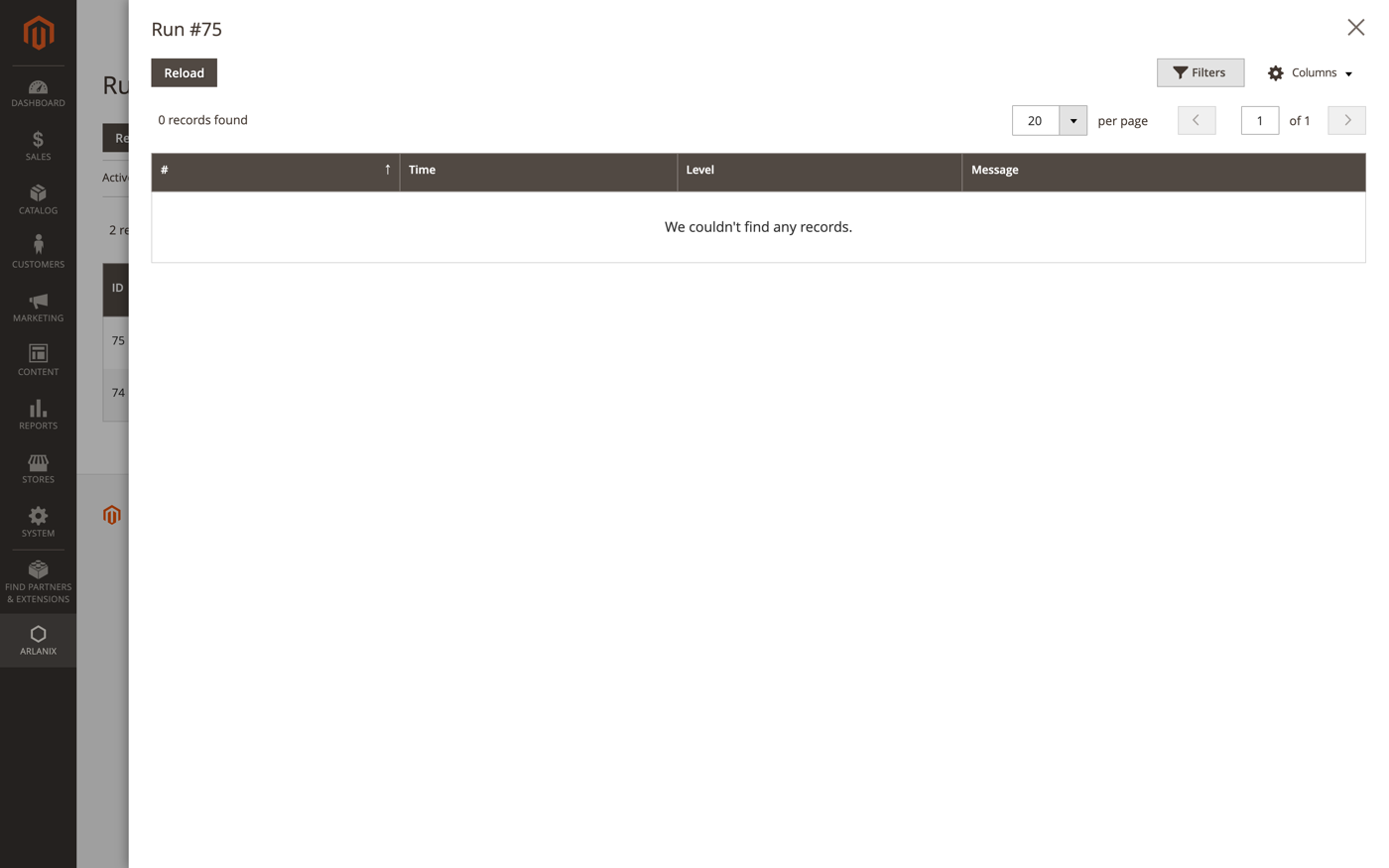
Each product message names the field, affected count and cause. Buttons with an arrow open the mapping or dictionary in a new tab.
On the last run, Show the products lists products excluded for that reason, or up to 1,000 products sent with a warning. The message's count includes all affected products. Merchant API runs list only products checked in that run.
Product lists are kept for the last run only; older runs keep their messages and fix links. Use Reload to refresh the history.
Preview a product
In the feed's row, click Select, then Edit.
Click Preview, at the top of the feed's page.
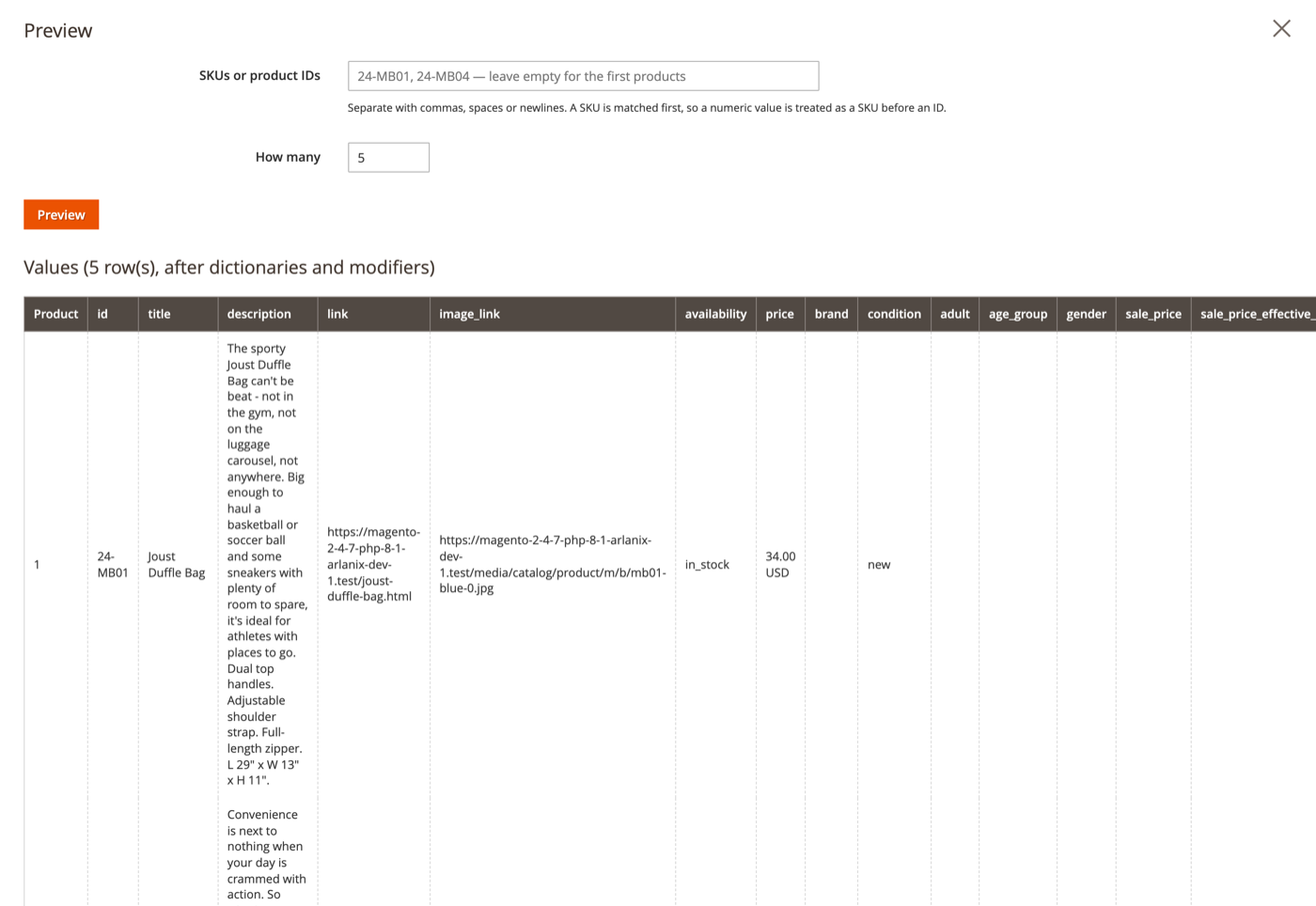
A panel shows the first five products after dictionaries and modifiers:
- Left out names the field marked Required that the product has nothing for. That row is not in the output.
- Warning names what the feed type expects instead. The row is written all the same.
To check specific products, enter their SKUs or IDs in SKUs or product IDs and press Preview. Separate multiple values with spaces, for example 24-MB01 MH01-L-Black. SKU matching ignores case.
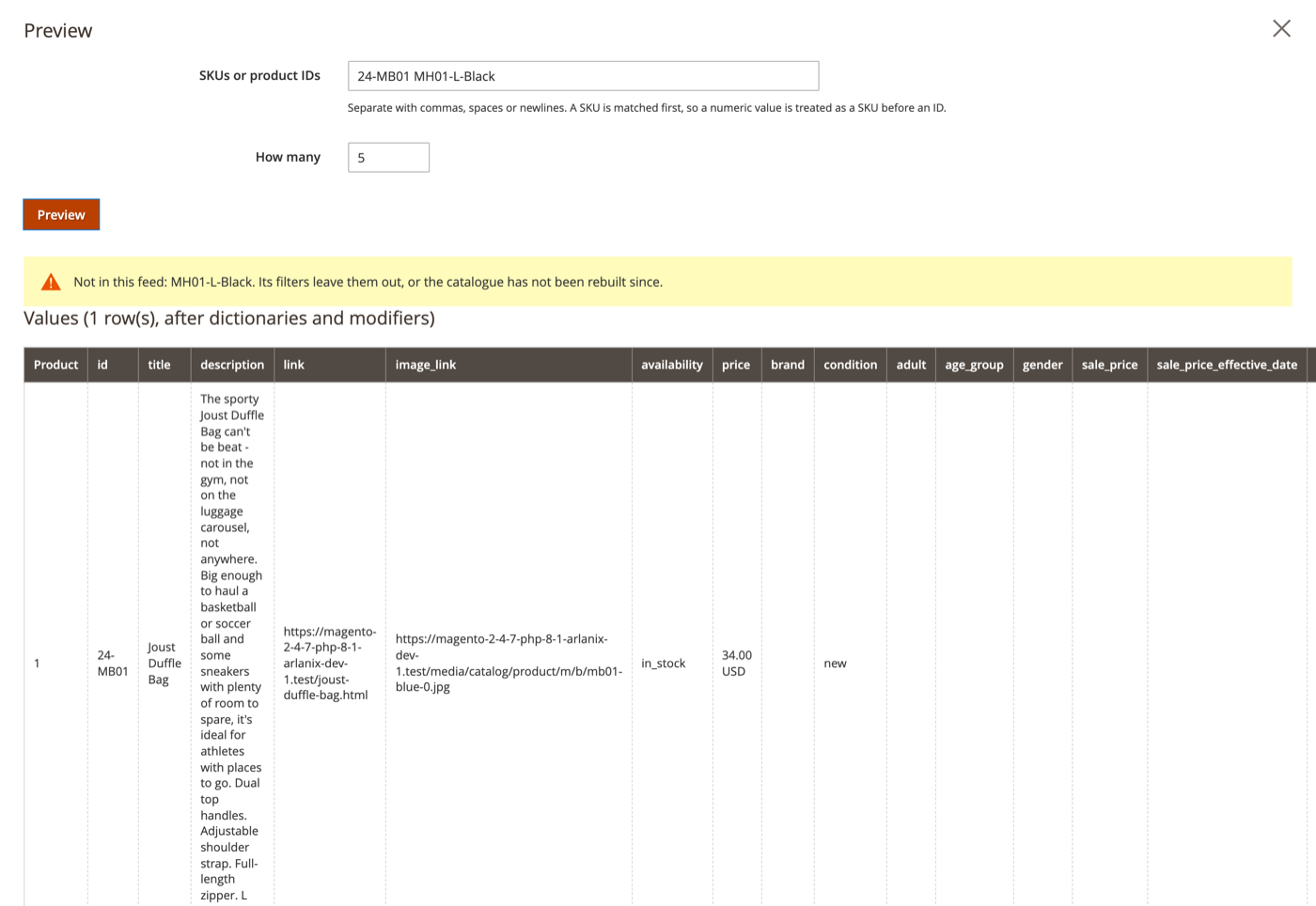
- Not in this feed: the product is disabled or excluded by the feed's conditions or stock setting.
- Not found in the catalogue: there is no such SKU or id.
Preview uses current catalogue data and the feed's saved settings. Save changes before previewing them.
Switch a feed off
Turn off Active in General and save. Health says Switched off. No further delivery runs, and published files or products stay in place.
To start it again, turn Active back on and save.
Delete a feed
In the grid, open the row's Select menu and choose Delete. It asks first:
Delete "google-shopping"? Its mapping, delivery state and run history go with it. Any published files are left where they are.
Published files and Merchant Center products remain after deletion. Remove the data source in the platform too, so it stops fetching the file or showing those products. See Deletion messages.
When something is wrong, Troubleshooting says what each message means and what to do.