For arlanix/product-feed 1.0.0
Recipes
Each recipe changes a few settings of a feed made as in your first feed. To apply one:
- Open the feed: in Arlanix > Feeds, choose Select > Edit in its row.
- Click a section's title to unfold it, and change what the recipe says.
- Save, and check the result with Preview before the next run.
Sizes and colours
A tablecloth in four sizes and six colours is one product in your catalogue: a configurable product, with a variation for each size and colour. By default a feed sends the configurable product once. Google wants each variation as an item of its own, grouped with the others by item_group_id: it requires that for free listings, and for Shopping ads in Brazil, France, Germany, Japan, the United Kingdom and the United States. When the variations have different prices, a single row also sends a price that does not match the one the shopper sees after choosing a size, and Google disapproves the product.
To send each variation:
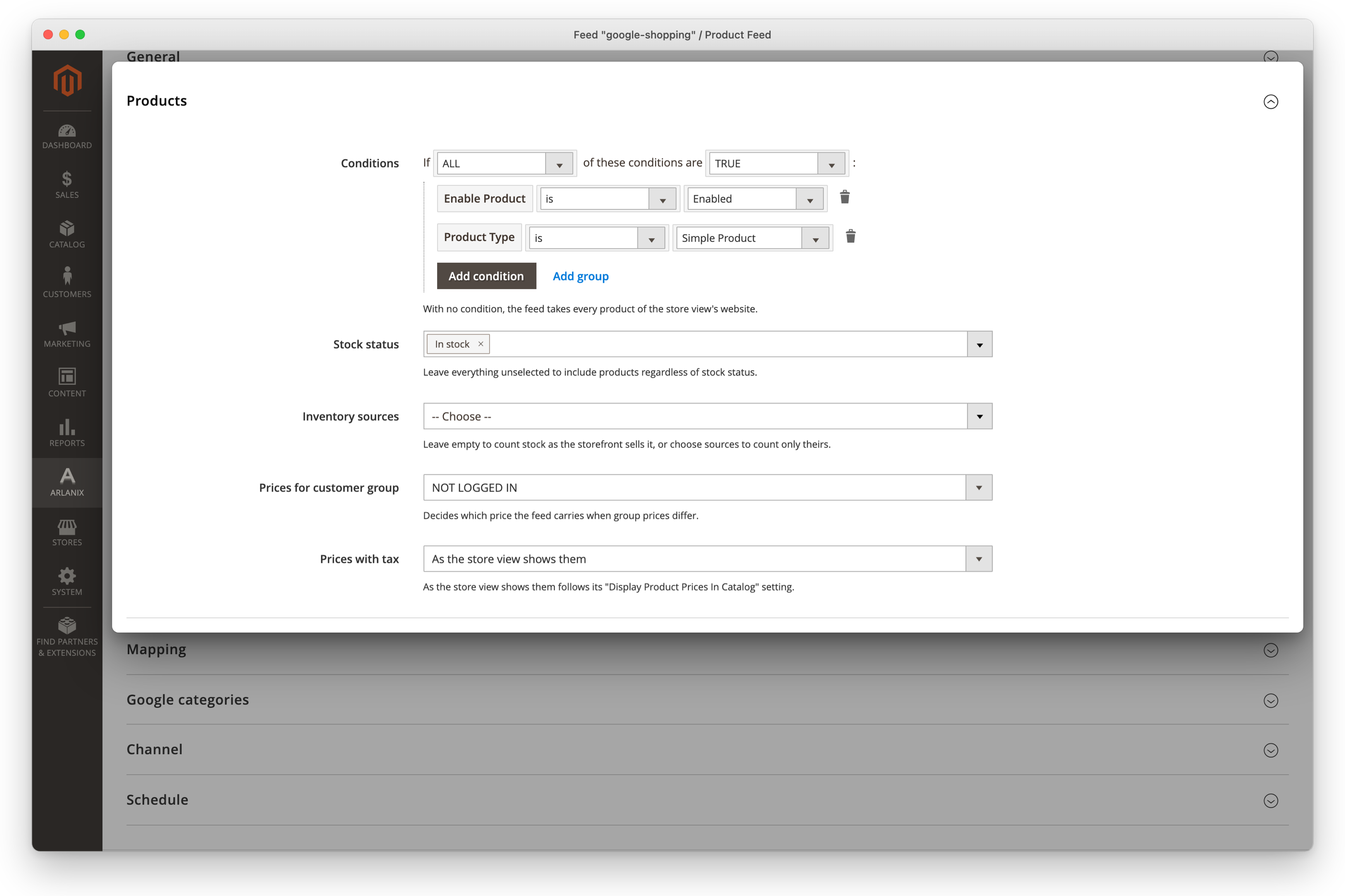
Products section:
- Click the bin beside the Visibility condition to remove it. The variations are Not Visible Individually, and it left them out.
- Click Add condition and choose Product Type, is, Simple Product. This keeps the variations and your ordinary single products, and leaves out the configurable product itself, so nothing is sent twice.
Mapping section:
title: choose Fixed value or template… and enter
{parent.name||name}{color|prefix:", "}{size|prefix:", "}This gives Linen Tablecloth, Ivory, 140 × 180 for a variation, and the plain name for a single product.
||means "or, if that is empty";prefixputs the comma in front of the colour or size only when there is one.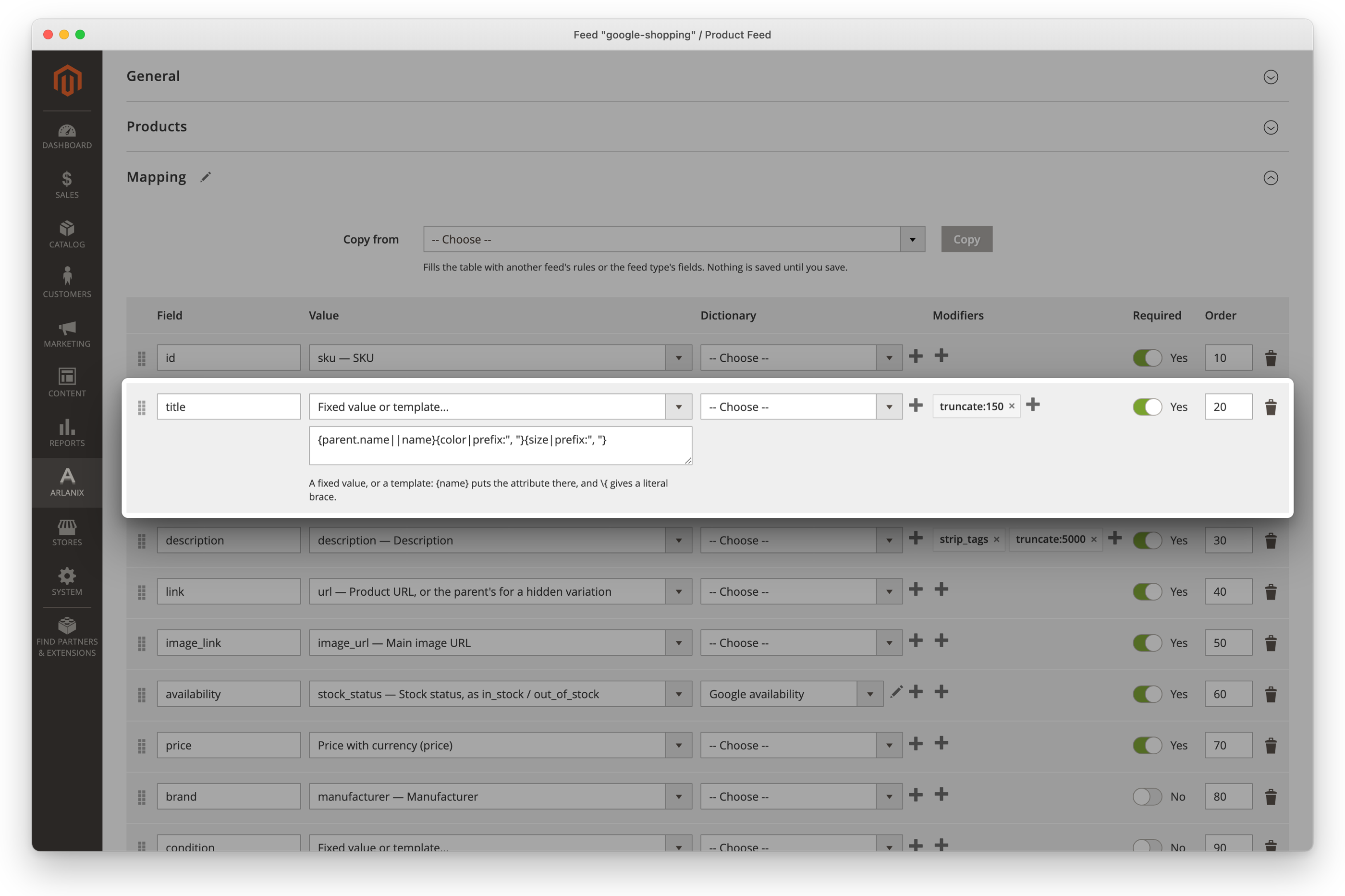
item_group_id stays as it was copied, from the parent's SKU: it tells Google which rows are variations of one product.
link stays as it was copied, from the product URL: a variation has no page of its own, so its link opens its parent's page with that size and colour already chosen. A product without variations keeps its own page.
Save and press Preview, then type the SKU of one variation into SKUs or product IDs: the row should show its own price, the colour and size, and the link with the options chosen.
Each variation needs its own picture. The feed does not borrow the configurable product's image, so a variation without one is left out of the feed. The grid's Health counts it, and the feed's products list names it with its reason: see Why is a product not in the feed?. If your variations have no pictures of their own, add the pictures first, or stay with the default of one row per product and keep the prices of its sizes equal.
Google accepts colour names it does not know, such as Ivory or Sage, because colour is free text. You need a dictionary only when a platform asks for a closed list.
Your own brand, without barcodes
Google asks for a barcode (GTIN) when a product has one, and for the maker's part number (MPN) when it has none. If you make the products yourself, you are the maker: your shop's name is the brand and your SKU is the part number. Tell Google so in the Mapping section:
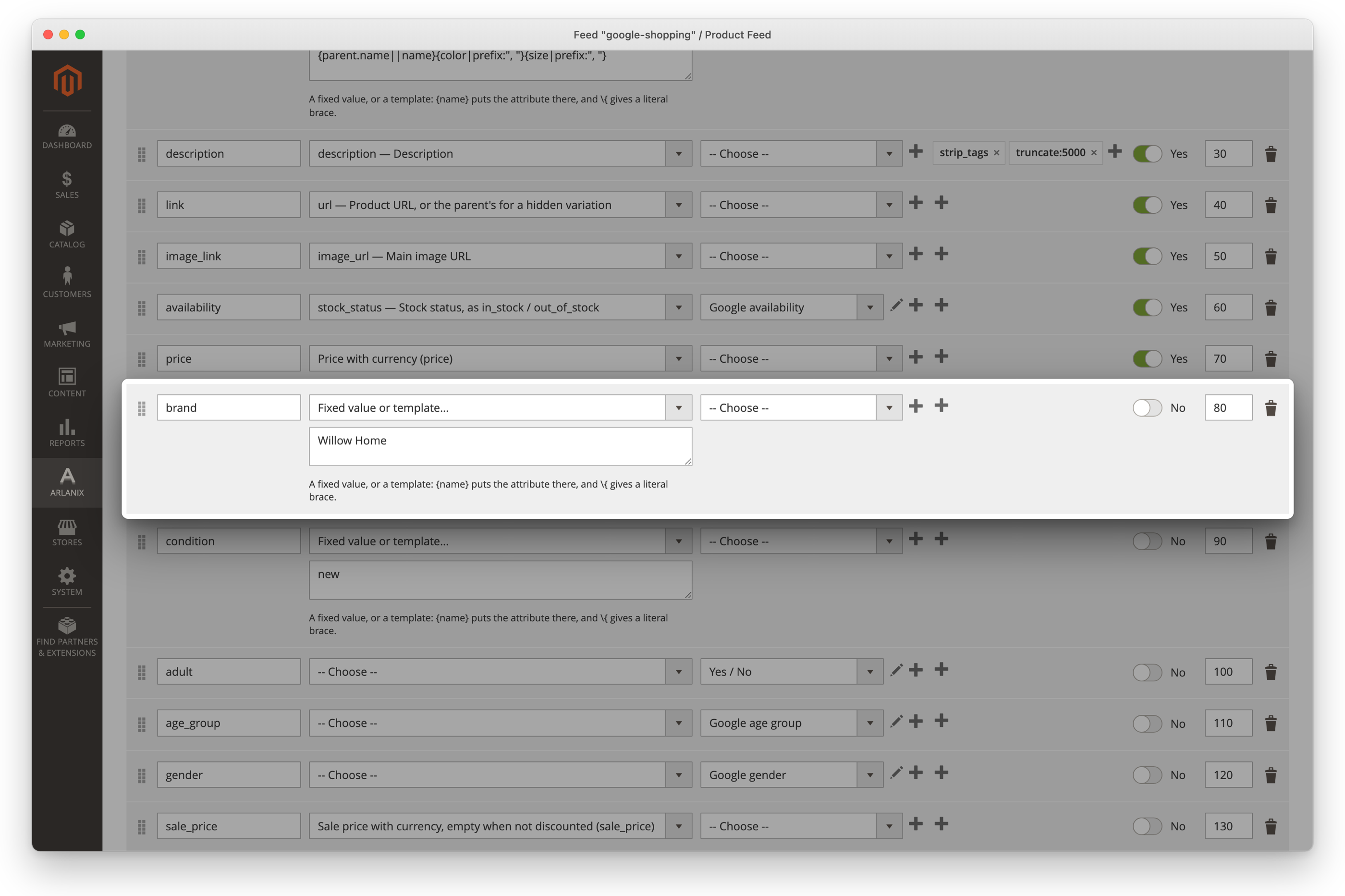
brand: the copied row reads the manufacturer attribute. If you have no such attribute, choose Fixed value or template… and enter your shop's name, such as Willow Home. For products you make yourself, Google's rule is to use your shop's name as the brand. Meta, TikTok and Snapchat refuse a product without a brand.
mpn: click Add field under the table, enter
mpnas the Field and choose the SKU attribute. Google then has a brand and a part number for each product, and stops asking for a barcode.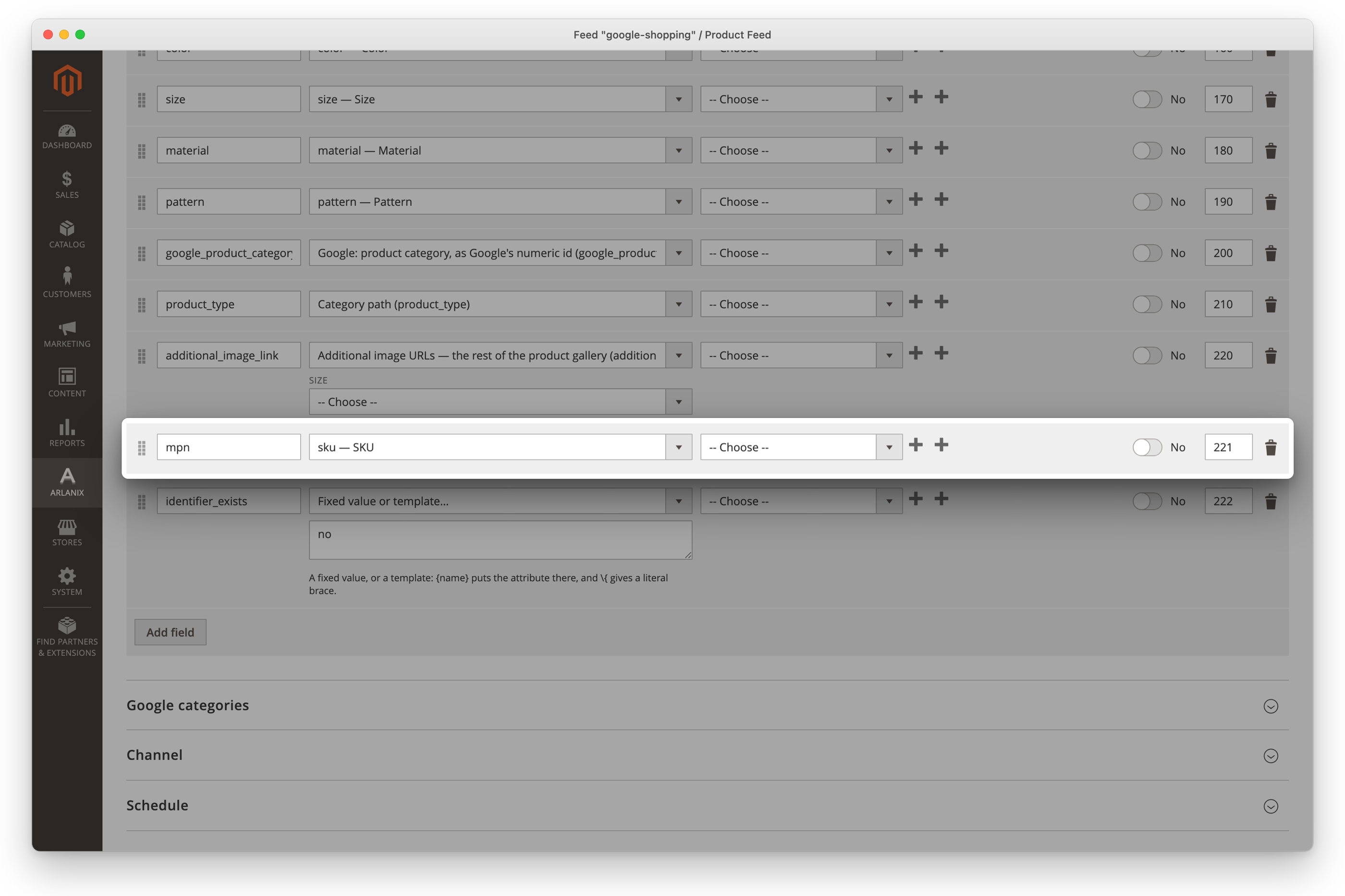
identifier_exists, only for goods that have no part number at all, such as one-of-a-kind or made-to-order pieces: click Add field under the table, enter
identifier_existsas the Field, choose Fixed value or template… and enterno. This tells Google the products have no GTIN or MPN. Google asks fornoonly when you are sure neither exists; leave the row out of a feed whose products have a part number.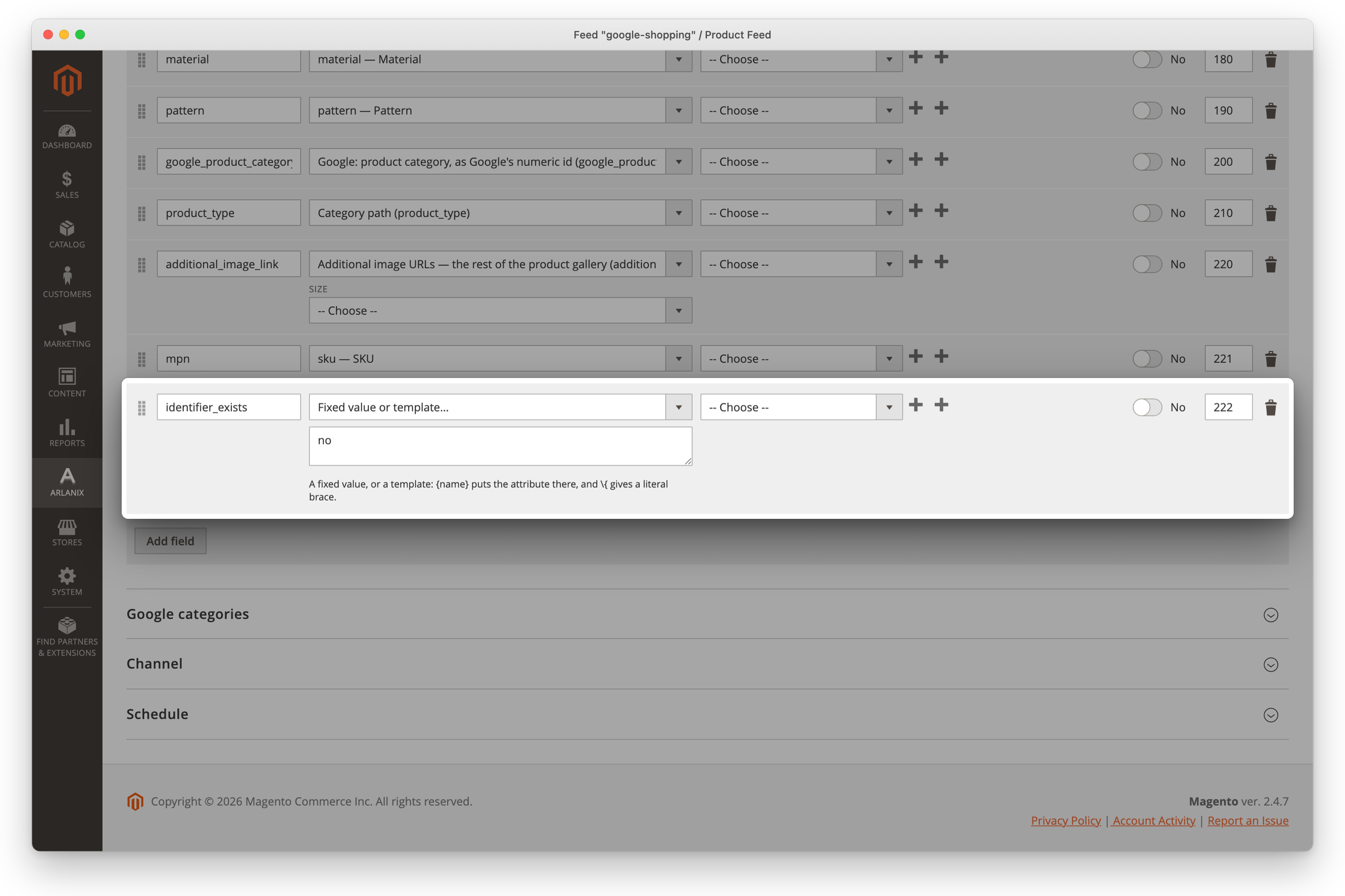
Products that do have a barcode, such as a brand-name kettle you resell, should send it instead: add a gtin row with the attribute that holds the barcode, and do not add identifier_exists to that feed.
Tracking parameters on links
To see in Google Analytics which visits came from Shopping, add parameters to the product links. In the link row, choose Product URL in Value and The product's own in Address. Like the copied link, this takes a variation with no page of its own to its parent's page. Then fill in Parameters:
utm_source=google&utm_medium=shopping&utm_content={sku}
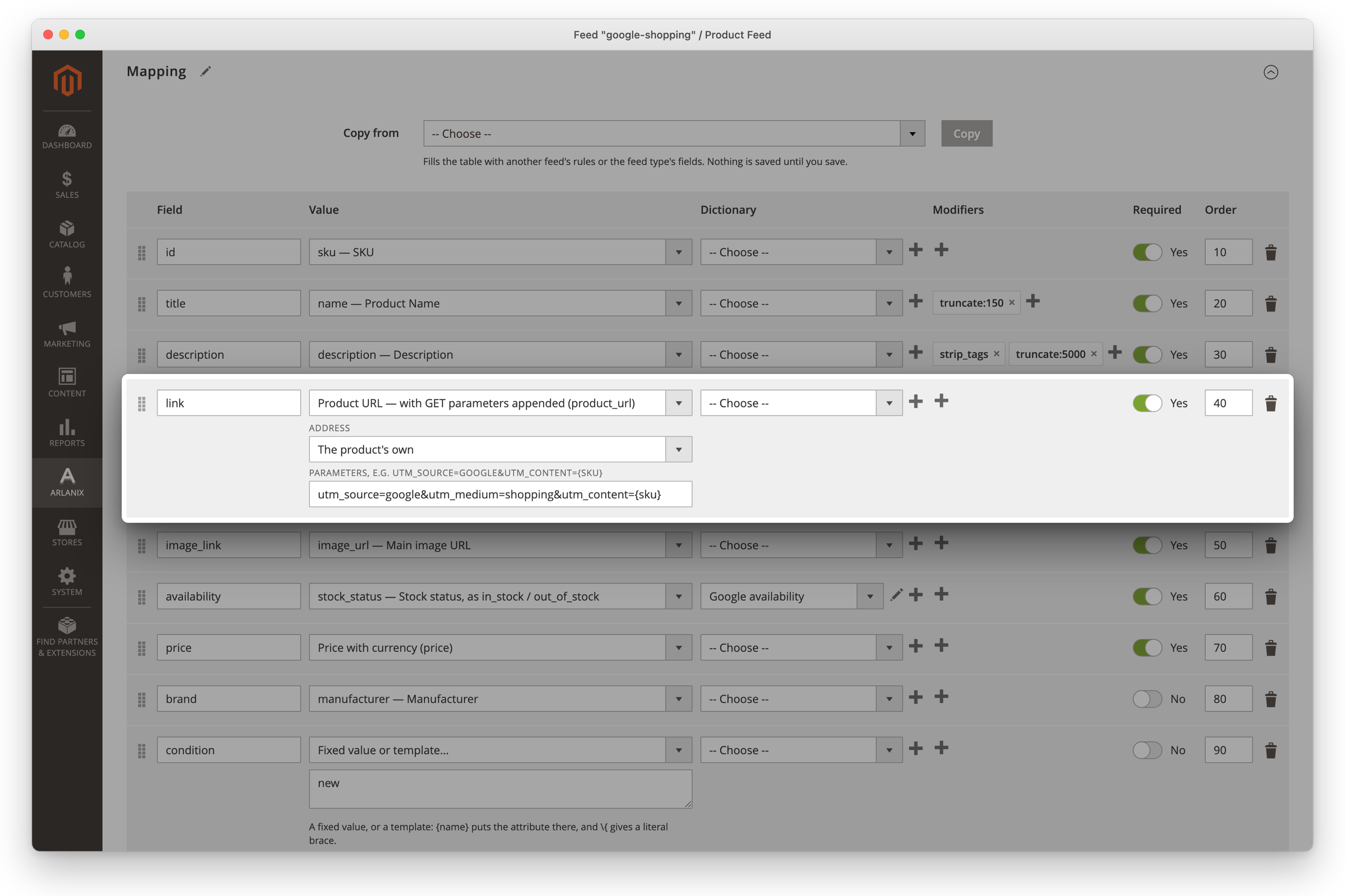
{sku} is replaced by each product's SKU. Make a feed for Meta with utm_source=meta and the visits are told apart.
The same feed for another store view
A store that sells in two languages or currencies has a store view for each, and each needs a feed of its own. The second feed starts from the first:
Under Arlanix > Feeds, click Add Feed. In General, give it its own Identifier, such as google-shopping-fr, choose the same Type as the first feed, Google Shopping, and the other Store View, such as French Store View.
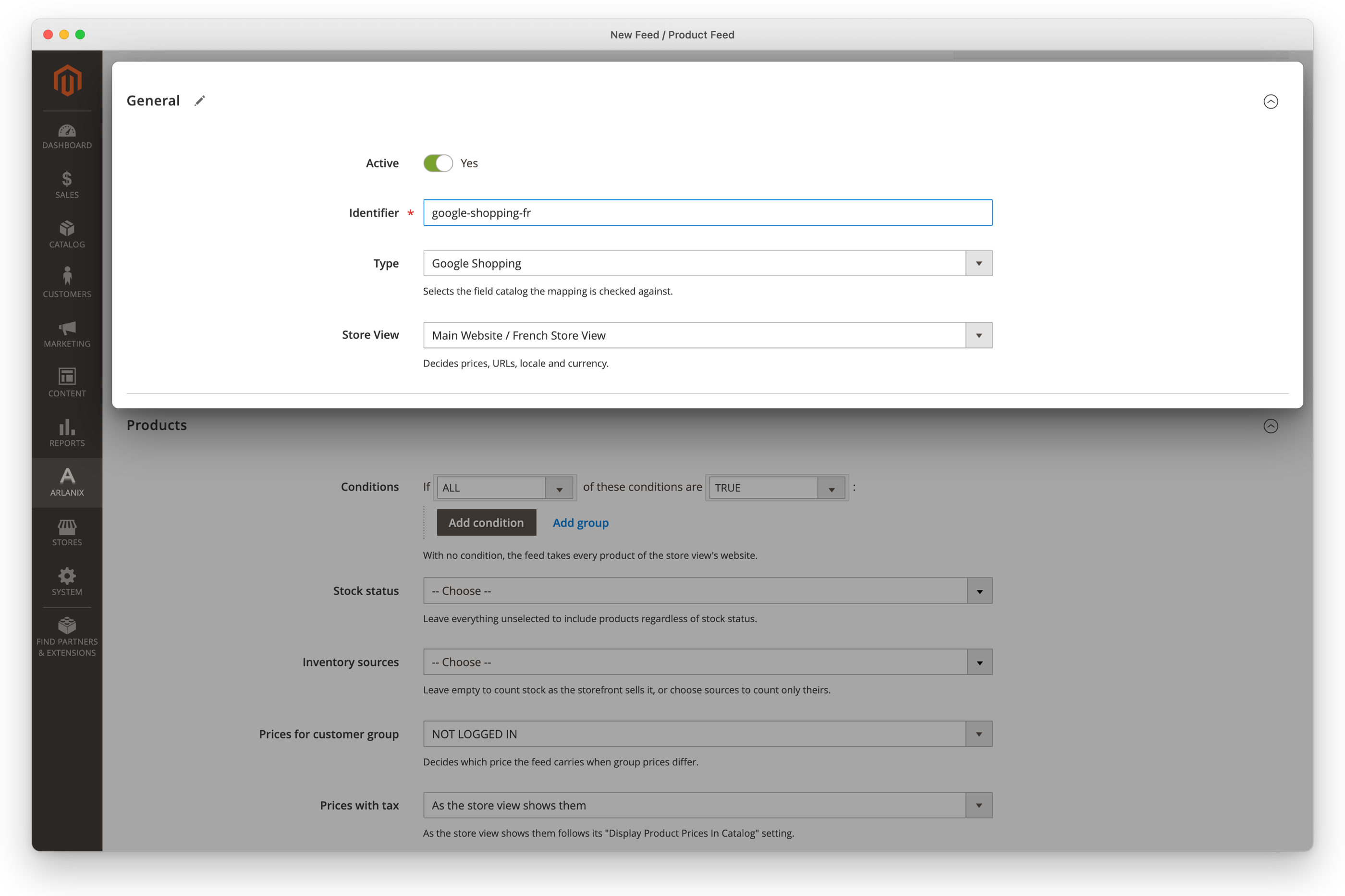
In Products, set the same conditions as the first feed. They are not copied.
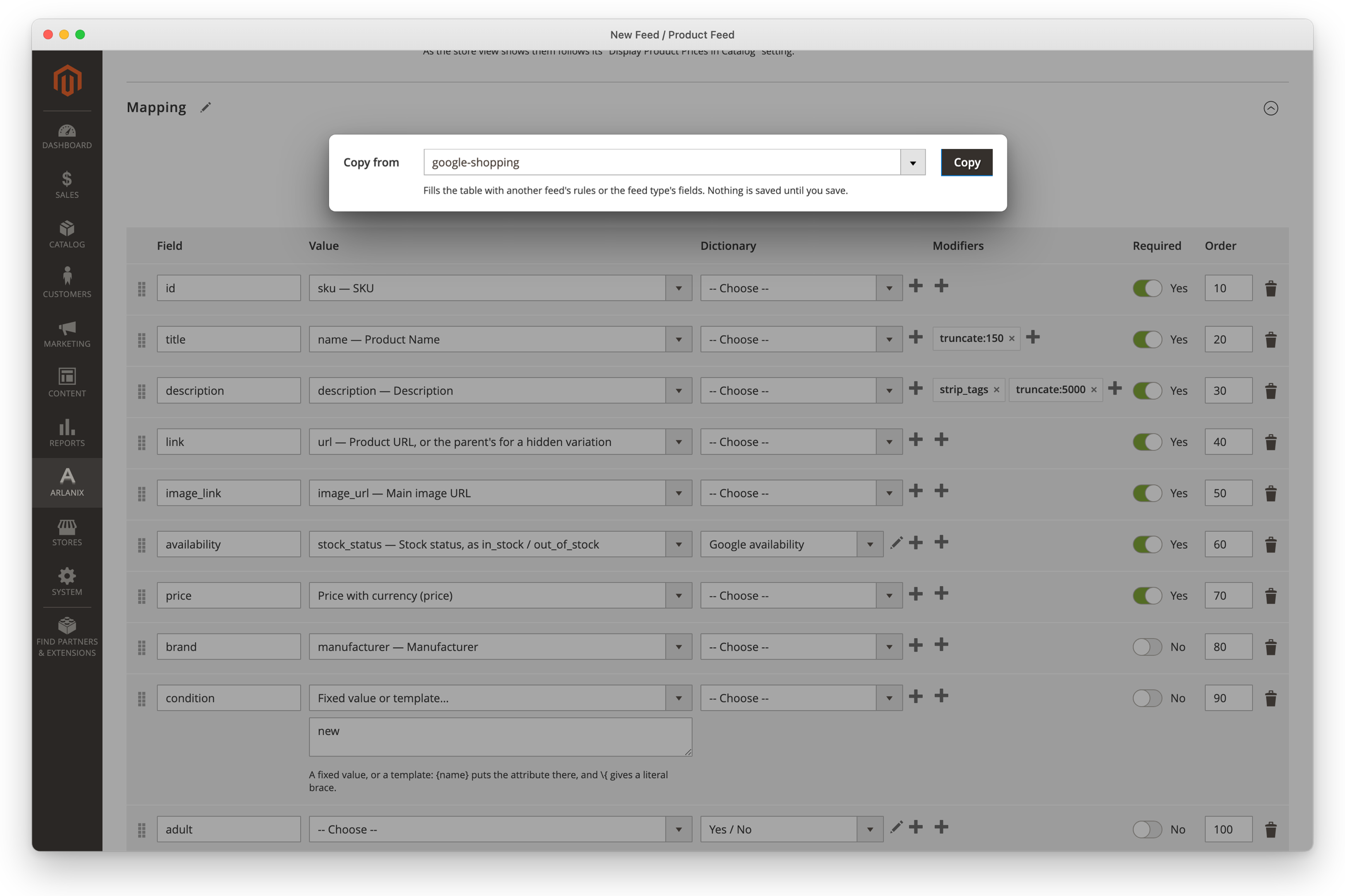
In Mapping, choose the first feed in Copy from, Google Shopping (google-shopping), and click Copy.
In Google categories, choose the first feed in Copy from and click Copy. The number after its name is how many categories it assigns.
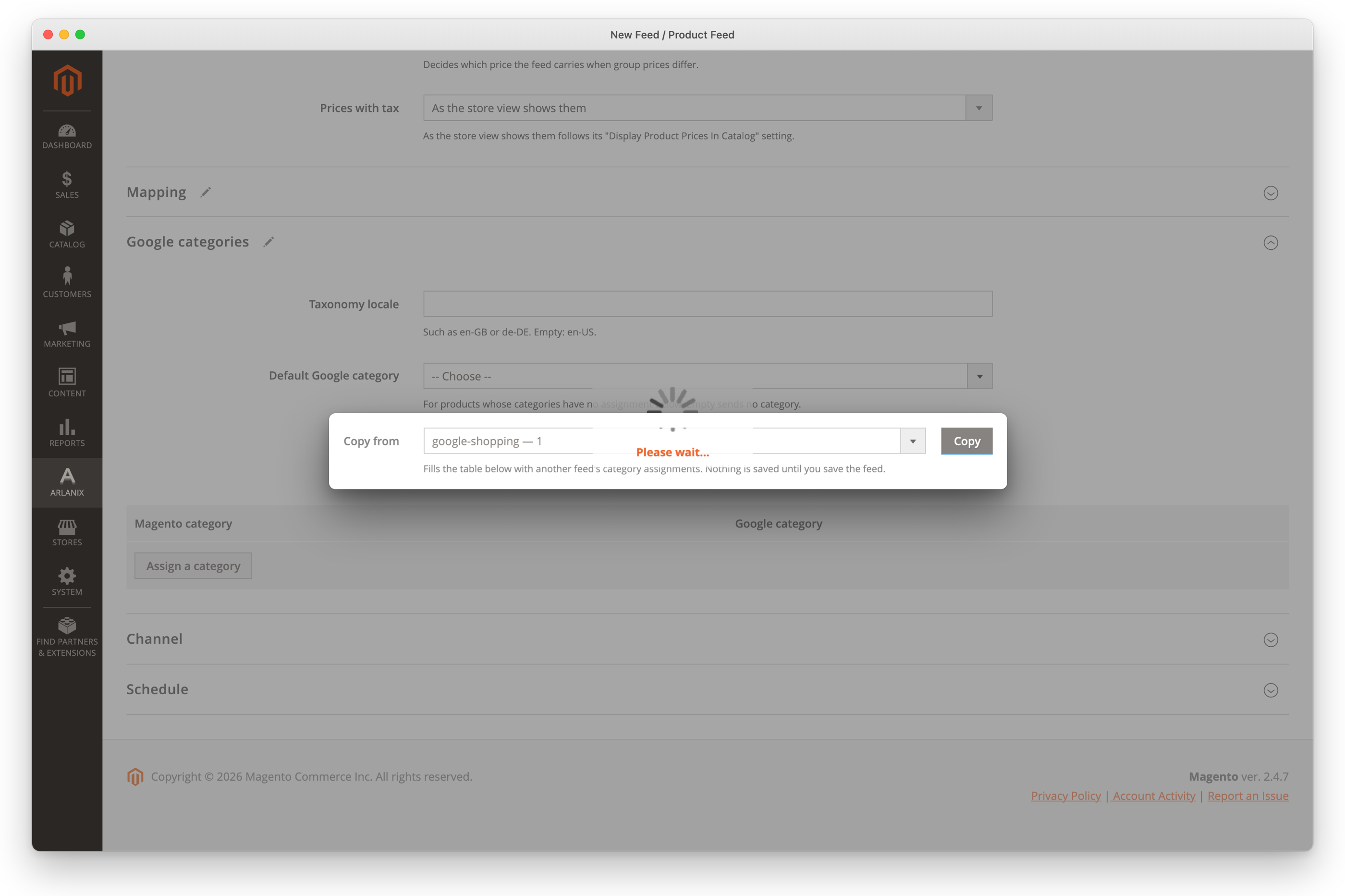
In Channel, leave File name empty, so the file is named after the new identifier. Two feeds cannot publish to the same file: saving says Feed "…" already publishes to … when they would.
Save, run the feed once, and give its URL to Merchant Center as a data source of its own, as in step 11 of your first feed.