For arlanix/product-feed 1.0.0
Google accounts
A feed whose channel is Google Merchant Center (API) sends your products to Merchant Center itself, without a file. For that, your Merchant Center account is connected to the store once, under Arlanix → Google Accounts, and every such feed uses the connection. A feed published as a file needs none: Google Merchant Center compares the two.
What you need
The connection is made with a key from Google Cloud. Making it is your developer's part. Send them this, as it is:
Please make a Google Cloud service account key for our Merchant Center account and add it to the account, as https://www.arlanix.com/product-feed/docs/google-merchant#make-the-key describes. Then send me the key file.
Your developer sends you a file whose name ends in .json. You also need:
- your Merchant Center account id: the number in the address bar when you are signed in to Merchant Center, such as
1234567; - the email address of a person's Google account, such as your own. Google registers the connection under it.
Connect the account
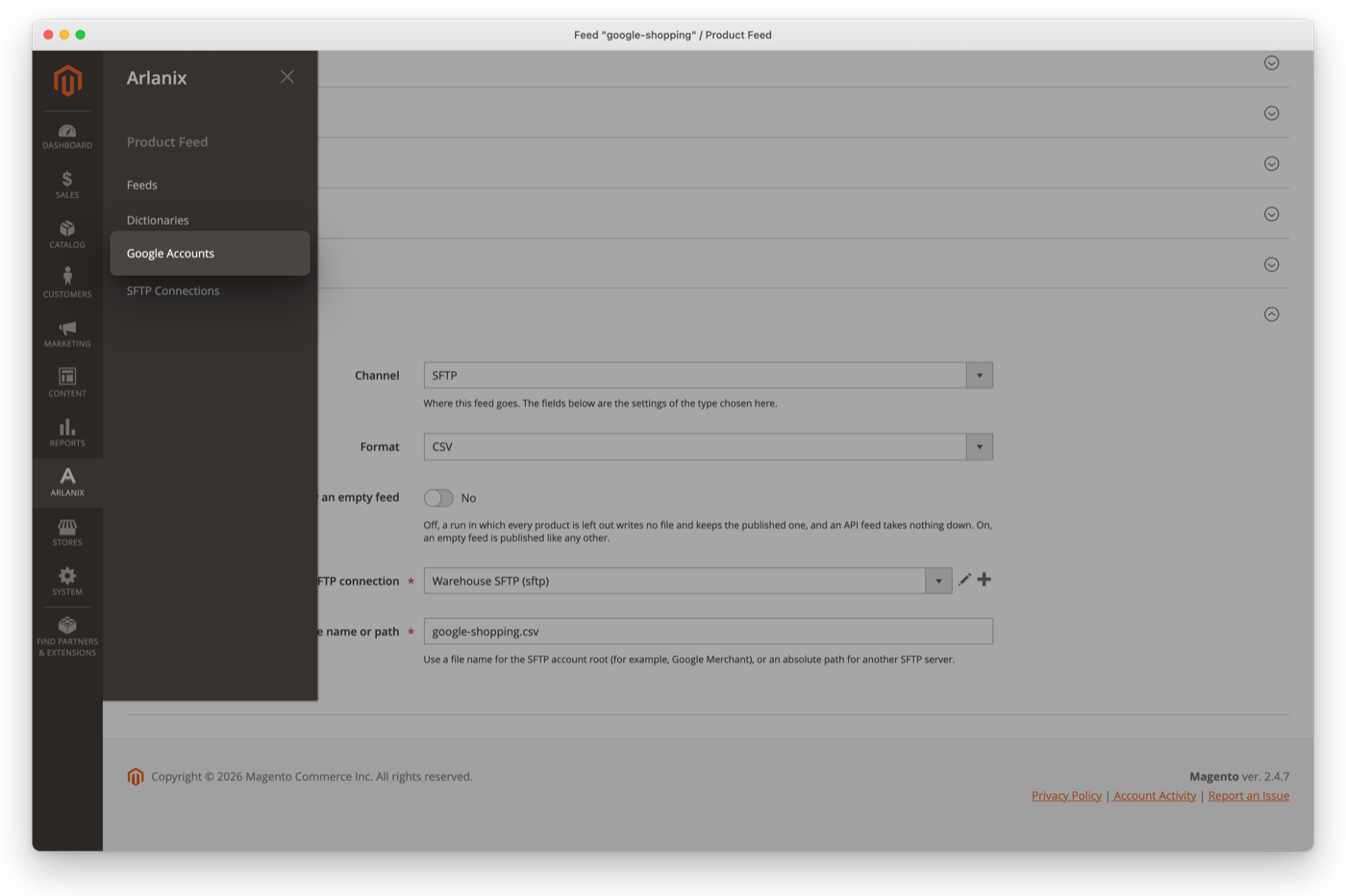
Open the Arlanix menu and choose Google Accounts:
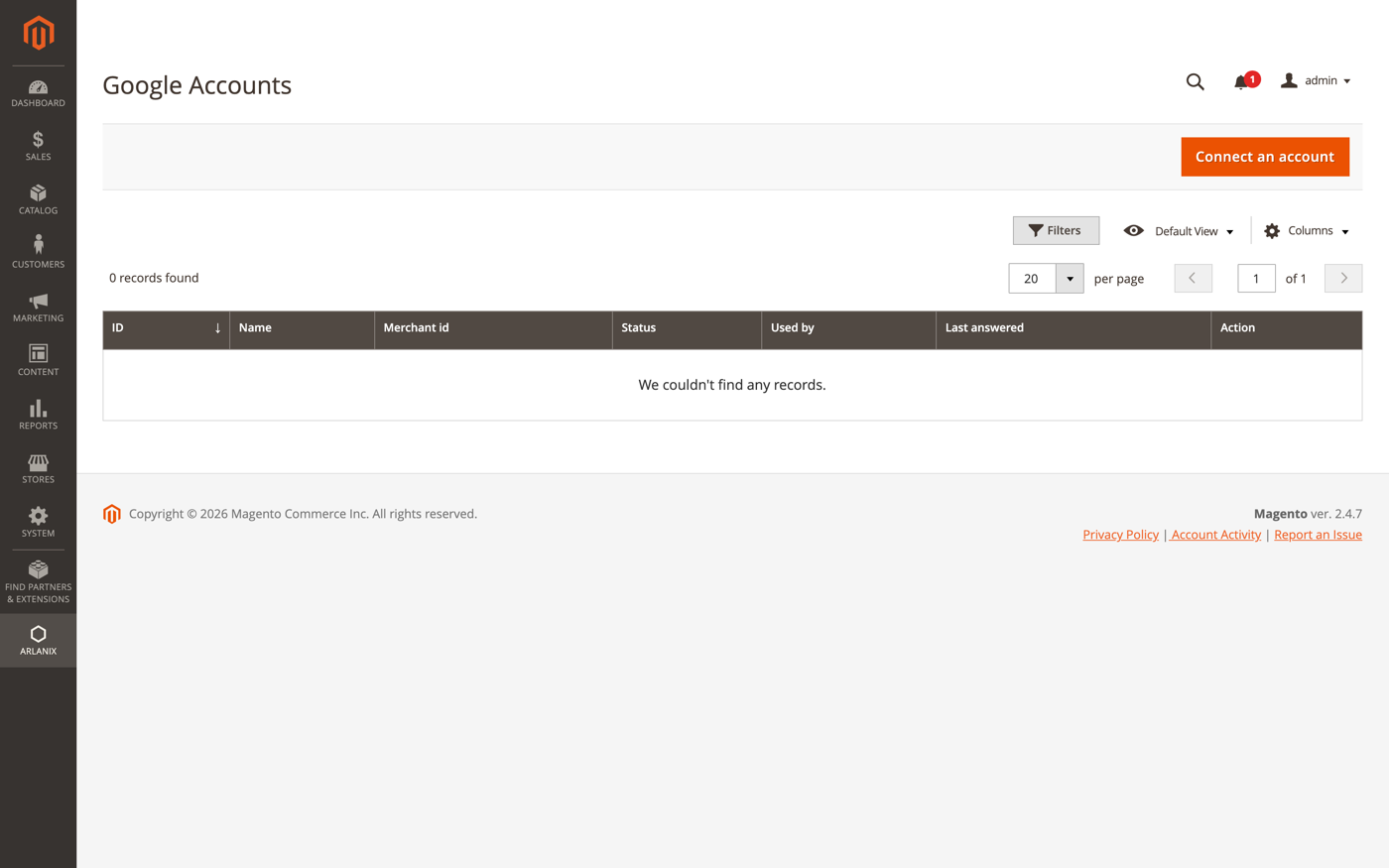
The grid lists the connected accounts. The first time, it is empty:
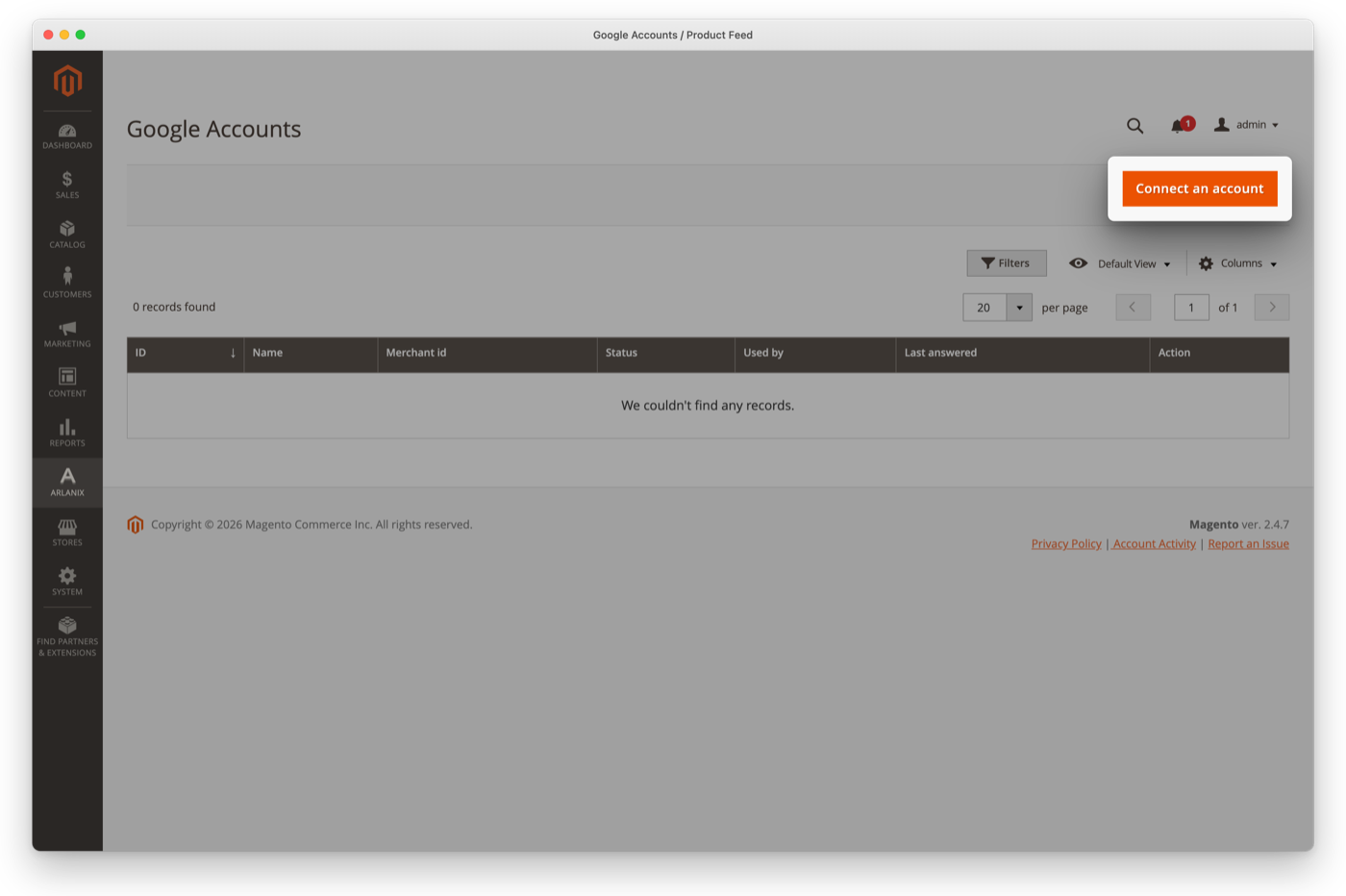
Press Connect an account:
Fill in the form:
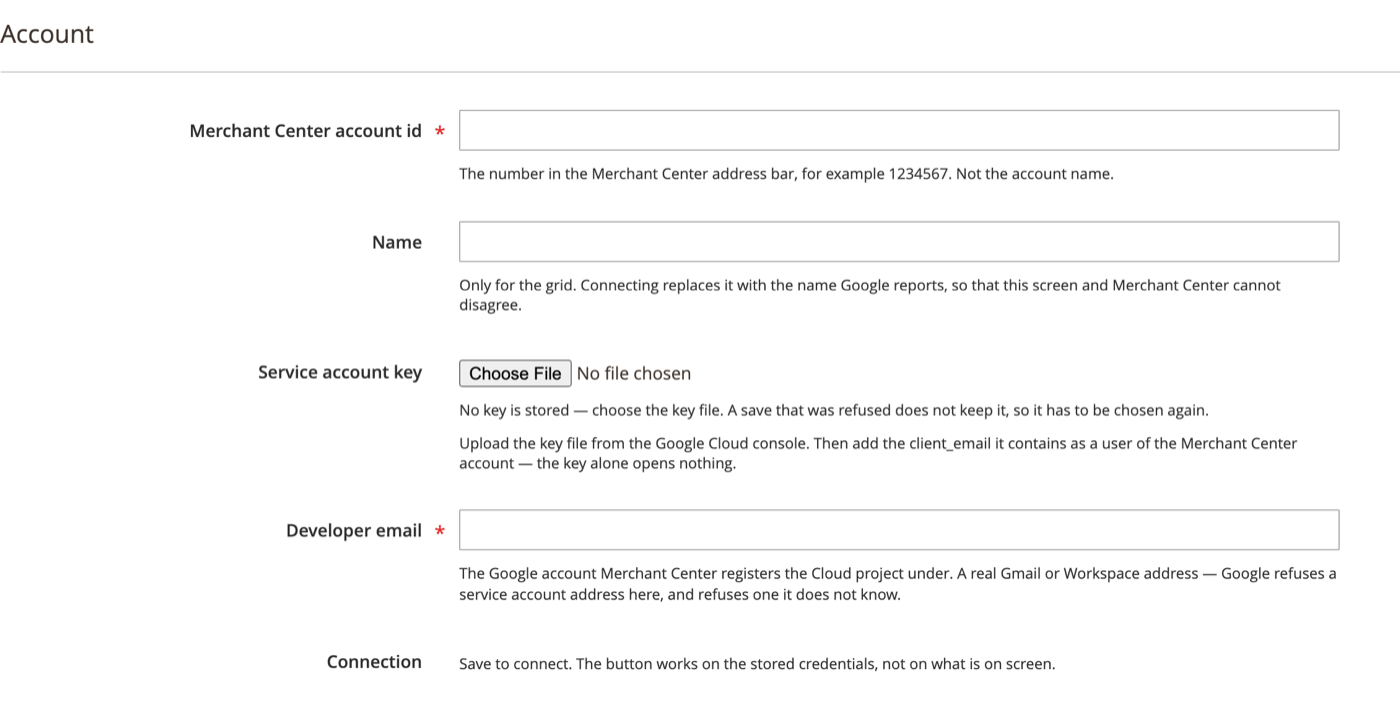
- Merchant Center account id: your account id.
- Name: your own name for the account, such as Main store. The grid and the feeds show it. Left empty, it is Merchant followed by the account id.
- Service account key: press Choose File and choose the file from your developer. The form then shows the address the key belongs to.
- Developer email: the Google account's email address.
Press Save:
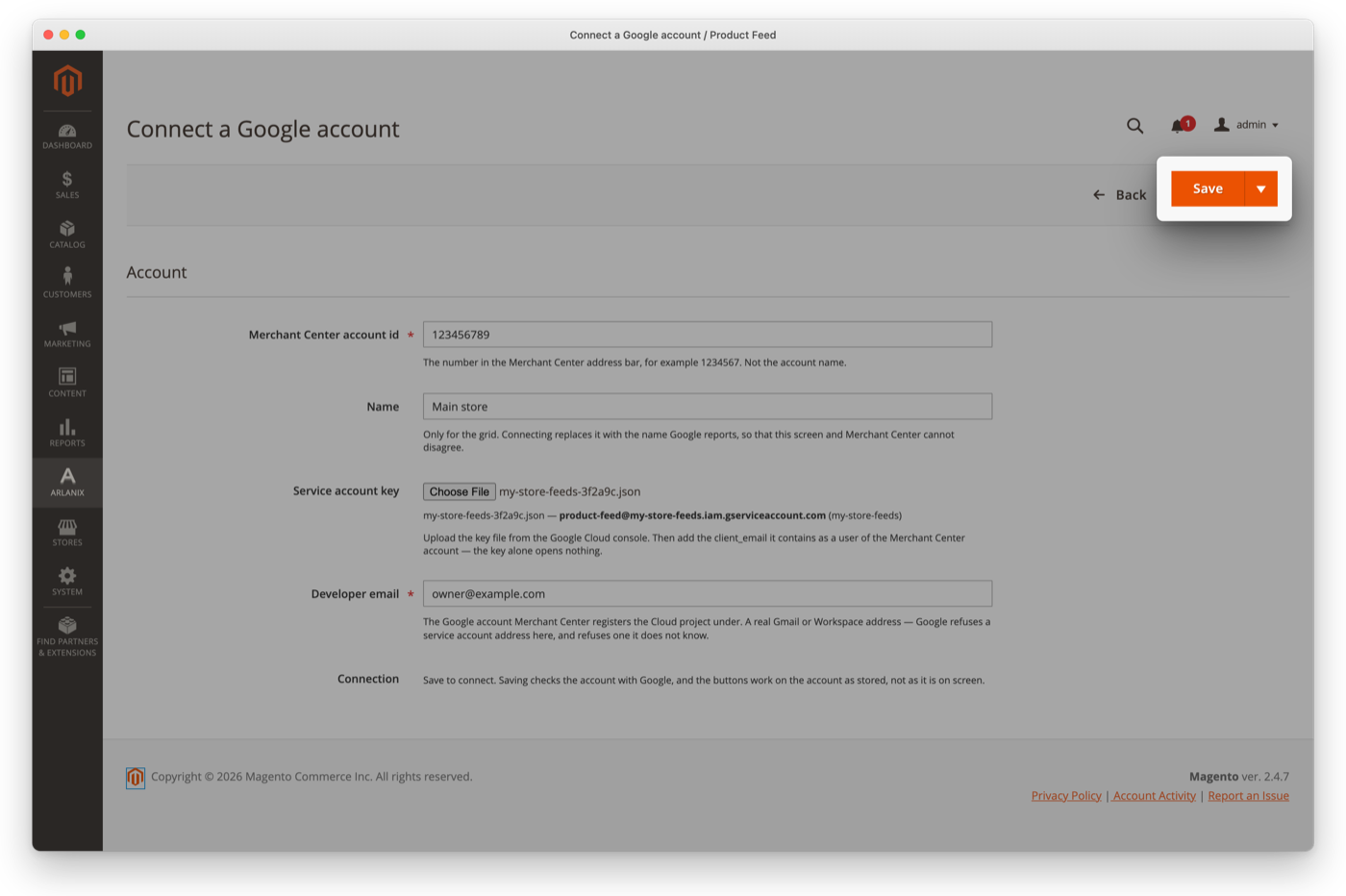
Saving asks Google whether it accepts the account, which takes a few seconds.
When it is connected
The form says Google account "…" saved and connected., and the grid shows the account as Connected. To send a feed through it, see Point a feed at it.
When Google does not accept it
The account is saved all the same, but it is not connected. The form comes back with Google's reason at the top, and again under Connect:
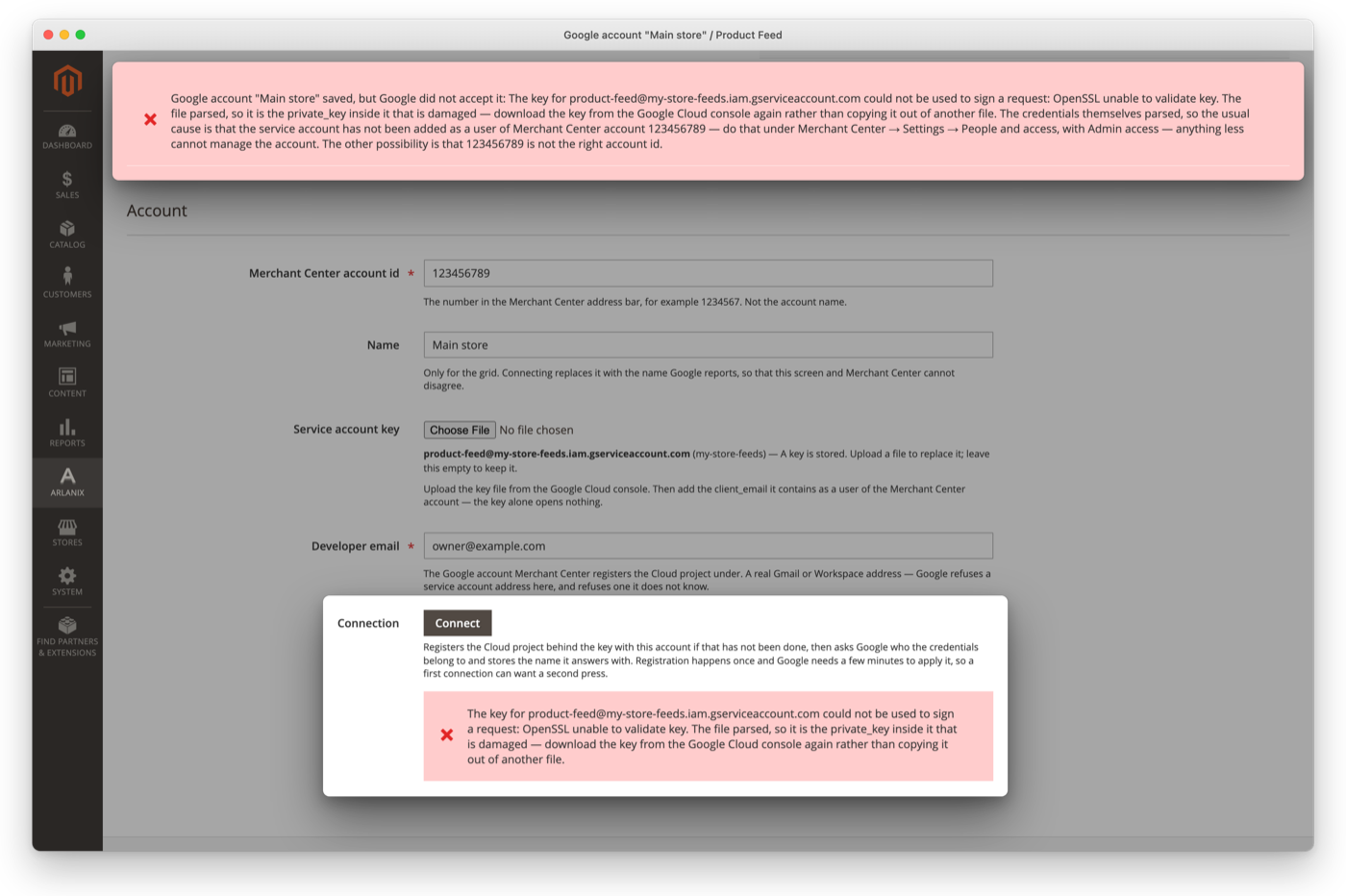
Send the message to your developer. Most often, the key has not yet been added to your Merchant Center account. Once the cause is fixed, press Connect on the account's form to try again. It first shows what it sends to Google; press OK:
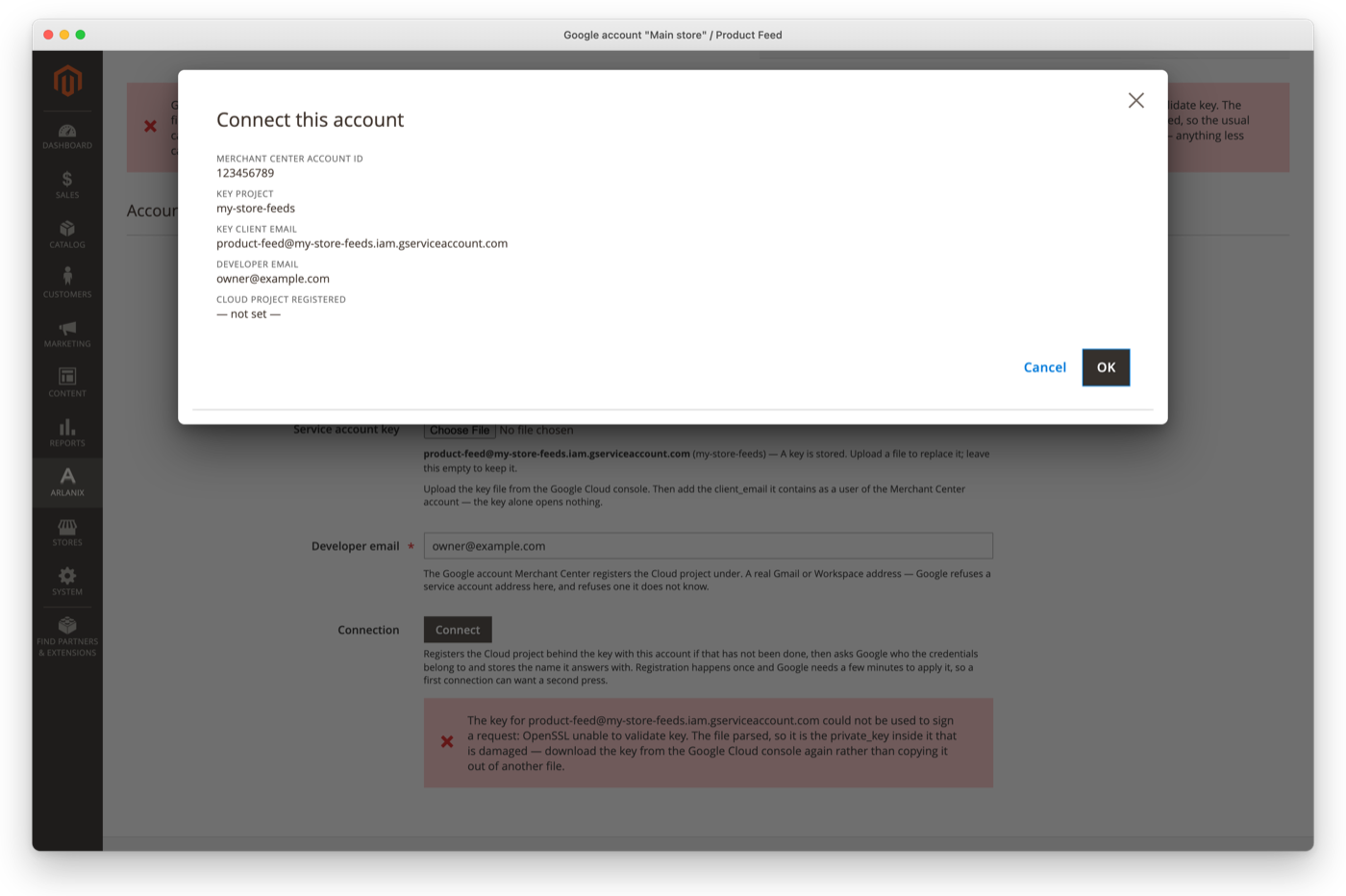
Google takes a few minutes to apply a first connection, so a new account can need a second try.
Point a feed at it
In the feed, unfold Channel and set its Channel field to Google Merchant Center (API):
- Google account: the account you connected; see Connect the account. + connects a new one.
- Feed label: your own name for this set of products, such as
mainorclearance. With the language it decides which products this data source owns. Google upper-cases it. - Content language: the language the titles and descriptions are in. Defaults to the store view's.
- Target countries: where these products are sold. Leave empty to use whatever the Merchant Center account is set up for.
- Supplements feed: shown when Owns the products is off. The feed whose products this one adds fields to; its own data source is supplemental and linked into that feed's. That feed must have run once, or been registered with Register with Merchant Center, so that its data source exists.
Save the feed. The first run creates the data source in Merchant Center, from the label, language, countries and ownership saved here. To create it before the first run, press Register with Merchant Center in the Channel section. From then on the section says Registered as and the source's id.
A run never changes a data source that exists. After changing the target countries, press Update the registration: what changes is listed and confirmed first. Google refuses to change the label, language or ownership of an existing source, so the form locks the first two once the source exists: a different label needs a new feed. If the data source is deleted in Merchant Center, press Update the registration: a new one is created, and the next run sends every product to it again.
The feed has no schedule: a product is mapped when the indexer records a change to it, and the next minute's delivery pushes the products whose row moved since they were sent, adds new ones and removes those the feed no longer has. Saving the feed, a dictionary it uses, or a currency, tax or price setting maps every product again, and again only the rows that moved go out; the row's Select menu has nothing to run by hand. A feed in which every product is left out takes nothing down: the run is refused, and says why, unless the feed allows an empty one. The grid's Last delivery column shows how many products were sent, are waiting, and were refused by Google; a refused product is offered again up to four times, waiting 15 minutes after the first refusal, 30 after the second, and so on. After that it stays refused until its row changes, or until the feed's data source is replaced, which offers every product again.