For arlanix/product-feed 1.0.0
Choose how a feed reaches Google
Choose how to send products to Merchant Center. Start with File unless you need SFTP or automatic API updates.
| Channel | How it works | Choose it when |
|---|---|---|
| File | Publish a file on your store. Google fetches its URL on a schedule. | You want a simple setup without a Google Cloud key. |
| SFTP | Upload the file to Google's SFTP server. | Google cannot fetch a file from your store. |
| Google Merchant Center (API) | Send changed products directly, without a file. | You need frequent updates and can connect a Google account. Allow for one API request per product. |
All three use the Google Shopping type and the same mapping.
The file channel
Set Channel to File and give Merchant Center the file's address, as step 11 of your first feed shows.
The SFTP channel
Create a file data source in Merchant Center, then upload to Google's SFTP server. The uploaded file name must exactly match the data source's file name.
In Merchant Center
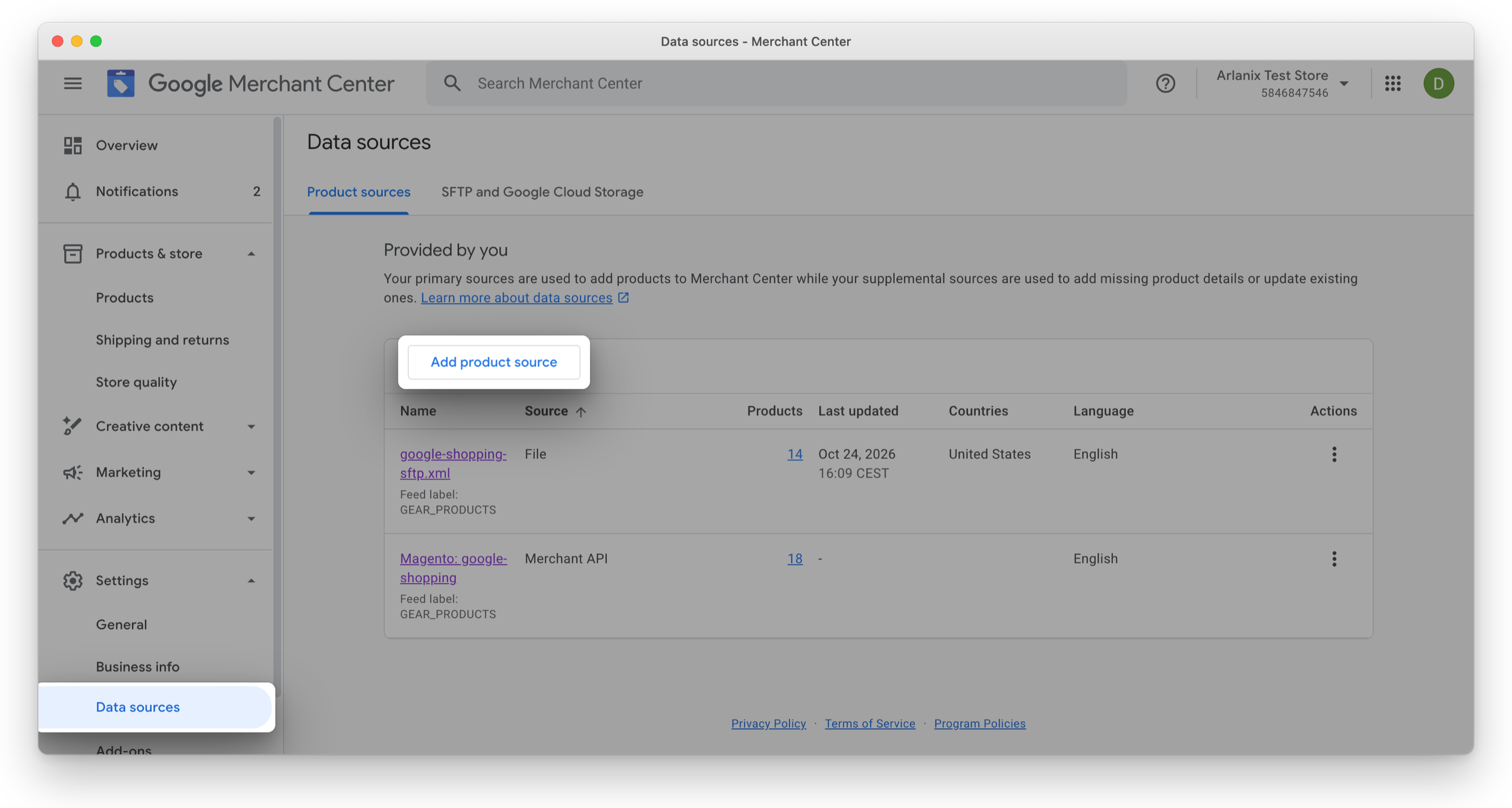
Open Settings → Data sources and press Add product source:
Choose Add products from a file → Add a file using SFTP or Google Cloud Storage. Enter a file name such as
google-shopping-sftp.xml, with the extension matching the feed format. Keep this name for step 6.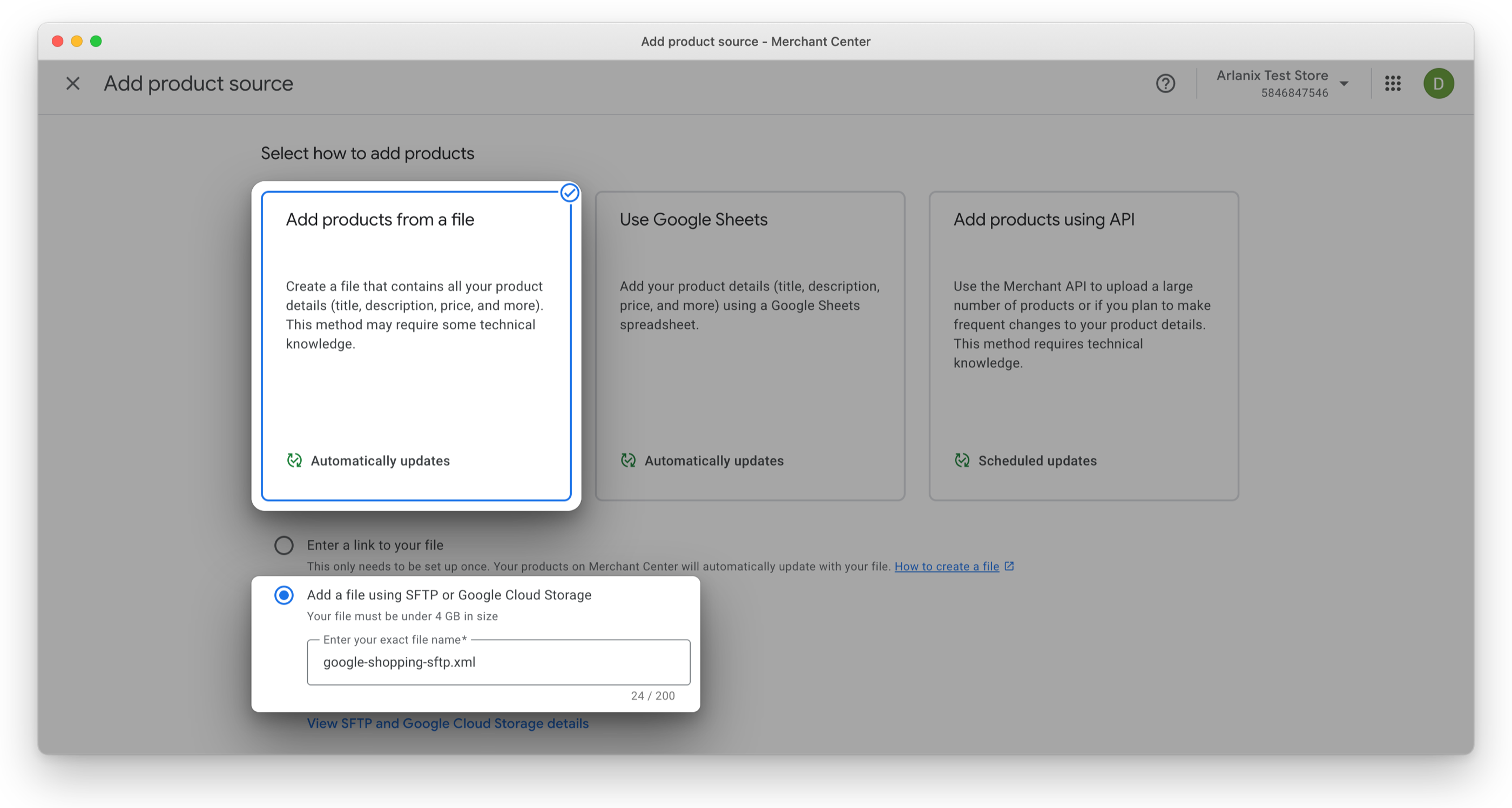
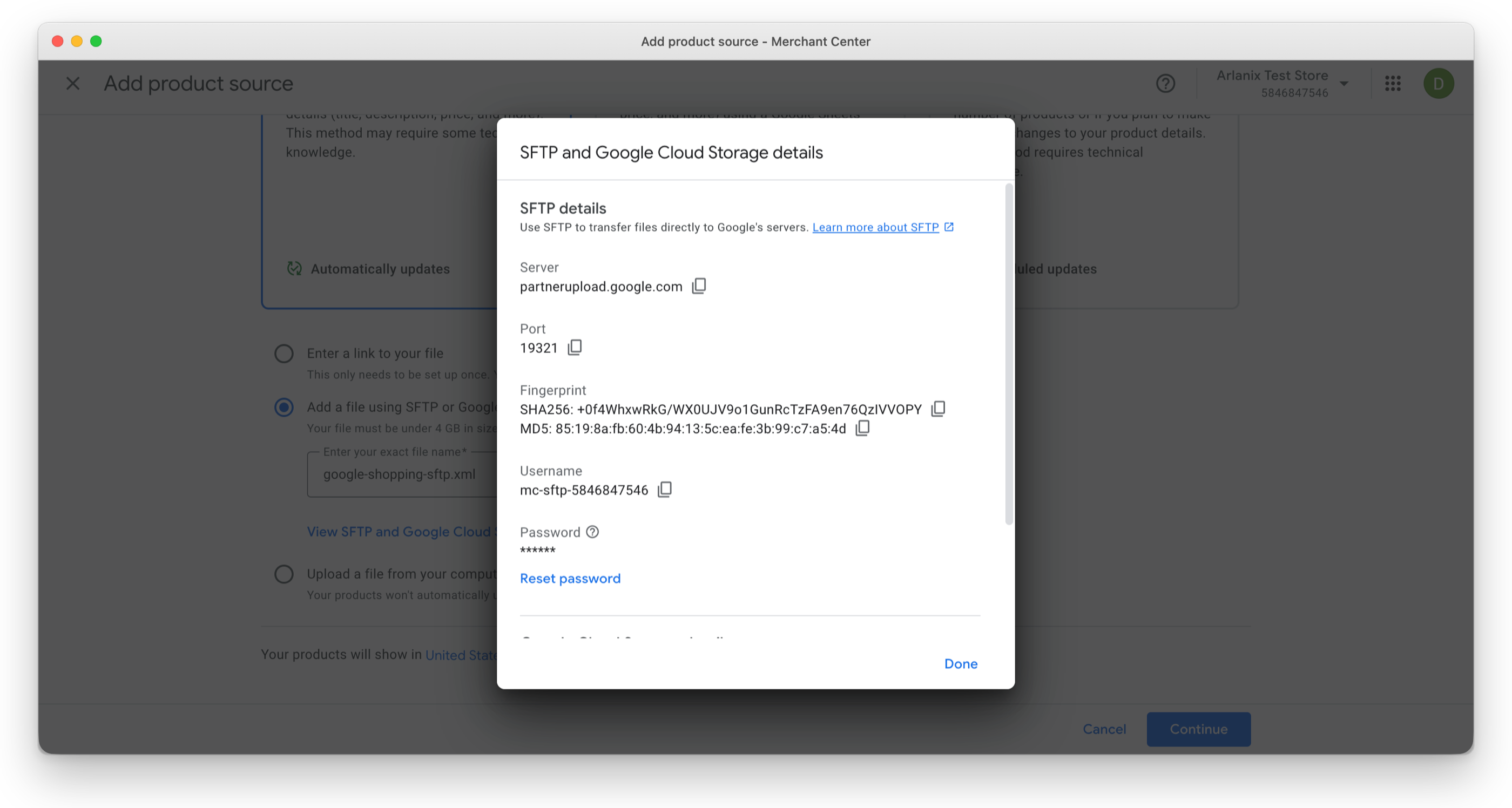
Press View SFTP and Google Cloud Storage details. Copy Server, Port, the SHA256 fingerprint and Username. If you need a password, use Reset password and copy it immediately; it is shown once. Keep an existing connection's password: resetting it breaks that connection. Press Done:
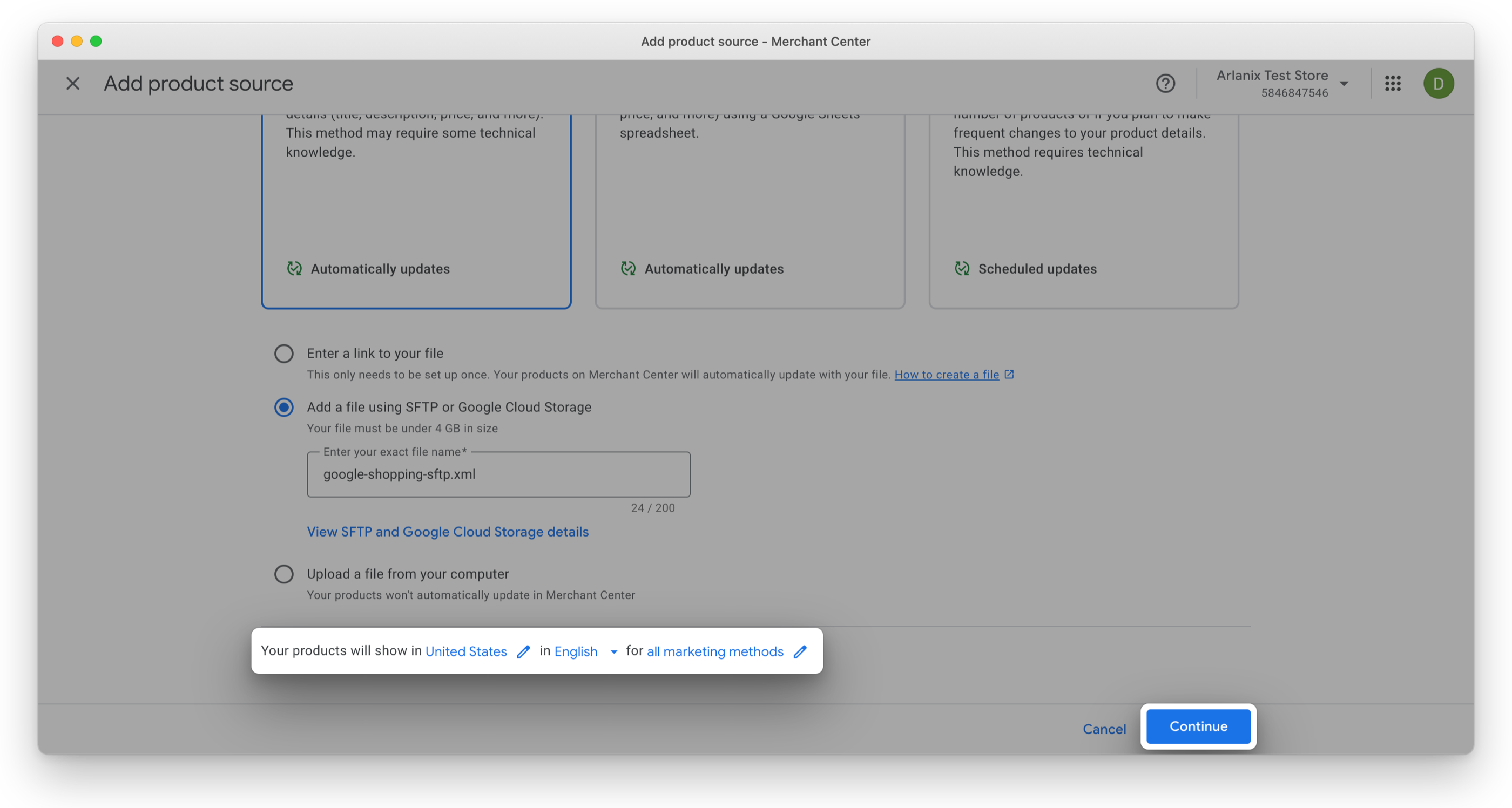
Check the country and language, press Continue and complete the setup:
The data source appears under the file name. Products appear after an upload:
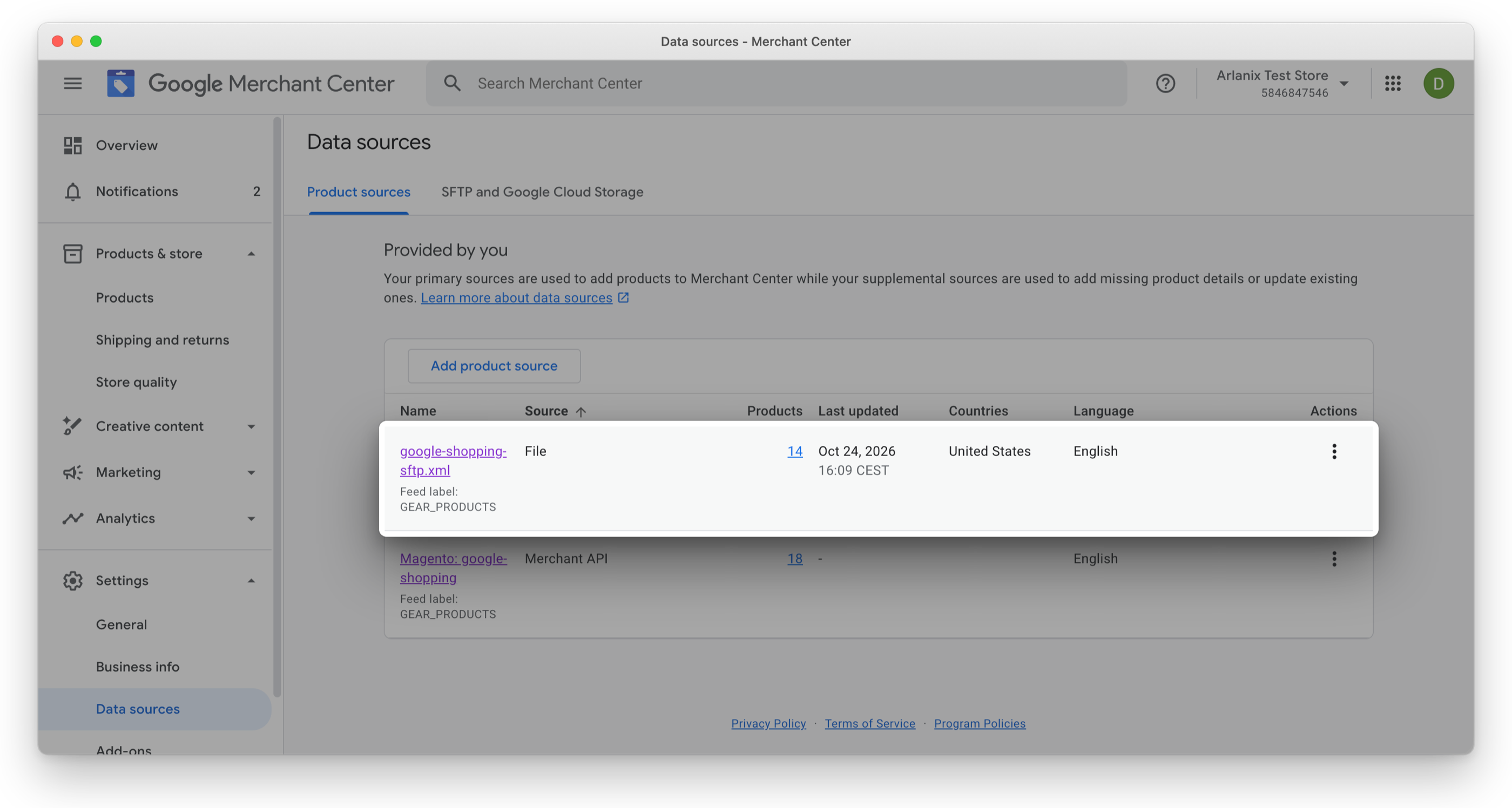
Without Advanced data source management under Settings → Add-ons, Merchant Center chooses the feed label and may reuse an existing one. Primary sources with the same label, language and product IDs overlap: send each product through one primary source only.
In the admin
Create an SFTP connection using the details from step 3. Set Host to
partnerupload.google.com, Port to19321and Authentication to Password: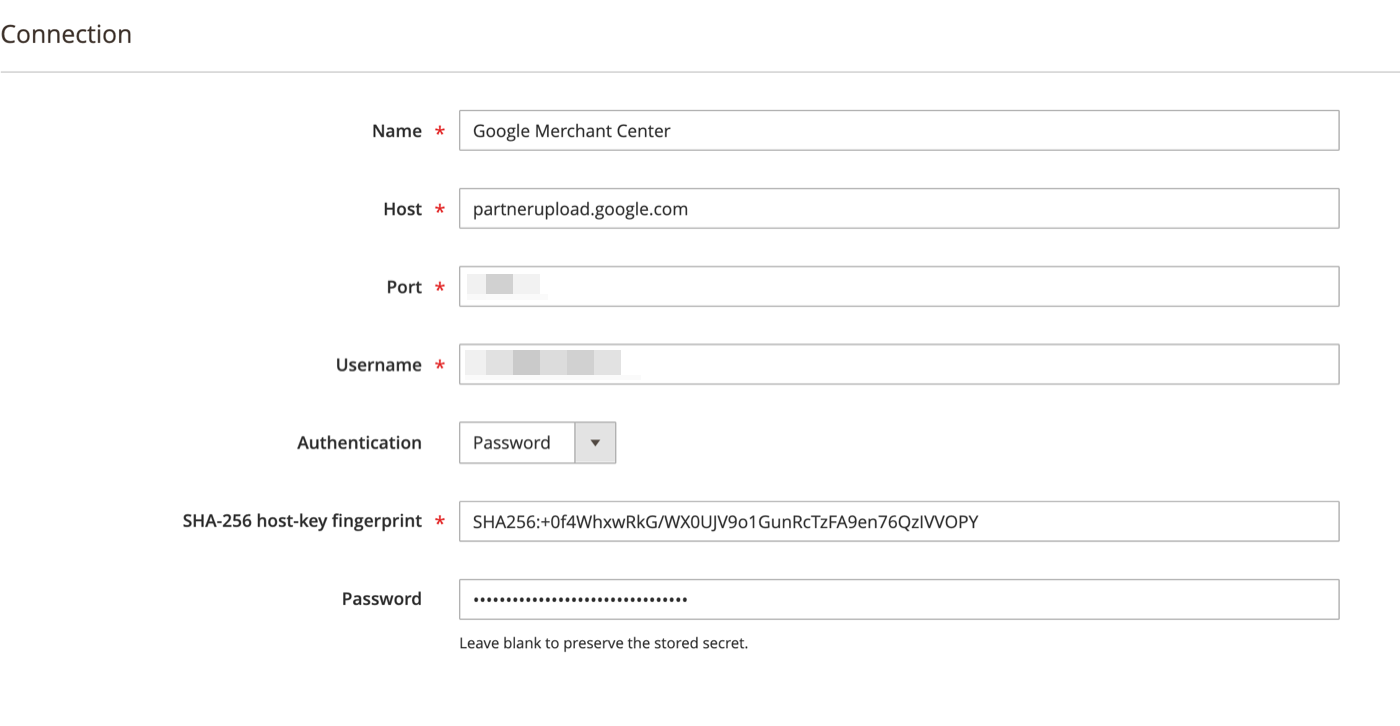
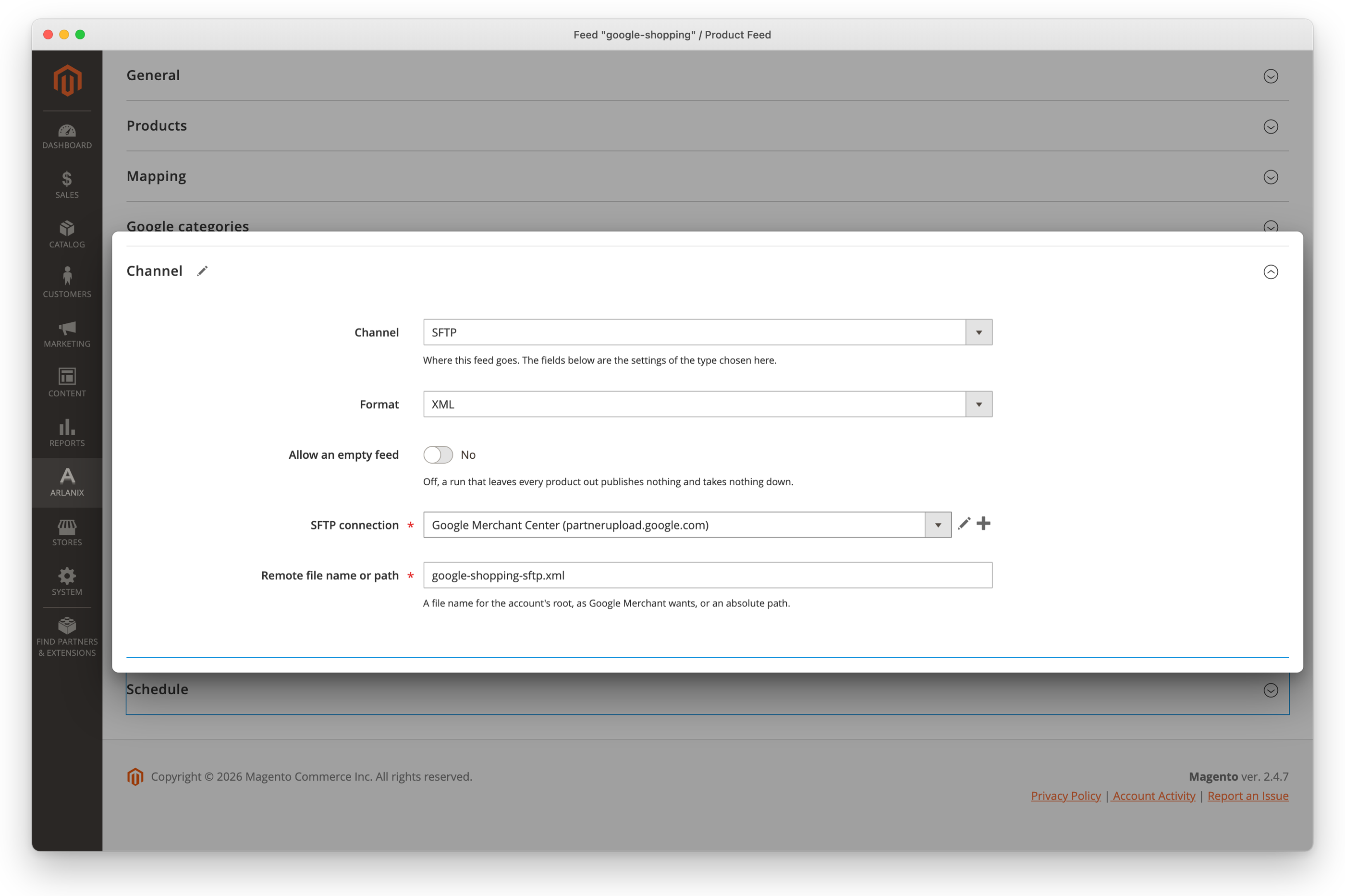
In the feed's Channel, choose SFTP and the connection. Set Format to match the file extension and Remote file name or path to the exact name from step 2, without a folder. Save, then deliver the feed:
The API channel
Connect a Google account, then choose Google Merchant Center (API) under Channel. Saving an active feed creates its data source in Merchant Center; products are sent automatically as they change.