This guide is about your own store talking to your team's Slack: a message in #sales when a big order comes in, a message in #ops when cron stops. If you came looking for the Magento community's Slack workspace, that is a different place, for talking with other developers.
What Magento has
Magento 2.4.7 has no Slack integration of its own. The nearest thing is email. Slack can give a channel its own email address (on Slack's paid plans), and Magento can copy every order email to an address:
- In Slack, open the channel's details and get its email address, under Send emails to this channel.
- In Magento, open Stores > Settings > Configuration > Sales > Sales Emails > Order.
- Put the channel's address in Send Order Email Copy To, set Send Order Email Copy Method to Separate Email, and click Save Config.
Each order then shows up in the channel as the customer's email. That works for a quiet store, but the channel gets every order, in a thank-you email written for the customer, and nothing else. A stopped cron or a broken checkout never reach it, because Magento emails nobody about those.
One channel per team
Multichannel Store Notifications posts to Slack through an incoming webhook, a web address that Slack makes for one channel. In the extension, messages go to topics, and a Slack channel subscribes to a topic. So the plan is a topic per channel, and rules that decide what lands in each:
| Channel | Topic | What goes there |
|---|---|---|
| #sales | Orders | New orders over a total you choose, and refunds |
| #ops | Store health | Cron stopped, Cron job failed, Indexer needs reindex, Application error |
One topic can also reach people elsewhere. The sales manager might get Orders by email as well, and the person on call might get Store health in Telegram.
Make a webhook for the channel
- Open api.slack.com/apps (opens in a new tab), click Create New App and choose Blank app. Name it, for example Store alerts, and choose your workspace.
- Skip the scopes and events, click Create, and then Create Anyway. The app needs nothing besides a webhook.
- Under Features, open Incoming Webhooks, turn on Activate Incoming Webhooks and click Add New Webhook.
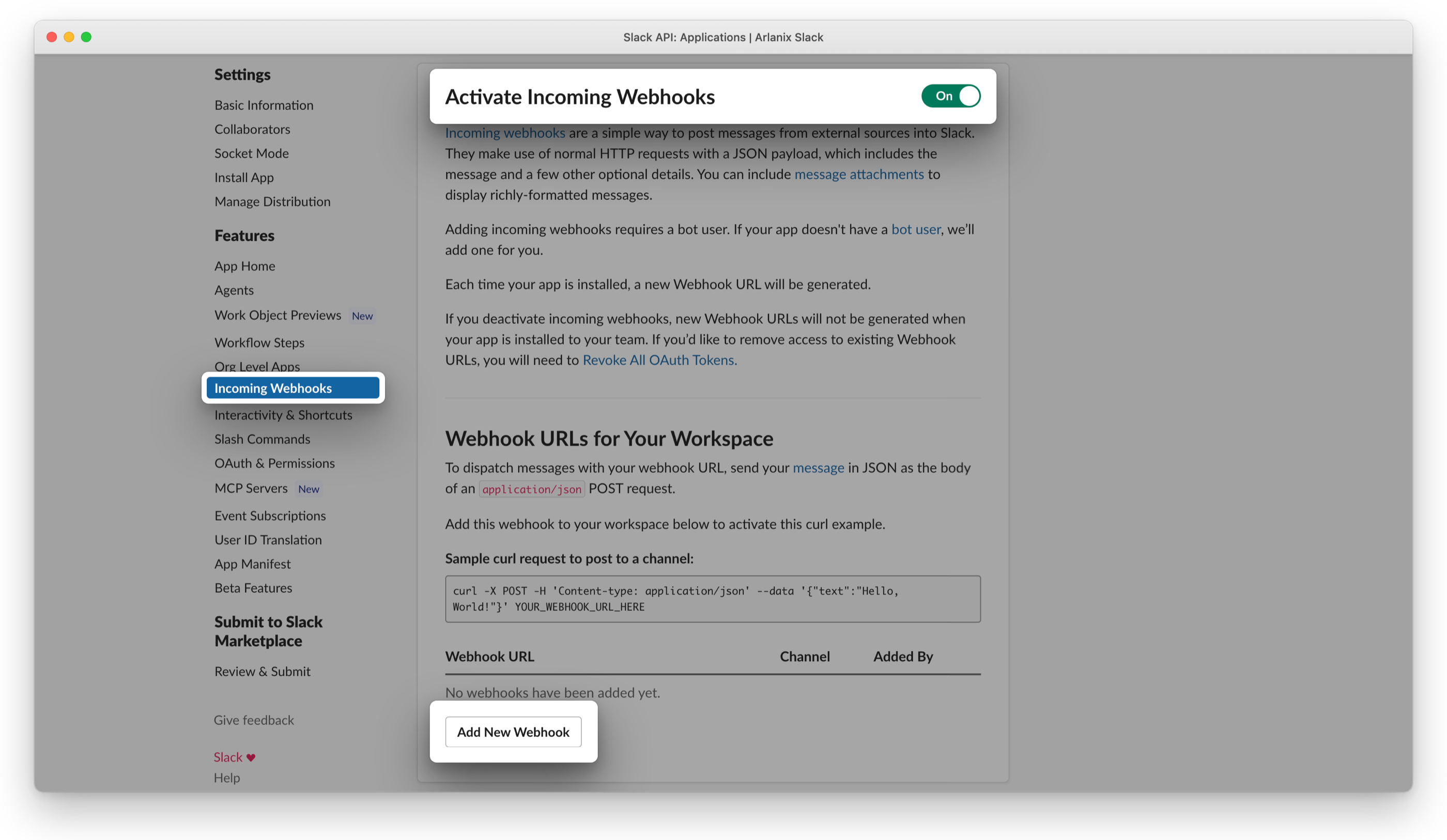
- Choose the channel, for example #sales, and click Allow. If your workspace needs an admin to approve apps, Slack asks for that here.
- Copy the Webhook URL. It starts with
https://hooks.slack.com/services/. Treat it like a password: anyone who has it can post to the channel.
One app can have a webhook for each channel, so add a second one for #ops. The Slack page of the manual has a screenshot for every step.
Subscribe the channel
In the Magento admin, open the topic and add a subscription:
- Set Delivered by to Slack.
- Paste the Webhook URL. The store keeps it encrypted and never shows it again.
- Enter the Channel, such as #sales. The admin shows this name in its lists, so you can tell the subscriptions apart without the webhook.
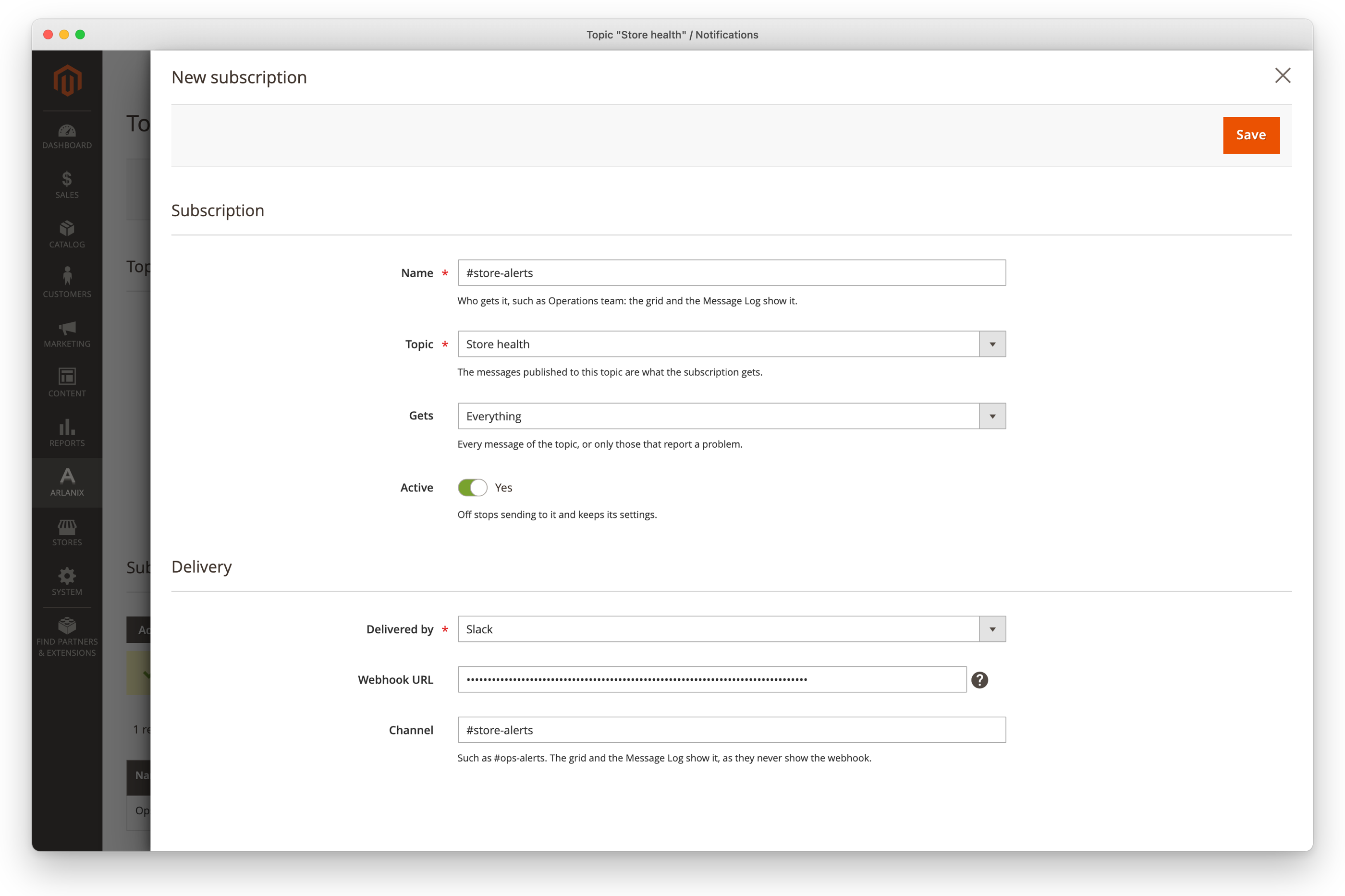
- Save, then click Send test message. It shows up in the channel.
A subscription can take Everything or only Warnings and errors. For #ops, the second one keeps the channel for problems. See Subscriptions.
Rules for #sales
A rule sends a message to a topic when an event happens and its conditions match. Two rules cover the sales channel:
- New order, with the condition Grand total equals or greater than 100, and the subject
Big order #{order.increment_id}: {order.grand_total_formatted}. - Refund, with the condition Refunded total equals or greater than 200, and the subject
Refund of {creditmemo.grand_total_formatted} on order #{order.increment_id}.
The braces fill in from the order, so the channel reads Big order #1043: $129.00 rather than a generic line. Rule examples has more of these, such as bank transfers to expect and wholesale orders.
Rules for #ops
The health events need no condition. A rule for Cron stopped and the topic Store health is enough:
- Cron stopped comes when no background job has run for 15 minutes. Feeds, emails, indexers and the notifications themselves wait until cron runs again. This message is sent at once, without waiting for the queue, because the queue needs cron. A second message comes when cron is back.
- Cron job failed reports the jobs that ended with an error, checked every five minutes.
- Indexer needs reindex comes when an indexer becomes invalid, and again when it is valid.
- Application error comes when the store writes an error to its log. The same error is sent at most once every ten minutes, so a loop of errors doesn't bury the channel.
Monitoring explains these, and gives an address an uptime monitor can watch, for when the server itself goes down.
What a message looks like
Each message is one Slack message. The subject is in bold, after a mark for its severity: 🔴 for an error, 🟠 for a warning, 🔵 for info. A refund is a warning, so Refund of $129.00 on order #1038 comes with 🟠. The text and the details follow, and links work without Slack's previews cluttering the channel.
When several messages wait for the same channel, they go out together as one Slack message, a digest. A burst of orders arrives as one message instead of many. If a digest gets too long for Slack, it ends with a line such as … and 3 more: see the Message Log. The Message Log in the admin keeps every message in full.
When Slack refuses
Slack answers every post, and the store keeps the answer. It shows in Last delivery on the subscription and on the message's page in the Message Log. The usual ones:
| Slack says | What happened |
|---|---|
| no_service, invalid_token | The webhook or its app was removed. Make a new webhook and paste it in. |
| channel_not_found, channel_is_archived | The channel is gone. Make a webhook for one that exists. |
| action_prohibited | A workspace admin doesn't allow posting there. |
A failed delivery is tried again after 1, 5, 15, 60 and 240 minutes, and Retry now in the Message Log sends it at once. When Slack says too many messages came at once and asks the store to wait, the store waits as long as Slack asks and then sends the rest. See How delivery works.
Email copy or a Slack integration
| Order email copy to a Slack address | Multichannel Store Notifications | |
|---|---|---|
| What reaches Slack | Every order, as the customer's email | The orders, refunds and errors your rules pick |
| Channels | Every address in the list gets every order | A topic for each channel, as many as you like |
| Store problems | Nothing | Cron, failed jobs, indexers, errors in the log |
| Slack side | A channel email address, on a paid plan | An app with an incoming webhook |
| Cost | Built into Magento | An extension from Adobe Commerce Marketplace |
Multichannel Store Notifications runs on Magento Open Source or Adobe Commerce 2.4.7 or later, with PHP 8.1 to 8.5 and a working cron. Slack comes with it, alongside email, Telegram and Discord.