For arlanix/notification 1.0.1
Rules
A rule sends a message when something happens in the store. A rule has three parts:
- An event, such as a new order.
- Conditions, such as a grand total of $100 or more. Conditions are optional.
- A topic. The rule publishes its message to this topic, and every subscriber of the topic gets it.
The events come from the installed modules. See Events for orders, customers, reviews and more, and Monitoring for the health of the store. Your first rule shows you how to make a rule together with its topic and a subscription.
Open Rules
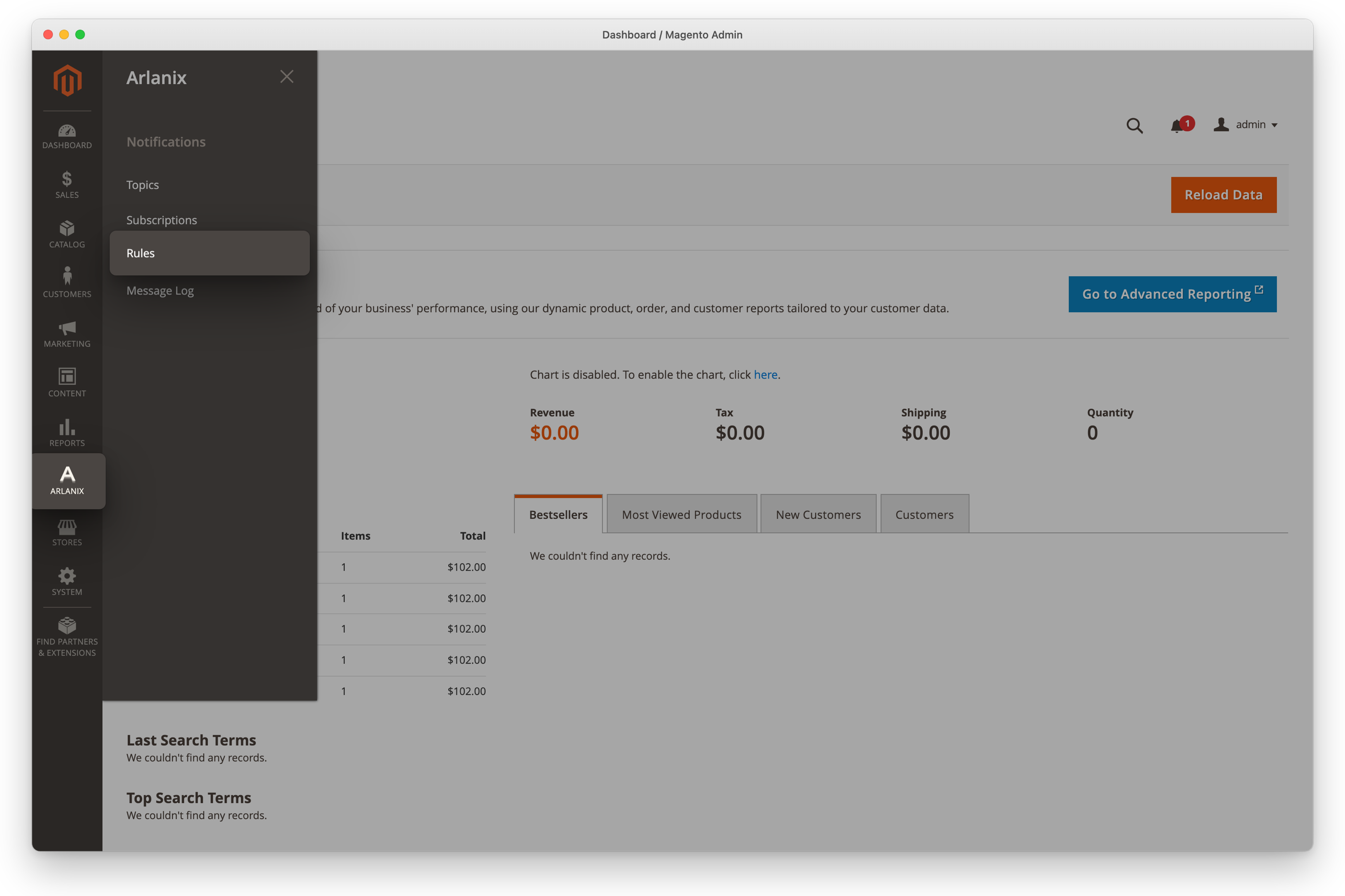
In the admin menu, click Arlanix, then click Rules under Notifications.
Make a rule
In this example, the rule sends every order of $100 or more to the topic Orders. The sales team is subscribed to that topic.
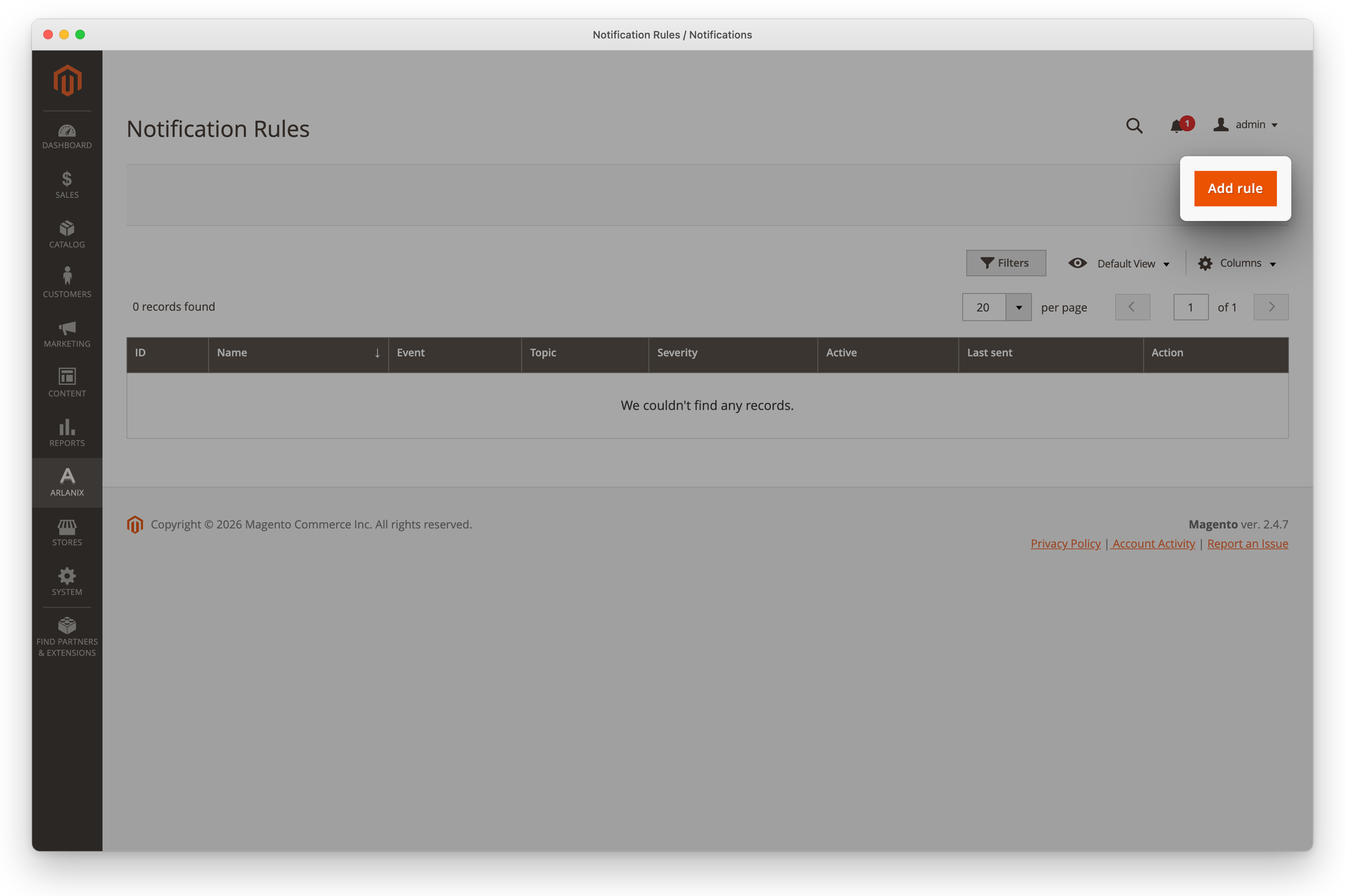
Click Add rule.
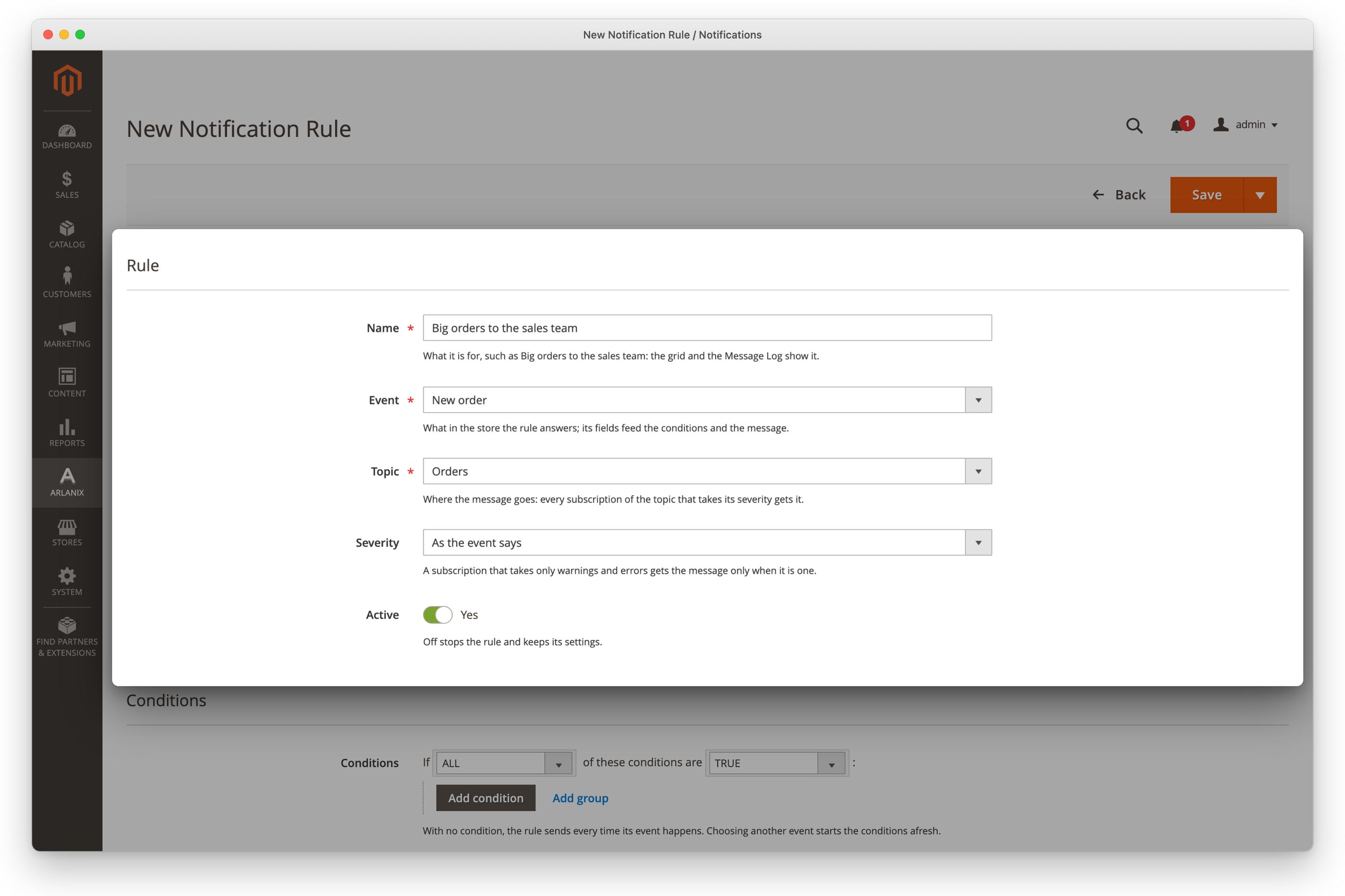
In Name, enter Big orders to the sales team. The Rules grid and the Message Log show this name.
In Event, choose New order.
In Topic, choose Orders. The message goes to this topic.
Leave Severity set to As the event says, and leave Active on.
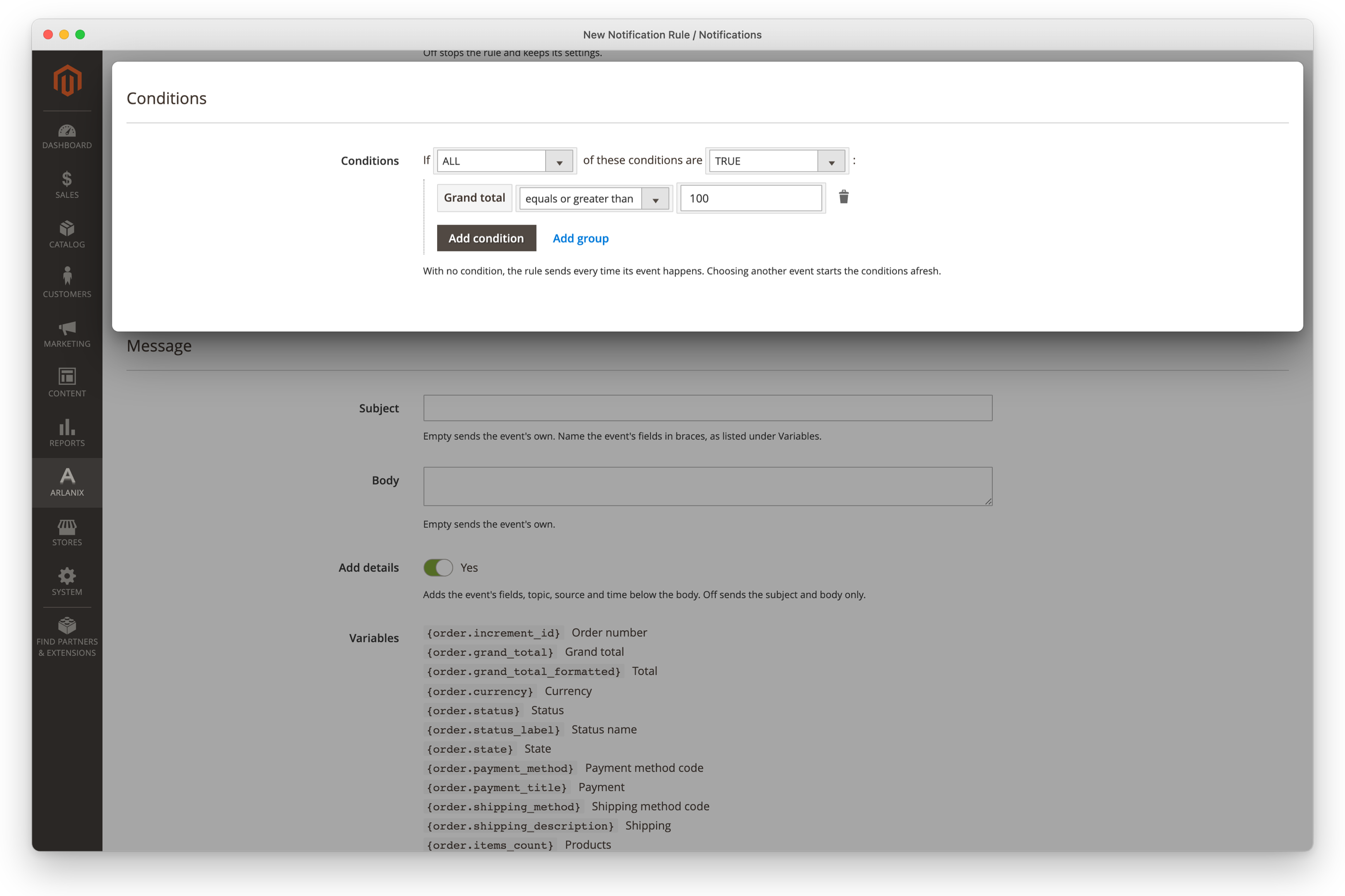
Under Conditions, click Add condition. Choose Grand total, then equals or greater than, and enter 100.
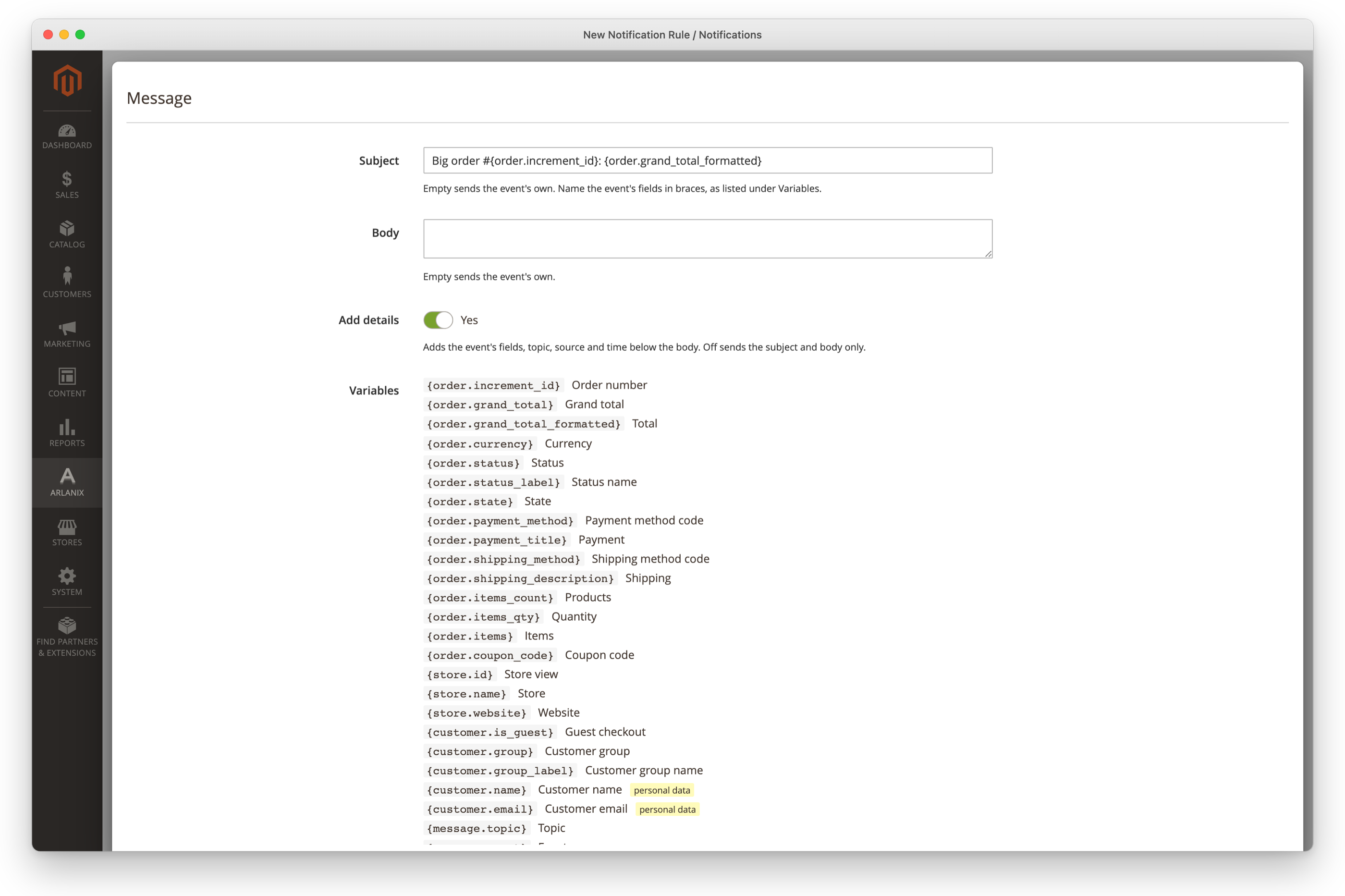
Under Message, in Subject, enter Big order #{order.increment_id}: {order.grand_total_formatted}. Leave Body empty to use the event's own text.
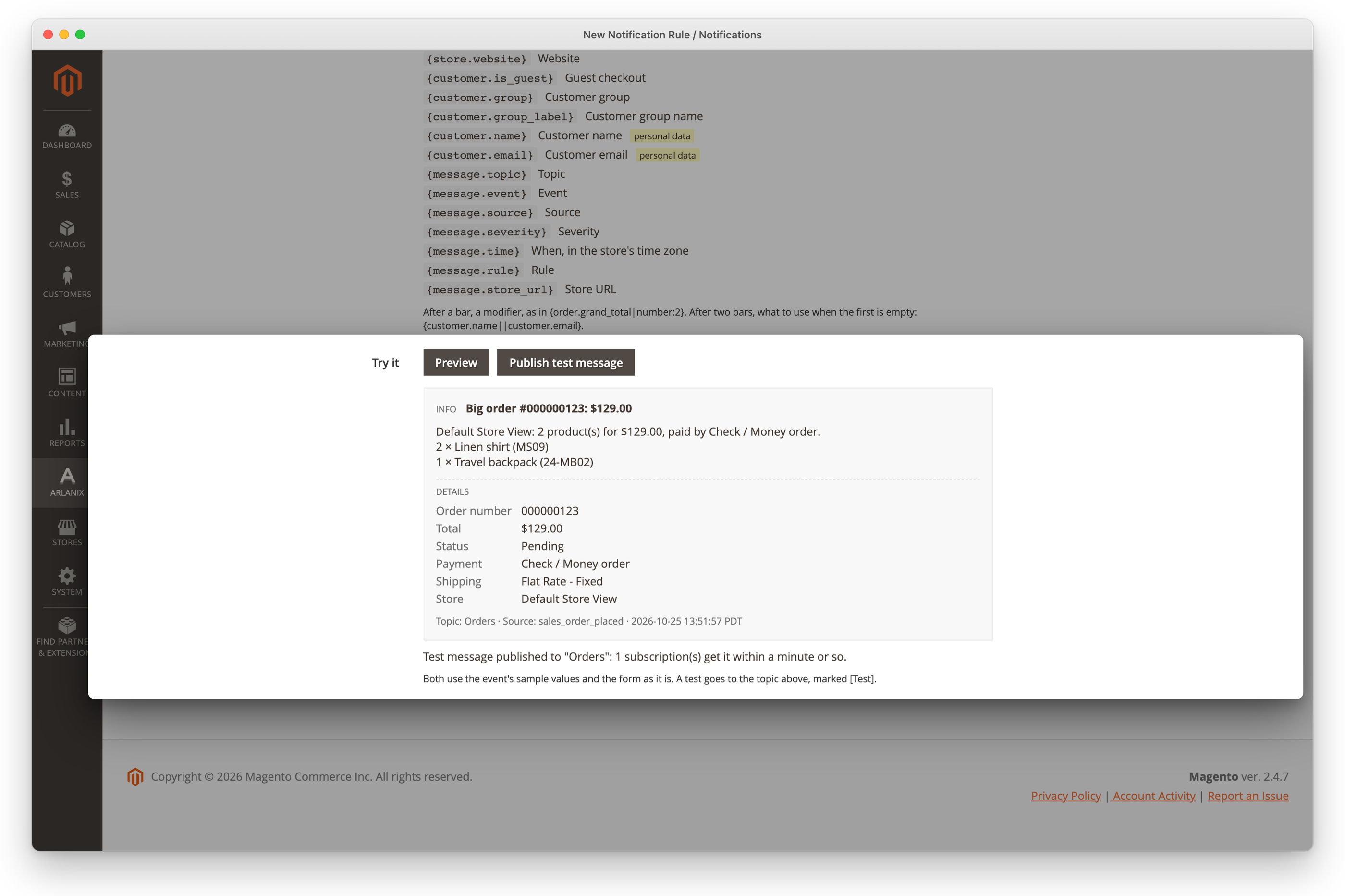
Click Preview. The preview shows the message as it will be sent, filled in with sample values. It shows the subject, the body and, under Details, the event's fields, the topic, the source and the time. After the first click, the preview updates by itself each time you change the subject, the body or another setting.
Click Publish test message. The module sends the message, with the sample values, to the topic Orders. The subject starts with [Test]. The page shows how many subscriptions get the test.
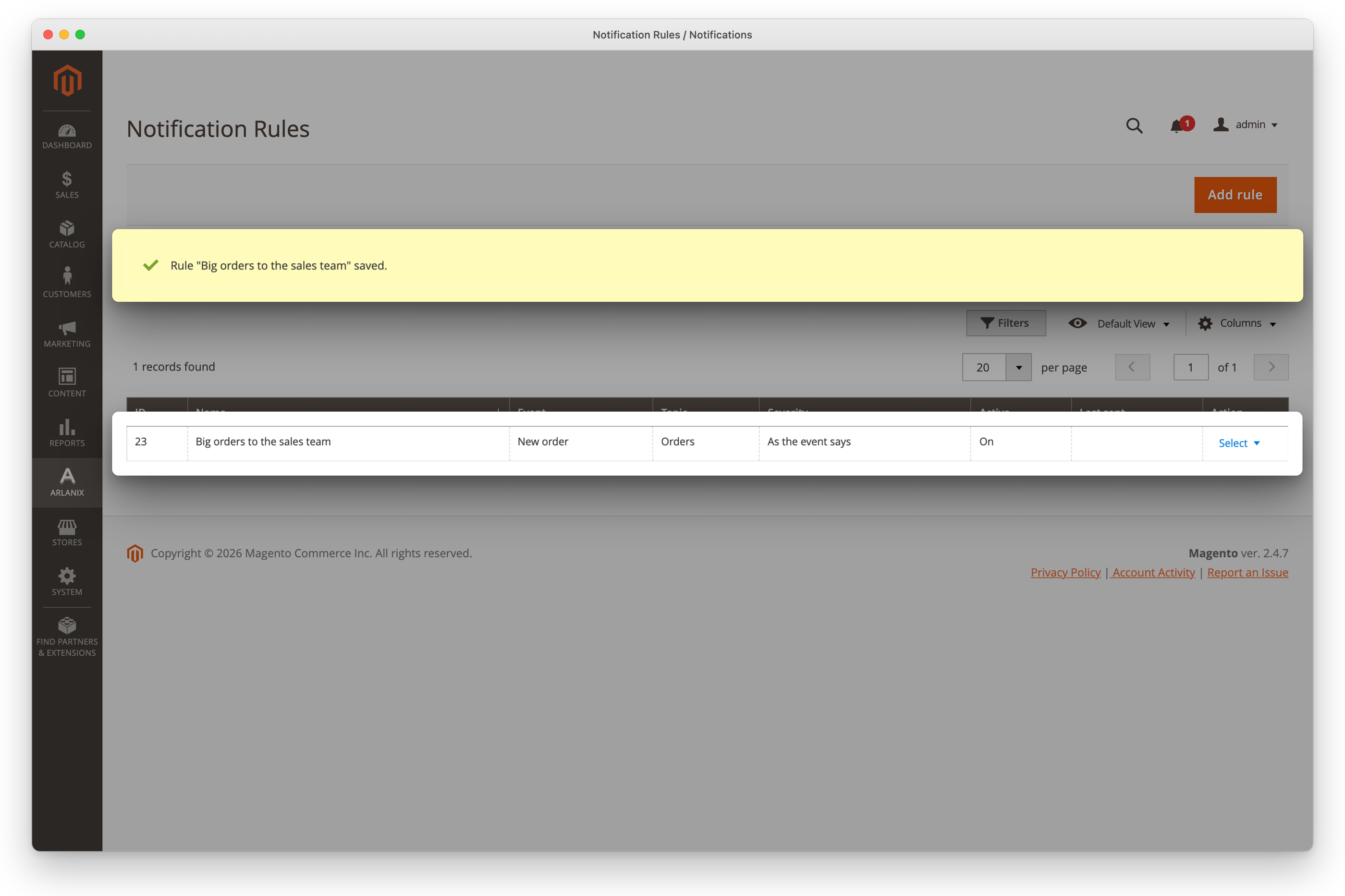
Click the arrow next to Save, then click Save & Close. The grid shows Rule "Big orders to the sales team" saved.
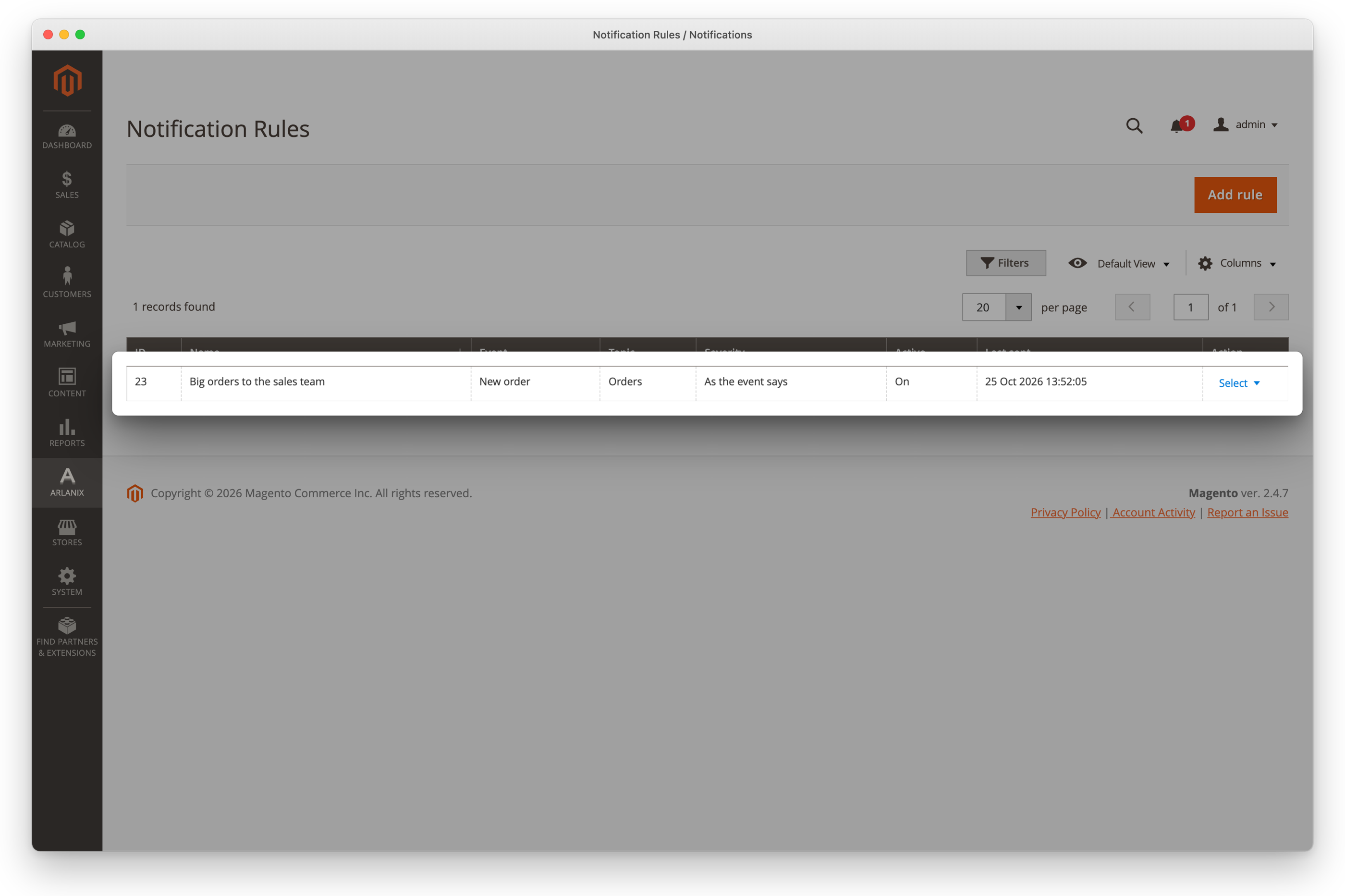
The rule now sends a message each time a customer places an order of $100 or more. The message arrives within about a minute. The Message Log shows which rule sent each message. The Last sent column of the Rules grid shows when each rule last sent a message.
Severity
Severity says how important the message is. You can choose one of these values:
- As the event says. The event sets the severity. For a new order, the severity is Info.
- Info, Warning or Error. The message always has the severity you choose.
Some subscriptions get only warnings and errors. Such a subscription gets the rule's message only when its severity is Warning or Error.
Conditions
Conditions decide when the rule sends a message:
- If a rule has no conditions, it sends a message every time its event happens.
- If ALL of these conditions are TRUE means that every condition must be met. Change ALL to ANY to send the message when at least one condition is met.
- Add group adds a group of conditions inside another group. For example, you can put any of these payment methods inside all of these.
- Some fields have a fixed list of values, such as Status or Customer group. For these fields, you choose a value from the list.
- If you choose a different event, the rule clears its conditions, because each event has different fields.
Several currencies and store views
Keep these points in mind when your store has more than one currency or store view:
- An order's amounts are in the currency the customer paid in. So in a store with several currencies, the condition Grand total equals or greater than 100 matches an order of 100 dollars and also an order of 100 yen. To avoid this, add the condition Currency is USD, or make one rule for each currency.
- The Store view condition limits a rule to the orders of one or more store views.
{store.name}is the name of the store view where the customer placed the order.{message.store_url}is always the address of the default store view.
The message
If you leave Subject and Body empty, the rule uses the event's own text. To write your own text, type it and add field names in braces. The Variables list shows the names you can use. There are two kinds:
- The event's fields, such as
{order.increment_id}or{order.grand_total_formatted}. - The message variables. They are the same for every event.
The message variables are these:
| Variable | Value |
|---|---|
{message.topic} |
The name of the topic. |
{message.event} |
The name of the event, such as New order. |
{message.source} |
The code of the event, such as sales_order_placed. |
{message.severity} |
The severity of the message. |
{message.time} |
The time the message is published, in the store's time zone. |
{message.rule} |
The name of the rule. |
{message.store_url} |
The address of the default store view. It is the same whichever store view the event happened in. |
The Variables list marks some fields as personal data, such as the customer's name or email. The rule never adds these fields to a message by itself. A message contains them only when you name them in the subject or the body.
Every message you send goes to the mail server, Telegram, Slack or Discord. These services store it like any other message. The message also stays in the Message Log for the number of days set in Keep messages for (days), which is 30 by default. Include a customer's data only in messages to people who are allowed to see it.
Details below the body
Add details is on when you create a rule. With it on, the module adds details below the body of each message. The details are the event's main fields, such as the order number and the total, followed by the topic, the source and the time. The preview shows them under Details.
To send only the text you wrote:
Switch Add details off.
In Body, name the values you want to keep. For example:
{message.event} #{order.increment_id} for {order.grand_total_formatted}, at {message.time}.
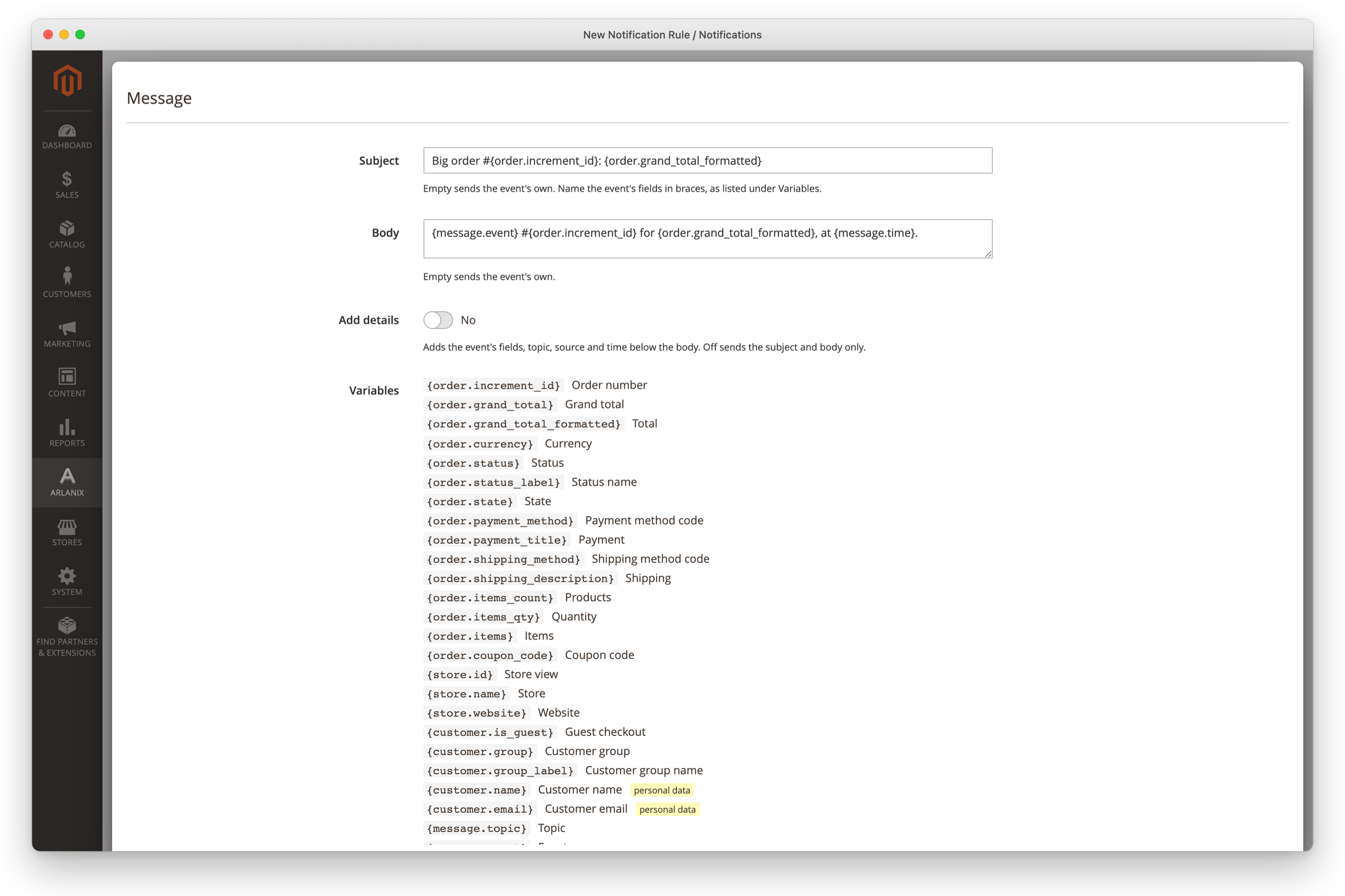
The message then contains only the subject and this body, both in email and in chat. The preview removes the details as soon as you switch Add details off. In a digest of several messages, each message still shows when it was published, so you can tell them apart.
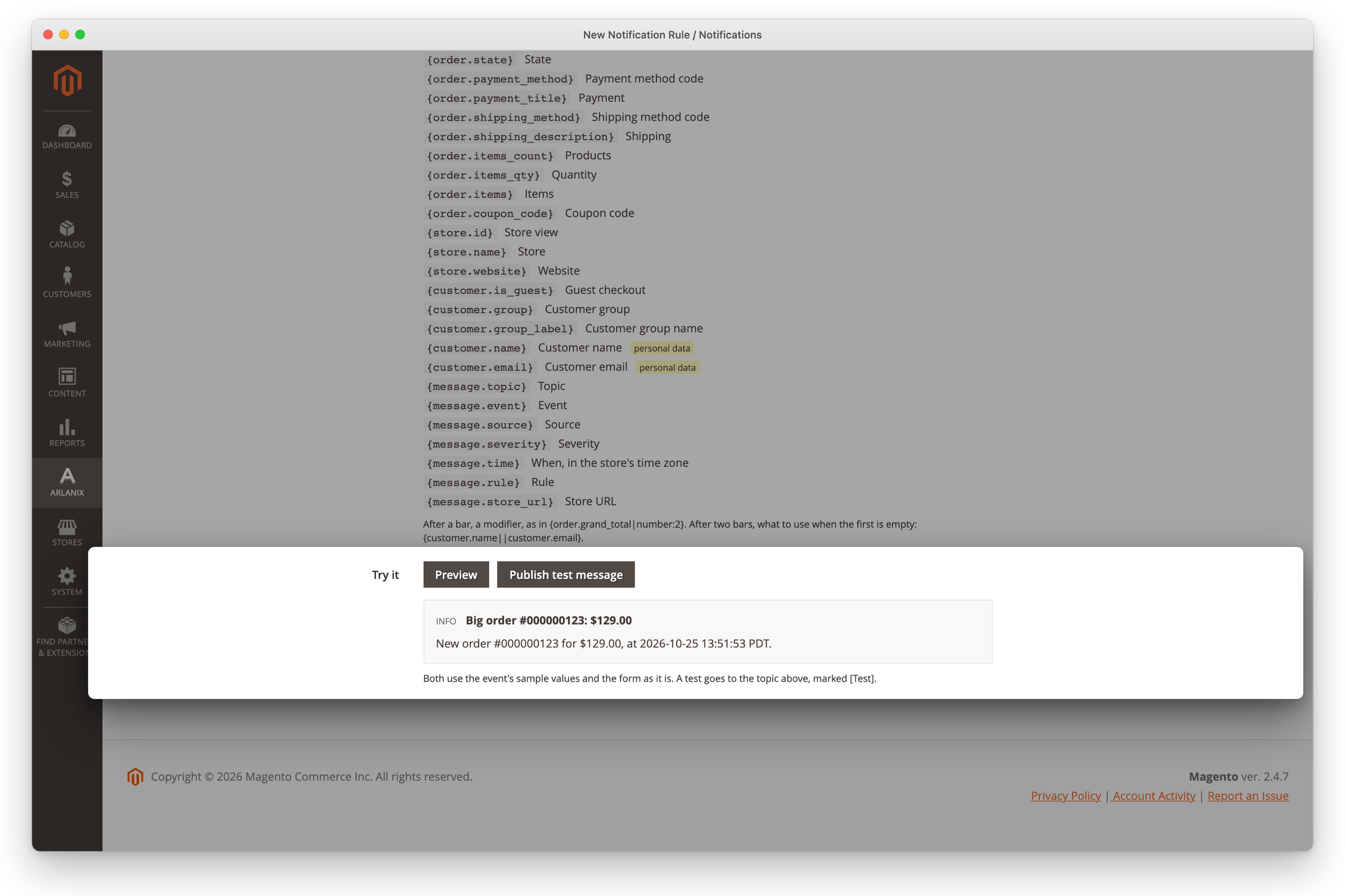
When Add details is off, you must fill in Body. The rule cannot be saved with an empty body.
Modifiers
A modifier changes how a field's value is shown. Write it after a vertical bar, for example {order.grand_total|number:2}.
You can also use these two forms:
- To use another field when the first one is empty, separate the two fields with two bars.
{customer.name||customer.email}shows the email when the name is empty. - To show a brace as plain text, put a backslash in front of it, for example
\{not a field\}.
The following modifiers are available:
| Modifier | What it does |
|---|---|
number, number:0 |
Formats a number. It shows two decimals, unless you give another number of decimals, such as number:0. |
currency, currency:EUR |
Formats an amount as money, the same way the store shows prices. For example, `{order.grand_total |
date:Y-m-d |
Formats a date. The format uses the PHP date() syntax. |
truncate:150 |
Shortens the text to this number of characters. It cuts at the end of a word. |
default:text |
Shows this text when the value is empty. |
upper, lower, ucfirst |
Changes the text to upper case or lower case, or makes the first letter a capital letter. |
prefix:text, suffix:text |
Adds text before or after the value. |
replace:from:to |
Replaces one piece of text with another. |
trim, strip_tags |
trim removes spaces at both ends. strip_tags removes HTML. |
If the subject or the body names a field the event does not have, or a modifier that does not exist, the rule cannot be saved. The error message names the field or the modifier.
Change or stop a rule
You can edit, stop or delete a rule:
- To edit a rule, click Select > Edit in its row.
- To stop a rule and keep its settings, switch Active off and save the rule.
- To delete a rule, click Select > Delete in its row, then confirm. The messages it sent stay in the Message Log.
- When you delete a topic, its rules are deleted too.
One event can have several rules. For example, one rule sends big orders to the sales team, and another rule sends orders paid by bank transfer to accounting. Each rule works on its own. For more rules to start from, see Rule examples.