For arlanix/notification 1.0.1
Screens and fields
Topic form
The topic form has these fields:
| Field | What it does |
|---|---|
| Name | The subject of the topic. It must be unique, so a second topic with the same name cannot be saved. Rules show topics by this name. |
| Description | Explains to subscribers what is published to the topic and when. |
| Delivers | When off, the topic is muted. The module drops every message published to it. |
| Subscriptions | Appears after you save the topic. It lists the topic's subscriptions. Add subscription and each row's Edit open the subscription form in a panel. Each row also has Send test message. |
Topics grid
The Topics grid has these columns:
| Column | Shows |
|---|---|
| ID | The topic's number. |
| Name, Description | The same as on the form. |
| Delivers | On or Off. |
| Active subscriptions | The number of the topic's subscriptions that are switched on. |
| Last message | When the last message was published to the topic. |
| Created, Updated | Hidden at first. To show them, choose them under Columns. |
The Select menu of each row has these actions:
- Edit.
- Add subscription. Opens a subscription form for this topic.
- Publish test message.
- Delete. Also deletes the topic's subscriptions and rules.
Subscription form
The subscription form has these fields:
| Field | What it does |
|---|---|
| Name | Who gets the messages. The grid and the Message Log show this name. |
| Topic | The topic whose messages the subscription gets. |
| Gets | Everything, Warnings and errors or Errors only. |
| Active | When off, the module stops sending to the subscription and keeps its settings. |
| Delivered by | How the messages are sent: Email, Telegram, Slack or Discord. The list shows only the methods your developer installed. |
| Test | Shows the result of the last delivery, and has the Send test message button. |
When Delivered by is Email, the form has this field:
| Field | What it does |
|---|---|
| One email address. For several people, add one subscription for each person. |
When Delivered by is Telegram, the form has these fields:
| Field | What it does |
|---|---|
| Bot | The store's bot, which is set up in the settings, or A bot of its own. |
| Bot token | Only for a bot of its own. The token is stored encrypted and is never shown. Leave it empty to keep the stored token. |
| Chat | The chat's number, or the @username of a public channel. |
| Find chats | Lists the chats that wrote to the bot in the last day. When you choose one, it fills in Chat and Chat name. |
| Chat name | The name that the grid and the Message Log show instead of the chat's number. |
When Delivered by is Slack, the form has these fields:
| Field | What it does |
|---|---|
| Webhook URL | The channel's incoming webhook. It is stored encrypted and is never shown. Leave it empty to keep the stored webhook. |
| Channel | The name that the grid and the Message Log show, such as #store-alerts. |
When Delivered by is Discord, the form has these fields:
| Field | What it does |
|---|---|
| Webhook URL | The channel's webhook. It is stored encrypted and is never shown. Leave it empty to keep the stored webhook. |
| Channel | The name that the grid and the Message Log show, such as #store-alerts. |
Subscriptions grid
The Subscriptions grid has these columns:
| Column | Shows |
|---|---|
| ID | The subscription's number. |
| Name, Topic, Gets, Active | The same as on the form. |
| Delivered by | How the messages are sent, with an icon. |
| Sent to | The email address, the Telegram chat's name, or the Slack or Discord channel. It never shows a token or a webhook. |
| Last delivery | Sent, Failed with the server's reply, or Nothing sent yet, and the time. |
| Created, Updated | Hidden at first. To show them, choose them under Columns. |
The Select menu of each row has Edit, Send test message and Delete.
Rule form
The rule form has these fields:
| Field | What it does |
|---|---|
| Name | What the rule is for. The grid and the Message Log show this name. |
| Event | What happens in the store that the rule reacts to. See Events. |
| Topic | The topic the rule sends its message to. |
| Severity | As the event says, or Info, Warning or Error. |
| Active | When off, the rule stops sending and keeps its settings. |
| Conditions | When the rule sends. With no conditions, it sends every time. Otherwise, it sends when ALL or ANY of the conditions are met. |
| Subject, Body | The text of the message. When empty, the rule uses the event's own text. Put field names in braces, as the Variables list shows them. |
| Add details | When on, the module adds the event's fields, the topic, the source and the time below the body. When off, the message has only the subject and the body, and you must fill in Body. |
| Variables | The event's fields, with personal data marked, followed by the message variables, such as {message.topic}. |
| Try it | Preview shows the message with sample values. Publish test message sends it to the topic. |
Rules grid
The Rules grid has these columns:
| Column | Shows |
|---|---|
| ID | The rule's number. |
| Name, Event, Topic, Severity, Active | The same as on the form. |
| Last sent | When the rule last published a message. |
| Created, Updated | Hidden at first. To show them, choose them under Columns. |
The Select menu of each row has Edit and Delete.
Message Log
The Message Log grid has these columns:
| Column | Shows |
|---|---|
| Published | When the message was published. |
| Topic | The topic's name at the time the message was published. |
| Severity | Info, Warning or Error. |
| Subject | The subject of the message. |
| Source | Who published the message. This is the module that published it, or CLI for a message sent from the command line. For a rule's message, it is the code of the event, such as sales_order_placed. |
| Rule | The rule that sent the message, if a rule sent it. |
| Outcome | Sent, On its way, Failed, Skipped or No subscribers, with each delivery listed below. |
Click View in a row to open the message and its deliveries. A delivery that failed, or that waits to be tried again, has a Retry now button.
Settings
To find these settings, go to Stores > Configuration > Arlanix > Notifications.
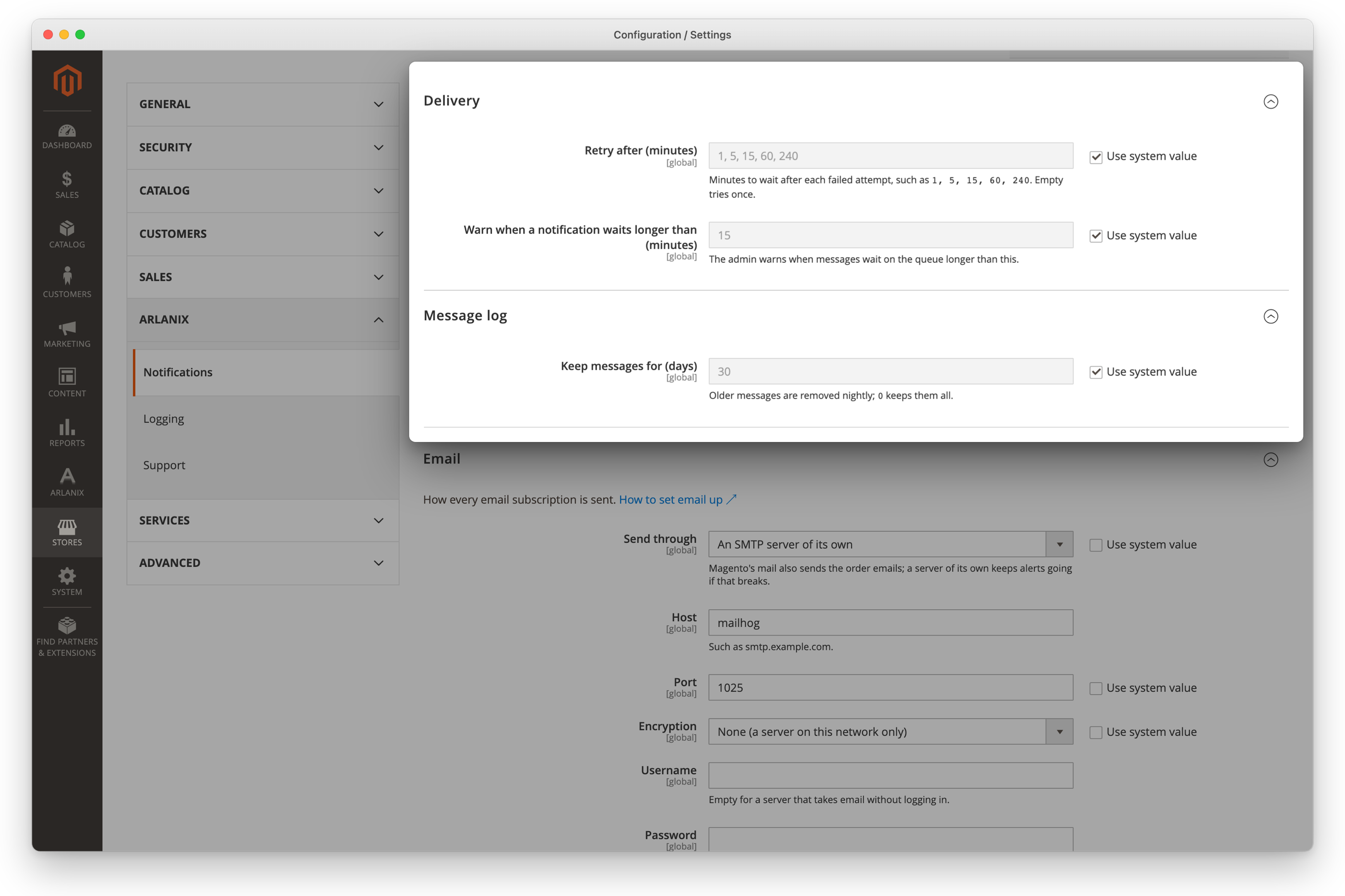
| Setting | Default | What it does |
|---|---|---|
| Delivery > Retry after (minutes) | 1, 5, 15, 60, 240 | How long the module waits after each failed attempt. Leave it empty to try only once. |
| Delivery > Warn when a notification waits longer than (minutes) | 15 | After this time, the admin warns that nothing is sending notifications. |
| Message log > Keep messages for (days) | 30 | Every night, the module removes messages older than this. Enter 0 to keep all messages. |
| Email > Send through | Magento's mail | Choose An SMTP server of its own to send through your own server, with its host, port, encryption, login and timeout. See Email. |
| Email > Sender email, Sender name | Who the emails come from. If you send through Magento's mail and leave Sender email empty, the emails come from the store's General Contact, with its name. | |
| Telegram > Bot token, Bot API server | The store's bot. See Telegram. | |
| Monitoring | Cron stopped after (minutes), Health check key and Application errors from. See Monitoring. | |
| Order flow | Watch the orders, and the numbers that decide when Orders stopped is sent. Each store view can have its own values. See Monitoring. |