For arlanix/notification 1.0.1
Your first rule
Every notification needs three things. Each one answers a question:
| Answers | In this example | |
|---|---|---|
| Topic | What is it about? | Orders |
| Subscription | Who gets it, and how? | The sales team, by email |
| Rule | When is it sent? | A new order of $100 or more |
A rule sends a message to a topic. The topic passes the message to each of its subscriptions. For example, when a customer places an order of $117:
- The order starts the New order event.
- The rule Big orders to the sales team matches the event and sends a message to the topic Orders.
- The topic passes the message to its subscription Sales team.
- The module sends the message to the subscription's email address.
A topic can have any number of subscriptions, and each subscription has its own address and delivery method. Any number of rules can send to the same topic.
On this page, you make one topic, one subscription and one rule, and then see an order message arrive. It takes about ten minutes.
1. Make the topic
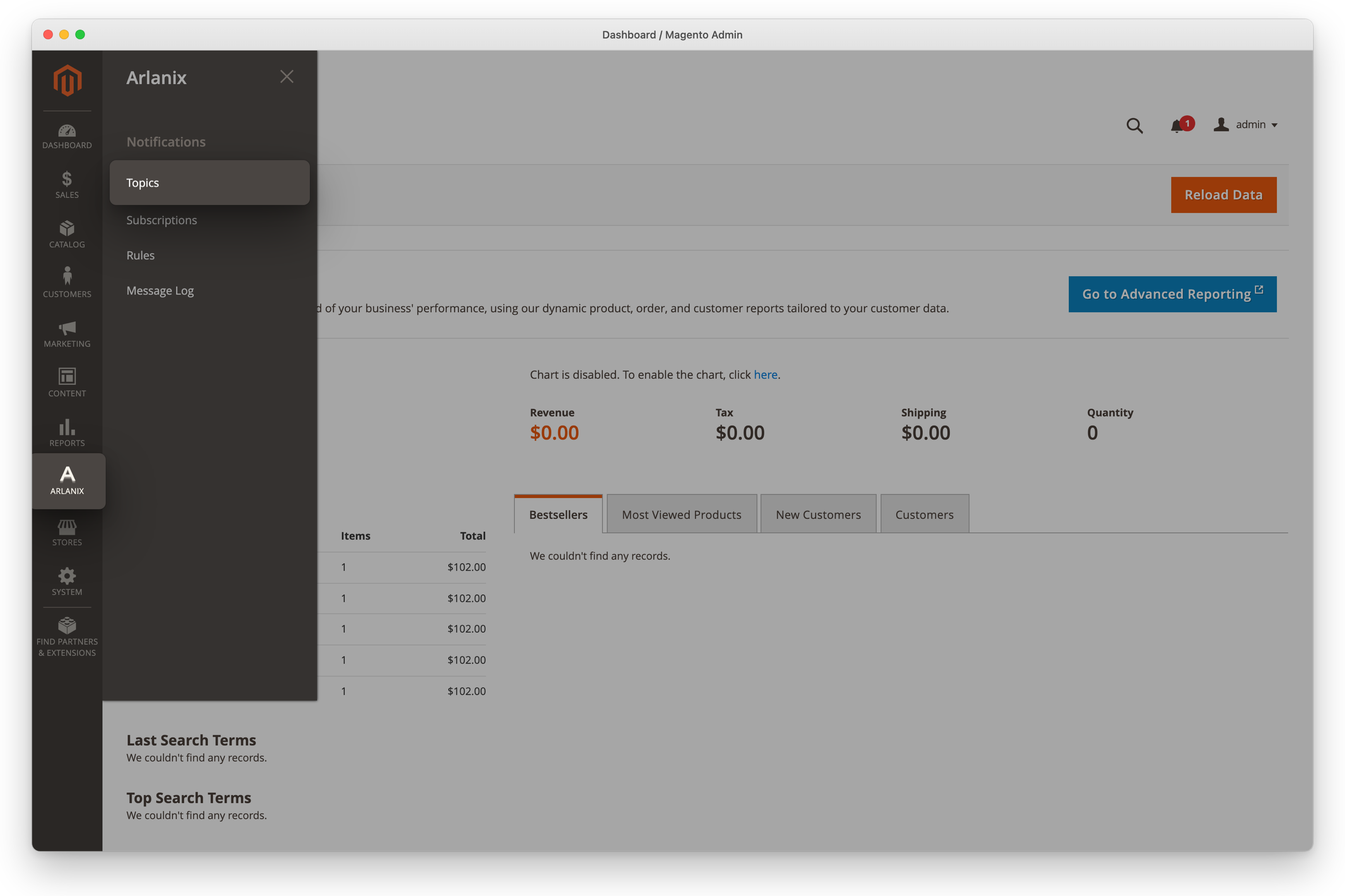
Open Arlanix > Notifications > Topics.
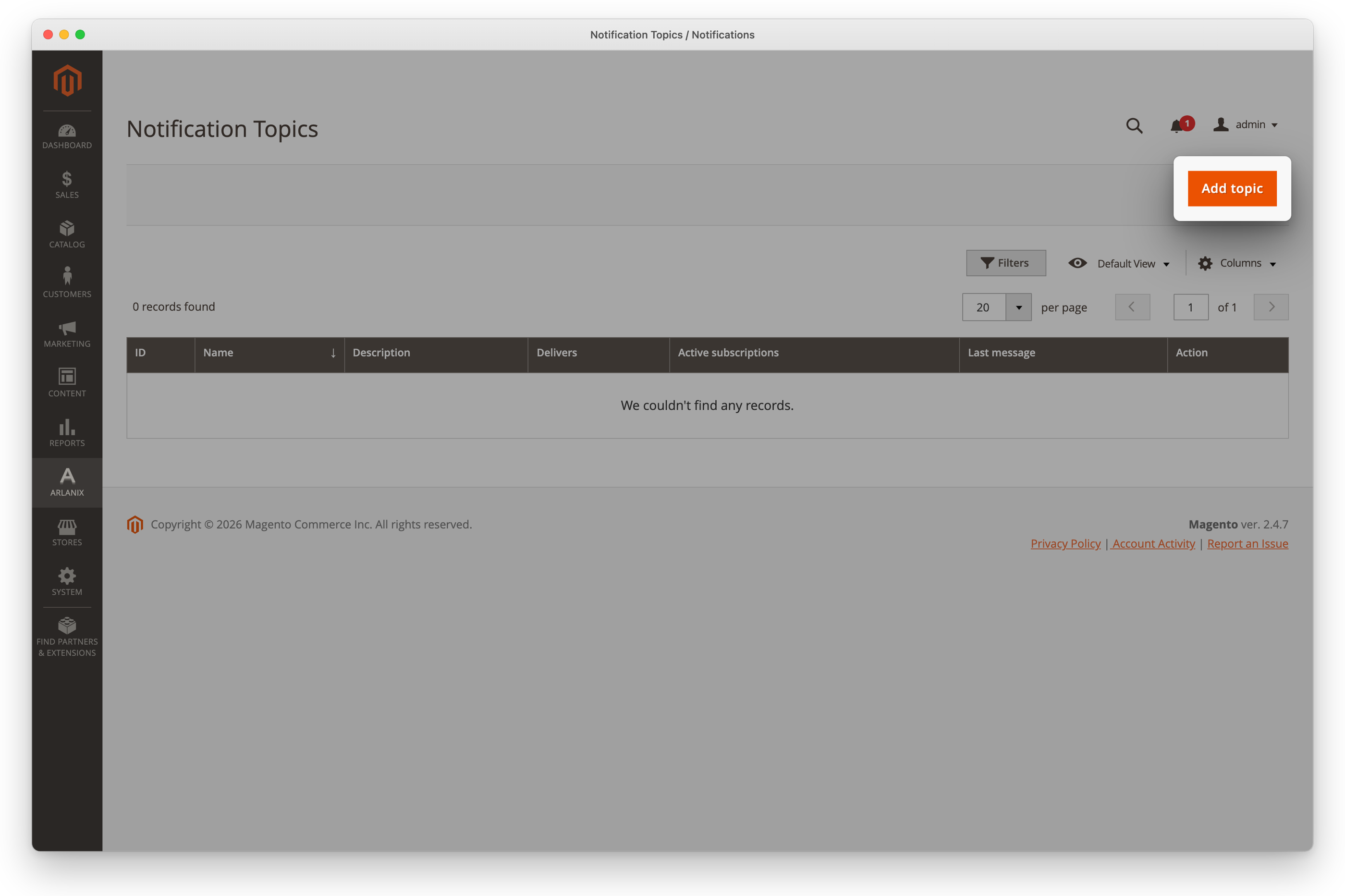
Click Add topic.
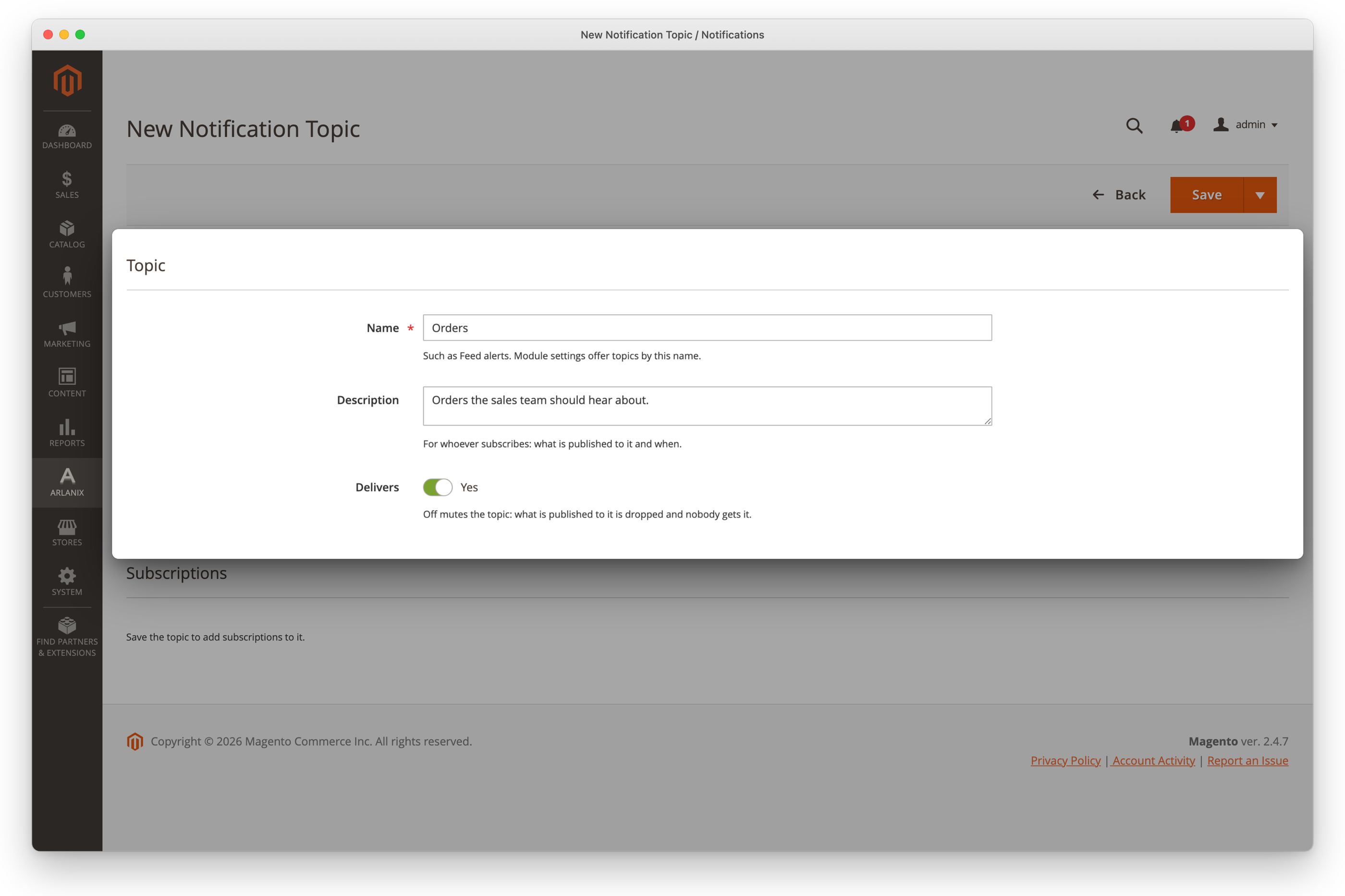
In Name, enter Orders.
In Description, describe what is sent to this topic. This helps people who subscribe later.
Leave Delivers on.
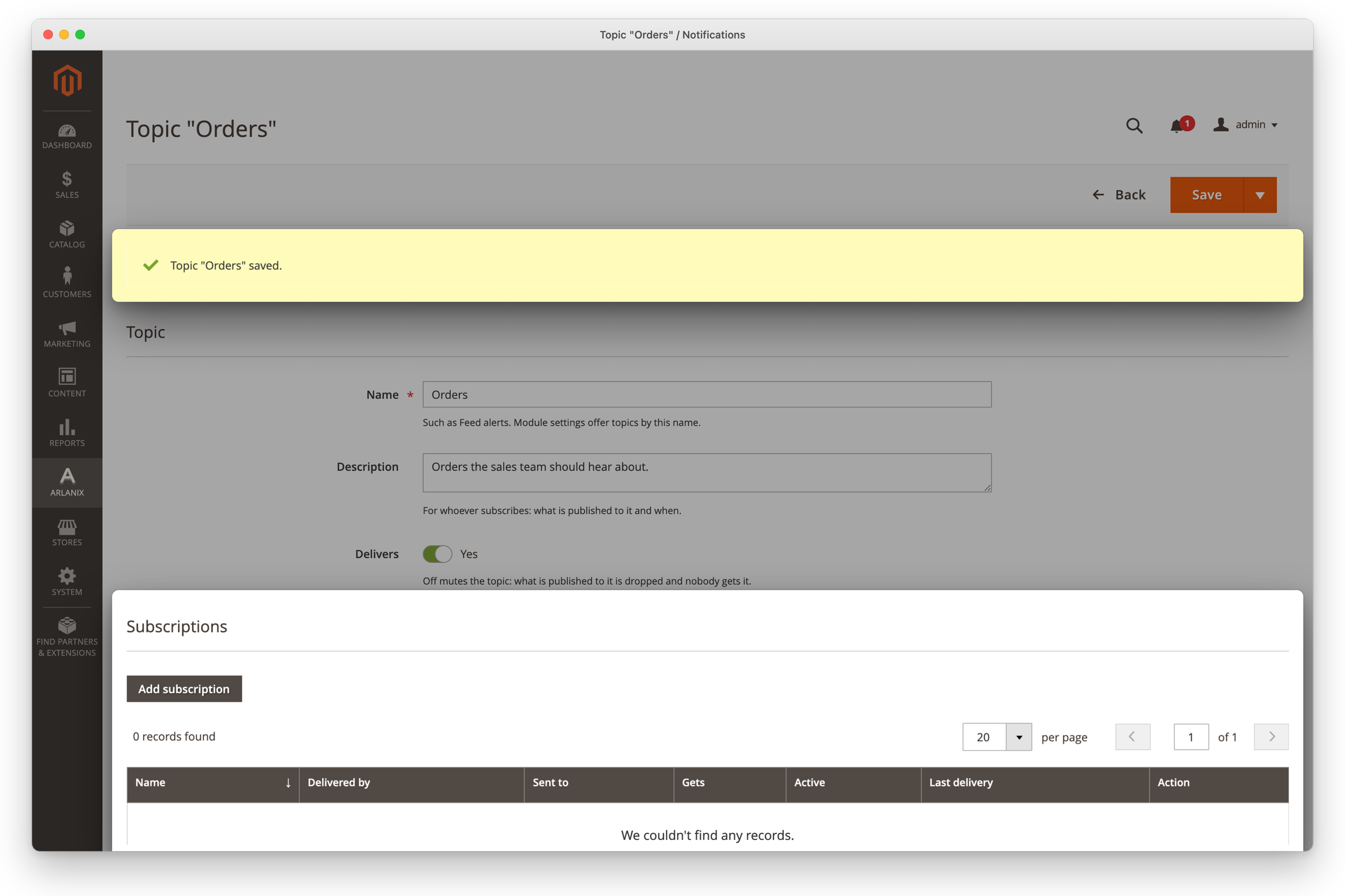
Click Save. The topic's page stays open, and now shows a Subscriptions section.
2. Subscribe the sales team
Under Subscriptions, click Add subscription. The subscription form opens in a panel. The topic is already filled in.
In Name, enter who gets the messages: Sales team.
Leave Gets on Everything.
Under Delivery, leave Delivered by on Email.
In Email, enter one email address, such as [email protected]. Use your own address for now.
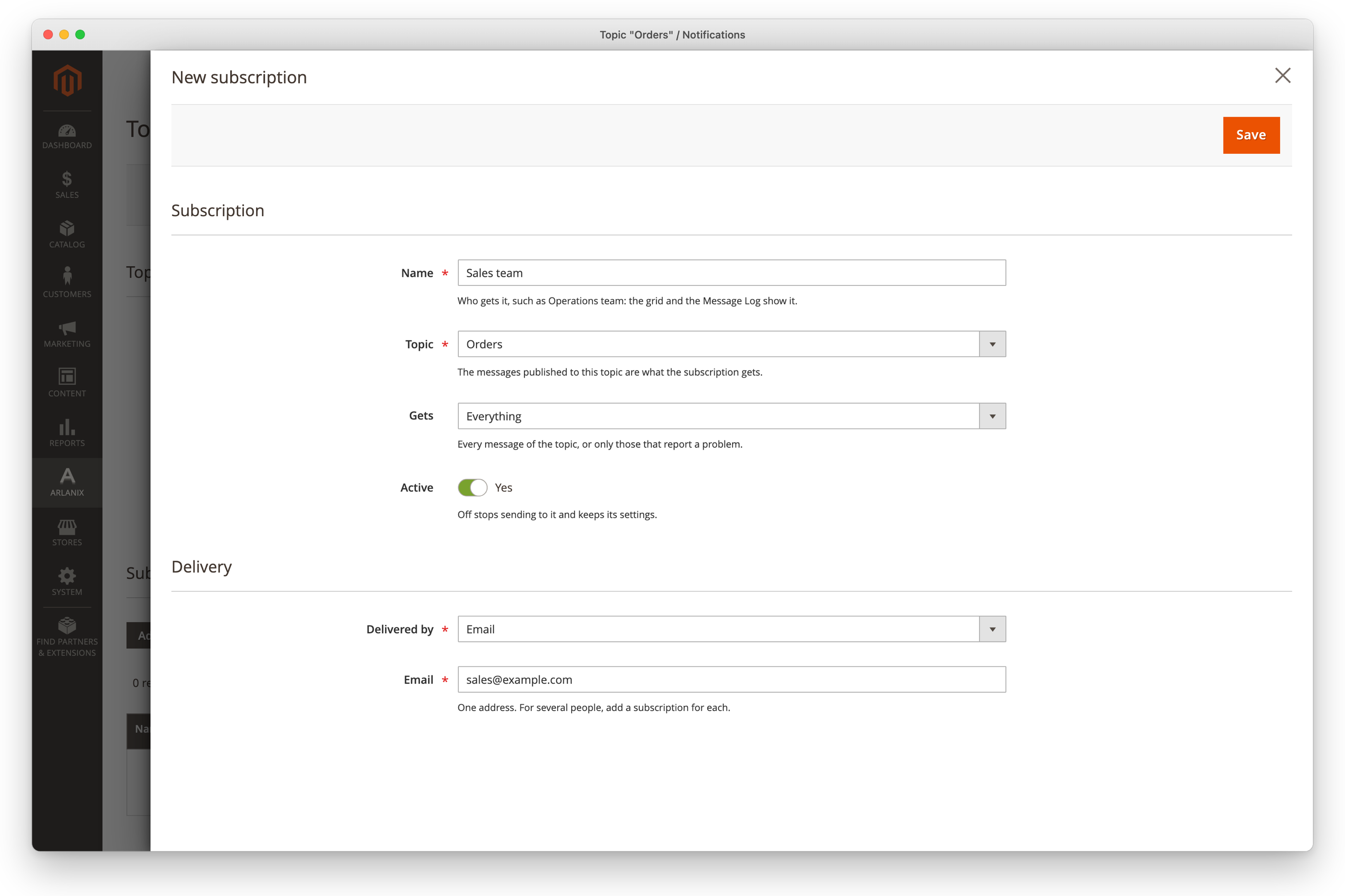
Click Save in the panel. The panel closes, and the topic's page lists the subscription. Its Last delivery shows Nothing sent yet.
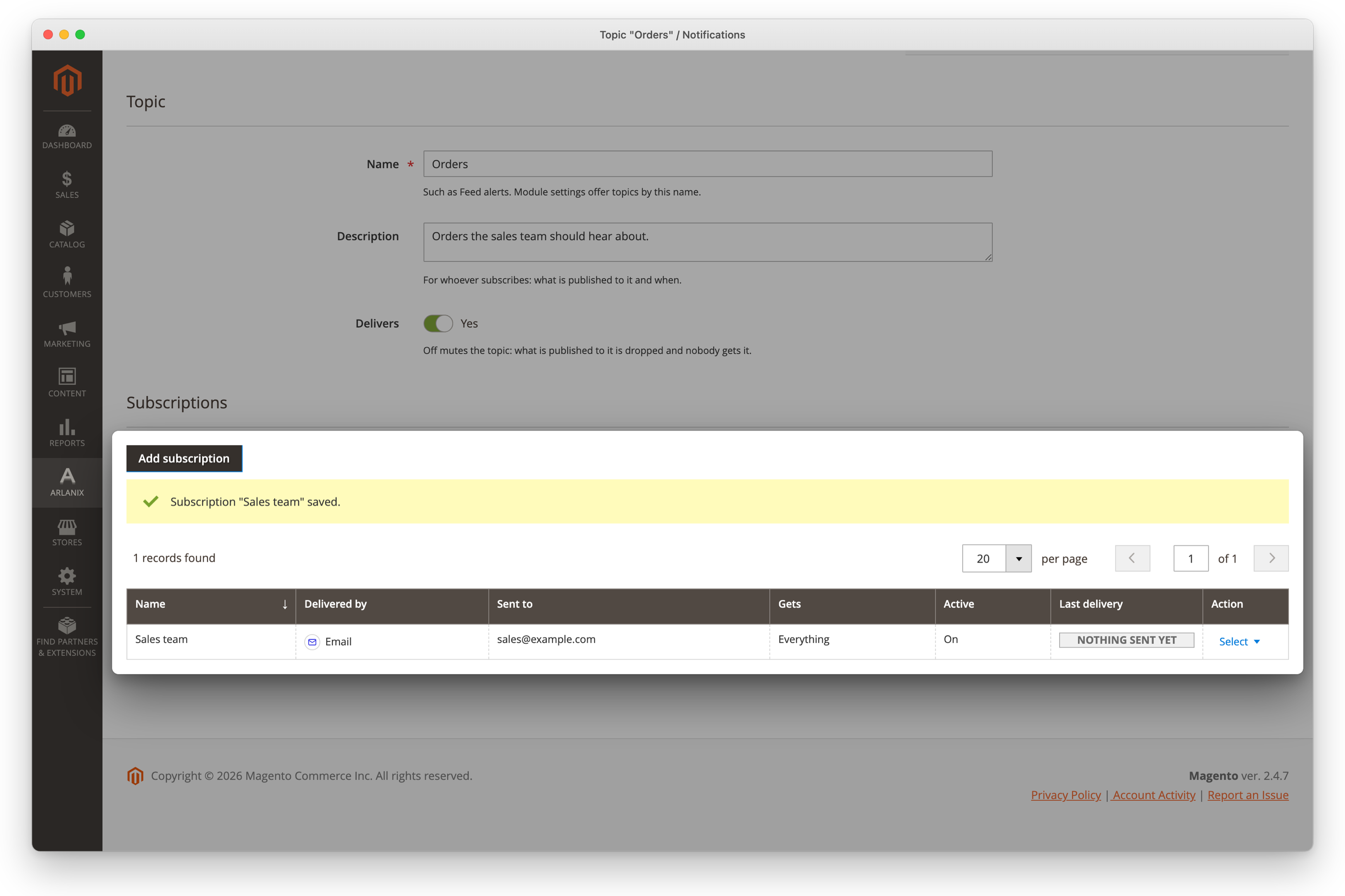
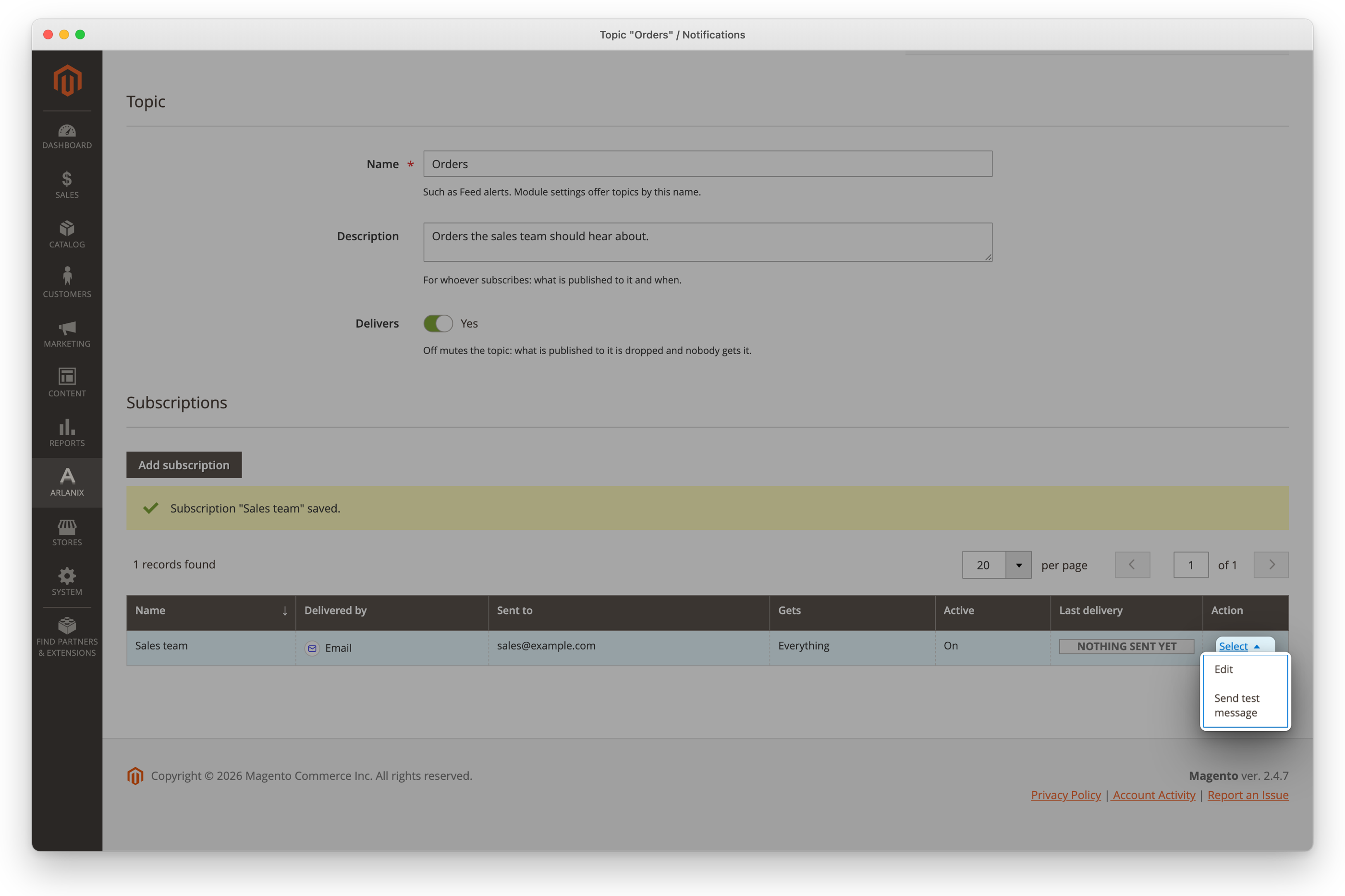
In the subscription's row, click Select, then click Send test message.
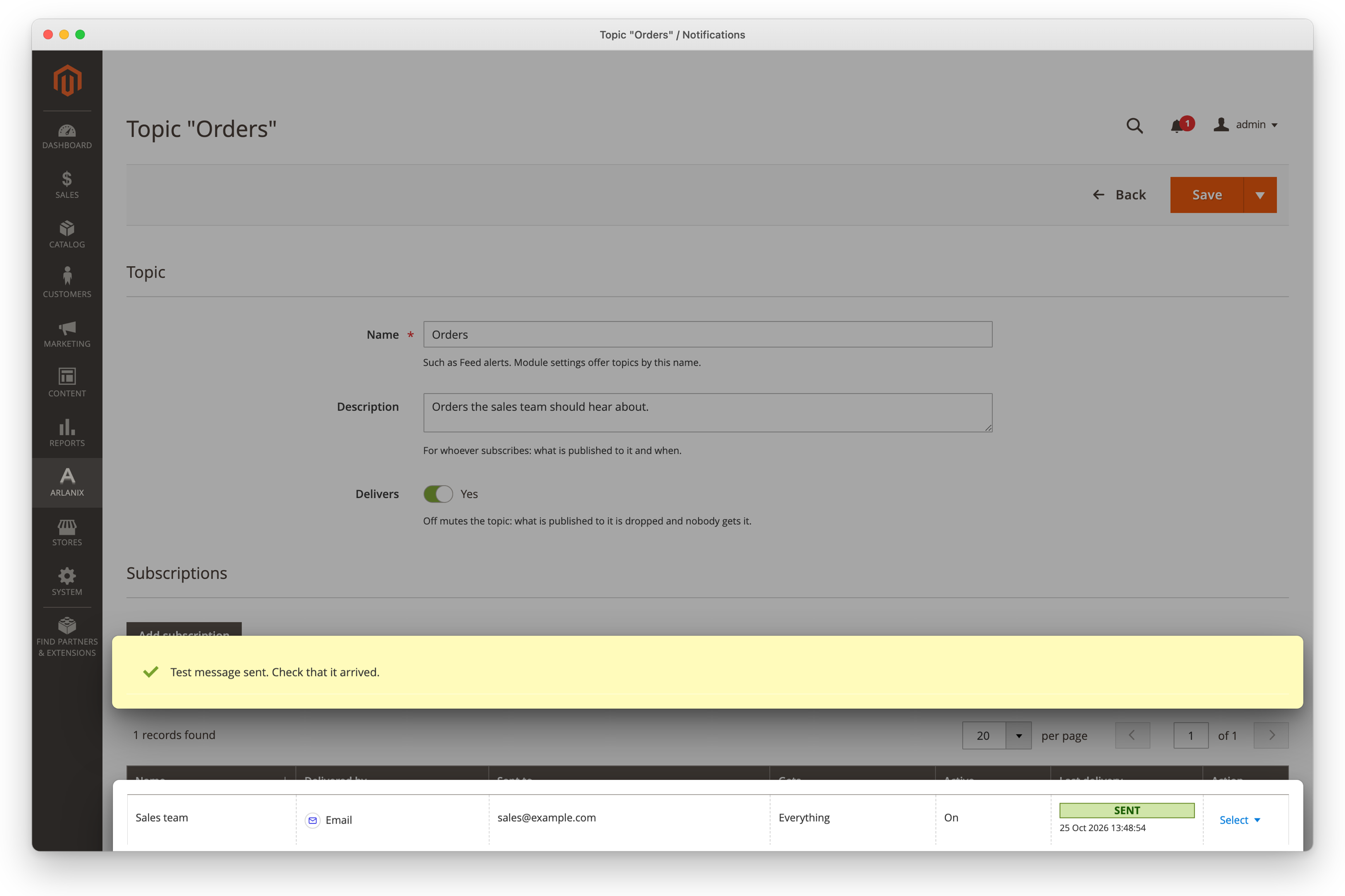
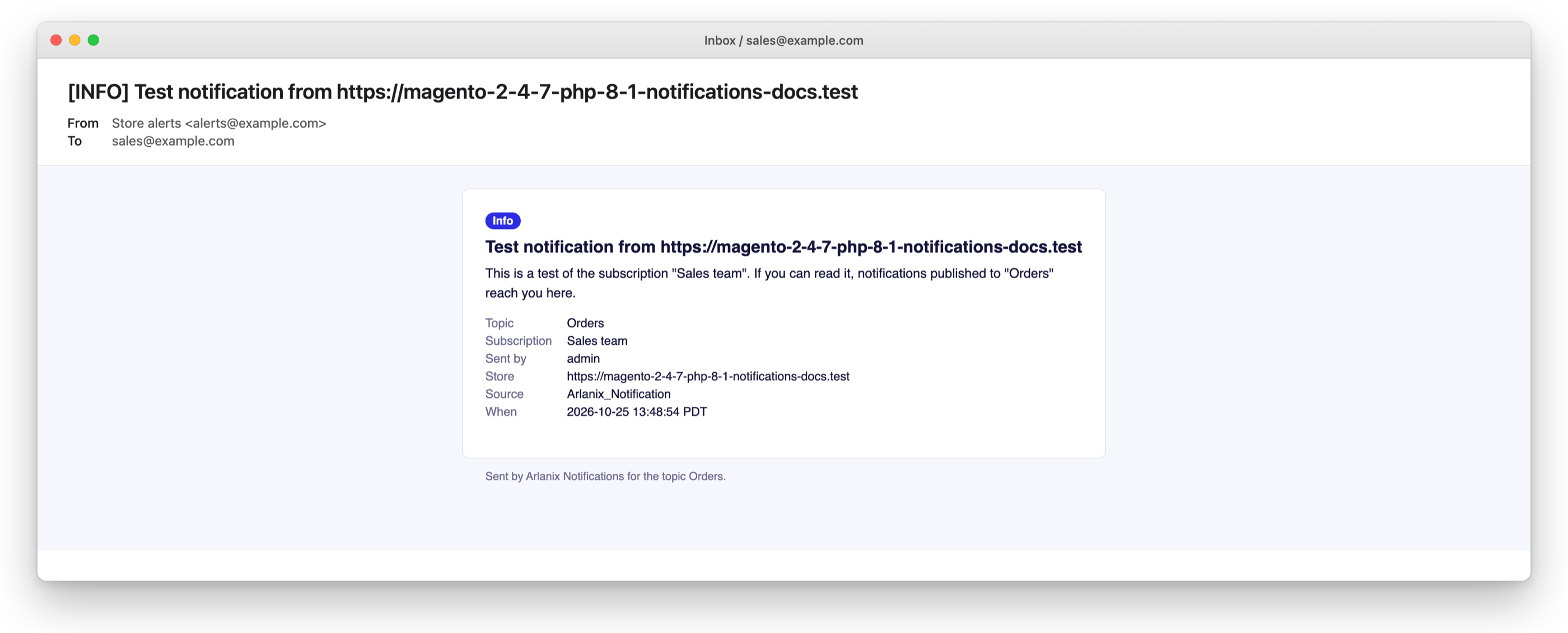
Above the list, the page shows Test message sent. Check that it arrived. The row's Last delivery shows that the message was sent.
Check your inbox. The test email arrives. This means that messages sent to Orders reach this address.
3. Make the rule
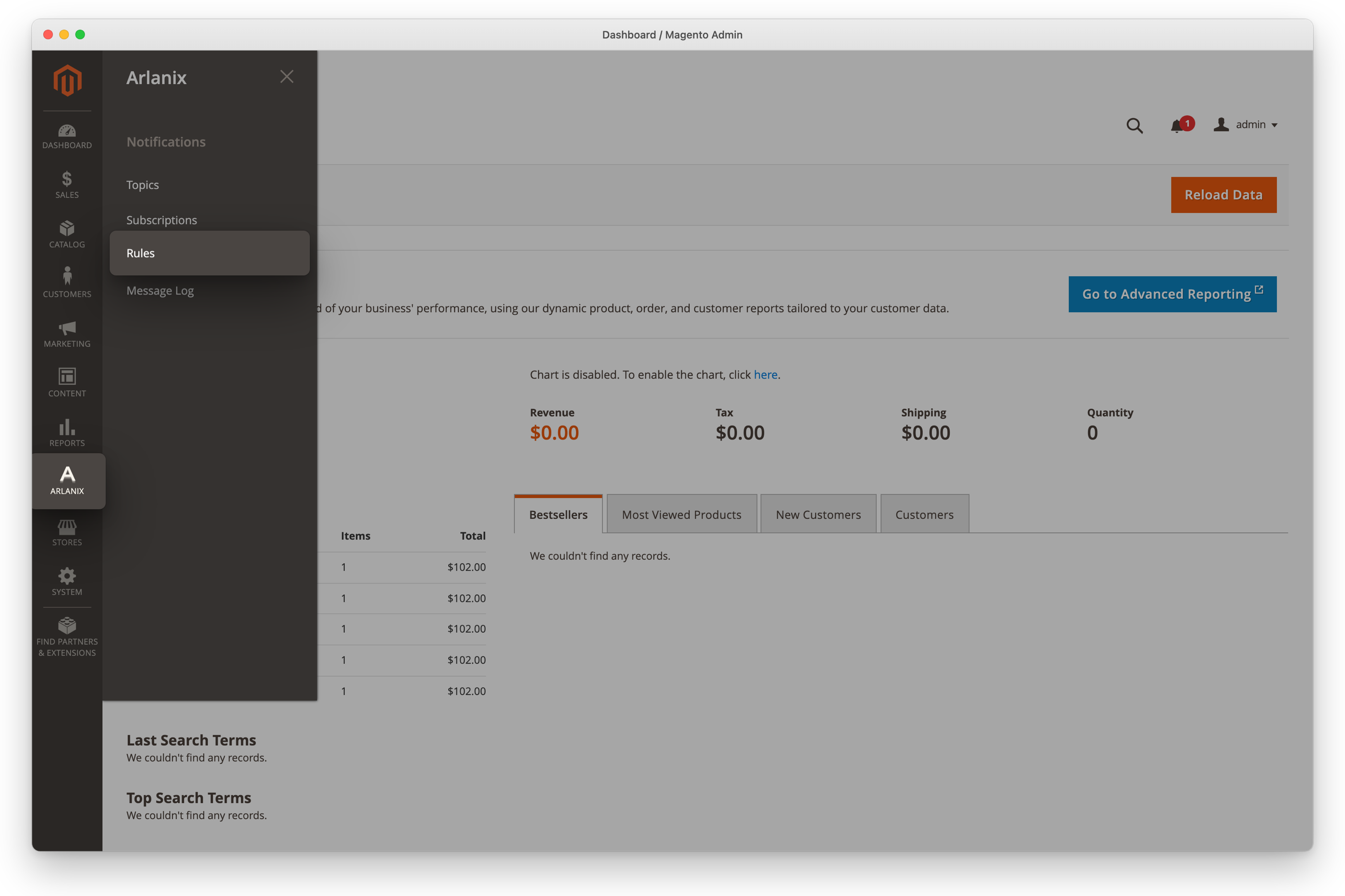
Open Arlanix > Notifications > Rules.
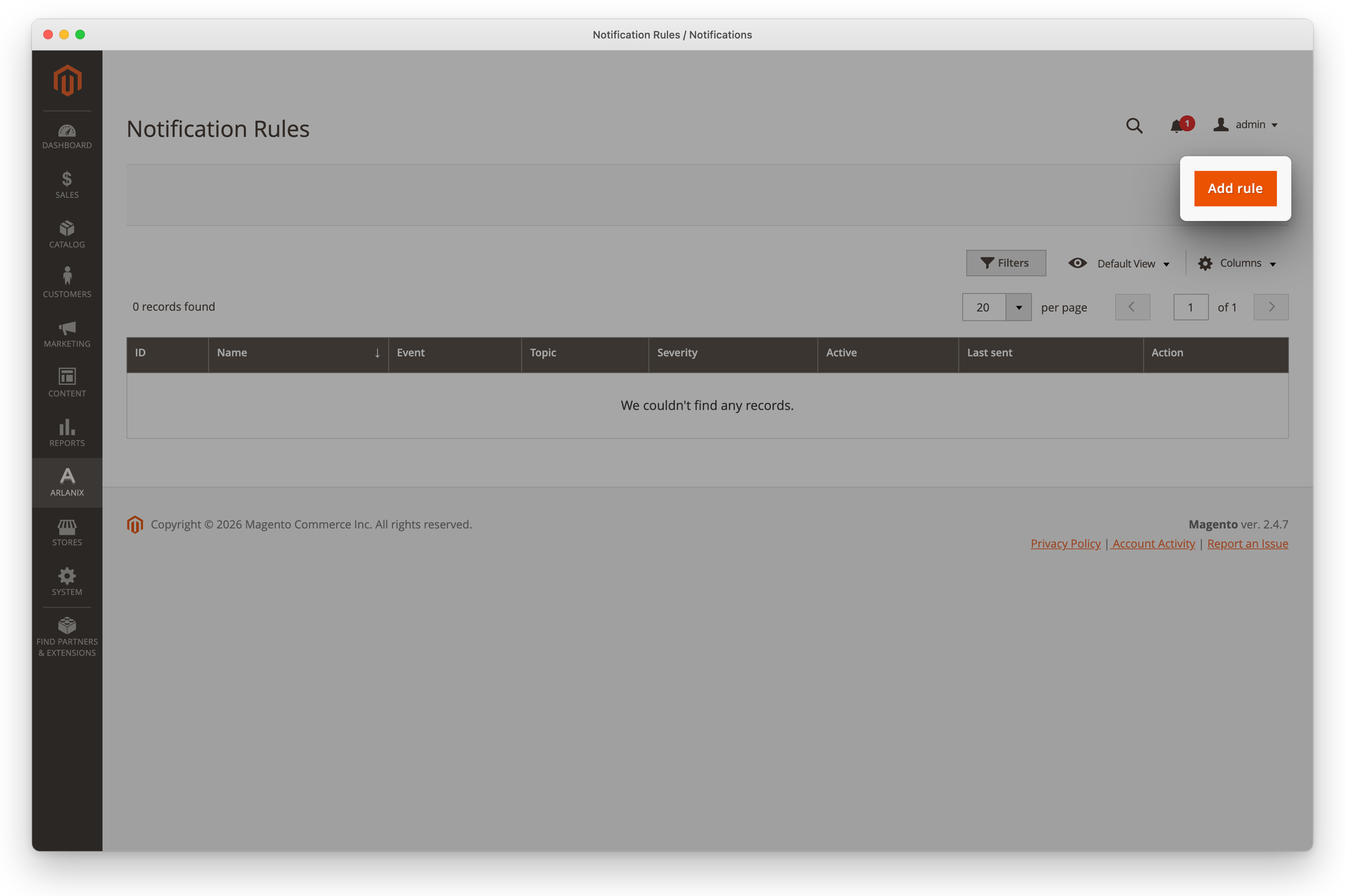
Click Add rule.
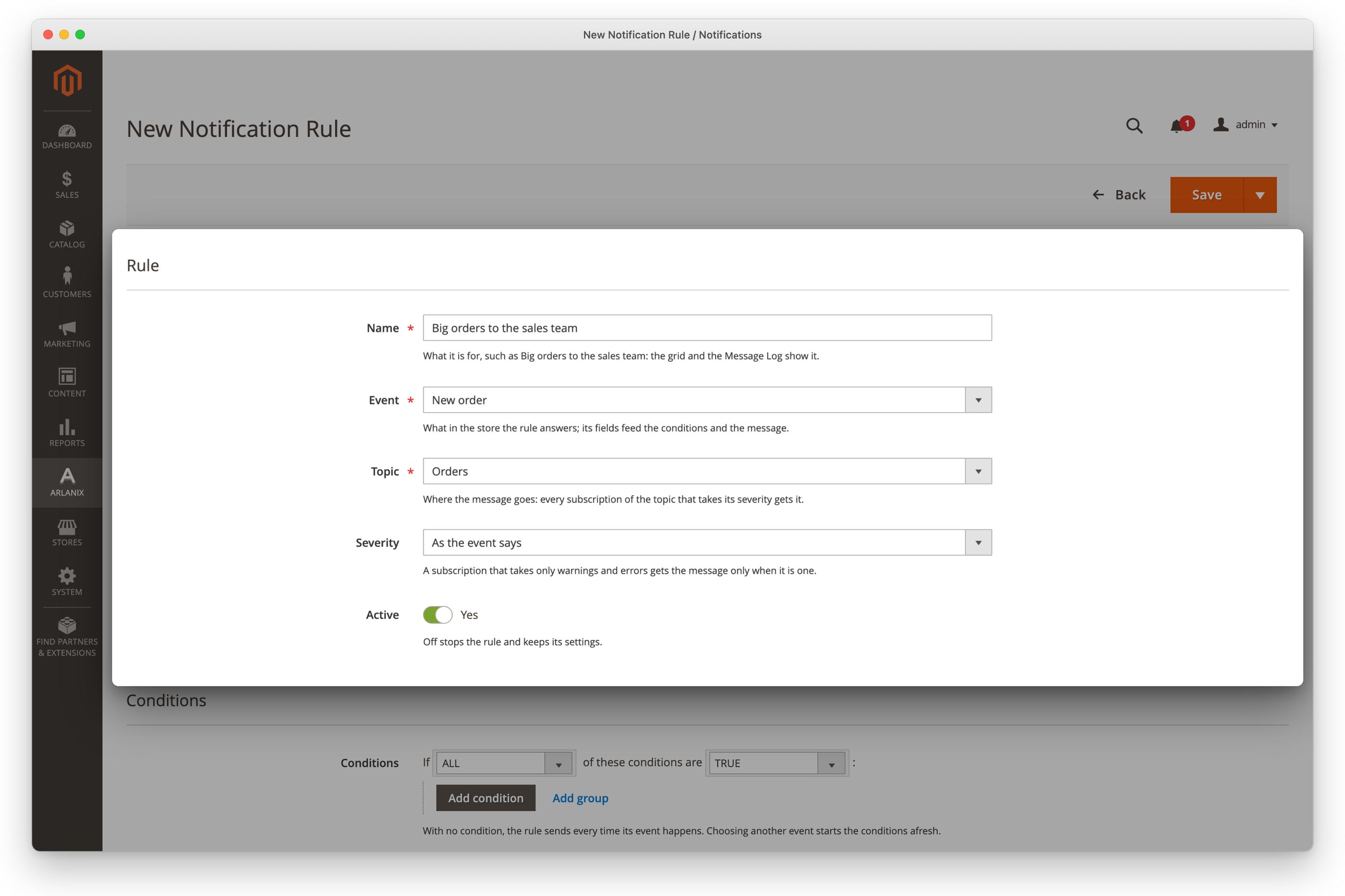
In Name, enter Big orders to the sales team. The Rules grid and the Message Log show this name.
In Event, choose New order.
In Topic, choose Orders. This is where the message goes.
Under Conditions, click Add condition and choose Grand total, equals or greater than, 100. Without a condition, the rule sends a message for every order.
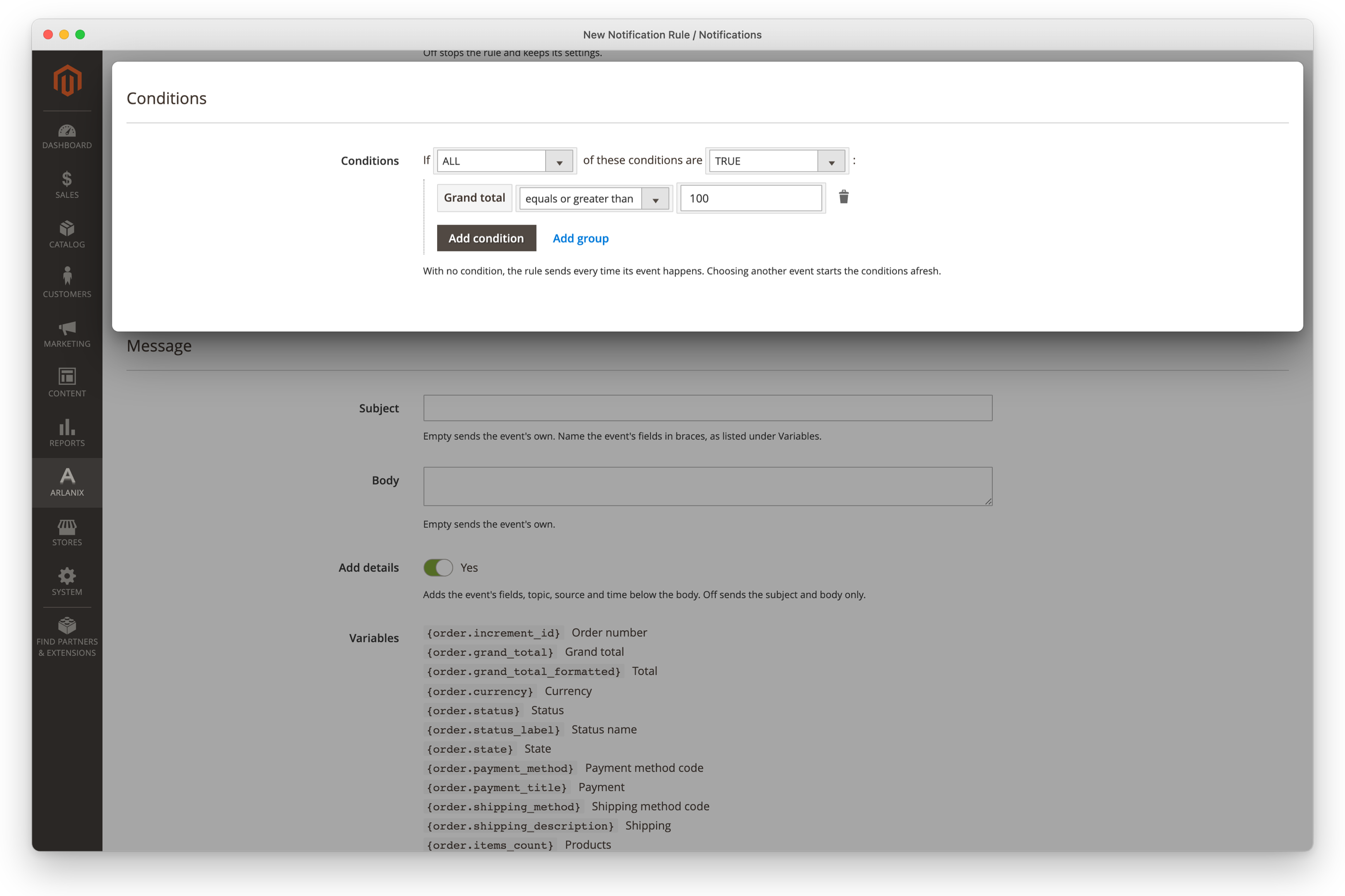
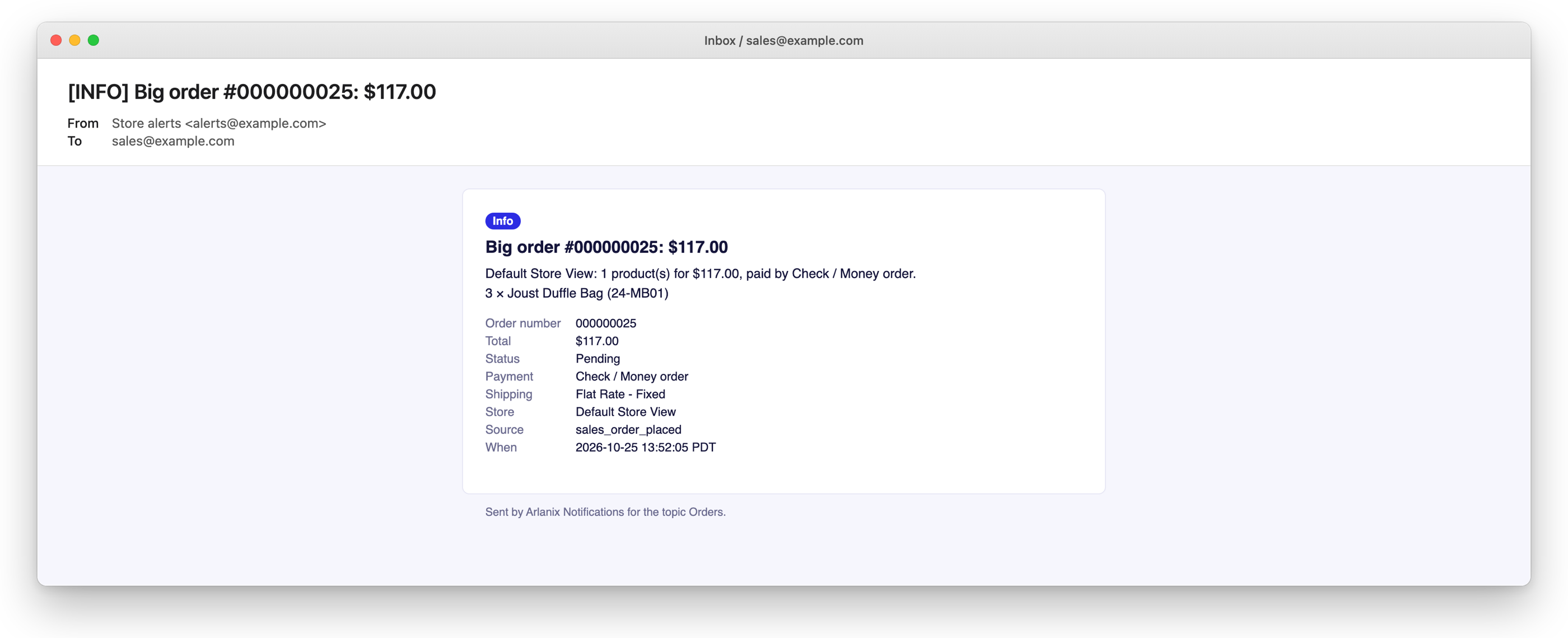
Under Message, in Subject, enter Big order #{order.increment_id}: {order.grand_total_formatted}. The names in braces are the order's fields. The module replaces them with the order's values. If you leave Subject empty, the module uses the event's own subject.
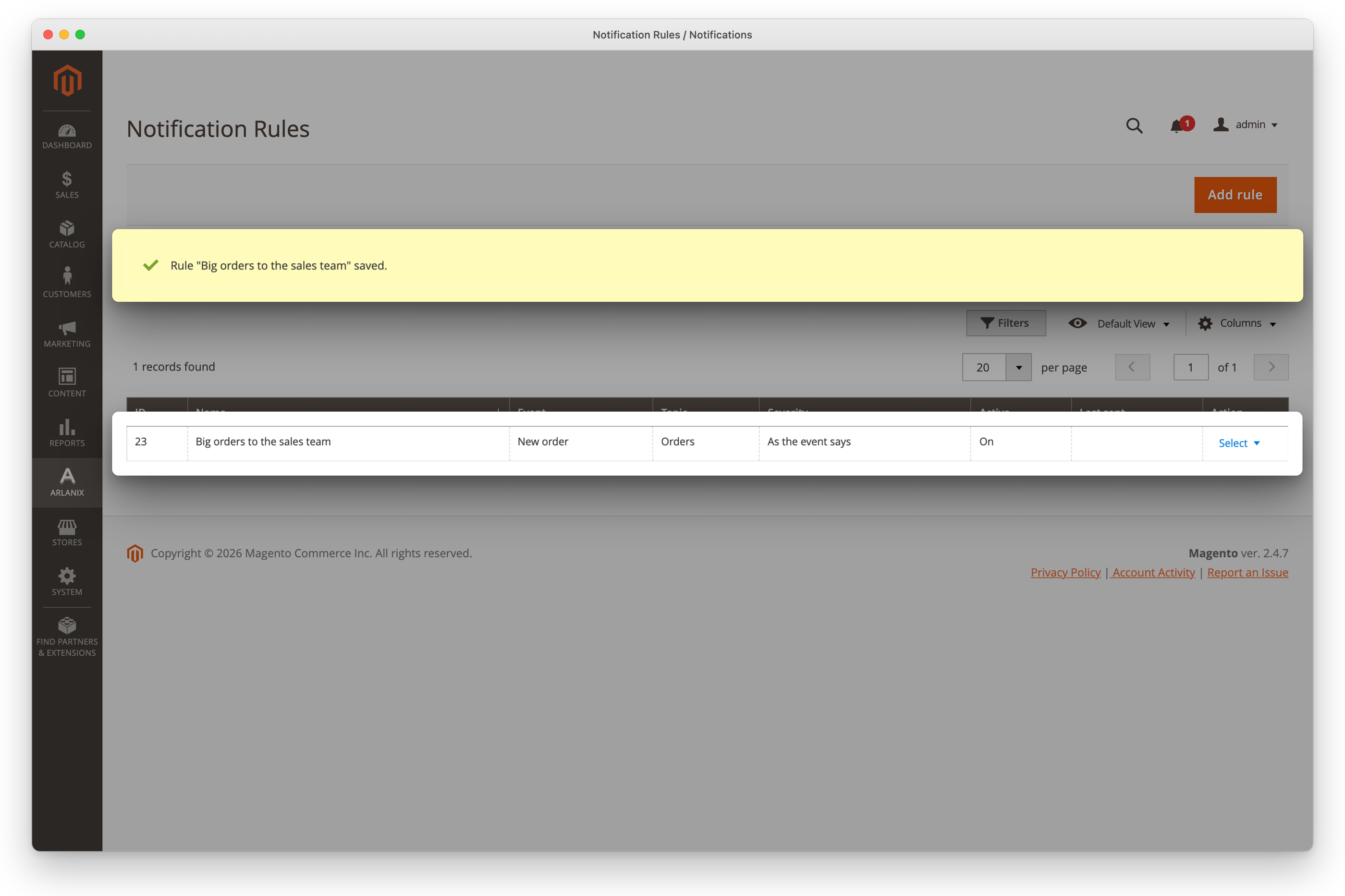
Click the arrow beside Save, then click Save & Close. The Rules grid lists the rule.
4. Check that it works
Place an order of $100 or more in the store. The email usually arrives within a minute.
To test the rule without placing an order, open the rule and click Publish test message. The module sends the message to Orders with sample values, and marks it [Test].
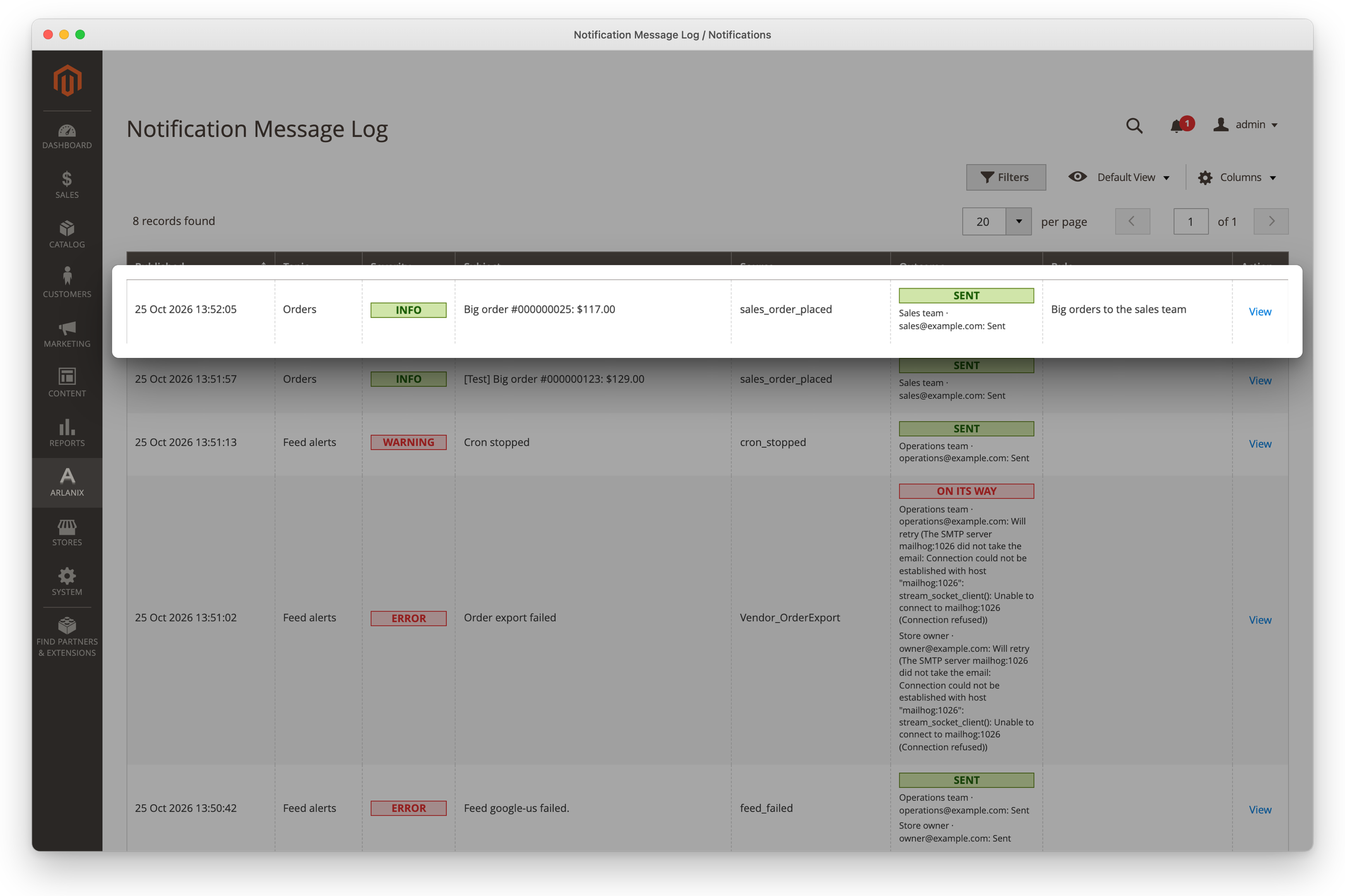
Open the Message Log. It lists the message, the rule that sent it and who got it.
What to do next
You can now:
- Subscribe more people to Orders. Each person can get messages in a different way: an email address, a Telegram chat, or a Slack or Discord channel. A subscription that should only get problems can take only warnings and errors. See Subscriptions.
- Add rules for other events, to this topic or to a new one. For example, get a message about the store's health. See Rules.
- Get a message when a product feed fails or delivers again. Arlanix Product Feed adds its own events. Get told when a feed fails has rules that you can copy.