For arlanix/notification 1.0.1
Discord
A Discord subscription sends a topic's messages to one Discord channel. It posts through a webhook, a web address that Discord makes for the channel.
Discord needs the module arlanix/module-notification-discord, which your developer installs. You do not set anything up in Stores > Configuration. Each subscription has its own webhook.
1. Make a webhook
To make a webhook, you need the Manage Webhooks permission on the Discord server. The server's owner has it. If you do not have it, ask the owner or an admin for one of these:
- A role with the permission. In Server Settings > Roles, they open the role, then Permissions, turn on Manage Webhooks, and give you the role.
- The webhook itself. They make it with the following steps and send you its URL.
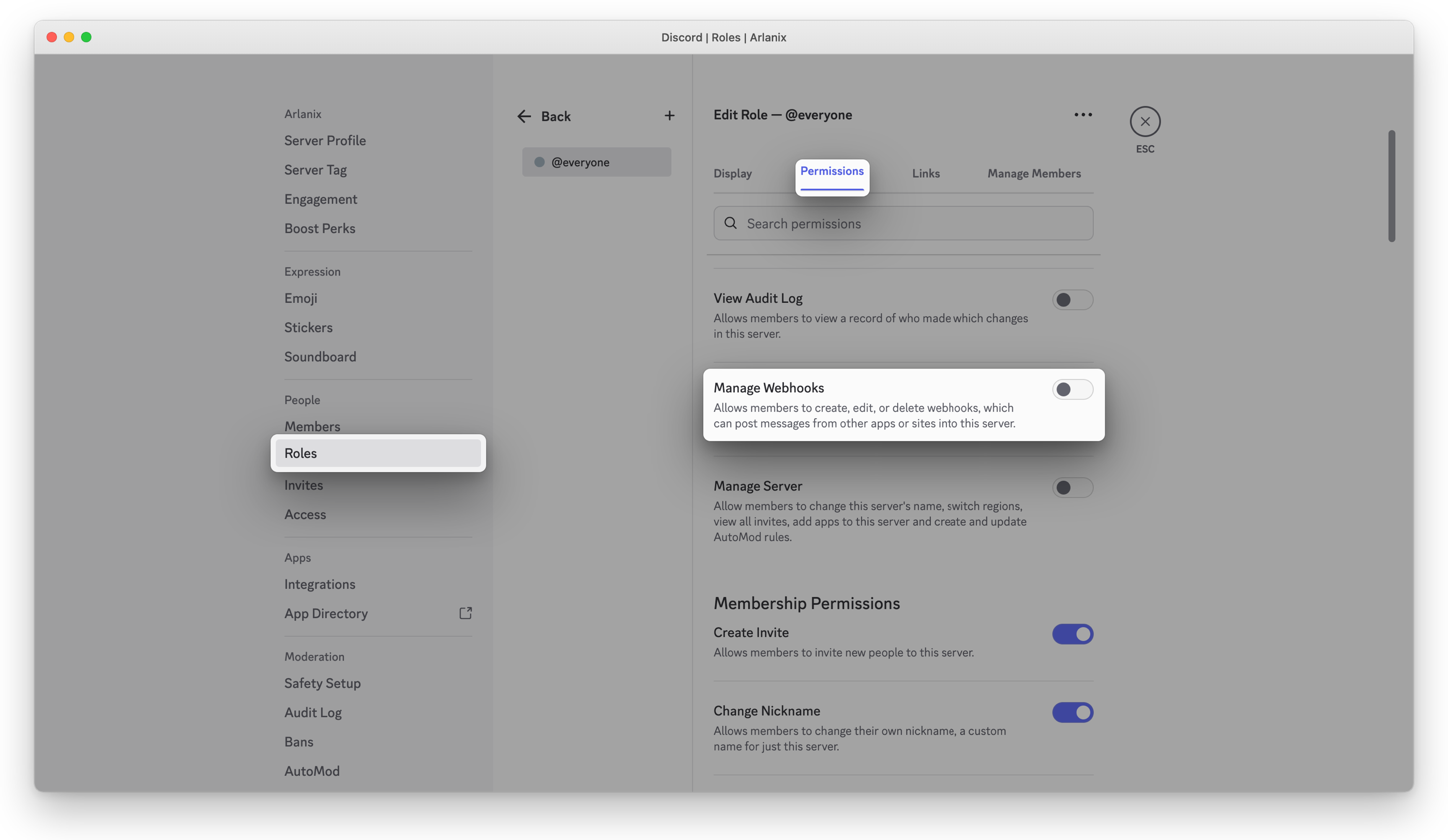
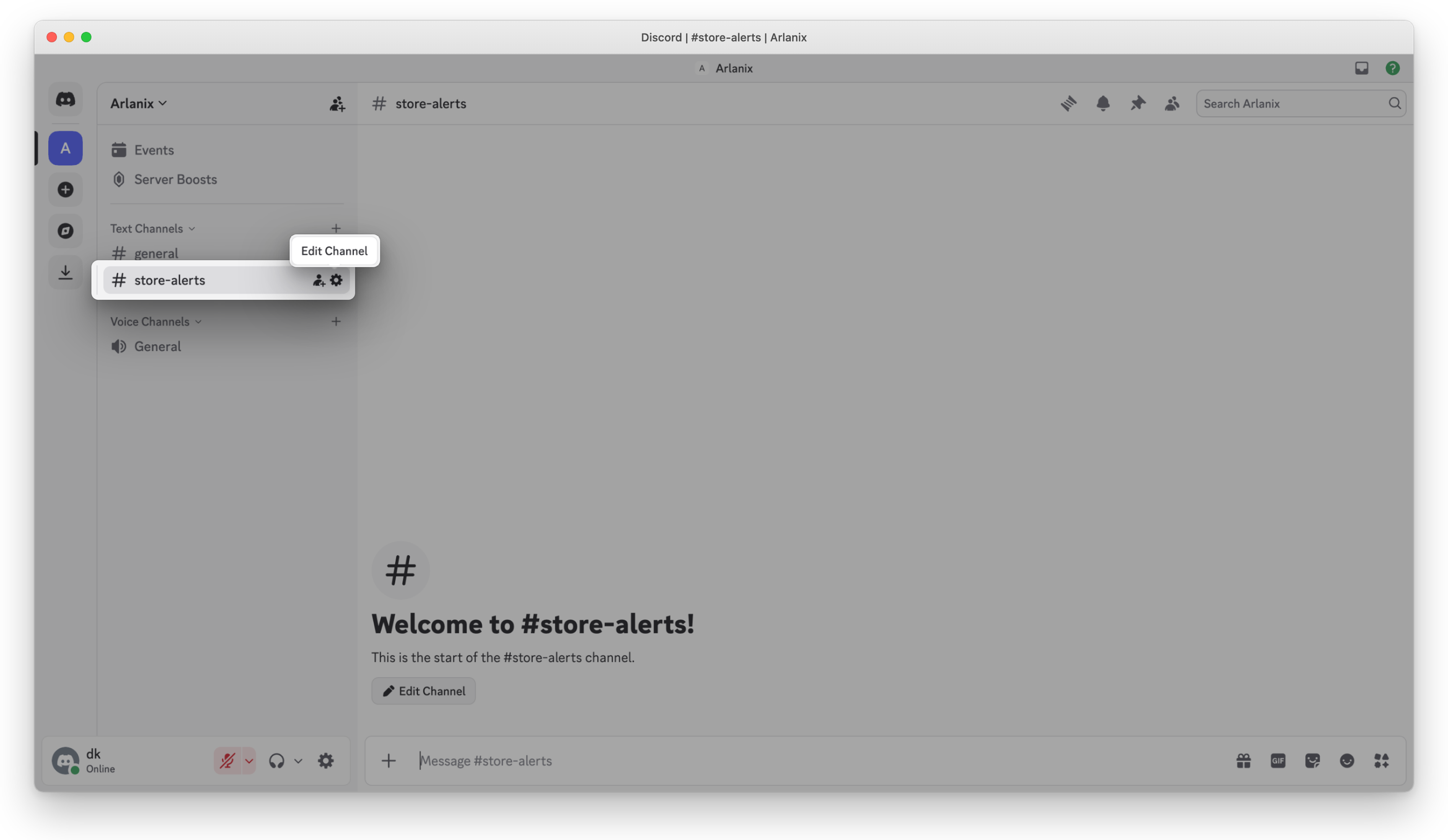
In Discord, on the server, point to the channel, for example #store-alerts, and click the gear icon, Edit Channel.
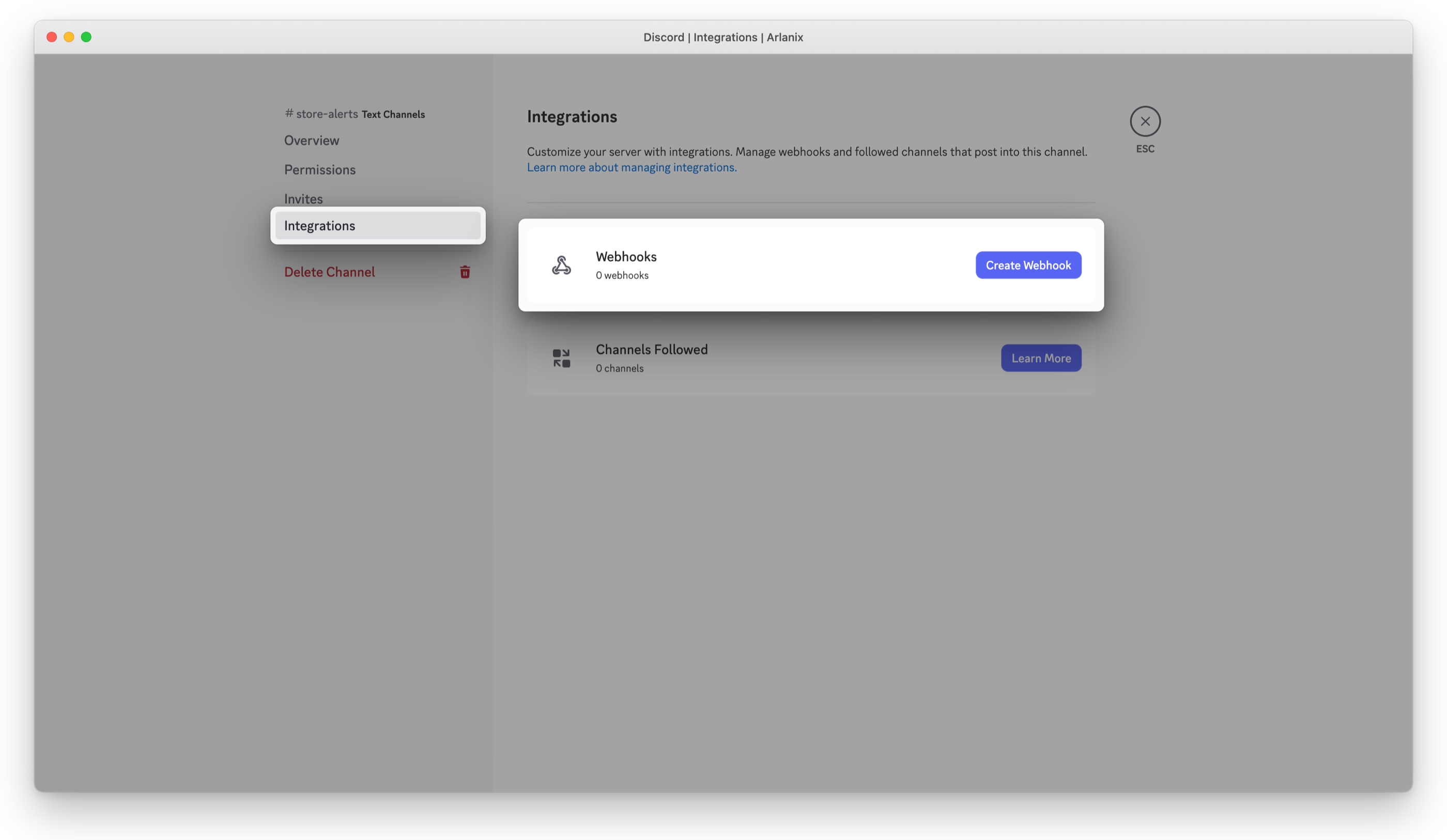
Open Integrations and click Create Webhook. If the channel already has webhooks, Discord shows Webhooks instead. Open it and click New Webhook.
Discord makes the webhook at once and gives it a name, for example Spidey Bot. Rename it, for example to Store alerts. The messages appear in the channel under this name.
Click Save Changes.
Click Copy Webhook URL. It looks like
https://discord.com/api/webhooks/…. Keep the URL secret, like a password. Anyone who has it can post to the channel.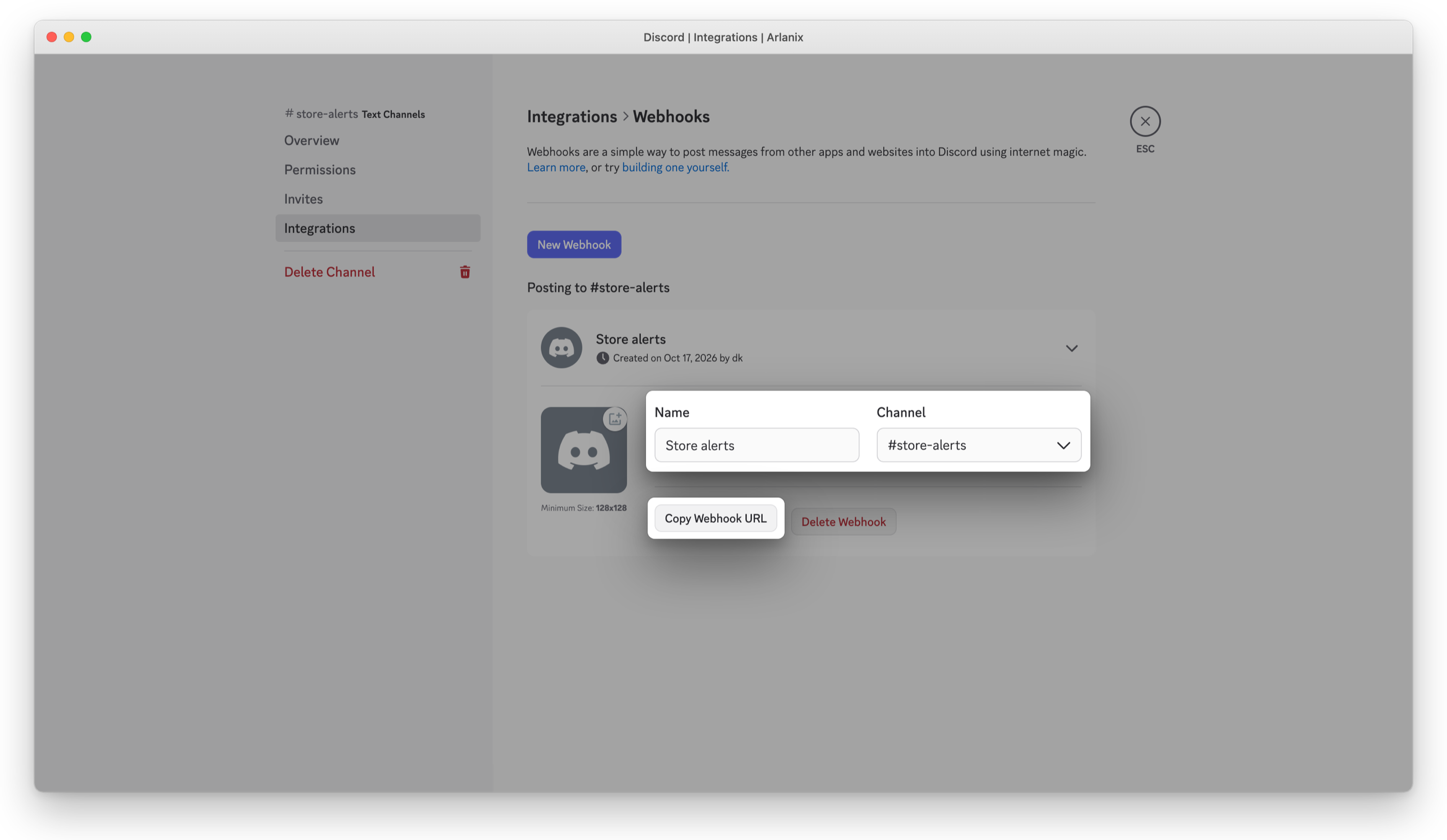
2. Subscribe the channel
Add a subscription on the topic's page or in Subscriptions. See Subscriptions.
Under Delivery, set Delivered by to Discord.
Paste the Webhook URL. The store keeps it encrypted and never shows it again.
Enter the Channel, for example #store-alerts. The grid and the Message Log show this name, because they never show the webhook.
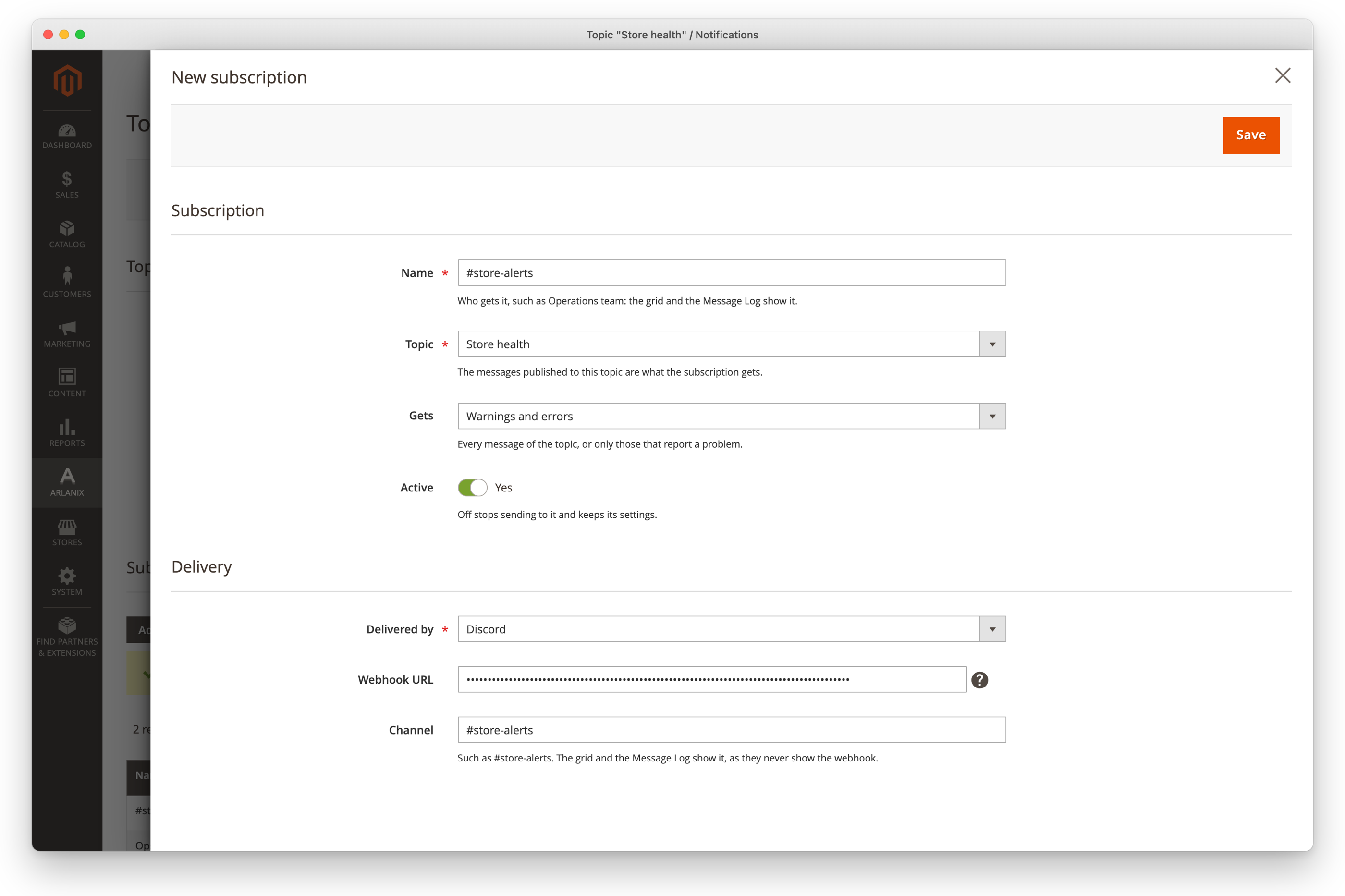
Save the subscription.
Click Send test message. The test message arrives in the channel.
To change the webhook later, paste the new one. To keep the stored webhook, leave the field empty.
A topic can have only one subscription to the same webhook.
How messages look
Each message is sent as one card in the channel. A digest, several messages sent together, is also one card. It looks like this:
- The card's title is the subject.
- The text and the details follow.
- The card has a coloured edge for the severity: red for an error, orange for a warning, blue for info.
Discord limits the length of a card. If a digest is too long, it shows the messages that fit and ends with the number of the others, for example … and 3 more: see the Message Log. A single message that is too long is cut and ends with …. The Message Log keeps every message in full.
The messages never notify anyone. If a message's text contains @everyone or @here, Discord shows it as plain text.
When Discord refuses
When Discord refuses a message, its answer appears in Last delivery on the subscription, and on the message's page in the Message Log. The common answers and what to do:
| Discord says | What to do |
|---|---|
| Unknown Webhook, Invalid Webhook Token | The webhook was deleted, or its URL is incomplete. Make a new webhook and paste it into the subscription. |
| Discord asked to wait … second(s) | Too many messages went to the channel at once. The store waits as long as Discord asks, one hour at most, and then sends the rest. In the first 24 hours after a message is published, this wait does not use up any of its delivery attempts. |
The store tries a failed delivery again by itself. See When a delivery fails. To send it again now, click Retry now on the message's page in the Message Log. It is sent within a minute or so.