A payment module is updated on Friday afternoon. The card form still shows, but every payment fails. The storefront loads, shoppers fill their carts, and nobody on your side sees an error. On Monday someone opens the admin and wonders why the weekend was so quiet.
A checkout breaks for many reasons: an update to a payment or shipping module, an expired API key, a JavaScript error after a deploy, a CDN that stops serving the checkout's files. Each one costs orders until someone notices, and Magento has no message that says orders have stopped.
Where Magento shows your orders
Magento shows orders in a few places. Each one waits for you to look:
- The dashboard. Last Orders lists the newest orders. With Enable Charts on, under Stores > Settings > Configuration > Advanced > Admin > Dashboard, a chart shows them over time.
- Sales > Operations > Orders. The grid of all orders, newest first by Purchase Date, with a filter for the store view.
- Reports > Sales > Orders. It reads statistics that a cron job rebuilds once a night, or that you refresh under Reports > Statistics > Refresh Statistics. Today's orders are not in it until then.
All three answer the question "how many orders came in?" if someone asks it. None of them asks it for you. When you suspect a problem, the Orders grid shows when the last order came in, and a test order on the storefront shows whether the checkout works.
The payment failed email
Magento has one email for checkout trouble: Payment Failed Emails, under Stores > Settings > Configuration > Sales > Checkout. It goes to Payment Failed Email Receiver, the store's General Contact by default, with the customer, the cart and the error.
It is worth checking that it reaches someone, but it covers less than it seems:
- Magento sends it when a payment method built on its payment gateway fails while the order is placed, in some of PayPal's error handlers, and when the multi-address checkout fails. Whether a payment module from elsewhere triggers it depends on how that module reports its errors.
- A declined card can send one too, including a customer whose card simply has no funds. On a busy store such emails come often, and people learn to ignore them.
- Nothing is sent when the one-page checkout breaks in the browser: a JavaScript error, a step that won't go on, a page that doesn't load. The shoppers just leave.
- Nothing is sent when shoppers stop coming at all, because the storefront is down or the traffic is gone.
Why a simple alert doesn't work
The first idea is an alert when no order has come in for an hour. On a store with few night-time orders, it fires every night, when an hour without orders is normal. On a busy store, an hour can be a lot of lost orders. And a fixed threshold that fits Tuesday at noon doesn't fit Sunday at 7 in the morning.
What counts as "too few" depends on the hour and the weekday. So the number to compare with is the number of orders this store usually gets at this time of the week.
How Orders stopped decides
Multichannel Store Notifications has a monitoring module with an Orders stopped event. Every five minutes it counts each store view's orders in the last 10 minutes and compares them with the same 10 minutes of the same weekday in the last four weeks: Tuesday 12:00 to 12:10 against the four Tuesdays before. The usual number is the median of those weeks, so one week with a sale or an outage moves it little.
When a store view gets fewer than a quarter of its usual orders, the check looks at the carts shoppers changed in those minutes, compared in the same way:
| Carts | Reason | What to look at |
|---|---|---|
| At least 60% of the usual | Shoppers fill carts, no orders come | The checkout, a payment method or a shipping method. Place a test order. |
| Below 20% of the usual | Shoppers are gone | The storefront itself, its DNS or CDN, or the traffic that brings shoppers. |
| In between | Nothing is sent | Fewer shoppers than usual can be a quiet day. |
The carts are a clue, not proof: the check counts orders and changed carts, not payment attempts or visits. The message gives the numbers, such as Orders on Default Store View have stopped while shoppers fill carts: 0 in the last 10 minutes, where 7 come at this time of the week. or Shoppers have gone from Default Store View: 0 orders and 2 carts in the last 10 minutes, where 7 and 40 come at this time of the week.
Nothing is sent either when the store has kept too few weeks of carts to compare.
By default it is sent only after two checks in a row see the stop, so one quiet window doesn't send it. When two checks in a row no longer see one, a second message says Orders on Default Store View come in again. This message has the severity Info, so it reaches only subscriptions that take info messages. In between, nothing more is sent, however long the stop lasts.
Set it up
- Make a topic such as Store health and subscribe the people who can act on a broken checkout, in a channel they watch, evenings and weekends too: often a chat such as Slack or Telegram. See Topics and Subscriptions.
- Open Arlanix > Notifications > Rules and click Add rule.
- Name it Orders stopped, choose the Event Orders stopped and the Topic Store health. With no condition it sends the stops of every store view the check watches. To send one store view's only, add the condition Store view is and choose it; for several, add a condition for each and change ALL to ANY.
- Click the arrow next to Save, then Save & Close.
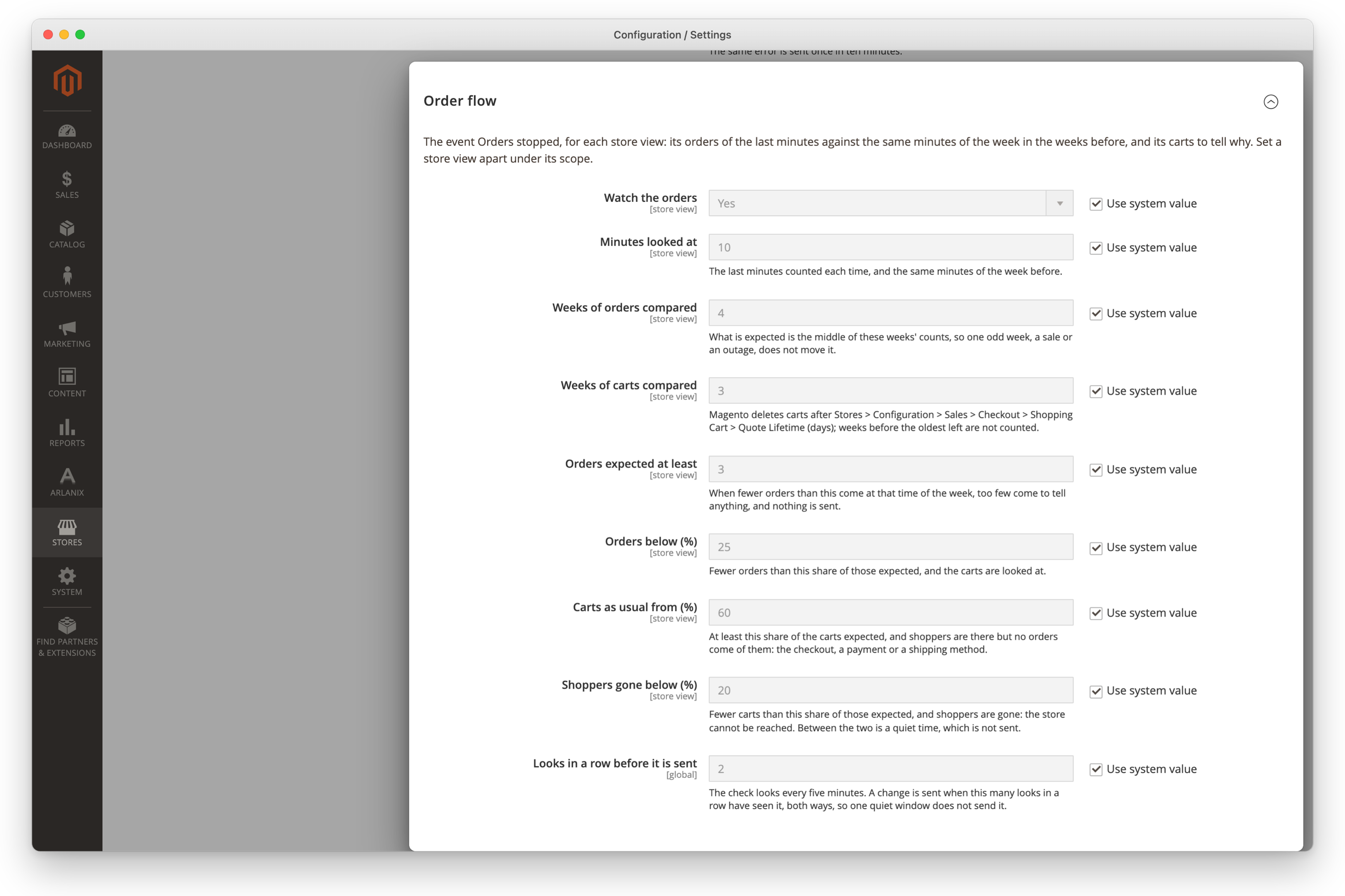
The check itself is on from the start. Its numbers are in the Order flow group under Stores > Settings > Configuration > Arlanix > Notifications. Each store view can have its own, except Looks in a row before it is sent, which is one value for all.
Add a rule for Application error to the same topic. It reports errors the store writes to its log, Critical and above by default under Application errors from. When a broken checkout leaves such an error, the message is a clue to where to look.
Stores with fewer orders
The check needs enough orders to tell a real stop from chance. If a store view usually gets fewer than 3 orders in those 10 minutes at this time of the week, nothing is sent. That is about 18 orders an hour, so with the defaults a smaller store is checked only in its busiest hours, or never.
For a smaller store view, choose it under Scope, clear Use Website next to Minutes looked at, set it to 60 and click Save Config. Then 3 orders an hour are enough, but a stop is noticed only after that hour has passed, plus the checks that confirm it. A store view with very few orders can be left out with Watch the orders set to No.
A new store view is compared with weeks when it had few or no orders, so nothing is sent until those weeks give a usual number. Carts are compared over the last three weeks because Magento deletes carts after Quote Lifetime (days), 30 by default; keep Weeks of carts compared within it.
What it doesn't catch
- One payment method out of several. If card payments fail but bank transfers and PayPal still work, the orders may not fall below a quarter of the usual. The payment failed email, if the method sends it, or an Application error may tell you.
- A slow decline. Orders that fall by half over a month are a matter for reports, not an alert.
- Weeks across a clock change. The check compares exact weeks, so after daylight saving time starts or ends, the weeks from before the change are compared one hour off until they drop out of the comparison.
Orders that stop in the manual has every setting, and the developer docs say exactly what is counted.
Looking or being told
| Magento alone | Multichannel Store Notifications | |
|---|---|---|
| Orders stop | Seen when someone opens the dashboard or the orders | Orders stopped, by default after two checks five minutes apart |
| Why | Found by testing the checkout | Carts give a clue: shoppers there and orders failing, or shoppers gone |
| A failed payment | Payment Failed Emails, for the methods that trigger it | Not an event of its own; the drop in orders is |
| Orders come back | Seen the same way | A second message, with severity Info |
| Where you hear of it | The admin, or the General Contact's email | Email, Slack, Telegram, Discord, Teams, WhatsApp or a webhook |
| Cost | Built into Magento | An extension from Adobe Commerce Marketplace |
Multichannel Store Notifications runs on Magento Open Source or Adobe Commerce 2.4.7 or later, with PHP 8.1 to 8.5 and a working cron. If cron stops, the check stops too; Magento Cron Not Running? shows how Cron stopped reports that, and 7 Alerts Every Magento Store Should Set Up lists the other alerts worth having.