Google Shopping shows products from Google Merchant Center, and Merchant Center usually learns about them from a feed: a file with one row per product, in Google's fields, that Google fetches from a link every day. Magento does not make that file.
What Magento has
Magento 2.4.7 comes with four Google modules: Google AdWords, Google Analytics, Google Gtag and Google Optimizer. They track visits, conversions and page experiments. None of them sends products anywhere.
The closest thing to a feed is the catalogue export:
- Open System > Data Transfer > Export.
- Set Entity Type to Products and Export File Format to CSV.
- Click Continue. The export is queued, and the file appears in the list below once the queue has run it.
The file is meant for importing products back into a Magento store, so it is in Magento's columns, not Google's:
| Google wants | The export has |
|---|---|
id |
sku, which works as an ID |
title, description |
name, and description with its HTML |
link: the product page's full address |
url_key: the last part of the address |
image_link: the picture's full address |
base_image: a path inside pub/media/catalog/product |
availability: in_stock or out_of_stock |
is_in_stock (1 or 0) and qty |
price with its currency, as a visitor sees it |
price, with special_price and its dates in other columns |
You could turn it into a feed with a spreadsheet: rename the columns, build each link and picture address, work out each product's stock and sale price, then upload the result to Merchant Center. For a dozen products that rarely change, that is a reasonable afternoon's work.
After that, the file goes out of date. Prices change, products sell out, new ones come in, and the file in Merchant Center does not follow. Magento Open Source cannot run the export on a schedule or publish it at a fixed address, so every update is the same afternoon again. When the feed says a product is in stock and its page says it is sold out, Merchant Center flags the mismatch, and products that keep mismatching are disapproved.
What Google needs from the feed
Every product needs id, title, description, link, image_link, availability and price. Most also need brand. Send the barcode in gtin when the product has one; without one, Google asks for the maker's part number in mpn. Products you make yourself take your shop's name as the brand and your SKU as the part number; only one-of-a-kind or made-to-order goods with no part number at all send identifier_exists set to no. Clothes need more, such as colour, size, gender and age group, depending on the country. Google picks a category for each product itself; google_product_category sets it when its guess is wrong.
The values have to match the product page: the same price, with tax where the country shows prices with tax, and the same stock. Google checks pages against the feed and disapproves products that do not match.
Shipping costs are usually set once in Merchant Center's settings rather than in the feed. Set them for the countries you sell to, and verify and claim your store's website there, before the first fetch: products without shipping are disapproved. The return policy belongs on your store's own pages; adding it to Merchant Center is optional.
Set up a Magento product feed
Arlanix Product Feed builds the feed from the catalogue on a schedule and publishes it at a fixed address on your store, where Merchant Center fetches it. Your first feed sets up a Google Shopping feed with a screenshot for every step. In short:
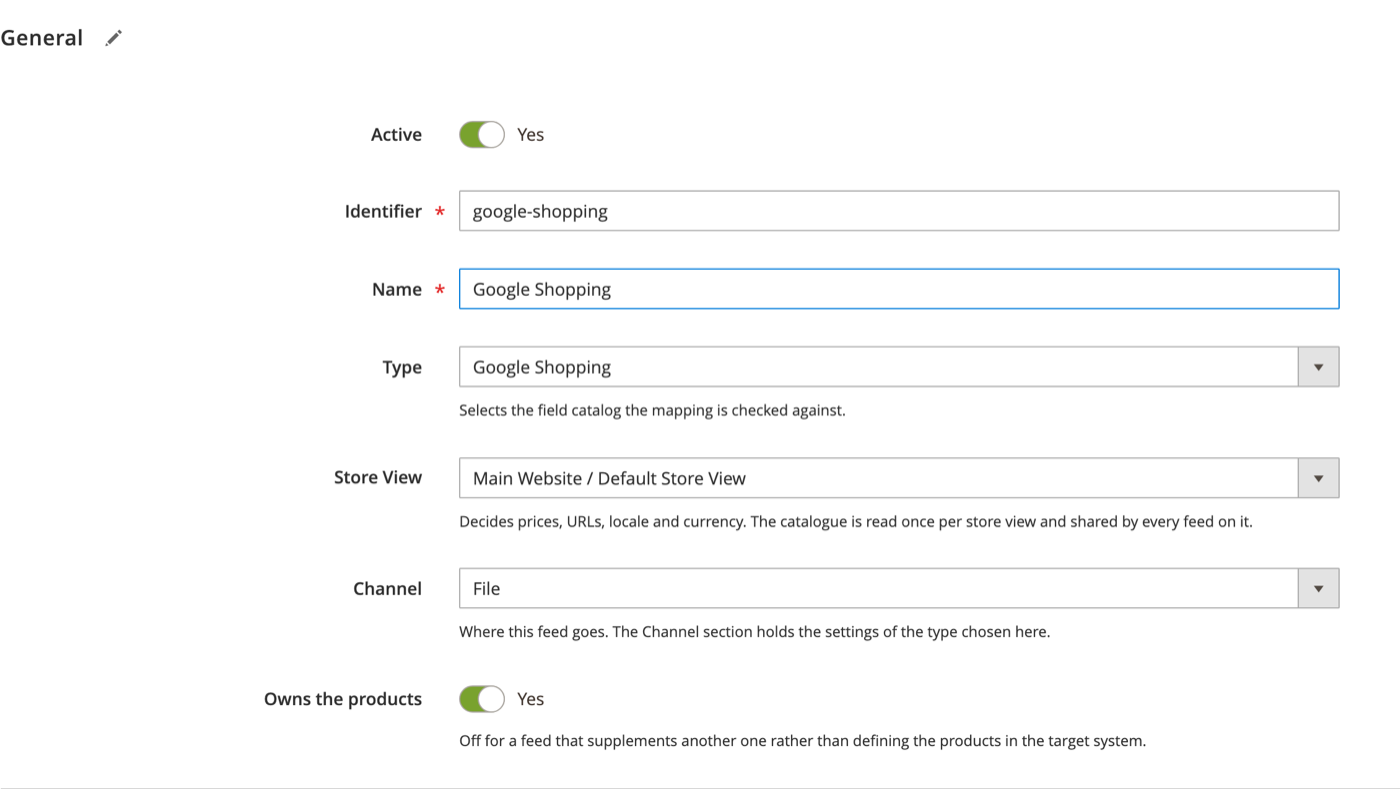
- Under Arlanix > Feeds, click Add Feed. Give it an Identifier, such as
google-shopping, set Type to Google Shopping, and choose the Store View whose prices, currency and links Google should get. Each store view you advertise gets a feed of its own, in the language and currency of its Merchant Center source.
In Products, choose which products go in: for example Enable Product is Enabled, Visibility is Catalog, Search, and Stock status In stock. That sends one row per product as the catalogue shows it. Google wants each size or colour of a configurable product as an item of its own, grouped by its parent: the sizes and colours recipe sends them that way.
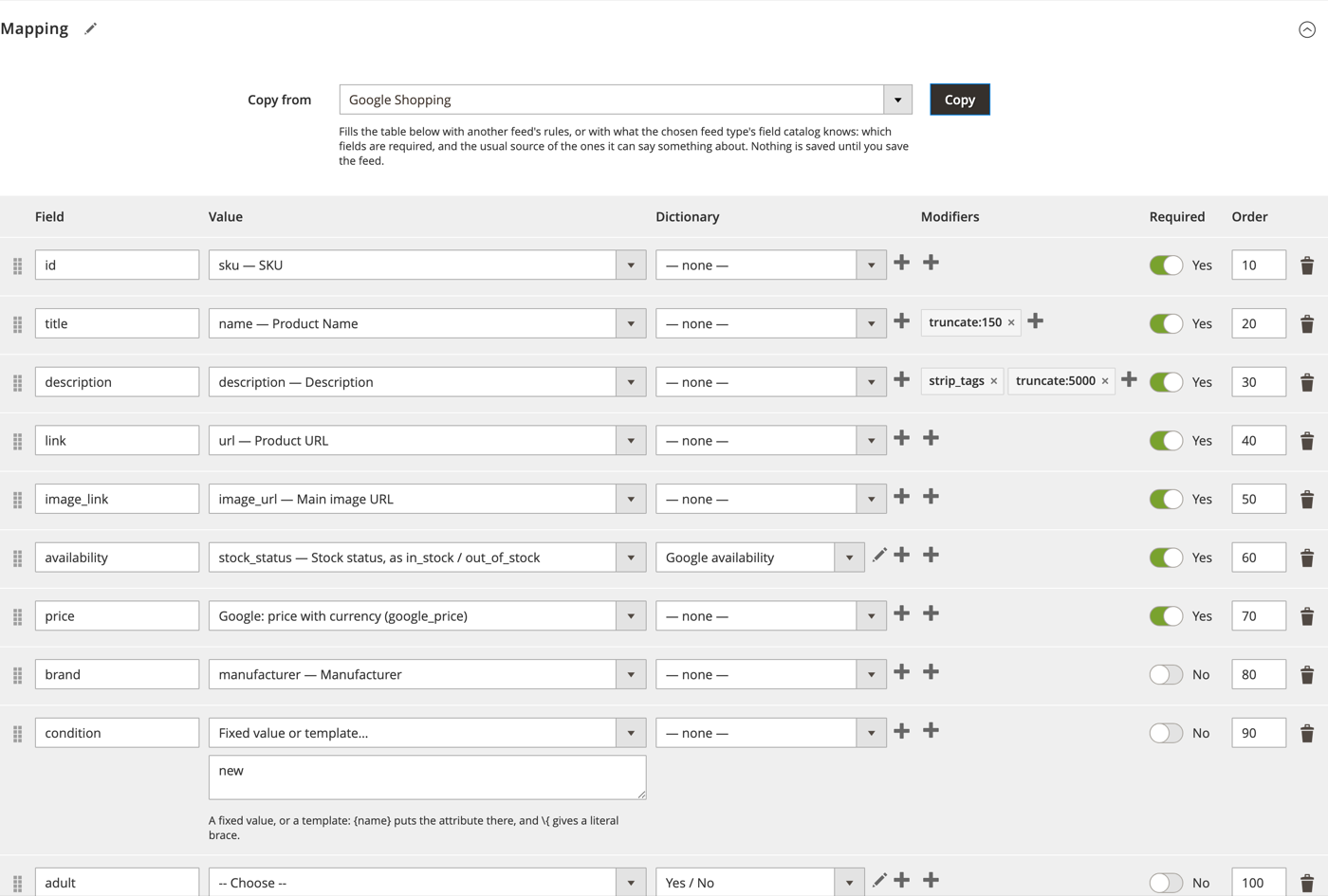
In Mapping, choose Google Shopping under Copy from and click Copy. The required fields arrive mapped, from the SKU as
idto the price a visitor sees. Check that brand comes from the attribute that holds your brands, and with Add field addgtinandmpnrows for the attributes that hold barcodes and part numbers.
In Google categories, pick a Default Google category from Google's list, and assign more specific ones to your Magento categories if you sell more than one kind of thing. They replace Google's own guess.
In Channel, leave File and choose XML, the RSS format Google's own examples use. After you save, the URL field shows the file's address.
In Schedule, choose Every day at 03:00. Google fetches the file once a day, so the run only has to come before the fetch.
Click Save, then run it once: in the feed grid, open Select on its row and click Generate. A minute or two later the row shows the feed's health and a link to the file with its size.
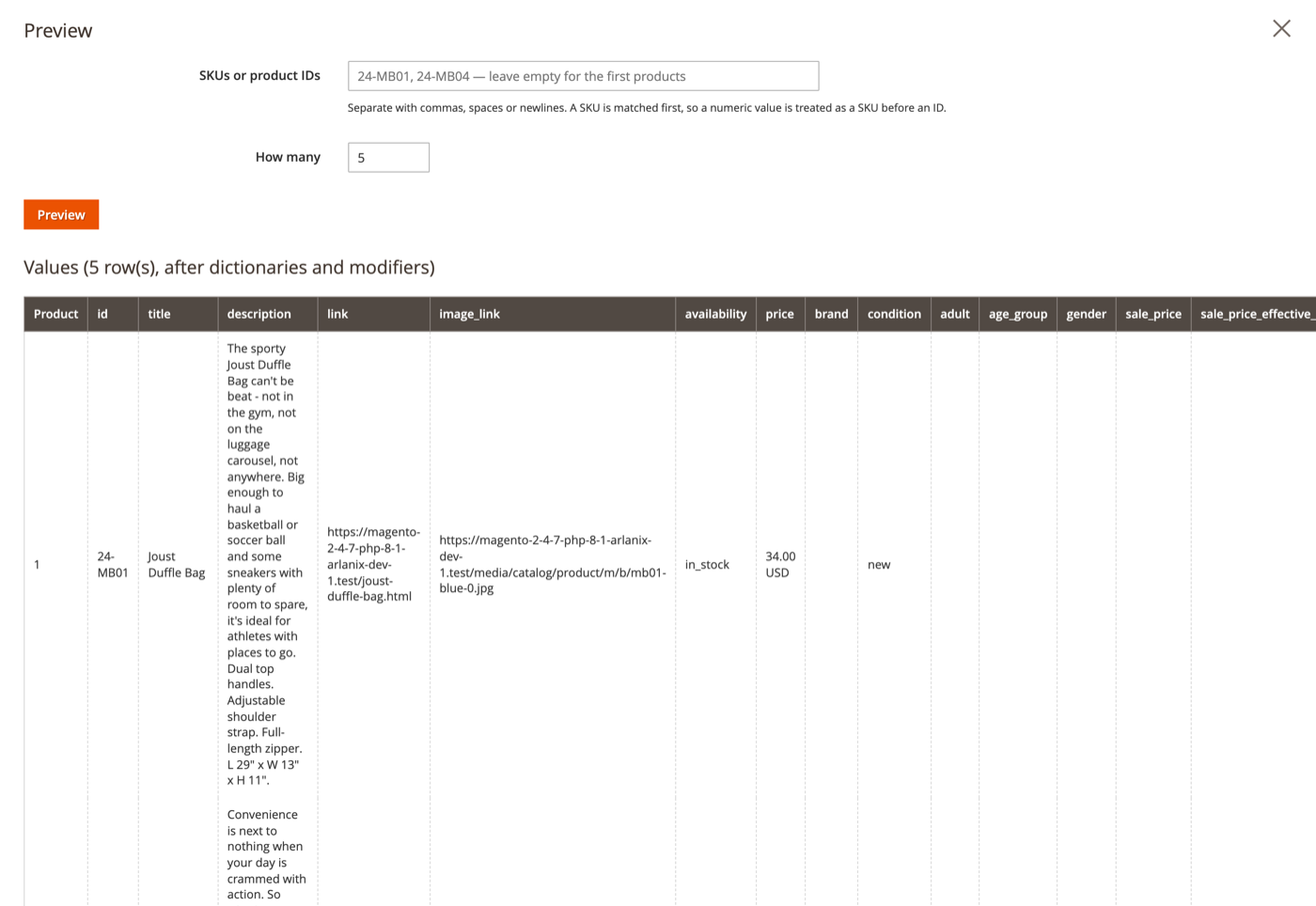
If some products were left out, Details under Health lists them with the reason for each. Preview shows the row of any SKU exactly as Google will read it.
Give the file to Merchant Center
In Merchant Center, open Data sources, click Add product source, choose Add products from a file, then Enter a link to your file. Paste the feed's URL and choose when Google should fetch it: an hour after the feed runs, such as 04:00 for a feed that runs at 03:00, so Google always gets a fresh file.
From then on, the feed runs every night and Google fetches it every morning. A price changed in the admin reaches Google the next day without anyone touching a file.
Google reviews every product after the first fetch, which takes from a few hours to a few days. Some products often come back disapproved or limited at first, usually for a missing setting in Merchant Center or a barcode the feed does not send. When Google rejects products lists the usual reasons and where each is fixed.
A file, SFTP or the Merchant API
A file on your store is the simplest way, and it is enough for most stores. There are two others, for when it is not:
| Channel | How it reaches Google | Choose it when |
|---|---|---|
| File | Google fetches the file from your store | Almost always: it needs no Google account in Magento |
| SFTP | The feed uploads the file to Google's SFTP server | Google cannot fetch the file from your store; product pages must still be public |
| Google Merchant Center (API) | Changed products are sent as they change, without a file | Prices or stock change during the day, faster than a daily fetch follows |
All three use the same mapping. Choose how a feed reaches Google sets up each one.
Which one to choose
| Magento's export | A scheduled feed | |
|---|---|---|
| Fields | Magento's, renamed by hand | Google's, mapped once |
| Updates | By hand, each time | On its own: daily, or as products change with the API |
| Where Google gets it | An upload | A link on your store, SFTP or the API |
| A product missing a required value | Found by Merchant Center | Left out of the file, with the reason |
| Cost | Built into Magento | An extension from Adobe Commerce Marketplace |
For a few products that never change, an export and a spreadsheet will do. For a catalogue that changes every week, a feed that runs on its own keeps Merchant Center in step with the store. The same feed types also make catalogues for Meta, TikTok, Pinterest, Snapchat and Microsoft Shopping: see Feeds for Meta, TikTok, Pinterest, Snapchat and Microsoft.
Arlanix Product Feed runs on Magento Open Source 2.4.7 or later, with PHP 8.1 to 8.5 and a working cron.